In short
- An on-call schedule template needs more than names and dates. Put the exact handoff time with its time zone, a primary and a backup for every week, and how many minutes pass before a page moves to the backup.
- Show who is on call right now at the very top, so nobody has to read the table at 2 AM.
- Keep personal phone numbers off the page. Point people to the paging app or a team line instead.
- Put the page at one link. When people swap weeks, fix the page, and the same link shows the new order.
We built a one-page on-call schedule for a fictional platform team, Northgate Apps. It has four weeks of primary and backup names, a Monday 10:00 AM Eastern handoff, a three-step escalation, and a swap log. We pasted it into NOS, shared the link, and then handled a real-looking problem: two people traded the week of December 7. We changed the names on the page and opened the same link again to check the new order.
You can download the example page and replace the names with your own.
What should an on-call schedule template include?
Most free templates give you a grid of names and days. That is the easy part. The calls that go wrong usually come from what the grid leaves out. Here is what ours has, and why.
- Who is on call now. A box at the top with this week's primary and backup. A support agent at night should not have to find today's row.
- Exact handoff time and time zone. "Weekly" is not enough. Ours says Monday 10:00 AM ET, start and end. If your team spans time zones, write one zone and stick to it.
- A primary and a backup. The backup is who gets the page when the primary is in a tunnel or asleep through the alarm.
- Escalation with minutes. "Escalate if no response" leaves everyone guessing. Ours says 10 minutes to the backup, then 10 more to the engineering manager.
- How to reach on-call. The paging app, a team channel, and a shared team line. Not anyone's personal cell.
- Page now or wait. Two or three plain examples of each. This cuts the 3 AM pages for a single user's bug.
- A swap log, an owner, and a last-updated date. When the table and someone's memory disagree, the log settles it.
How we built and shared ours
We wrote the page as a single HTML file. If you use an AI chat to make yours, ask for one file with the styles inside it and no outside images. Then copy everything it gives you.
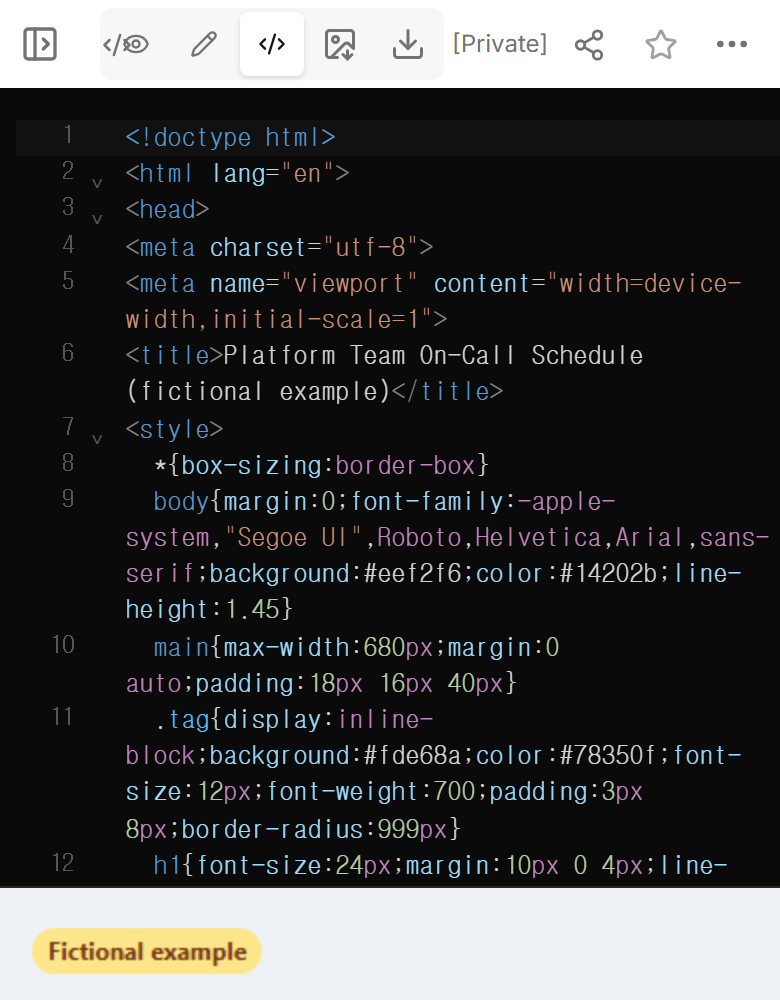
In NOS, the Code view holds the HTML. The live page shows right under it, so you can spot a broken table before anyone else sees it.
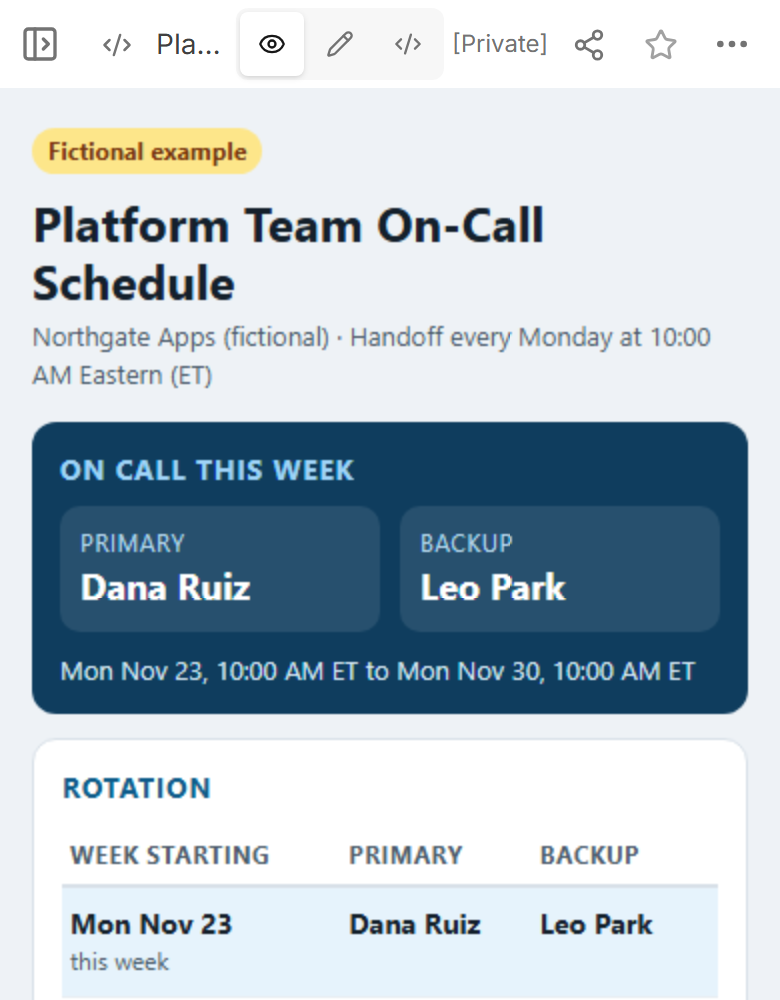
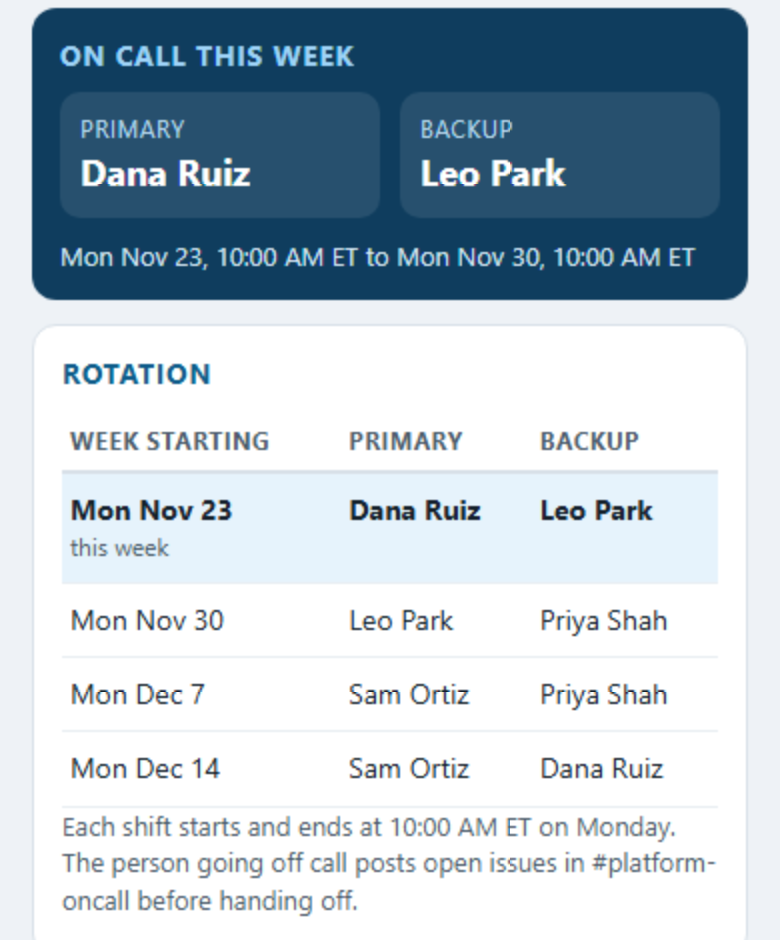
View mode shows the page the way your team will see it. The dark box answers the main question first: Dana Ruiz is primary and Leo Park is backup until Monday, November 30 at 10:00 AM ET.
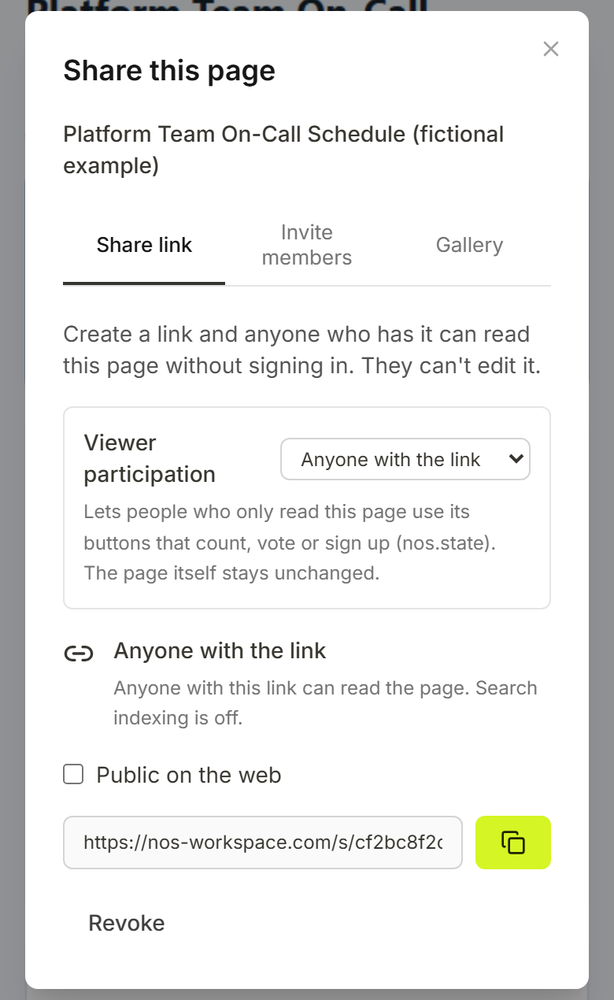
Share makes the link. The panel says anyone who has the link can read the page without signing in, and they can't edit it. It also says search indexing is off for that link. We left Public on the web unchecked, since an on-call page is for the team, not for search engines.
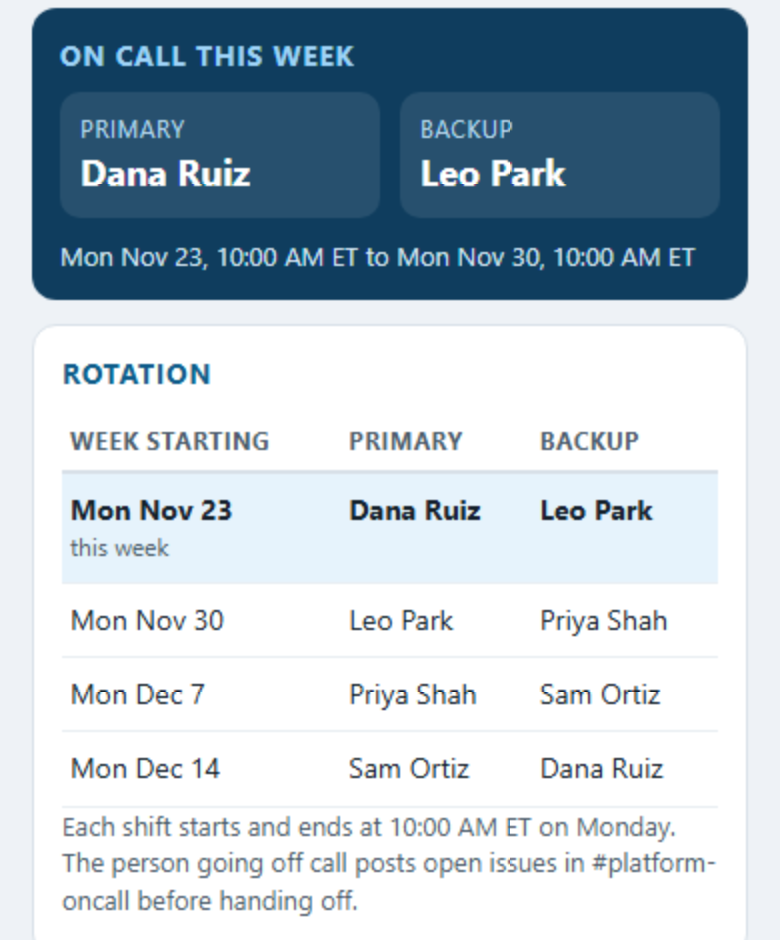
Then we opened the share link at phone width. This is the view most people get when they tap it in a team chat. The week of December 7 still shows Priya Shah as primary and Sam Ortiz as backup.
What happens when two people swap a week?
Swaps are where most on-call sheets fall apart. Someone trades a week in a chat thread, and the shared file never hears about it. In our example, Priya and Sam agreed to trade the week of December 7. So two cells had to change, and the swap log had to say Approved.
We started in Edit mode, where you click text on the page and type over it. We replaced Priya Shah with Sam Ortiz in the Primary column. Edit mode changes one piece of text at a time, so for a moment the table showed Sam in both columns. That half-done state is the one to avoid sharing. Finish both cells before you tell anyone the swap is done.
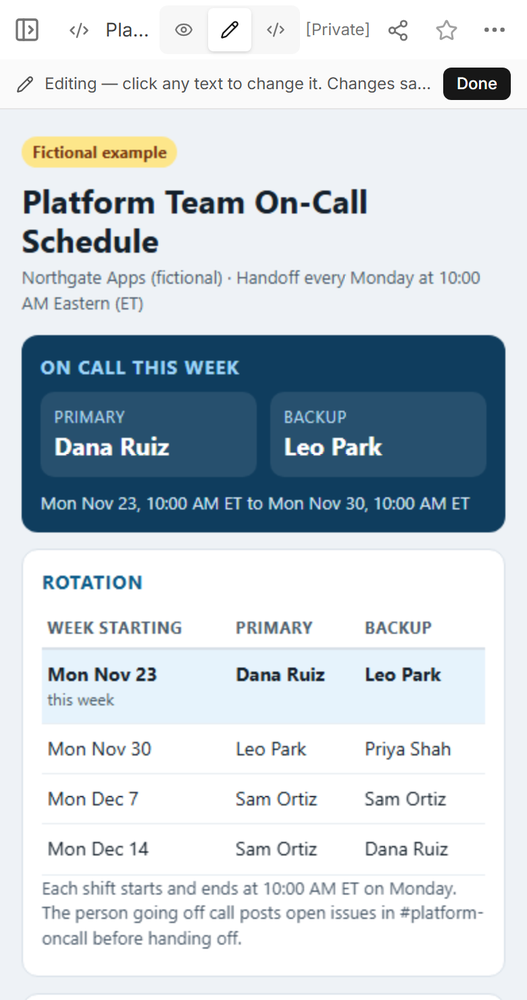
After we clicked Done, a version label (v2) appeared in the top bar. We fixed the backup cell and the swap status in Code view. One thing tripped us up there. After an Edit mode change, the HTML had extra labels inside every tag, so searching for a tag name was useless. Searching for the visible words, like "Sam Ortiz" or "Requested", found the right line right away.
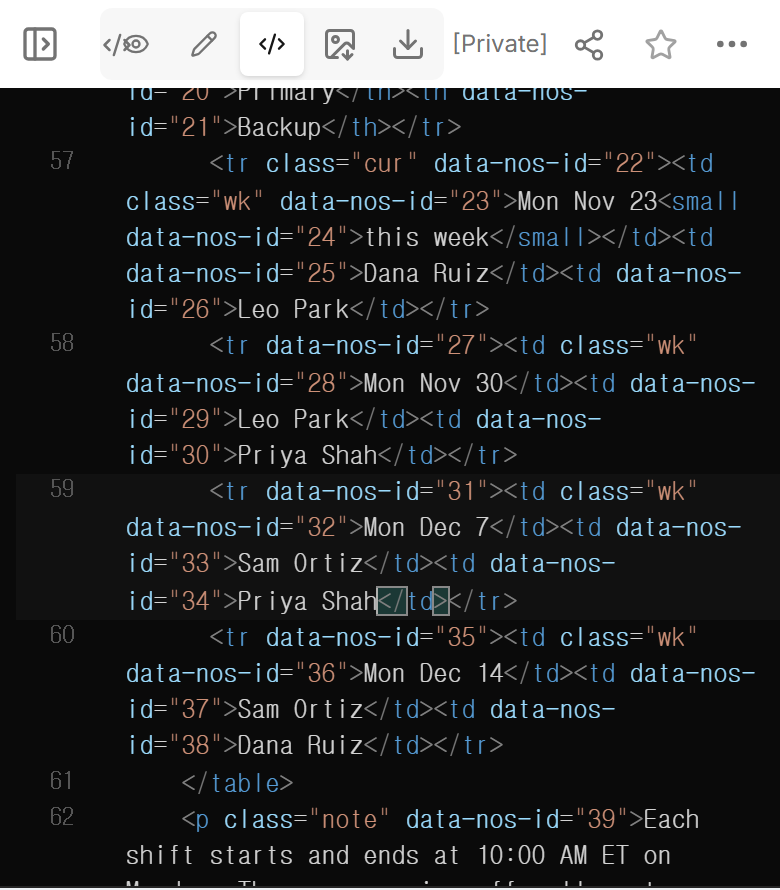
We also changed the swap status from Requested to Approved, and its color class from the amber style to the green one. Then we opened the same share link again. No new link, nothing to resend. The December 7 row shows the new order.
Farther down the page, the swap log now says Approved in green.
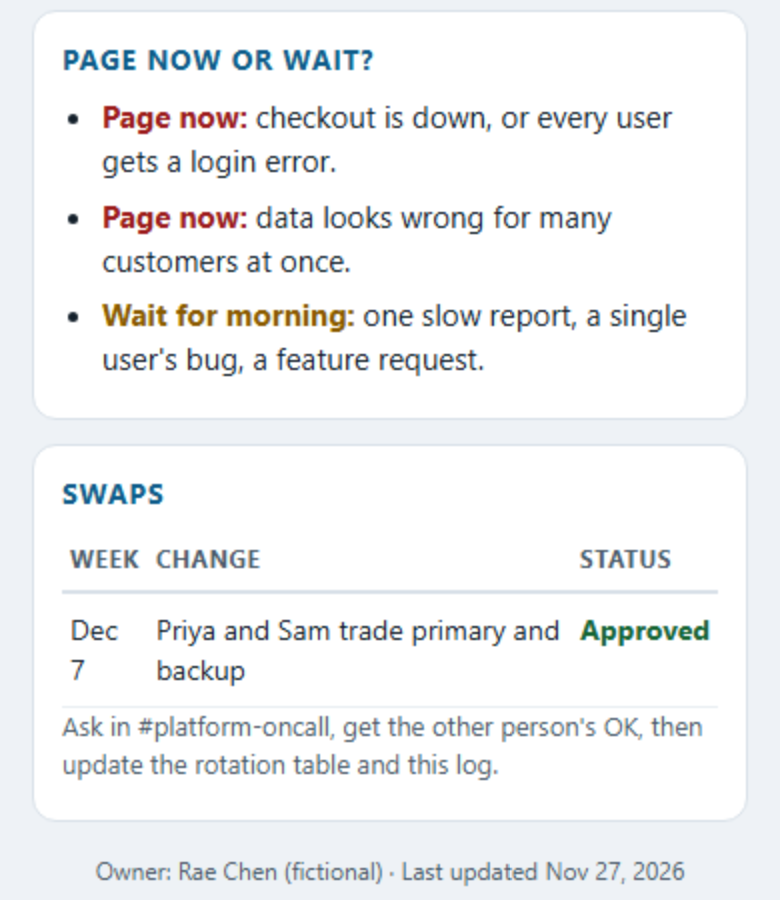
One thing we missed: the footer still says "Last updated Nov 27, 2026." We changed the page that same day, so it happened to be right. On a real team, update that date with every swap.
How do you make an on-call rotation schedule?
- Pick the shift length. We used one week. The patterns in Better Stack's guide also run in whole weeks. If your team gets paged a lot, shorter shifts spread the load.
- Pick a handoff time when both people are working. We chose Monday 10:00 AM so the person going off call can pass on open issues face to face or in chat.
- Pair each primary with a backup. Make this week's backup next week's primary. Then the backup already knows what happened.
- Write the escalation in minutes. Name the last person in the chain, usually a manager.
- Count the weeks per person. With four people, each person is primary once and backup once every four weeks. With three, it comes around much faster.
- Add the swap rule before anyone needs it. Ours: ask in the team channel, get the other person's OK, then update the table and the log.
Can you use Excel or Google Sheets for an on-call schedule?
Yes, and a sheet is fine while you are planning the rotation. Sorting names and counting weeks is easier in a grid. The trouble starts when it becomes the thing people check at night. On a phone, a wide sheet means pinching and scrolling sideways to find one row. People also save copies, and old copies keep circulating after a swap. A one-page schedule at a single link fixes both: it reads top to bottom on a phone, and everyone opens the same version.
What are some on-call rotation schedule examples?
- Weekly primary and backup. Our example. Easy to read, and each person knows their weeks a month ahead.
- Weekdays and weekends split. One person covers Monday to Friday, another covers the weekend. You can then count weekends on their own and share them fairly.
- Follow the sun. Teams in different regions each cover their own daytime hours, so nobody gets paged at night. Better Stack's guide lists these patterns with the team size each needs.
When not to do this
- You need alerts routed automatically. A shared page tells people who is on call. It does not wake anyone up. If monitoring should call the primary and then the backup without a human in between, you need a paging tool. Keep the page as the human-readable summary, or skip it.
- The schedule drives pay or hours. On-call pay rules can differ by employer and by state. Track that in your time or payroll system, not on a shared page.
- The roster holds private details. Home addresses, personal cell numbers, or medical notes do not belong at a share link. Keep those in an HR system or a private employee contact list.
- Swaps happen daily. If the order changes every day, nobody will keep a page current. A tool built for overrides fits better.
Where NOS fits
NOS gives a single HTML page a share link that teammates open on a phone without signing in. You fix a name in Edit mode or in the code, and the link stays the same, so there is nothing to resend after a swap. On the Free plan you get three share links at once, and turning one off frees its slot. Current plans are on the pricing page.
Next steps: write down what on-call does once paged with an incident management SOP template, and record what happened afterward with an incident report template.