In short
Find the bridge’s reference station. Compare the event ID and kind on both records. Then carry the source date and clock time through its printed offset to the route offset. Leave the expected timestamp empty when the station, event, or time basis is unresolved.
Which row belongs to the bridge?
Start with the bridge reference, then set the route copy beside the station export. In our fictional June 2026 archive, Alder Reach Bridge (BR-17) points to SIM-01. The route sheet uses a fixed offset of -04:00. Each of its four rows calls for the listed event ID and a high-water prediction.
Keep the source edition and row citation beside the source station, event ID, kind, and timestamp. Copy the basis label and the offset in separate fields. NOAA’s documentation separates observations from predictions and lists GMT, local standard time, and daylight-adjusted local time as different settings. EasyTide’s FAQ describes a GMT+1 setting that does not automatically revert at the end of British Summer Time. Check the basis on the archived export itself.
- Completed four-row worksheet (HTML)
- Blank one-event worksheet (HTML)
- Bridge reference (CSV)
- Station event rows (CSV)
- Original route rows (CSV)
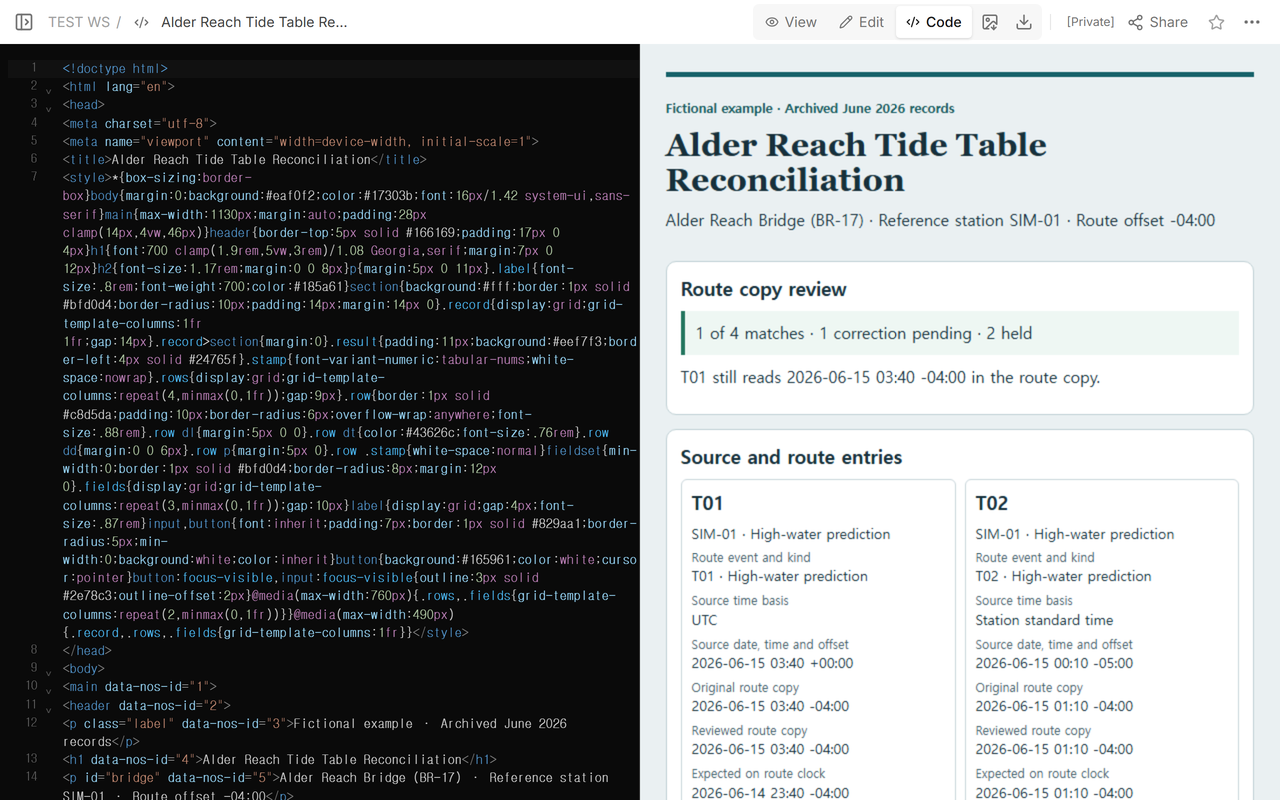
How does T01 move to the previous date?
Both records identify T01 as a high-water prediction at the bridge’s reference station, SIM-01. The source reads 2026-06-15 03:40 +00:00. The original route row reads 2026-06-15 03:40 -04:00. Subtract the source offset to get UTC, then add the route offset. For T01, 03:40 UTC − 04:00 is 2026-06-14 23:40 -04:00. Record June 14 as well as 23:40.
T02 starts at 2026-06-15 00:10 -05:00 in station standard time. Subtracting -05:00 gives 05:10 UTC on June 15. Adding -04:00 gives 2026-06-15 01:10 -04:00. The original route row already has that timestamp.
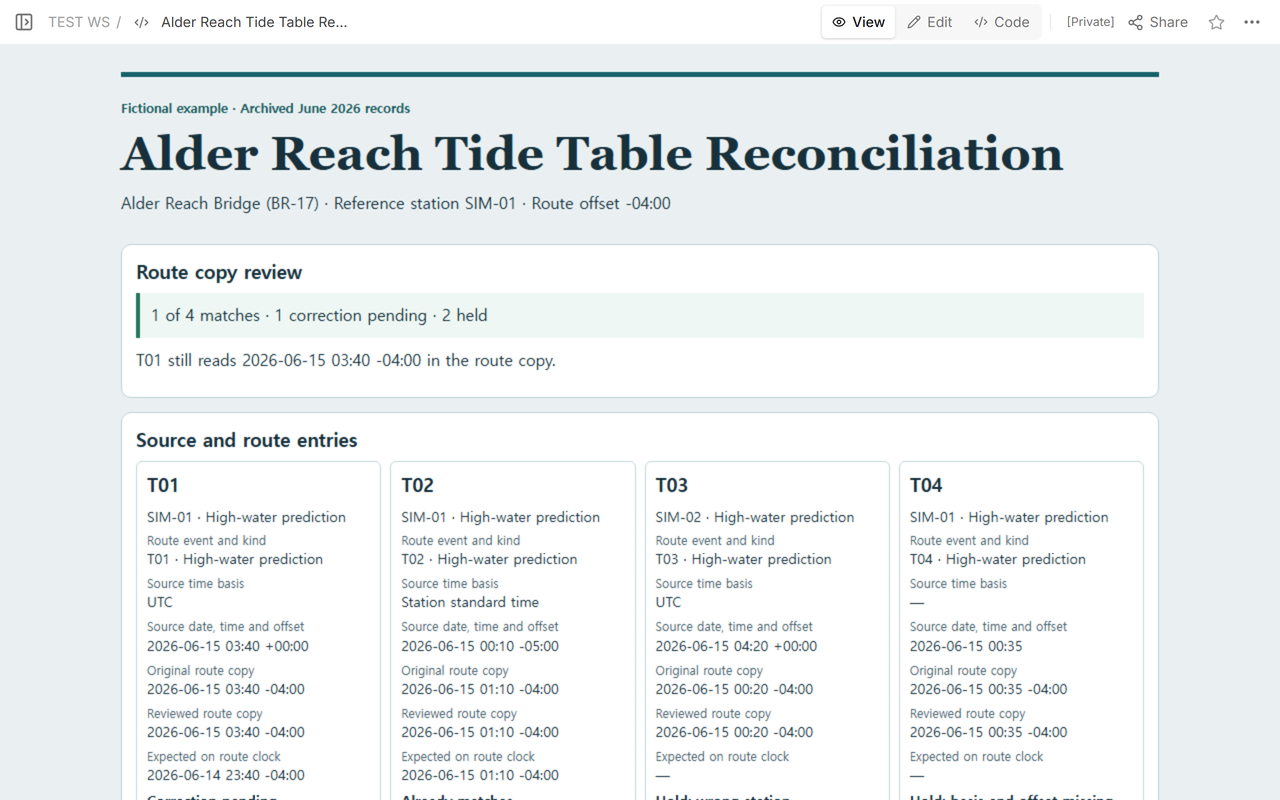
Which rows should stay on hold?
T03’s source is SIM-02. Its displayed clock could be made to agree with the route copy, but BR-17 names SIM-01. T04 gives 2026-06-15 00:35 with no source basis or offset. Keep the original entries and leave the expected route timestamp empty on both rows. If the station agrees but the event ID or kind differs, hold that row too.
In the blank worksheet, fill the two record groups and choose Check this row. Review the outcome, then enter the accepted timestamp or reason held. For T01, enter 2026-06-14 23:40 -04:00. The outcome and expected timestamp stay visible while you record your decision or add notes. If you edit either record group, check the row again and review your decision. Print the filled sheet or save it as a PDF before closing.
How do you verify the corrected route copy?
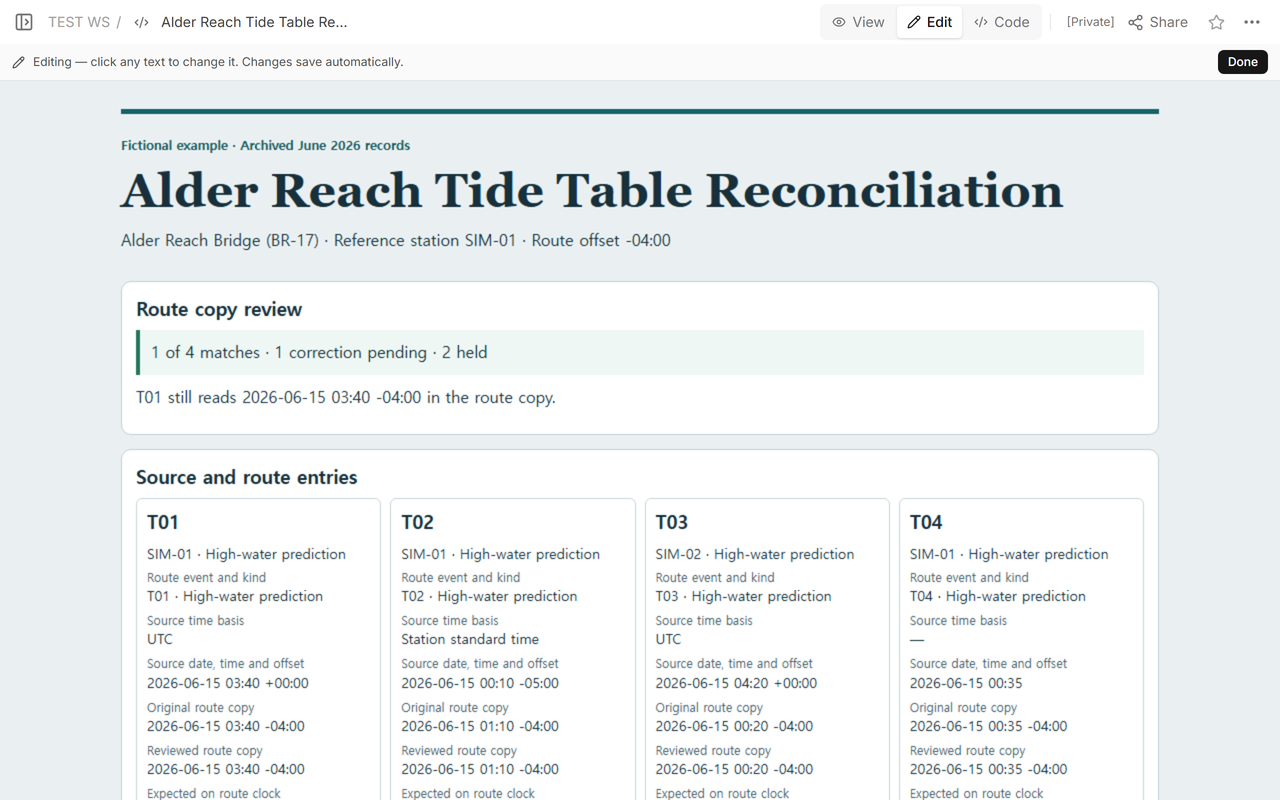
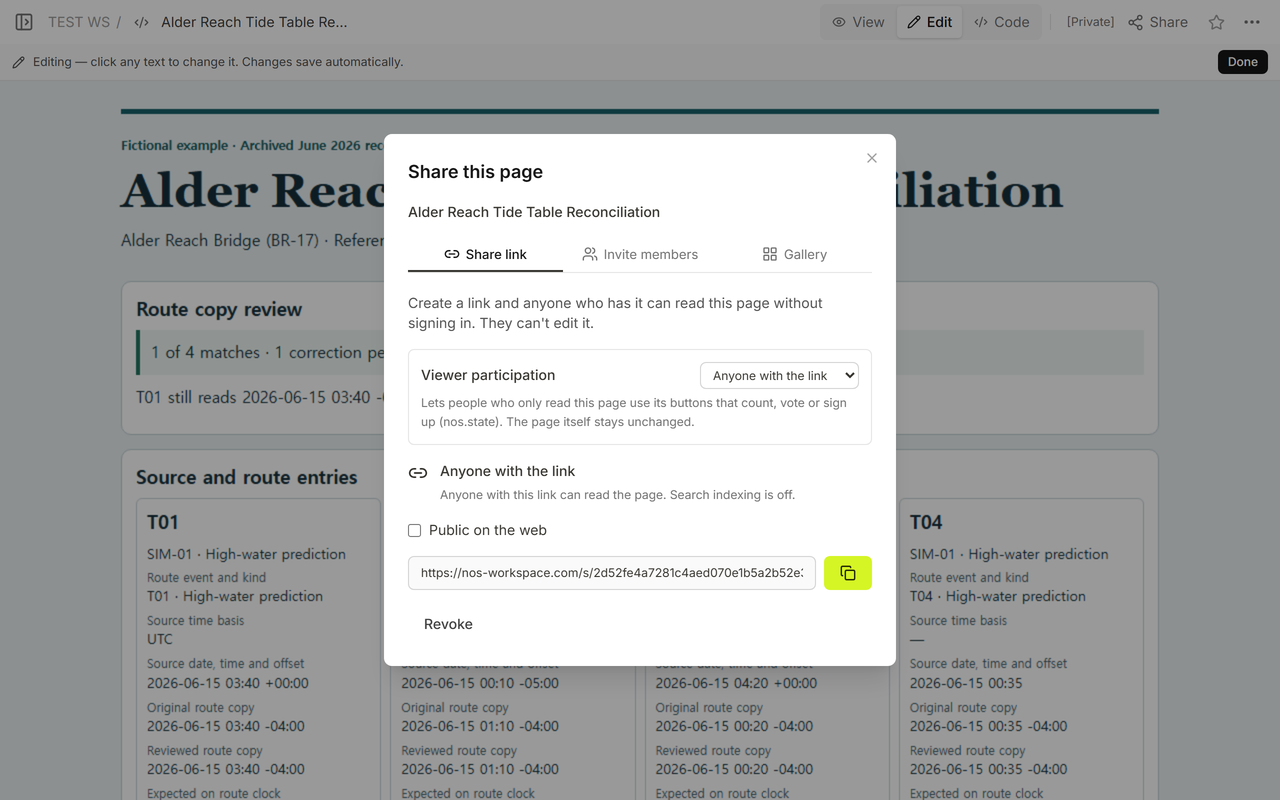
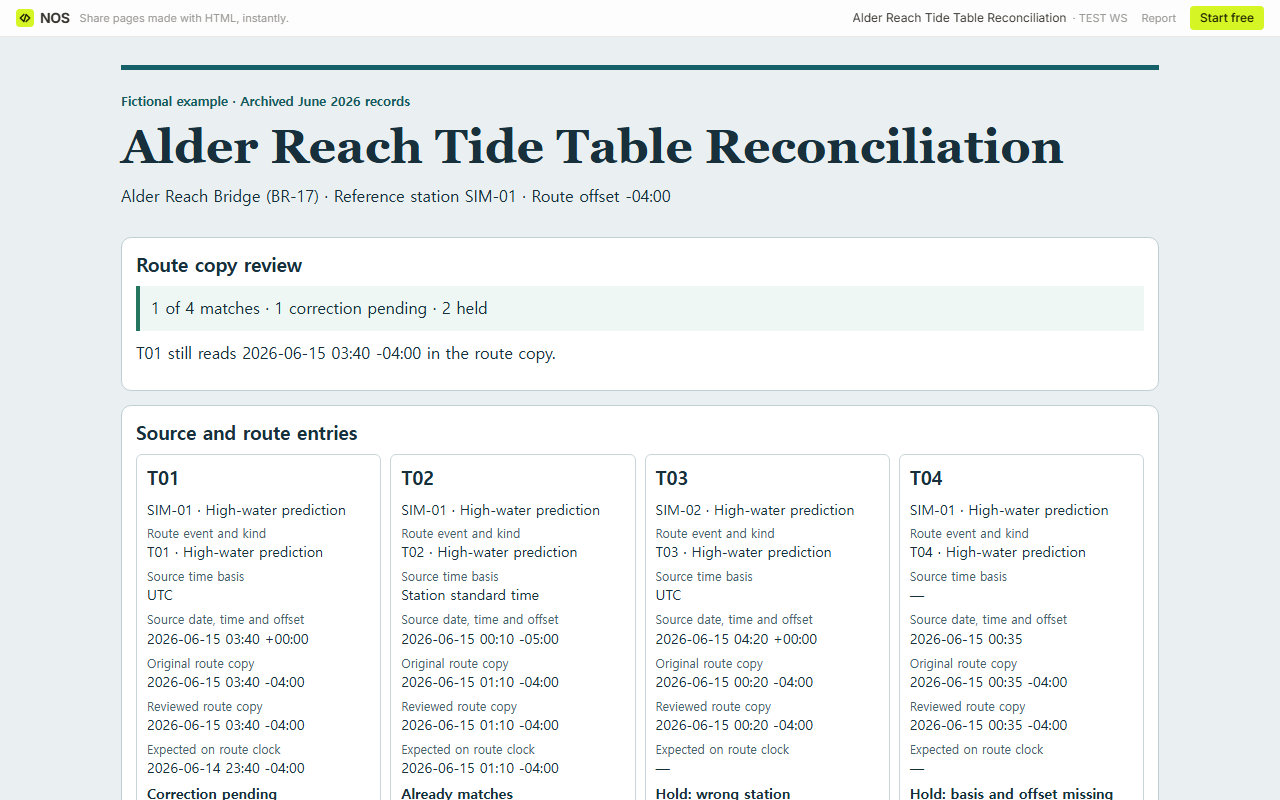
We opened the example’s NOS Share address signed out. The draft had 1 of 4 matches (25%). T01 still carried the original route timestamp.
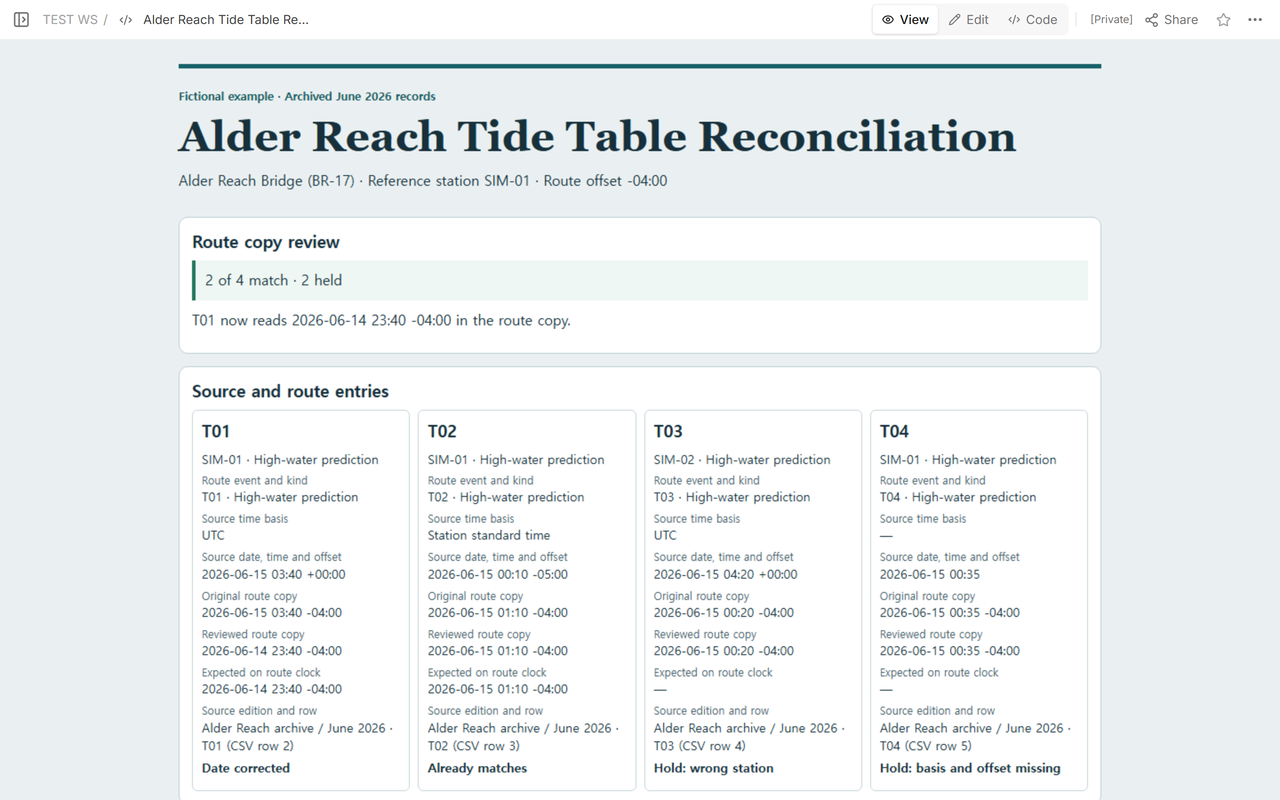
We corrected T01 on the same page and kept the original route timestamp in its own field. View showed 2 of 4 matches (50%). The two held rows still count in that denominator.
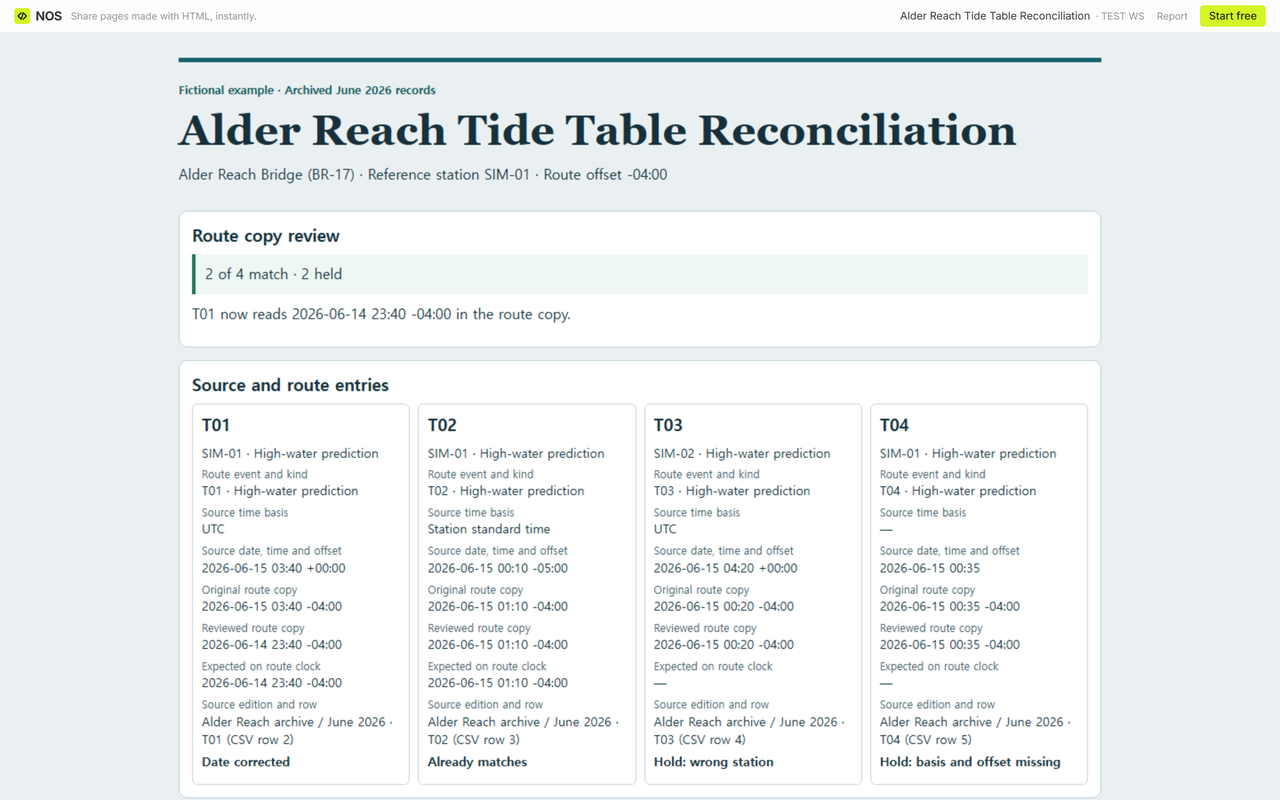
We reopened the same reader link signed out and found June 14 at 23:40 on the corrected row.
When not to do this
Use this sheet to check archived transcriptions. Leave entries on hold when the source edition or the dated offset cannot be established. The fictional worksheet is unsuitable for tide forecasts, water-depth checks, bridge clearance, or navigation decisions.
NOS gives reviewers one address for the example. We used Code to update T01 and View to check the worksheet before reopening the reader link. Share identified that link as read-only for recipients.
For a repeated clock hour, see the dated time-zone example. For timestamps coming from a database export, see how to check Snowflake timestamp types.