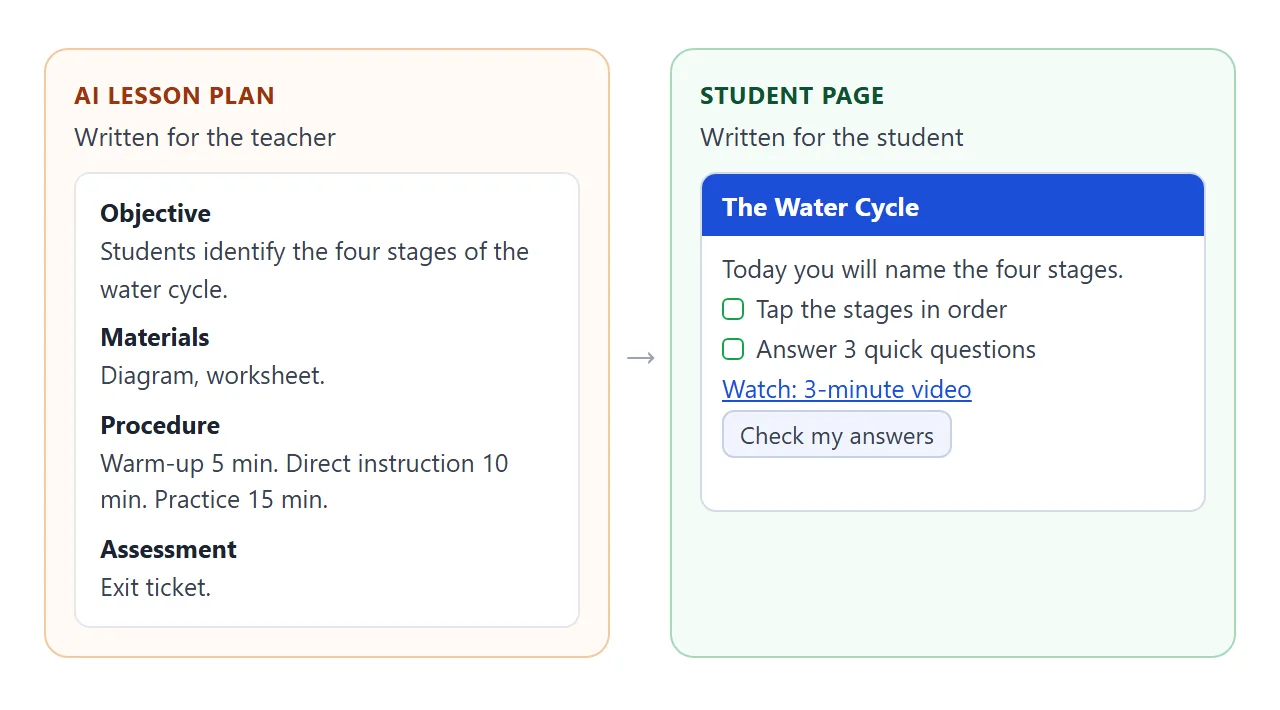
An AI-generated lesson plan is written for you: objective, materials, timings. Students need something different, a page they can tap through. Ask the AI for a student-facing HTML page, check it, and share it as one link.
The reason to bother is access. One guide to Claude's artifact tool puts it this way: "Since K–12 students can't directly access Claude, teachers must use workarounds like hosting artifacts on LMS platforms or teacher websites."
A link is the shortest of those workarounds. Here is a page of the kind the AI can write from a plan. Tap the stages, answer the quick check and try the checklist, the way a student would.
<!doctype html>
<html lang="en">
<head>
<meta charset="utf-8">
<meta name="viewport" content="width=device-width, initial-scale=1">
<title>The Water Cycle - student page</title>
<style>
* { box-sizing: border-box; }
body { margin: 0; font-family: system-ui, sans-serif; background: #f3f6fb; color: #1d2330; line-height: 1.5; }
header { background: linear-gradient(135deg, #1d4ed8, #0ea5e9); color: #fff; padding: 22px 18px; }
header h1 { margin: 0 0 4px; font-size: 26px; }
header p { margin: 0; opacity: .9; font-size: 14px; }
main { max-width: 640px; margin: 0 auto; padding: 14px; }
section { background: #fff; border-radius: 12px; padding: 16px; margin-bottom: 14px; box-shadow: 0 1px 4px rgba(0,0,0,.08); }
h2 { margin: 0 0 8px; font-size: 18px; }
.num { display: inline-block; width: 26px; height: 26px; line-height: 26px; text-align: center; border-radius: 50%; background: #1d4ed8; color: #fff; font-size: 14px; margin-right: 6px; }
.goal { border-left: 5px solid #16a34a; }
button { font: inherit; cursor: pointer; border: 1px solid #c7d2e5; background: #f8faff; border-radius: 8px; padding: 9px 14px; }
button:hover { background: #eaf1ff; }
.stages { display: flex; flex-wrap: wrap; gap: 8px; margin: 10px 0; }
.stages button.done { background: #dcfce7; border-color: #16a34a; }
.stages button.wrong { background: #fee2e2; border-color: #dc2626; }
.msg { min-height: 22px; font-weight: 600; }
.ok { color: #15803d; } .bad { color: #b91c1c; }
fieldset { border: 0; padding: 0; margin: 0 0 12px; }
legend { font-weight: 600; margin-bottom: 4px; }
label { display: block; padding: 4px 0; }
.fb { font-size: 14px; margin-top: 2px; }
ul.links { padding-left: 18px; margin: 6px 0; }
details summary { cursor: pointer; color: #1d4ed8; }
.check label { display: flex; gap: 8px; align-items: flex-start; }
</style>
</head>
<body>
<header>
<h1>The Water Cycle</h1>
<p>Grade 5 science · about 40 minutes · Ms. Rivera's class (sample)</p>
</header>
<main>
<section class="goal">
<h2>Today's goal</h2>
<p>By the end of this page you can name the four stages of the water cycle and put them in order.</p>
</section>
<section>
<h2><span class="num">1</span>Warm-up</h2>
<p>Where does a puddle go after the rain stops?</p>
<details><summary>Show a hint</summary><p>Think about what the sun does to water.</p></details>
</section>
<section>
<h2><span class="num">2</span>Put the stages in order</h2>
<p>Tap the stages in the order they happen. Start with the first.</p>
<div class="stages" id="stages"></div>
<div class="msg" id="orderMsg"></div>
<button id="resetOrder" type="button">Start again</button>
</section>
<section>
<h2><span class="num">3</span>Quick check</h2>
<form id="quiz">
<fieldset data-answer="b">
<legend>1. What turns liquid water into vapor?</legend>
<label><input type="radio" name="q1" value="a"> Freezing</label>
<label><input type="radio" name="q1" value="b"> Evaporation</label>
<label><input type="radio" name="q1" value="c"> Collection</label>
<div class="fb"></div>
</fieldset>
<fieldset data-answer="c">
<legend>2. Clouds form when vapor cools. This is called:</legend>
<label><input type="radio" name="q2" value="a"> Precipitation</label>
<label><input type="radio" name="q2" value="b"> Evaporation</label>
<label><input type="radio" name="q2" value="c"> Condensation</label>
<div class="fb"></div>
</fieldset>
<fieldset data-answer="a">
<legend>3. Rain, snow and hail are all kinds of:</legend>
<label><input type="radio" name="q3" value="a"> Precipitation</label>
<label><input type="radio" name="q3" value="b"> Condensation</label>
<label><input type="radio" name="q3" value="c"> Evaporation</label>
<div class="fb"></div>
</fieldset>
<button type="submit">Check my answers</button>
<div class="msg" id="score"></div>
</form>
</section>
<section>
<h2><span class="num">4</span>Go further</h2>
<p>Replace these sample links with your own videos, readings or class pages.</p>
<ul class="links">
<li><a href="https://example.com/water-cycle-video" target="_blank" rel="noopener">Watch: the water cycle in 3 minutes</a></li>
<li><a href="https://example.com/water-cycle-reading" target="_blank" rel="noopener">Read: a short passage with questions</a></li>
</ul>
</section>
<section class="check">
<h2><span class="num">5</span>Before you leave</h2>
<label><input type="checkbox"> I can name the four stages.</label>
<label><input type="checkbox"> I can explain why puddles dry up.</label>
</section>
</main>
<script>
// Step 2: tap the stages in order
const correct = ['Evaporation', 'Condensation', 'Precipitation', 'Collection'];
const shuffled = ['Precipitation', 'Evaporation', 'Collection', 'Condensation'];
const box = document.getElementById('stages');
const orderMsg = document.getElementById('orderMsg');
let next = 0;
function buildStages() {
box.innerHTML = '';
next = 0;
orderMsg.textContent = '';
shuffled.forEach((name) => {
const b = document.createElement('button');
b.type = 'button';
b.textContent = name;
b.addEventListener('click', () => {
if (b.classList.contains('done')) return;
if (name === correct[next]) {
next++;
b.classList.add('done');
b.textContent = next + '. ' + name;
if (next === correct.length) {
orderMsg.className = 'msg ok';
orderMsg.textContent = 'Correct order. Well done!';
}
} else {
b.classList.add('wrong');
orderMsg.className = 'msg bad';
orderMsg.textContent = 'Not yet. Try another stage.';
setTimeout(() => b.classList.remove('wrong'), 600);
}
});
box.appendChild(b);
});
}
document.getElementById('resetOrder').addEventListener('click', buildStages);
buildStages();
// Step 3: the quiz is checked inside the page, nothing is sent anywhere
document.getElementById('quiz').addEventListener('submit', (e) => {
e.preventDefault();
let score = 0;
document.querySelectorAll('#quiz fieldset').forEach((fs) => {
const picked = fs.querySelector('input:checked');
const fb = fs.querySelector('.fb');
if (picked && picked.value === fs.dataset.answer) {
score++;
fb.textContent = 'Correct';
fb.className = 'fb ok';
} else {
fb.textContent = picked ? 'Not quite. Look at step 2 again.' : 'Pick an answer.';
fb.className = 'fb bad';
}
});
const s = document.getElementById('score');
s.className = 'msg ' + (score === 3 ? 'ok' : 'bad');
s.textContent = 'You got ' + score + ' of 3.';
});
</script>
</body>
</html>
The links in the demo point to example.com. Replace them with your own videos, readings or class pages.
Make it with AI
Paste your plan into ChatGPT, Claude or Gemini with a prompt like this. Fill in the square brackets.
I am a [grade] [subject] teacher. Turn the lesson plan below
into ONE self-contained HTML file for my students.

The page needs:
- a title and a goal in words a [grade] student understands
- numbered steps (warm-up, activity, quick check, wrap-up)
- one interactive activity, such as putting steps in order
- 3 quiz questions that show feedback on the page
- a list of links, using example.com as placeholders
- a checklist for the end of the lesson

Rules: inline CSS and JavaScript only. No outside images, fonts
or libraries. Do not store or send any data. It must work on a
phone 390 pixels wide.

Lesson plan:
[paste your plan here]
Leave student names out of the prompt. The page does not need them.
Then check the result before anyone else sees it:
- Facts and answers. Read the quiz and the answer key. The AI can sound sure and be wrong.
- Reading level. Read the instructions aloud. Ask the AI to simplify anything you would have to explain.
- Links. Swap every placeholder for a real address and open each one.
- Phone. Open it on a phone. If a button is tiny or text runs off the edge, tell the AI exactly what to fix.
Send it as a link
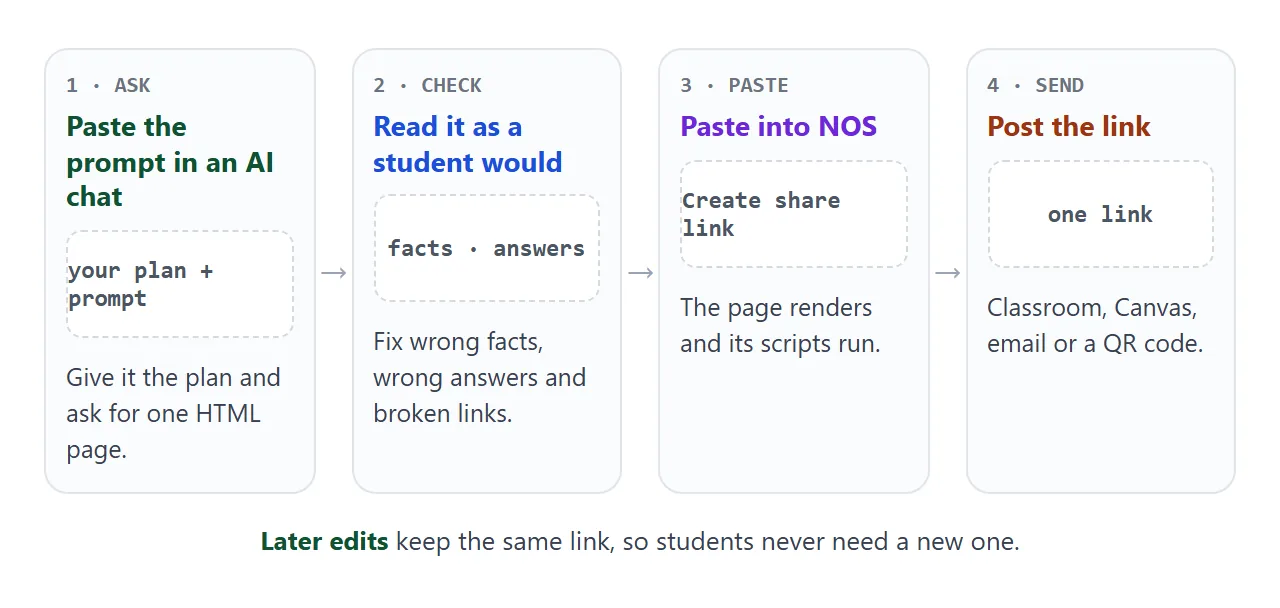
Copy the HTML the AI gave you, paste it into a NOS document and choose Create share link. HTML to link walks through it. The page renders as written and its scripts run, so the ordering activity and the quiz work.
Anyone with the link can open it in a browser, on a phone too, without an account. They can use it but cannot edit it. If you find a typo later, edit the code and the same link shows the new version.
Some things are blocked on a shared page: sending a form to a server, images from other websites, iframes and fetch calls to other sites. Quiz scoring inside the page works. The score appears on the student's screen and goes nowhere else.
For the ChatGPT and Claude specifics, see sharing ChatGPT HTML output and turning a Claude artifact into a link.
Ways to share the page compared
| Way to share | What students do | Watch for |
|---|---|---|
| Send the .html file | Download it and find an app to open it | May show as code on a phone, and copies pile up |
| Link in an email | Tap the link | Students must find the email again |
| Link in Google Classroom | Open the assignment or material, tap the link | Needs your Classroom access |
| Link in a Canvas module | Open the module item | Needs permission to edit the course |
| QR code on paper | Scan it with a phone camera | Needs a camera on the student's device |
Google Classroom Help says you can attach a link to an assignment, and on the Classwork page you can create a Material post and add a link to it. As of October 2026, that is how both are described.
Canvas lets an instructor add an External URL as a module item. A checkbox decides whether the link opens in a new browser tab, and when it is ticked Canvas shows the page to students outside of Canvas.
Your school's settings decide what you can see in either tool. If an option is missing, ask whoever administers it.
For paper, turn the link into a QR code. To place the page inside a site you already have, read HTML on Google Sites.
One lesson or a whole unit
A plan often covers several days. Ask the AI for tabs, one per day, so students see only today's tasks and one link covers the unit.
<!doctype html>
<html lang="en">
<head>
<meta charset="utf-8">
<meta name="viewport" content="width=device-width, initial-scale=1">
<title>Persuasive writing - 3-day unit</title>
<style>
* { box-sizing: border-box; }
body { margin: 0; font-family: system-ui, sans-serif; background: #fbf7f0; color: #26211a; line-height: 1.5; }
header { padding: 18px 16px 8px; max-width: 640px; margin: 0 auto; }
header h1 { margin: 0; font-size: 24px; }
header p { margin: 2px 0 0; color: #6b5f4e; font-size: 14px; }
.tabs { display: flex; gap: 6px; max-width: 640px; margin: 8px auto 0; padding: 0 16px; }
.tabs button { flex: 1; font: inherit; font-weight: 600; cursor: pointer; padding: 10px 6px; border: 1px solid #e3d8c4; border-bottom: 0; border-radius: 10px 10px 0 0; background: #f1e8d6; color: #6b5f4e; }
.tabs button[aria-selected="true"] { background: #fff; color: #9a3412; }
.panel { max-width: 640px; margin: 0 auto; background: #fff; border: 1px solid #e3d8c4; border-radius: 0 0 12px 12px; padding: 16px; margin-bottom: 20px; }
.panel[hidden] { display: none; }
h2 { margin: 0 0 6px; font-size: 18px; }
.task { display: flex; gap: 10px; align-items: flex-start; padding: 8px 0; border-bottom: 1px solid #f0e9da; }
.task:last-of-type { border-bottom: 0; }
.task input { margin-top: 5px; }
.task.done span { text-decoration: line-through; color: #8a7e6b; }
.timer { display: flex; align-items: center; gap: 10px; margin-top: 12px; padding: 10px 12px; background: #fff4e5; border-radius: 10px; flex-wrap: wrap; }
.timer output { font: 700 24px ui-monospace, Consolas, monospace; min-width: 70px; }
.timer button { font: inherit; cursor: pointer; border: 1px solid #e3b97a; background: #fff; border-radius: 8px; padding: 6px 12px; }
a { color: #9a3412; }
.tip { background: #eef7ee; border-left: 4px solid #16a34a; padding: 8px 12px; border-radius: 6px; margin: 10px 0 0; font-size: 14px; }
</style>
</head>
<body>
<header>
<h1>Persuasive Writing</h1>
<p>Grade 7 English · 3 days · sample unit</p>
</header>
<div class="tabs" role="tablist">
<button role="tab" aria-selected="true" data-tab="d1">Day 1</button>
<button role="tab" aria-selected="false" data-tab="d2">Day 2</button>
<button role="tab" aria-selected="false" data-tab="d3">Day 3</button>
</div>
<div class="panel" id="d1" role="tabpanel">
<h2>Day 1: Find the argument</h2>
<label class="task"><input type="checkbox"><span>Read the sample letter to the principal.</span></label>
<label class="task"><input type="checkbox"><span>Underline the claim in one color and the reasons in another.</span></label>
<label class="task"><input type="checkbox"><span>Write one sentence: what does the writer want?</span></label>
<p>Sample text: <a href="https://example.com/sample-letter" target="_blank" rel="noopener">Letter to the principal</a></p>
<div class="timer" data-seconds="600"><span>Reading time</span><output>10:00</output><button type="button" data-act="go">Start</button><button type="button" data-act="reset">Reset</button></div>
</div>
<div class="panel" id="d2" role="tabpanel" hidden>
<h2>Day 2: Plan your own</h2>
<label class="task"><input type="checkbox"><span>Pick a topic from the list your teacher gave you.</span></label>
<label class="task"><input type="checkbox"><span>Write your claim and three reasons.</span></label>
<label class="task"><input type="checkbox"><span>Swap plans with a partner and give one question.</span></label>
<div class="tip">Tip: a good reason answers the question "why should I agree?"</div>
<div class="timer" data-seconds="900"><span>Planning time</span><output>15:00</output><button type="button" data-act="go">Start</button><button type="button" data-act="reset">Reset</button></div>
</div>
<div class="panel" id="d3" role="tabpanel" hidden>
<h2>Day 3: Write and check</h2>
<label class="task"><input type="checkbox"><span>Write your letter, using your plan from Day 2.</span></label>
<label class="task"><input type="checkbox"><span>Read it aloud once and fix one sentence.</span></label>
<label class="task"><input type="checkbox"><span>Hand it in using the way your teacher showed you.</span></label>
<p>Checklist: <a href="https://example.com/writing-checklist" target="_blank" rel="noopener">Persuasive writing checklist</a></p>
<div class="timer" data-seconds="1500"><span>Writing time</span><output>25:00</output><button type="button" data-act="go">Start</button><button type="button" data-act="reset">Reset</button></div>
</div>
<script>
// Tabs: show one day at a time
const tabs = document.querySelectorAll('.tabs button');
tabs.forEach((t) => t.addEventListener('click', () => {
tabs.forEach((x) => x.setAttribute('aria-selected', x === t));
document.querySelectorAll('.panel').forEach((p) => { p.hidden = p.id !== t.dataset.tab; });
}));
// Strike through finished tasks
document.querySelectorAll('.task input').forEach((c) =>
c.addEventListener('change', () => c.closest('.task').classList.toggle('done', c.checked)));
// One countdown per day
document.querySelectorAll('.timer').forEach((box) => {
const out = box.querySelector('output');
const total = Number(box.dataset.seconds);
let left = total, id = null;
const show = () => {
out.textContent = String(Math.floor(left / 60)).padStart(2, '0') + ':' + String(left % 60).padStart(2, '0');
};
box.querySelector('[data-act="go"]').addEventListener('click', (e) => {
if (id) { clearInterval(id); id = null; e.target.textContent = 'Start'; return; }
e.target.textContent = 'Pause';
id = setInterval(() => {
left--; show();
if (left <= 0) { clearInterval(id); id = null; e.target.textContent = 'Start'; out.textContent = 'Time!'; }
}, 1000);
});
box.querySelector('[data-act="reset"]').addEventListener('click', () => {
clearInterval(id); id = null; left = total; show();
box.querySelector('[data-act="go"]').textContent = 'Start';
});
});
</script>
</body>
</html>
Ticks in this page are not saved for visitors, so a student who reloads starts the day again. Say so in your instructions, or keep long work on paper or in your class platform.
If the page is mostly questions, this guide to HTML quizzes shows how to ask for scoring and feedback.
When it does not work
| Symptom | Cause | Fix |
|---|---|---|
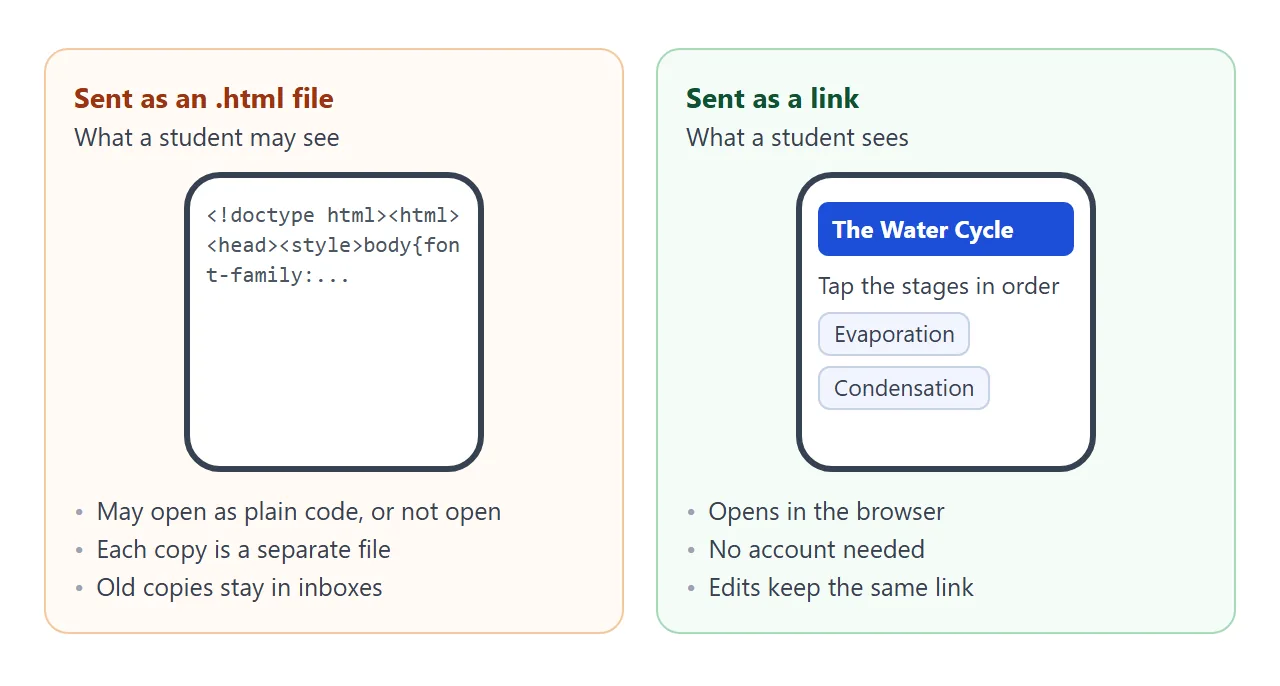
| Students see code, not a page | They received the file, not the link | Send the NOS share link instead |
| An image is missing | It was loaded from another website | Ask the AI for an inline SVG or CSS drawing |
| A video box is empty | It uses an iframe, which is blocked | Link to the video instead of embedding it |
| Quiz answers are not collected | The page cannot send a form to a server | Use your platform for the graded part |
| Text runs off a phone screen | No mobile layout | Ask for a layout that works at 390 pixels wide |
| Students see the old version | They have an old tab open | Ask them to reload the page |
More on why a file will not show up on a phone: opening an HTML file on a phone.