In short
Assign a slide role to each notebook cell before you export.
Use jupyter nbconvert --to slides to create a Reveal.js HTML presentation.
Open the generated file and click through the deck before you share it.
The default export loads Reveal.js and other resources from public content delivery networks, so this example is not an offline package.
Start with the finished files: download the tested Reveal.js slide deck and download the source notebook with slide metadata. Both use a fictional support analysis. The notebook contains no customer information and the figures are invented.
What does each notebook slide type do?
The nbconvert documentation lists five cell roles in addition to a normal cell. Slide starts a new horizontal slide. Sub-Slide starts a vertical slide below the current horizontal slide. Fragment reveals a cell after another forward action. Skip leaves a cell out of the deck. Notes sends a cell to presenter notes rather than the visible slide.
In the notebook interface described by the official documentation, choose View → Cell Toolbar → Slideshow. A drop-down then appears on each cell. The downloaded notebook lets you inspect the saved metadata directly: its title cell is a slide, the scope cell is a fragment, the request table is a sub-slide, one draft cell is skipped, one cell is marked as notes, and the recommendation starts another slide.
"metadata": {
  "slideshow": {
    "slide_type": "fragment"
  }
}
You do not need to type that JSON when the Slideshow toolbar is available. It is shown here so you can confirm what the notebook saves.
How do you export a Jupyter notebook to Reveal.js slides?
Save the notebook, open a terminal in the folder that contains it, and run:
jupyter nbconvert --to slides fictional-support-review.ipynbBy default, nbconvert 7.17.2 would name this output fictional-support-review.slides.html. The tested download here was renamed example.html after conversion. The file is a presentation, not a read-only notebook report. It contains Reveal.js slide sections, navigation controls, and the cell grouping created by the slide metadata.
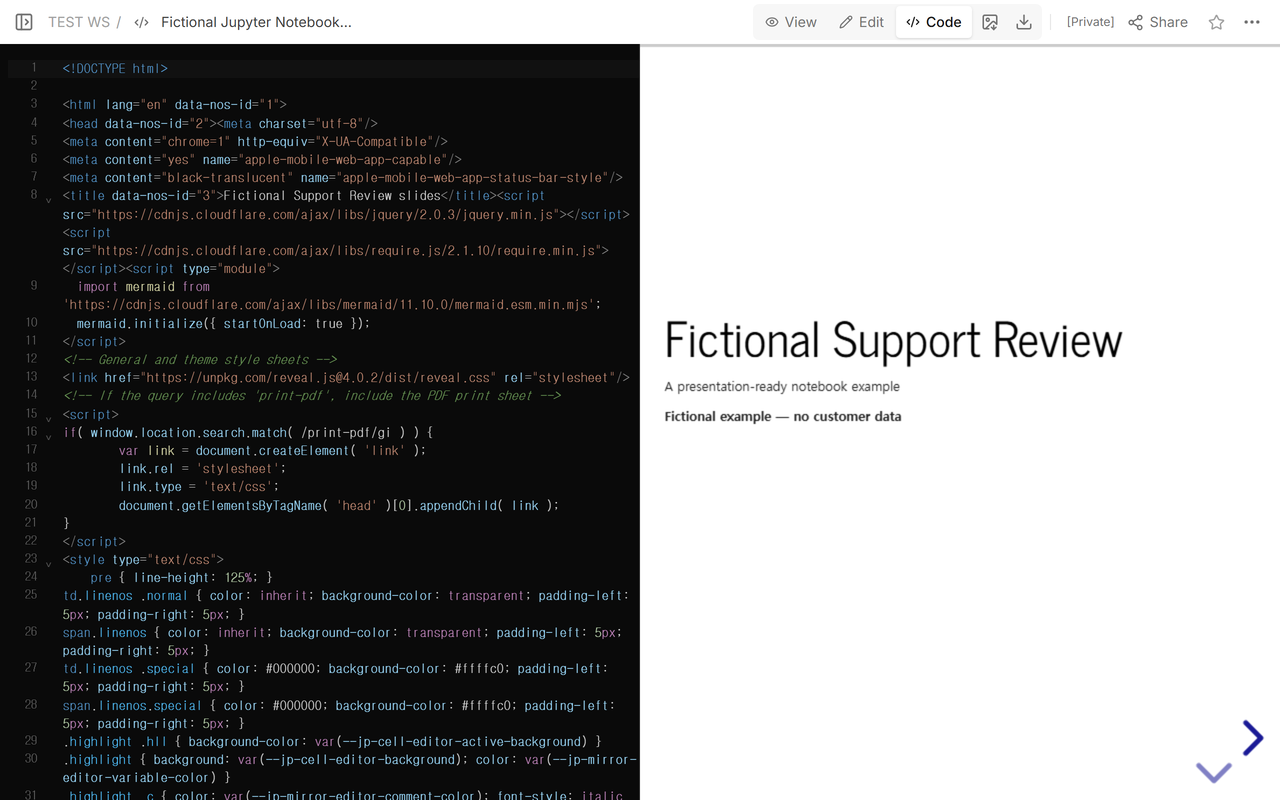
How can you check slide and fragment order?
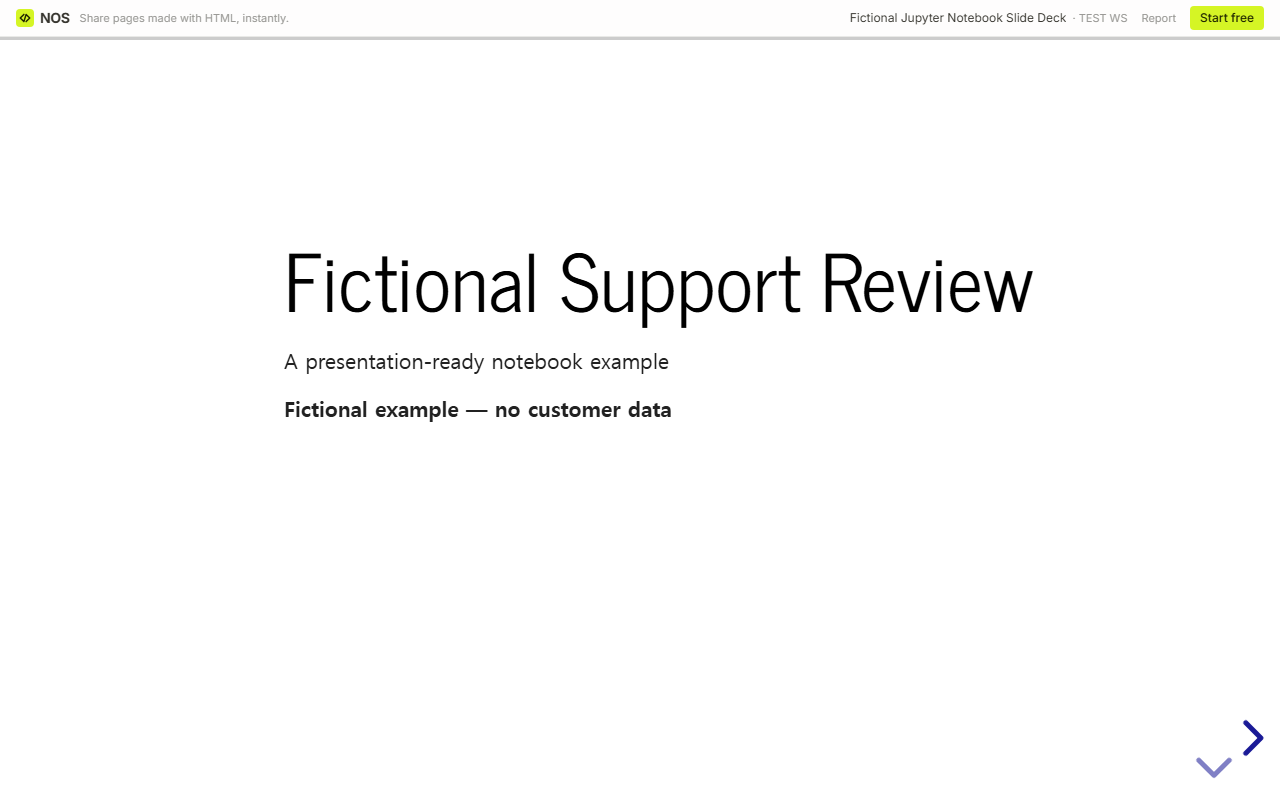
Open the generated HTML in a browser. The first screen should show the deck title without the scope list. Move forward once. The scope fragment should appear on the same slide. This is different from a sub-slide: use the down control to reach the request-mix table below the title group.
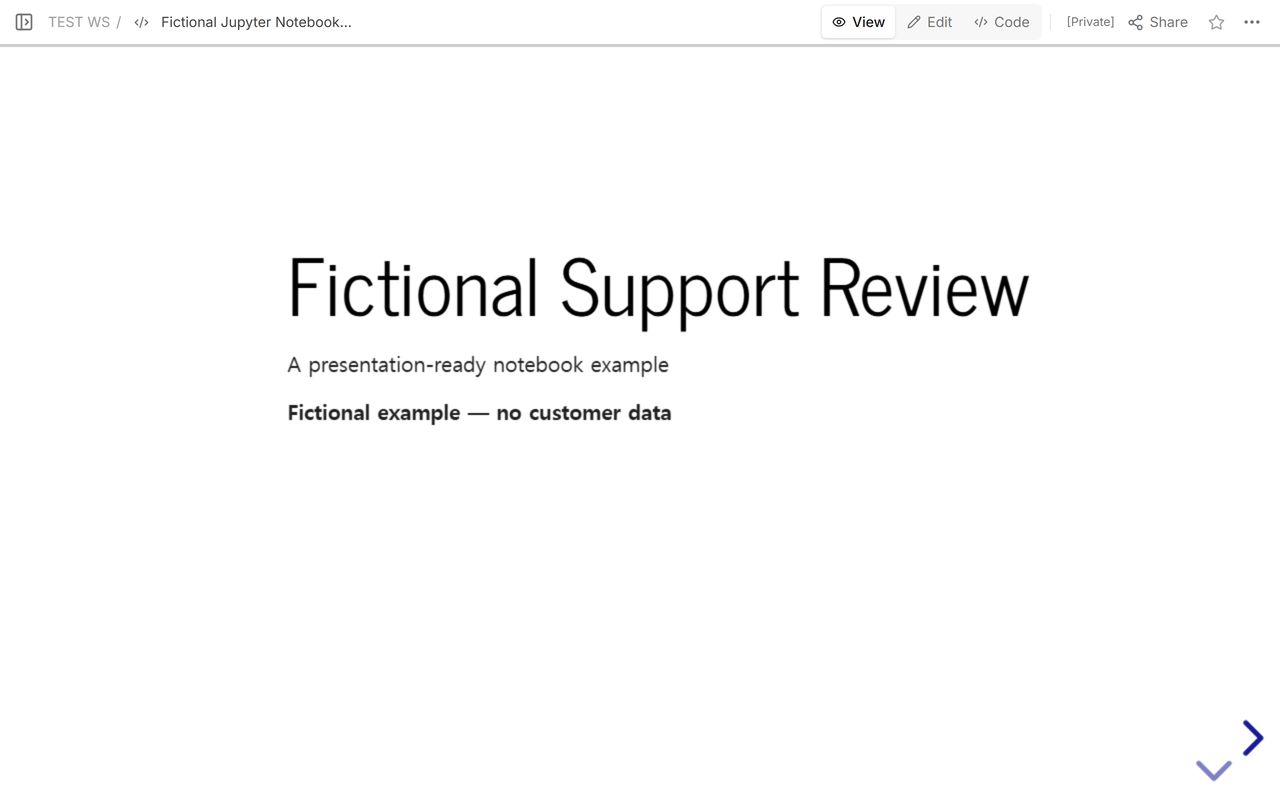
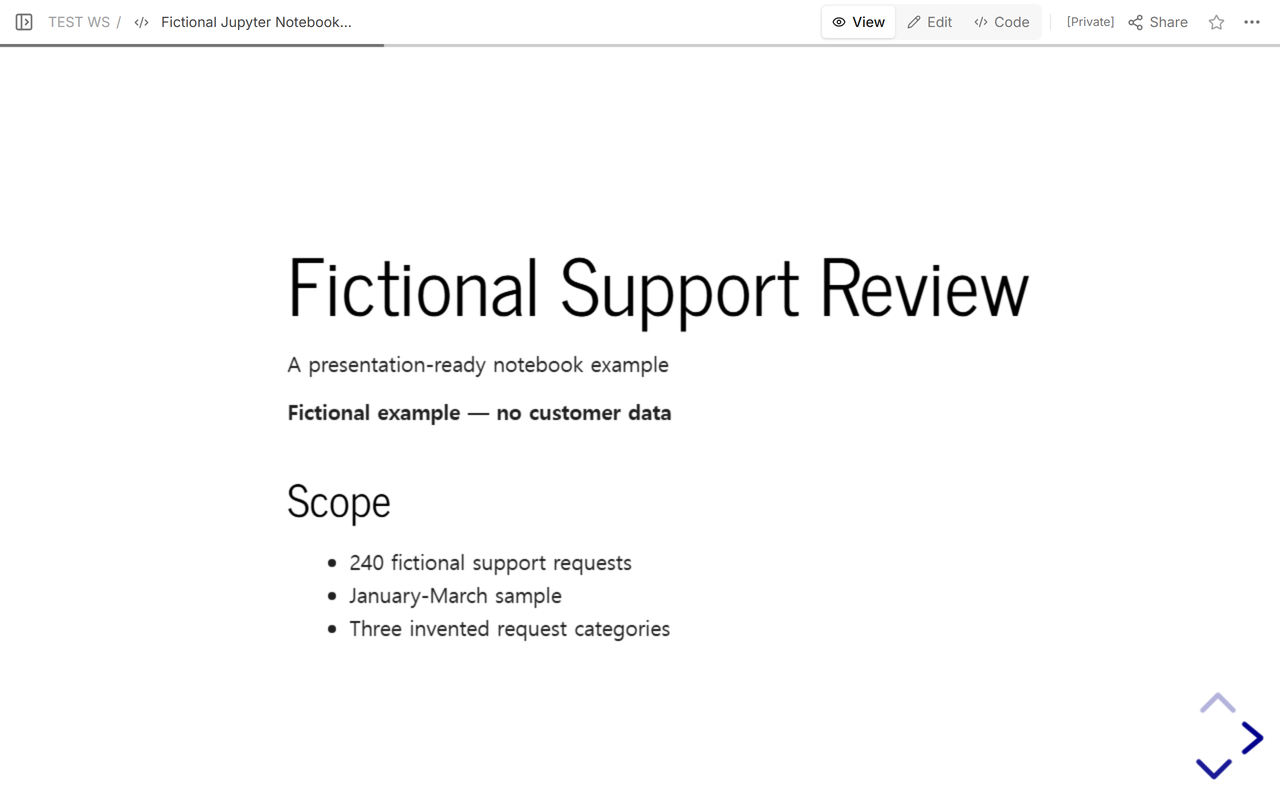
Continue through every direction your deck uses. A horizontal deck can look correct while a vertical sub-slide is still misplaced. Also search the rendered deck for any cell marked Skip. The downloaded example contains a draft heading that must not appear. The Notes cell is present in the notebook metadata, but the separate presenter-notes window was not tested for this article.
Why is this different from a normal nbconvert HTML report?
--to html creates a continuous static rendering of notebook cells. --to slides uses the cell roles to create presentation navigation. If the reader needs to scroll through code, tables, and outputs as a report, use the nbconvert HTML guide. If the source is plain Markdown rather than an .ipynb notebook, use the Markdown to presentation guide.
This distinction matters during handoff. A working slide deck does not prove that the notebook outputs are current. Exporting slides also does not execute the notebook in this example. Run and review the notebook separately when the freshness of stored outputs matters.
Which files should you share?
Share the generated .slides.html file for presenting. Keep the .ipynb source beside it when another person may revise cell content or slide roles. The HTML is the tested viewing result; the notebook is the editable source for the next export.
In NOS, the generated HTML was uploaded as one page. The Share panel returned one reader address for that same page.
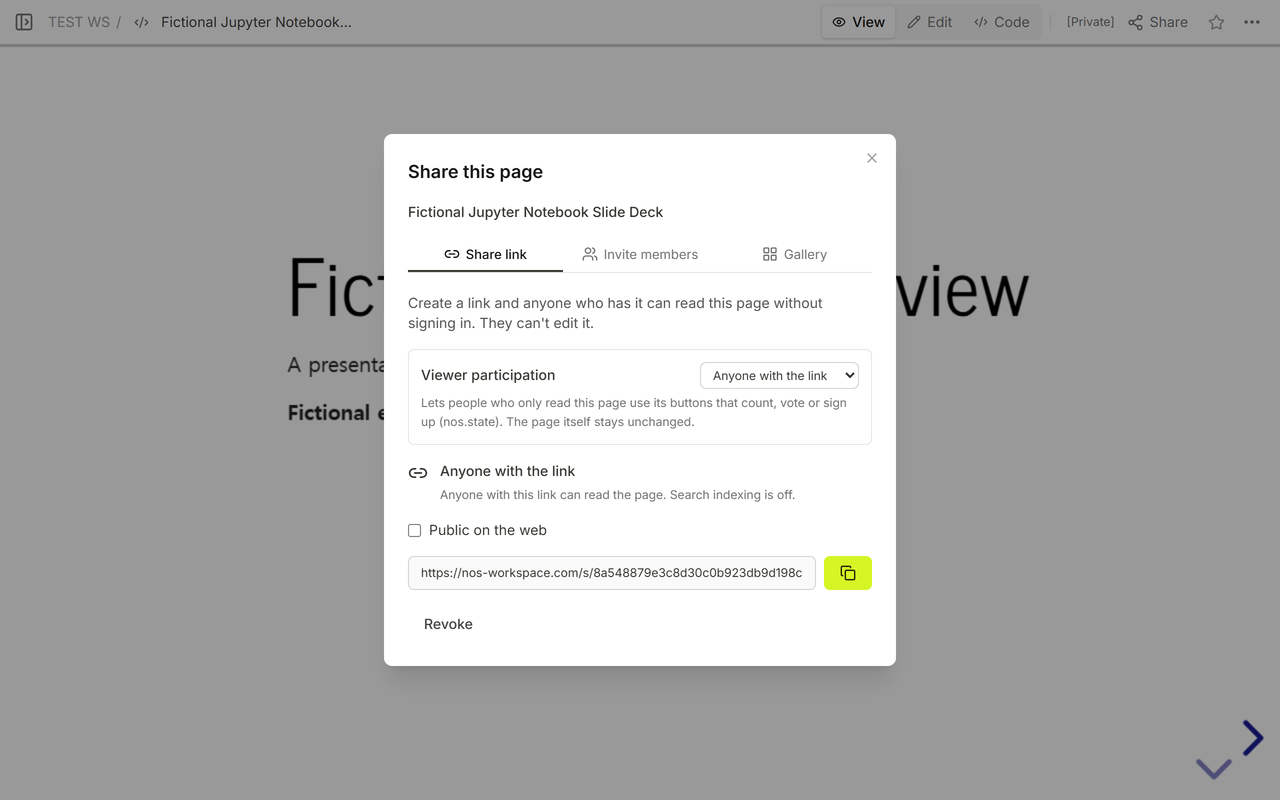
Does the exported slide HTML work from one shared file?
The tested HTML opened from the NOS reader address and its first slide rendered. The public page then responded to the same forward click used in View: the Scope fragment became visible without changing the share address.
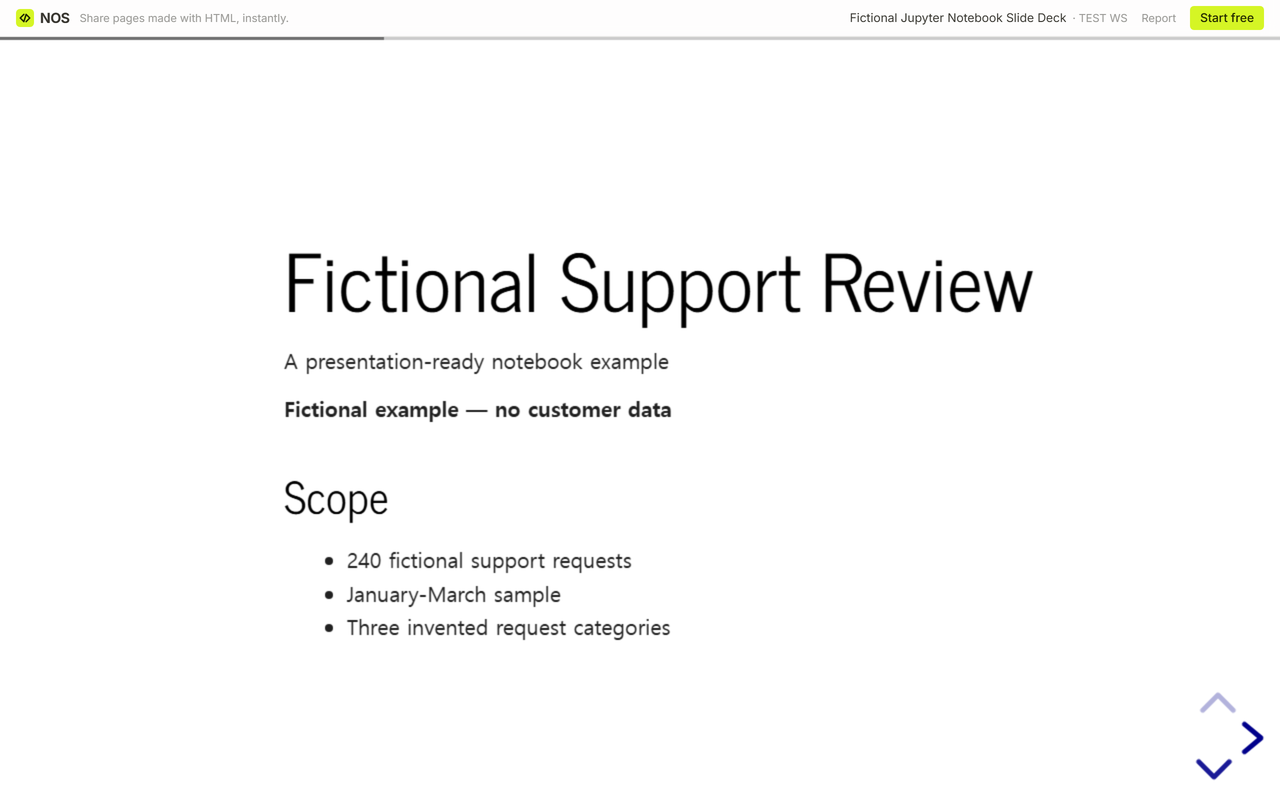
This check proves the online path used here. It does not prove that the file is self-contained or works offline.
What external resources does the default export need?
The actual nbconvert 7.17.2 file used here loads Reveal.js 4.0.2 from unpkg. It also references supporting files from cdnjs. The official nbconvert documentation likewise says the default slide HTML loads Reveal.js from a public content delivery network. If those hosts are blocked or the viewer is offline, presentation styling or navigation can fail.
The documentation adds stricter conditions for presenter notes and timers: notes require a local Reveal.js copy, and timers also require a local HTTPS server. We did not package local resources, test offline use, open presenter notes, test timers, run the notebook, or provide a server. Treat those as separate tasks rather than promises of this one-file example.
When not to do this
- Do not use this handoff when the audience must work fully offline and you have not packaged and tested every external resource.
- Do not treat a slide export as proof that notebook cells ran successfully or that stored outputs are current.
- Do not share a notebook that contains private data, credentials, hidden outputs, or presenter notes you have not reviewed.
- Do not use slide navigation when the reader needs a continuous, searchable report instead.
Using NOS for the finished slide file
NOS opened the generated HTML in Code and View, created one share link, and served the same deck to the public reader used in this check. It did not execute the notebook or bundle the external Reveal.js resources. Upload the HTML only after it works in your browser, then click through the NOS reader address before sending it. See the NOS pricing page for current plan information.
What should you keep for the next revision?
Keep the notebook and the tested HTML together. Change cell content or slide roles in the notebook, export again, and repeat the browser and shared-link checks. That keeps the editable source and the presentation output from drifting apart.