In short
Enter the interval that applies to each task, the last completed record, and the current run-hour meter.
The template calculates the next calendar date, the next meter limit, or both.
Check a date against the calendar and a meter reading against the hour limit. The page shows both results when a task uses both.
Use your manufacturer’s documents and facility process for the real tasks and intervals. This file does not supply them.
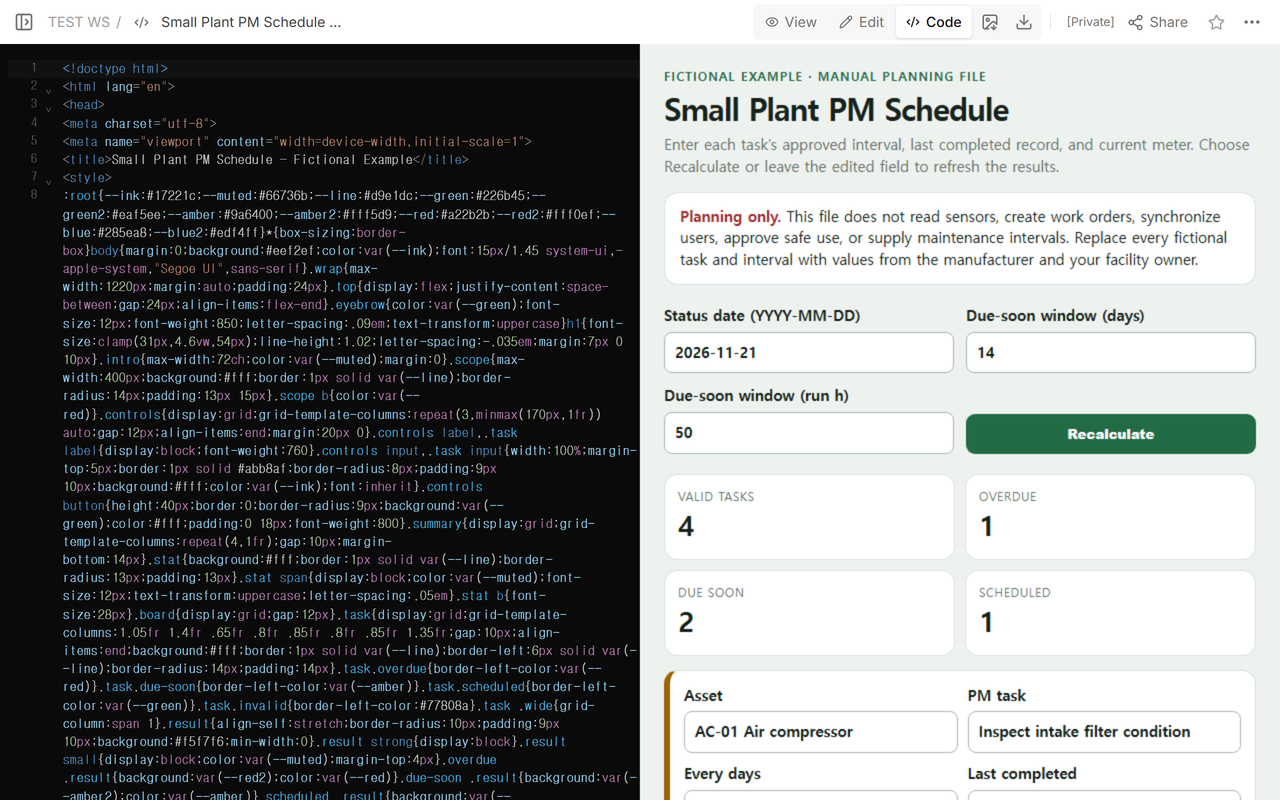
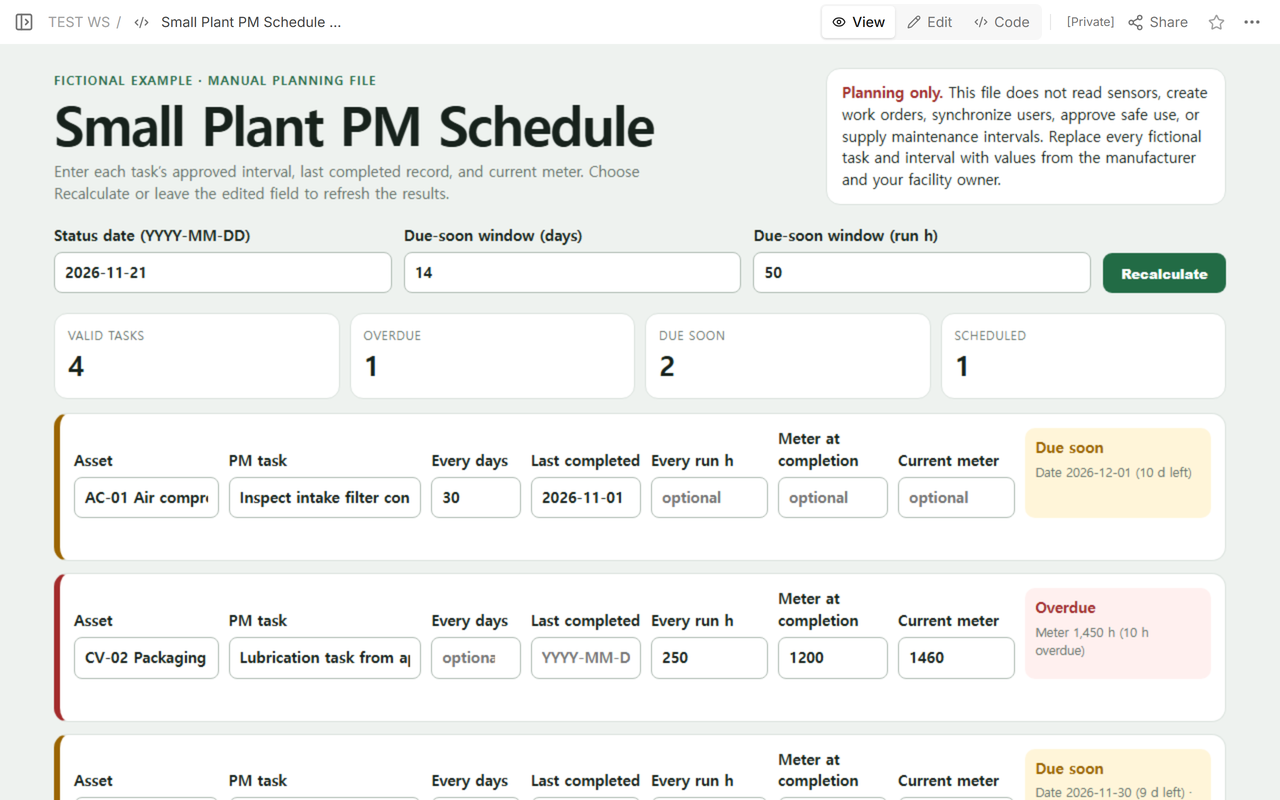
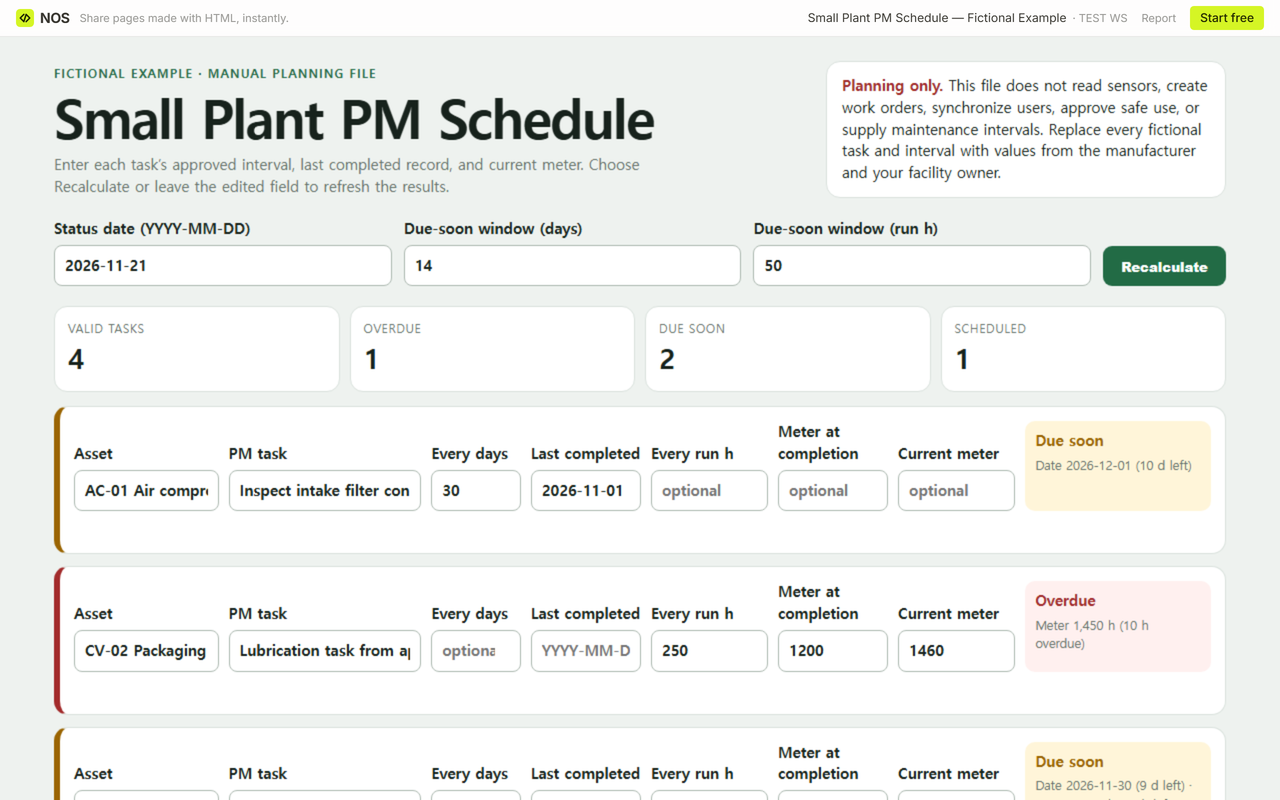
We built the complete fictional schedule first, then tested it in NOS. On the status date of November 21, 2026, the page showed four valid tasks: one overdue, two due soon, and one scheduled. The red row was not a guess. Its run-hour limit was 1,450 h and its current reading was 1,460 h, so it was 10 h overdue.
Open the working fictional example · Download the complete HTML file
What does this plant maintenance schedule calculate?
Each row can use a calendar interval, a run-hour interval, or both. Calendar values use days and an ISO date in YYYY-MM-DD format. Meter values use run hours, shown as h. The page does not convert run hours into a future date because it has no verified forecast of daily machine use.
The four example rows make the rules visible:
- AC-01 uses a date only. Thirty days after November 1 is December 1. That is 10 days after the status date, so the row is due soon inside the 14-day warning window.
- CV-02 uses run hours only. The last meter was 1,200 h and the interval was 250 h, so the next limit is 1,450 h. The current meter is 1,460 h, making the row 10 h overdue.
- MX-03 uses both. Its next date is November 30. The 9 days left are inside the 14-day warning window. Its next meter is 3,900 h, and the 75 h left are outside the 50 h warning window. The row is Due soon because of the calendar check. Both results are visible.
- DC-04 uses a date only. Its next date is December 14, with 23 days left. That sits outside the 14-day warning window, so the row remains scheduled.
The reference guide we checked also organizes preventive-maintenance work by task, interval, last completion, next due point, and status. Its formulas can estimate calendar timing from average run hours per day. This smaller example deliberately stops short of that estimate: an hour-based row keeps its next meter in hours. See the MFG Calcs preventive maintenance schedule guide.
How are overdue and due-soon statuses decided?
The file adds the day interval to the last completed date and compares the result with the status date you entered. It separately adds the run-hour interval to the meter at completion and compares that limit with the current meter.
- Overdue: the status date is past the due date or the current meter is past the hour limit.
- Due soon: no active limit has passed, and at least one remaining value is within its own warning window, including the boundary.
- Scheduled: all active limits are still farther away than their warning windows.
For a task that uses both intervals, the row displays the due date and days remaining alongside the meter limit and hours remaining. The status summarizes those two checks at the values you entered.
How do I check up to four tasks once?
Use the four rows in the download for a one-off check. Reopening the file restores the starting values. Record the actual completion dates and meter readings in your existing official maintenance record.
- Use one of the four rows per approved task. Use the asset identifier and task wording from the maintained source your facility relies on.
- Choose the active unit. Fill the day interval, the run-hour interval, or both. Do not turn an hour-based instruction into days unless your approved source defines that conversion.
- Enter the actual last-completed record. A planned visit is not a completed task. For a date cycle, enter the completion date. For an hour cycle, enter the meter recorded at completion.
- Enter the current meter. Keep the same unit used by the interval. The template rejects a current reading below the completion reading.
- Set the status date and warning windows. These are planning inputs, not universal standards. Use the windows your facility has chosen.
- Finish the edit, then read the result. Press Tab to leave the changed field or choose Recalculate. Fix any input errors before using the counts.
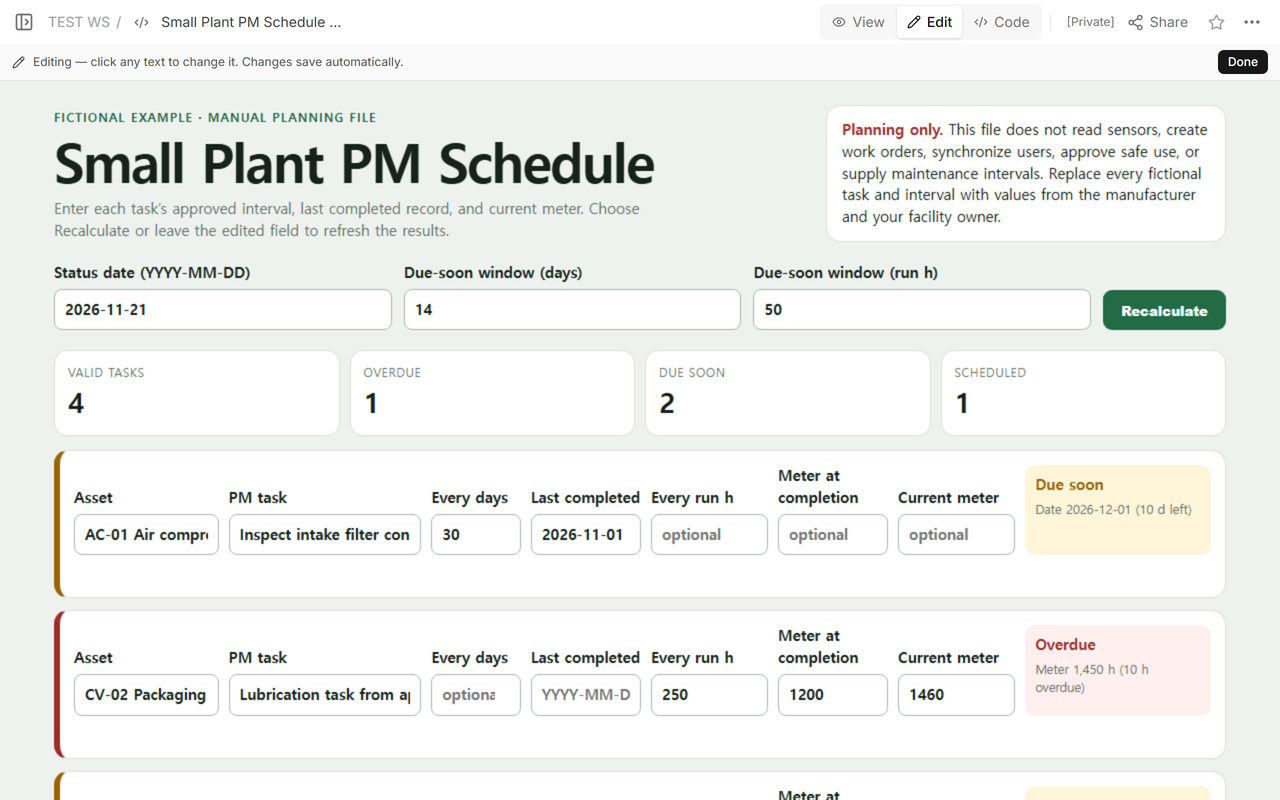
Observed result: the shared example opened with the same four-task calculation. The public frame title was “Small Plant PM Schedule — Fictional Example,” and the default conveyor row read “Meter 1,450 h (10 h overdue).”
How do I keep my own starting rows?
- Make a copy of the downloaded HTML file and open the copy in a plain-text editor. Search for
const seed=[. Each line inside that list is one starting row. - Replace the quoted asset, task, and starting values. Keep the field names and leave unused date or meter values as empty quotes. For a fifth row, copy a row inside the list, separate it from the previous row with a comma, and replace its values. Keep the closing
];. - Save the copy as an
.htmlfile and open it in your browser. Check the row count and results against your source records. For updates you want to keep as defaults, edit the list and save the copy again.
In a trial copy, we replaced the four fictional rows and added a fifth with a 125.125 h interval, 200 h at completion, and a current reading of 300 h. Reopening the copy kept all five starting rows. The fifth row still showed a 325.125 h limit, with 25.125 h left and a Due soon label at the 50 h warning setting.
What happens when a task has only one interval?
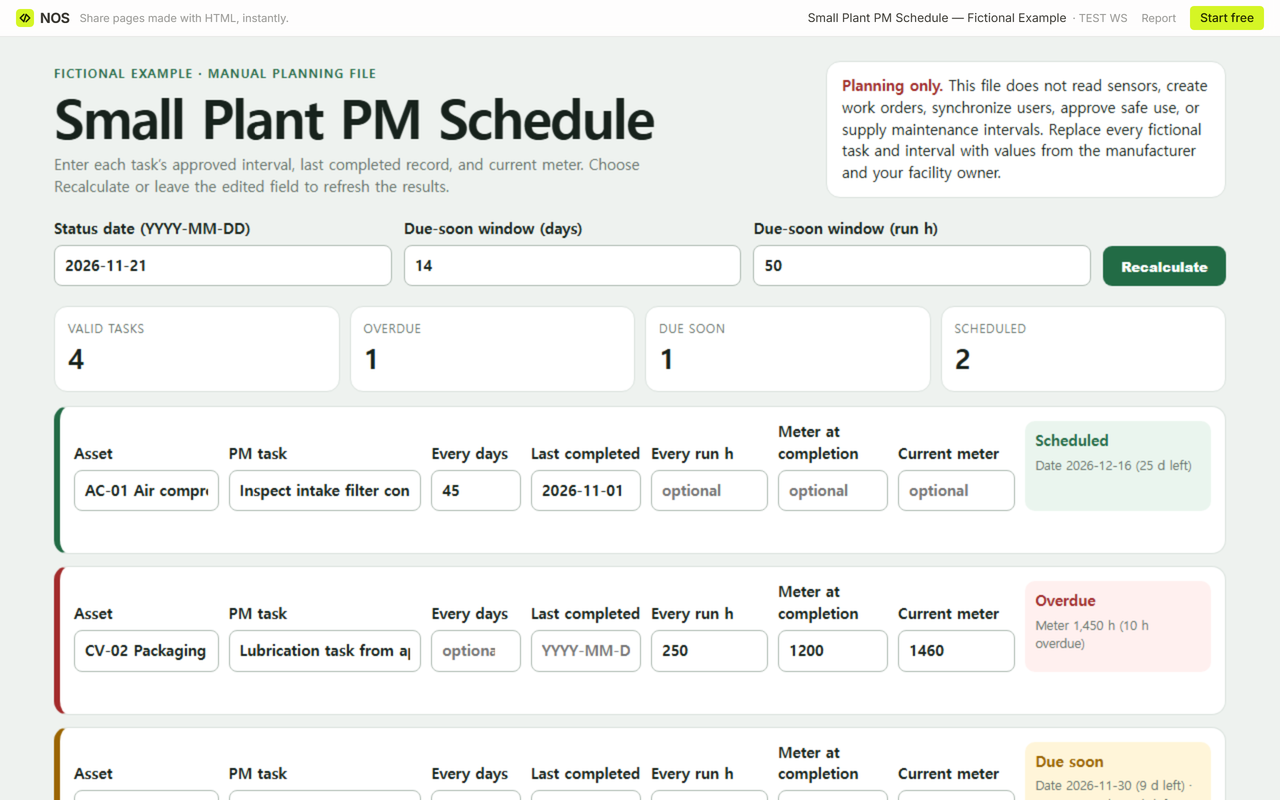
A single active interval is enough. We changed the first row to a 45-day calendar cycle and left its run-hour fields empty. With November 1 as the last completion, the page calculated December 16 and showed 25 days left. That row became scheduled. The other rows did not change.
Which input errors does the template stop?
A valid row can use a calendar interval, a run-hour interval, or both. A row with no interval, a zero-day interval, a negative hour interval, an impossible date such as February 30, or a current meter below the completion meter shows Check inputs in place of a due result.
The next due date must fit in YYYY-MM-DD, through December 31, 9999. Run-hour inputs and results support up to three decimal places and an absolute limit of 9,007,199,254,740,991 h. If the interval and completion meter add up to more than that, the row asks you to check the inputs. Check the recorded unit and reading before changing a value.
A correctly formatted value can still be wrong for the asset. Confirm the task, interval, completion record, and meter reading against the records your facility relies on.
When should I not trust this schedule?
- Do not rely on it when the task or interval has not been checked against the applicable manufacturer document and facility process.
- Do not use a planned appointment as the last completed date.
- Do not use it as proof of inspection, repair, safe operation, regulatory compliance, or approval.
- Do not expect sensor readings, work-order dispatch, notifications, audit history, or multi-user synchronization.
- Do not leave it as the only record when your organization requires a controlled maintenance or safety system.
When not to do this
Do not use a shared one-file schedule for equipment whose maintenance record must be access-controlled, approved, signed, or synchronized with live operations. Use the authorized system and its required workflow. Do not create a new interval merely to fill a blank cell; leave the result unresolved until the responsible person supplies the source and actual record.
Using NOS for a small manual schedule
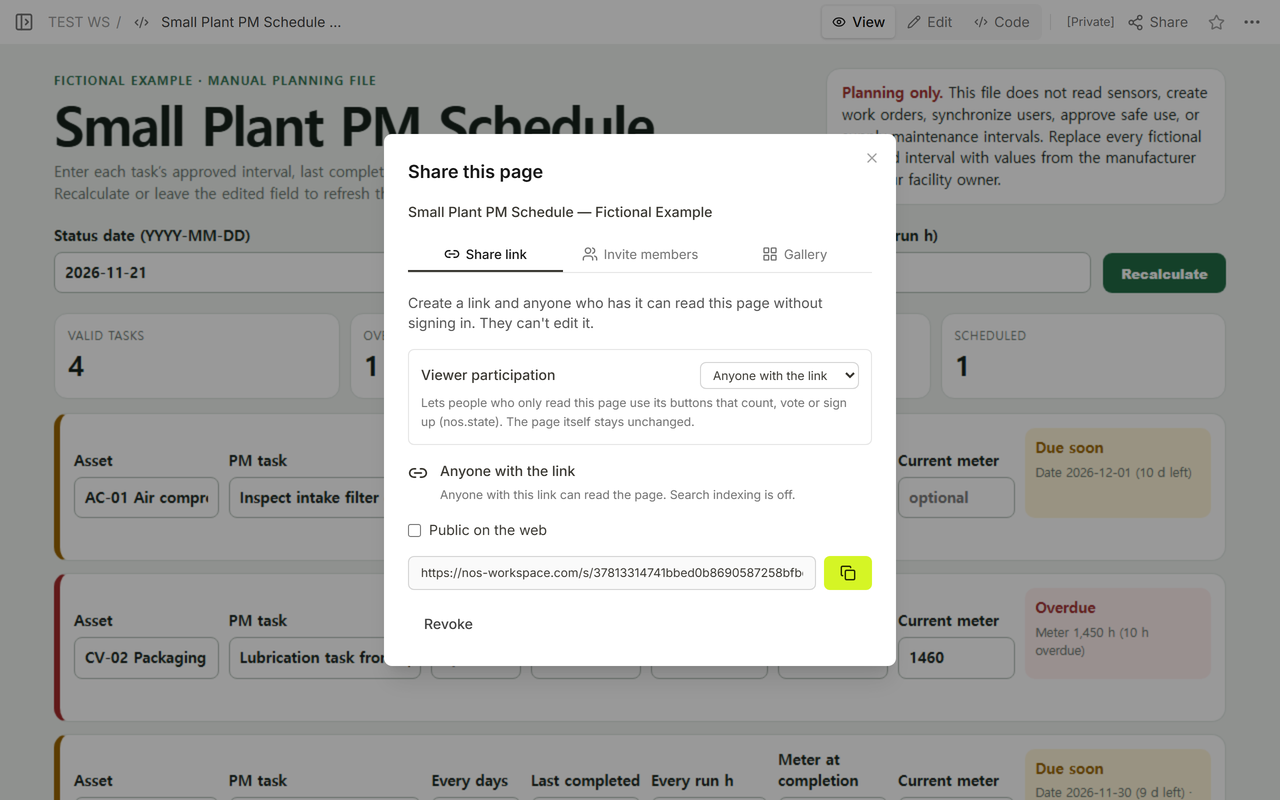
In the tested page, NOS provided Code, View, Edit, and Share modes for the same HTML file. The Share panel produced a reader address and stated that anyone with the link could read without signing in and could not edit. That makes the example practical for a sanitized planning copy. It does not turn NOS into a computerized maintenance management system or add the live integrations this template intentionally excludes.
Related guides
Use the maintenance SOP template when the job is to document request, authorized task, completion evidence, and closure. Use the maintenance dashboard template when you already have a request ledger and need backlog counts, owners, and blockers. For household equipment, the home maintenance schedule focuses on keeping each reminder beside its source.