In short
A useful ROI calculator website shows the investment, recurring benefit, recurring cost, and review period before it shows a return.
Keep the formula beside the answer so a reader can trace the result.
Add an alternative scenario that changes a meaningful assumption rather than decorating the same answer.
Treat the output as a model built from supplied inputs, not as proof that a benefit will happen.
We built a fictional calculator for an independent studio considering a workflow upgrade. The page accepts four assumptions and displays total benefit, total cost, net benefit, modeled ROI, and estimated payback. We opened the example in NOS, changed the scenario in the public page, checked the formula, and restored the complete prepared page after a text edit selected the wrong fragment.
How do you make an ROI calculator website people can audit?
Start with the decision, not the percentage. In this example, the decision is whether a one-time upgrade makes sense over one stated review period. That gives every input a role and keeps monthly values on the same timeline.
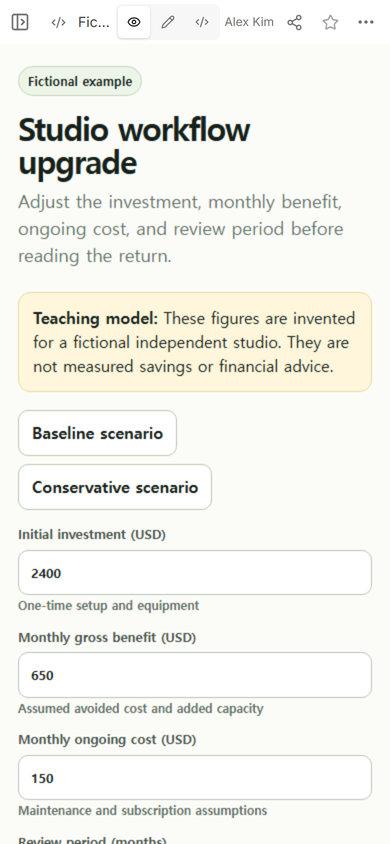
1. Put the assumptions above the answer
The example asks for an initial investment, a monthly gross benefit, a monthly ongoing cost, and a review period. Short notes explain what belongs in each field. The yellow teaching notice also says that the figures are invented and are not measured savings or financial advice.
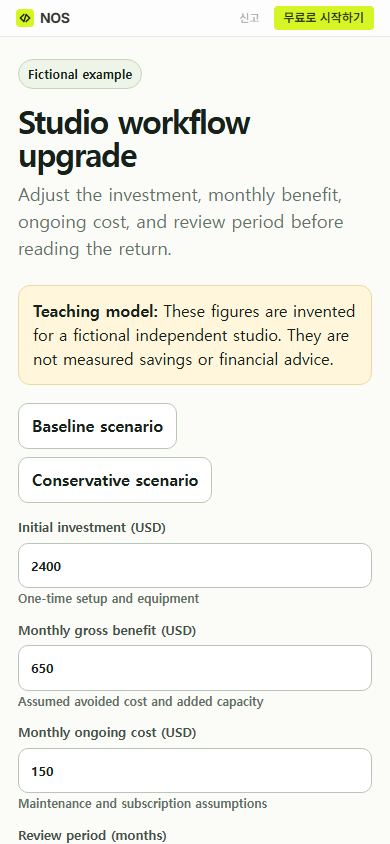
2. Use one period for benefits and costs
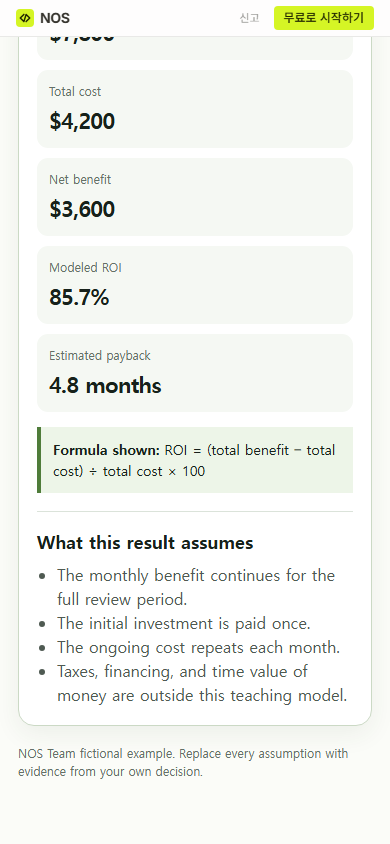
A monthly benefit cannot be compared directly with a one-time investment. The page first multiplies each recurring value by the selected number of months. It then adds the recurring cost to the initial investment before calculating the return.
Formula shown on the page: ROI = (total benefit − total cost) ÷ total cost × 100.
3. Show more than the percentage
The baseline result displays an 85.7% modeled ROI and an estimated payback of 4.8 months. Those values come only from the fictional inputs visible on the page. They do not describe a completed investment or a measured business result.
4. Change the assumption most likely to be challenged
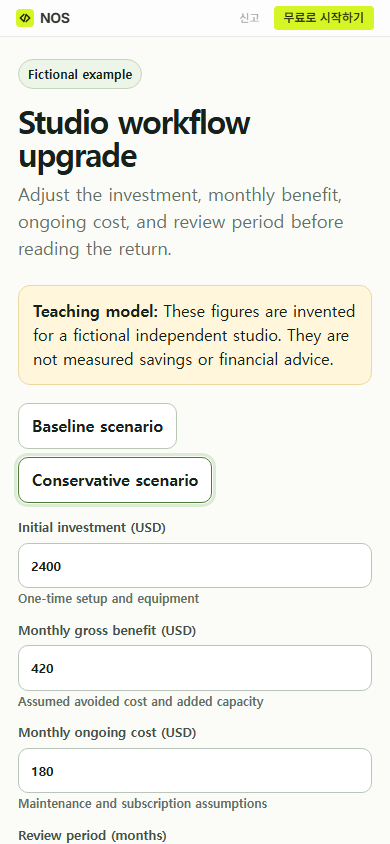
The Conservative scenario keeps the investment and review period visible while lowering the monthly benefit assumption and raising the monthly ongoing cost assumption. A reviewer can see what changed before reading the revised output.
How should you share an ROI calculator?
Use the public address from Share, then open that address as a reader. In the captured panel, NOS states that anyone with the link can read the page without signing in and cannot edit it. The public page still lets a reader use the calculator controls in that browser.
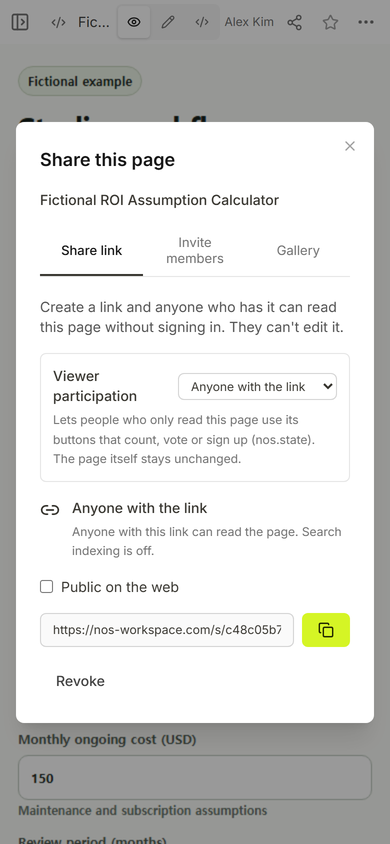
The public check matters because the editing address and the reader address serve different jobs. Send the reader address, then confirm that the assumptions, result labels, and formula remain readable at phone width.
What did editing the calculator reveal?
During our check, a visual heading edit selected less text than intended and produced a malformed heading. We kept that failed capture out of the guide, reopened the complete prepared page in Code, restored it, and confirmed that the same public address showed the original calculator again.
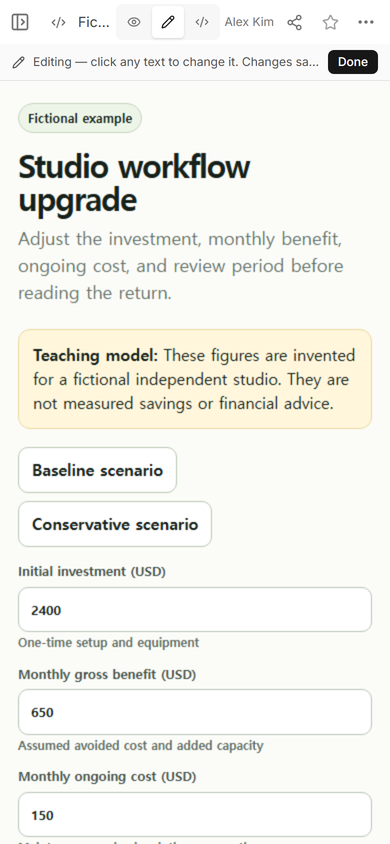
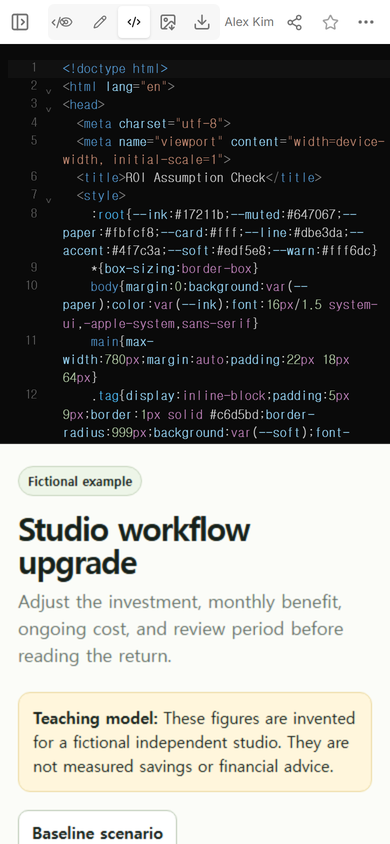
Practical rule: use a small visual edit only when the selected text is unambiguous. For a structural change, replace the complete tested page and check the public address again.
What assumptions should an ROI calculator show?
- Initial investment: the one-time amount included in the model.
- Recurring benefit: the benefit assumed for each period, with its basis explained outside the calculator.
- Recurring cost: the cost that repeats over the same period.
- Review period: the number of periods applied to both recurring values.
- Excluded items: anything the model does not calculate. This example excludes taxes, financing, and the time value of money.
Do not turn a missing item into zero without saying so. If an assumption lacks evidence, label it as an assumption and show who must verify it before a decision.
What should you test before sending the link?
- Recalculate one filled scenario by hand and compare every displayed total.
- Change one benefit or cost assumption and confirm that the result changes.
- Check what the page does with a blank field, zero total cost, and a negative entry.
- Read the formula and exclusions at phone width.
- Open the public address after the final edit.
This teaching example prevents negative number controls, treats a blank numeric field as zero, and shows an undefined result when total cost is zero. A decision tool may need clearer error messages and stricter validation than this compact demonstration.
When not to do this
- Do not use this teaching page as financial advice or evidence that a benefit has been measured.
- Do not use it when visitor entries must be saved, submitted to a team, or attached to an approval record.
- Do not use a short undiscounted model for a decision that requires financing terms, tax treatment, or the time value of money.
- Do not publish confidential assumptions at an address that anyone with the link can open.
Where does NOS fit?
NOS let us open the prepared calculator in View, inspect the complete page in Code, enter visual editing mode, and create a reader link from Share. The same reader address showed the restored page after the repair. Current plan details are kept on the linked NOS pricing page.
What should you build next?
If you need the mechanics of a general calculator first, read how to put a calculator at a link. If your decision is mainly a side-by-side scenario review, use the cost-benefit analysis template. For a change between an original and a new value, the percentage change calculator keeps the starting denominator visible.
Open the fictional ROI assumption calculator and replace every teaching assumption with evidence from your own decision.