HTML calculator code is short, and almost all the trouble is in where you send it, because a calculator only works where scripts run.
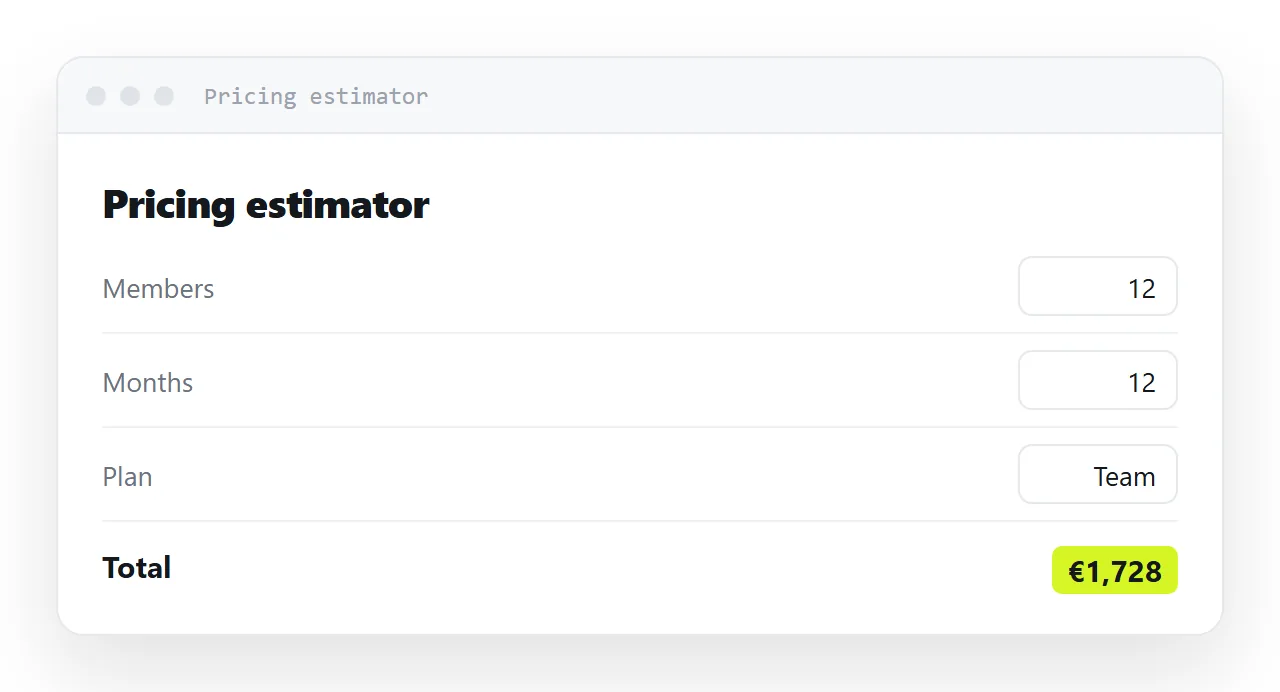
Pricing estimators, ROI models, unit converters and loan schedules all have the same shape: a few inputs, some arithmetic, a result that updates as you type.
Paste one into a block-based document and the inputs appear but nothing computes; export it to PDF and it is a picture of an empty form.
This guide covers the whole thing in thirty lines, where it does not survive, pre-filling it from the link, and the four steps to send it as a page.
Pricing estimators, ROI models, unit converters, loan schedules — all the same shape: a few inputs, some arithmetic, a result that updates as you type. And all of them need a page that runs scripts, which narrows the ways you can share one considerably.
Where HTML calculator code stops computing
| Destination | Result |
|---|---|
| Pasted into a block-based document | Inputs appear, nothing computes |
| A PDF export | A picture of an empty form |
| A screenshot | Useless by definition |
| An HTML attachment | Works if they manage to open it, which on a phone they will not |
| A page at an address | Works |
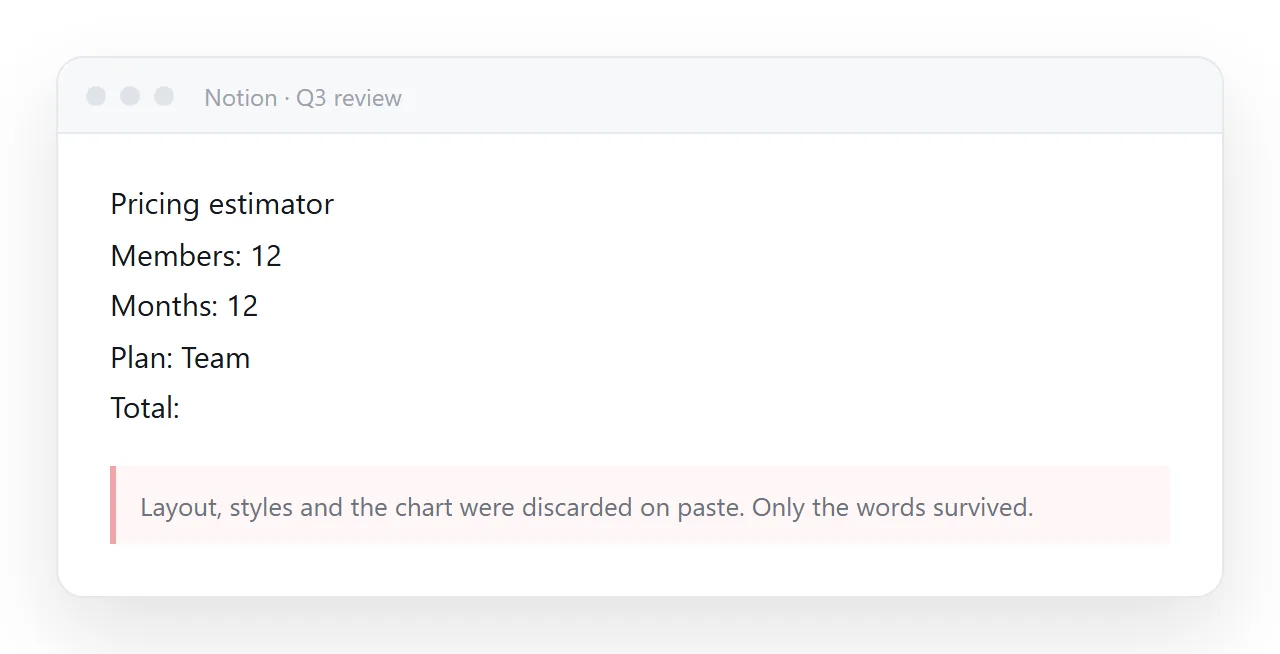
Only the last row works reliably, which makes this the document type where publishing is not an improvement but a requirement.
The whole thing in thirty lines
<label>Seats <input id="seats" type="number" value="12" min="1"></label>
<label>Price per seat <input id="price" type="number" value="9" min="0" step="0.5"></label>
<label>Months <input id="months" type="number" value="12" min="1"></label>

<p>Total <output id="total">—</output></p>

<script>
  var ids = ['seats', 'price', 'months'];
  function calc() {
    var v = {};
    ids.forEach(function (id) { v[id] = parseFloat(document.getElementById(id).value) || 0; });
    var total = v.seats * v.price * v.months;
    document.getElementById('total').textContent =
      total.toLocaleString('en-US', { style: 'currency', currency: 'USD' });
  }
  ids.forEach(function (id) { document.getElementById(id).addEventListener('input', calc); });
  calc();
</script>
Four details worth keeping.
|| 0 after parseFloat. An empty field parses to NaN, and NaN propagates through every subsequent calculation so the whole result reads NaN. This one guard prevents the most common visible failure.
input rather than change. input fires on every keystroke, so the result follows as the reader types. change waits until they leave the field, which feels broken.
toLocaleString for money. Thousands separators and currency symbols, correct per locale, without writing any formatting code.
Calling calc() once at the end. Otherwise the page loads showing a dash next to filled-in inputs, which reads as broken before anyone has typed anything.
Pre-filling from the link
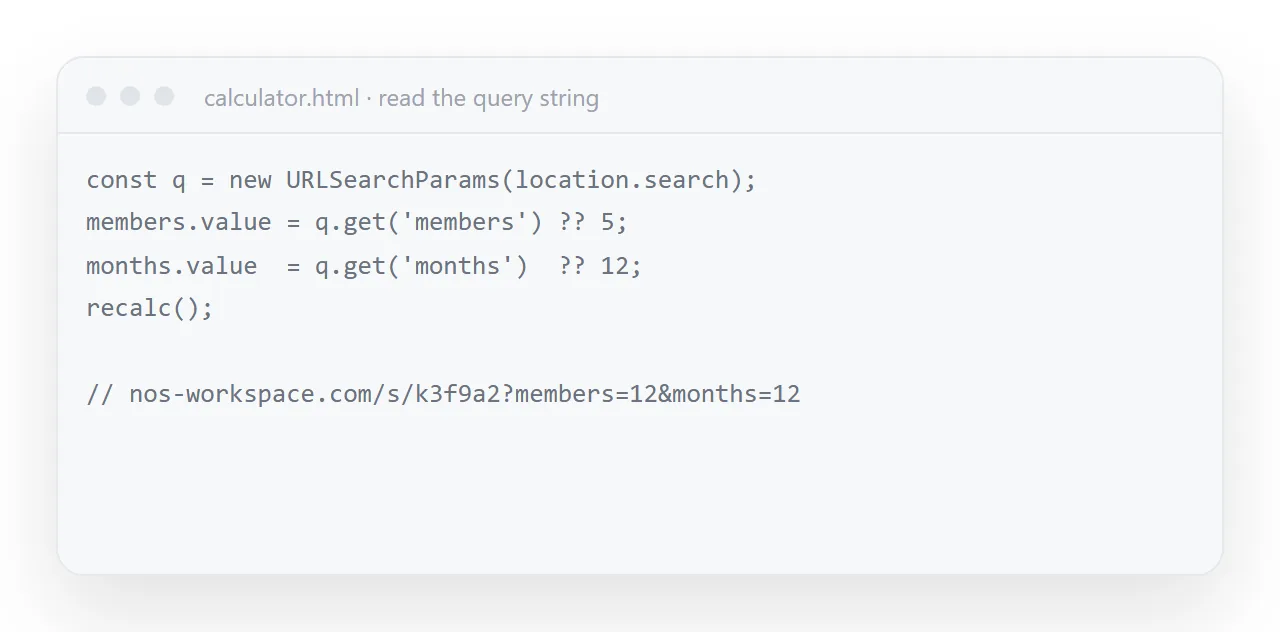
This is the feature that makes a shared calculator persuasive. Instead of sending an empty form, send one with the reader's own numbers in it:
<script>
  var q = new URLSearchParams(location.search);
  ids.forEach(function (id) {
    if (q.has(id)) document.getElementById(id).value = q.get(id);
  });
  calc();
</script>
Now ?seats=40&price=9&months=12 in the address produces their scenario on load. Read the values back out and you can offer a "copy this link" button so the reader can send their own scenario to their own colleague — which is how a calculator spreads without you doing anything.
Number input details that matter
<input type="number" inputmode="decimal" min="0" step="0.5">
inputmode="decimal" gives phone users a numeric keypad instead of a full keyboard. min stops negative seat counts. step sets what the arrows do. Small things, and their absence is what makes a calculator feel amateur on a phone.
Say what the calculation assumes
The most important part of a shared calculator is not the arithmetic, it is the note underneath:
<p class="fine">
  Excludes tax. Assumes all seats active for the full period and no mid-term changes.
</p>
Without it, somebody will quote the output as a quote. With it, the calculator is a thinking tool rather than a source of arguments later.
Publishing it
Put the page at an address and send the link. It runs on a phone, it can be bookmarked, and the link can carry a scenario.
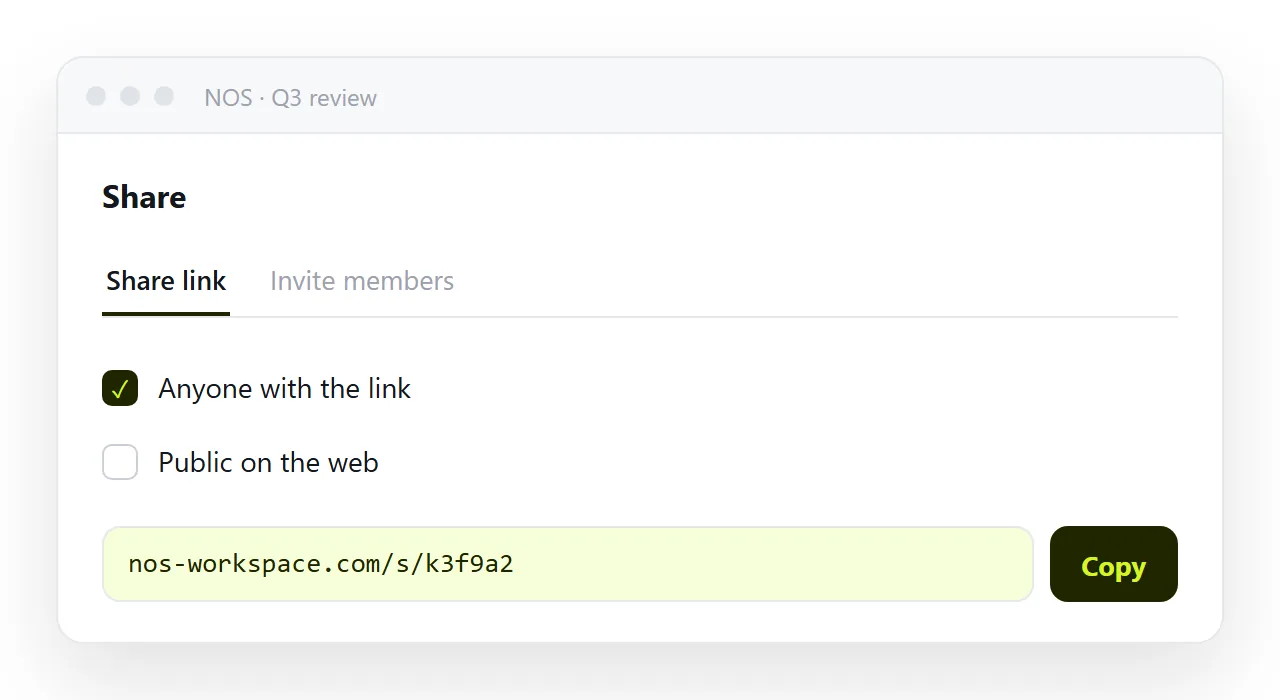
In NOS the pasted calculator HTML renders and runs exactly as written at a fixed address, while the text around it — the labels, the assumptions note — stays clickable text you can correct without touching the script.
The four bugs generated calculators have
| Bug | Symptom | Fix |
|---|---|---|
| No ` | 0afterparseFloat` |
|
change instead of input |
Result updates only after leaving the field | Use input |
calc() never called on load |
A dash next to filled-in inputs | Call it once at the end |
No inputmode |
A full keyboard on a phone for a number | inputmode="decimal" |
All four are one line. The first is the one that makes the page look broken rather than unpolished.
Sharing it
A calculator cannot be a screenshot, a PDF, or pasted into a document that strips scripts — see pasting HTML into a document app. It has to be a running page, which makes an address a requirement rather than an improvement.
Pre-fill from query parameters and the link can carry the reader's own scenario, which is what makes a shared calculator persuasive rather than abstract.
Rounding and the number people quote
Round once, at the end, and show the rounding. A total that reads $4,320.00 when the inputs were whole numbers looks precise and is fine; one that reads $4,319.99 because of a floating-point step looks wrong and gets questioned.
Multiply in whole units where you can, use toFixed(2) or toLocaleString only when displaying, and say in the note underneath whether the figure is per month or for the whole period.
Sharing the calculator as a link: 4 steps
- Write it as one self-contained file. Inputs, an
output, and the script at the end of the body. Guard everyparseFloatwith|| 0, listen forinputrather thanchange, and callcalc()once on load. - Read the inputs from the address. The
URLSearchParamssnippet above, so?seats=40&price=9opens the page with the reader's numbers already in it. - Paste the calculator into a NOS document and copy the share link. Share, then Share link, then Create link. It runs on a phone, can be bookmarked, and the labels and the assumptions note stay clickable text. Turning HTML into a link is this step.
- Send a link with a scenario in it. The reader's own numbers, not an empty form, and a Copy this link button so they can send their scenario to their own colleague.