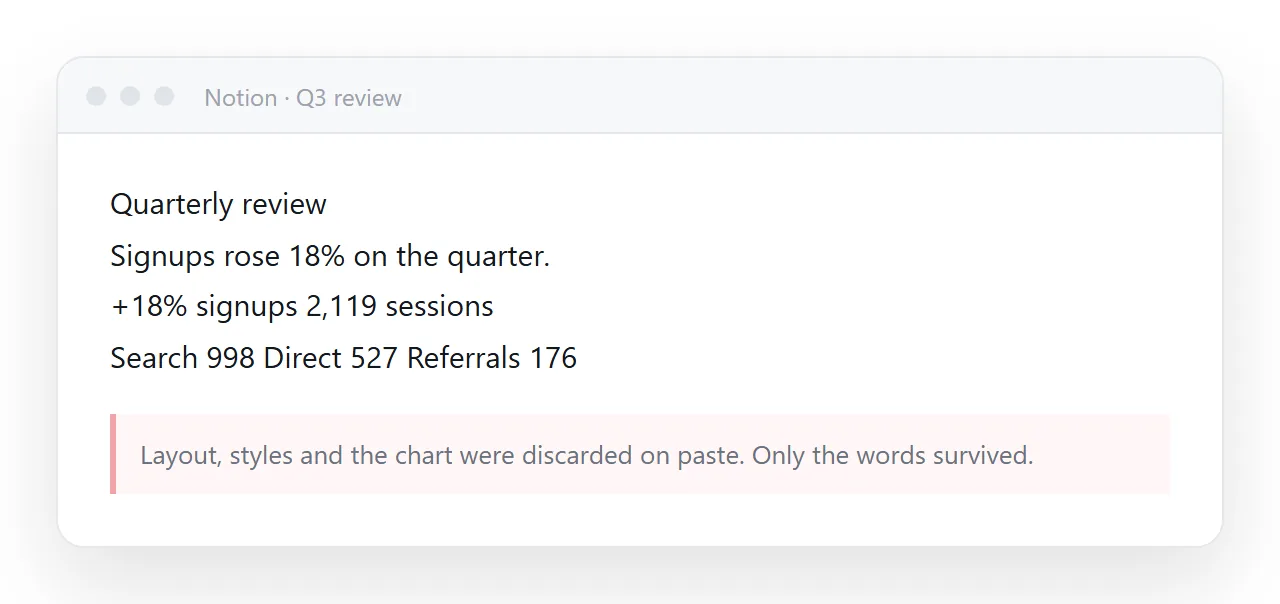
Notion does not have an HTML block. When you paste a page into it, Notion keeps the words and throws away the rest.
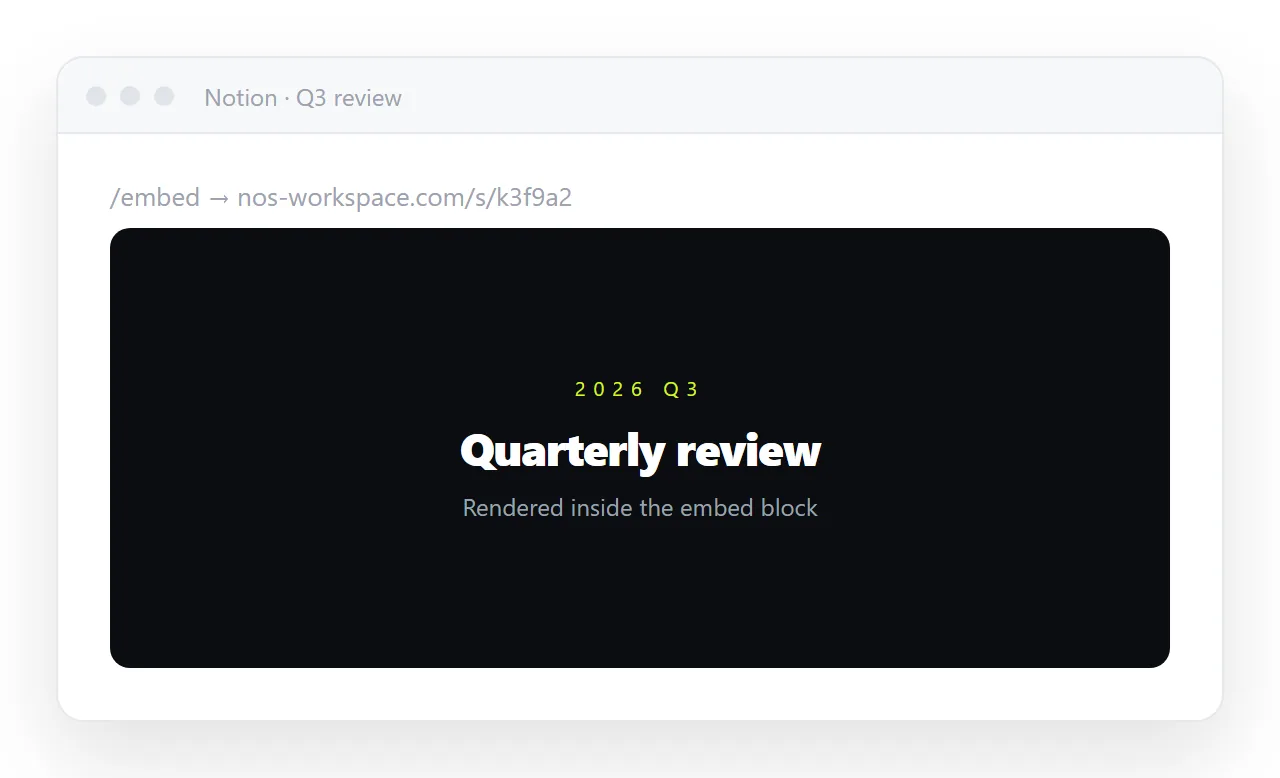
To embed HTML in Notion you have to do it the other way round: give the page an address, then put that address in an /embed block.
This guide shows what actually happens on paste, the five steps that work, and the three things that go wrong afterwards.
What happens when you paste HTML into Notion
Notion stores a page as a list of blocks — paragraph, heading, bulleted list, table, code — and each block has one fixed look. Paste HTML and Notion maps every tag onto the closest block it owns. Anything with no matching block is dropped, silently.
| In your HTML | What Notion keeps |
|---|---|
<h1>, <h2>, <h3> |
A heading block |
<p> |
A paragraph block |
<ul>, <ol> |
A list block |
<table> |
A plain table block — no column widths, no colours |
<a> |
The link text, usually still linked |
<img> with a public address |
Sometimes an image block; a local file path never |
<style>, inline style="" |
Dropped |
<script> |
Dropped |
| CSS grid, flex, columns | Dropped — blocks stack top to bottom |
<svg>, <canvas> |
Dropped |
| Fonts, spacing, dark theme | Dropped |
Everything in the lower half of that table is the part that made the page worth sending. This is not a bug you can toggle off. A tool that promises every page will look consistent cannot also render arbitrary CSS, because then any pasted page could look like anything.
Pasting into a code block is the other thing people try. It preserves the markup character for character — and displays it as code. Nobody can read a dashboard as a wall of tags.
How to embed HTML in Notion: 5 steps
The embed route works because Notion is not asked to understand your HTML at all. It only loads an address inside a frame, and the browser inside that frame renders the page the way any browser would.
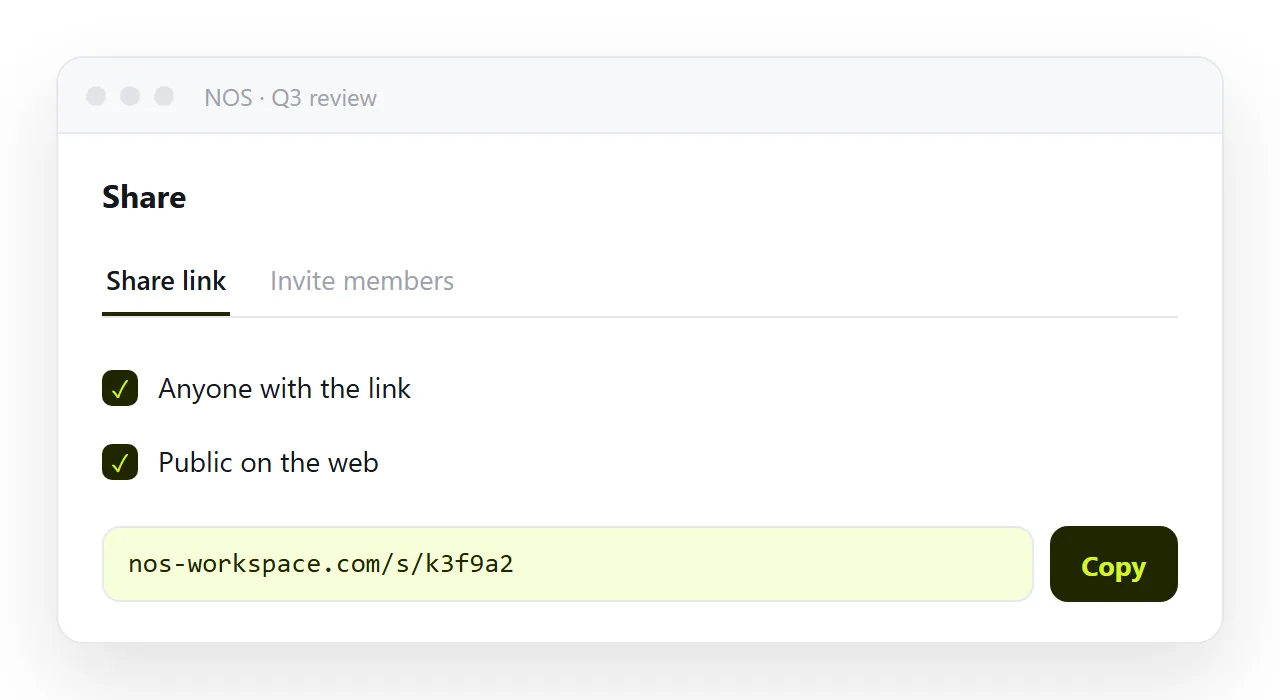
- Put the page at a public address. This is the step people skip. Notion's embed block takes a URL, not HTML text, so the page has to exist somewhere on the web first. Publishing it as a page gives you an address in one paste; any static host that serves the file as a real page works too.
- Copy the address. Open it in a private browser window once. If it renders there, it will render in Notion.
- In Notion, type
/embedand press Enter. Pick Embed from the menu — not Bookmark, which only makes a preview card. - Paste the address and click Embed link. The page appears inside the block.
- Drag the bottom edge to set the height. Hover the embed and a handle appears on its lower edge. Drag it until the page fits, or leave it short and let the frame scroll.
Once it is in, the embed stays live. Fix a typo on the published page and the frame shows the new version the next time the Notion page is opened — there is nothing to re-paste.
Three things that go wrong, and the fix for each
Notion made a bookmark card, not an embed
Pasting a bare link sometimes defaults to a Bookmark block: a grey card with the page title and a thumbnail. That is not the page, it is a link to it. Delete the card, type /embed first, and paste the address into the embed's own input box. Choosing the block before pasting is what forces the frame.
The page is cut off
A frame's height belongs to the document, not to the page inside it. A tall dashboard in a short frame shows its top third and scrolls inside.
Two fixes: drag the bottom handle to make the frame taller, or design the page as a short band — one screen of content, no vertical scroll — so it fits whatever height the reader gives it.
For a long report, link to the page instead of embedding it; the reader gets their whole screen.
The frame is blank
Almost always one of two causes. The address is not public — it needs a login, or it is a link to a file in a drive rather than a served page.
Or the page is not self-contained: its stylesheet sits in a separate file next to the original, and the frame cannot reach that file. Open the address in a private window.
If it renders there, the problem is on the Notion side; if it does not, the page itself needs fixing before any embed will work.
Embed or link: which one to use
Both routes need the same thing — the page has to live at an address. Once it does, pick by how it will be read.
| Situation | Embed | Link |
|---|---|---|
| A short chart or summary that belongs mid-page | Yes | |
| A one-screen band with no scrolling | Yes | |
| A full report or a tall dashboard | Yes | |
| Readers are mostly on phones | Yes | |
| You want a preview card in chat as well | Yes | |
| The page will be edited often | Either — both stay current |
Embeds are worth it for something the reader should see without leaving the doc. For anything that scrolls, a link is kinder: the page opens full-width, on a phone as well as a laptop, and the doc stays short.
Doing it without a frame at all
There is a third option, which is to stop treating the HTML as a foreign object. In NOS a page is a document.
Paste the HTML and it renders exactly as written — dark theme, chart, table, scripts — and it sits in the same folder as your written notes, searchable with them.
The text inside it is clickable text, so fixing a number means clicking the number, not editing markup or re-embedding anything. There is no frame, no fixed height and no stripped CSS, because nothing is being converted.
That address is also what the /embed block wants. So even if Notion stays the home for your notes, publishing the page first is the step that makes every route work.
Before you embed anything: a 30-second check
- Does the address open in a private window? If not, it is not public yet.
- Is the page self-contained? One file, styles inside it, images at public addresses. A page that reaches for
styles.cssnext to it will lose its styling in a frame exactly as it does on paste. - How tall is it? One screen embeds well. Anything that scrolls reads better as a link.
- Will it change? If yes, make sure the address stays the same after edits, so the embed never goes stale.