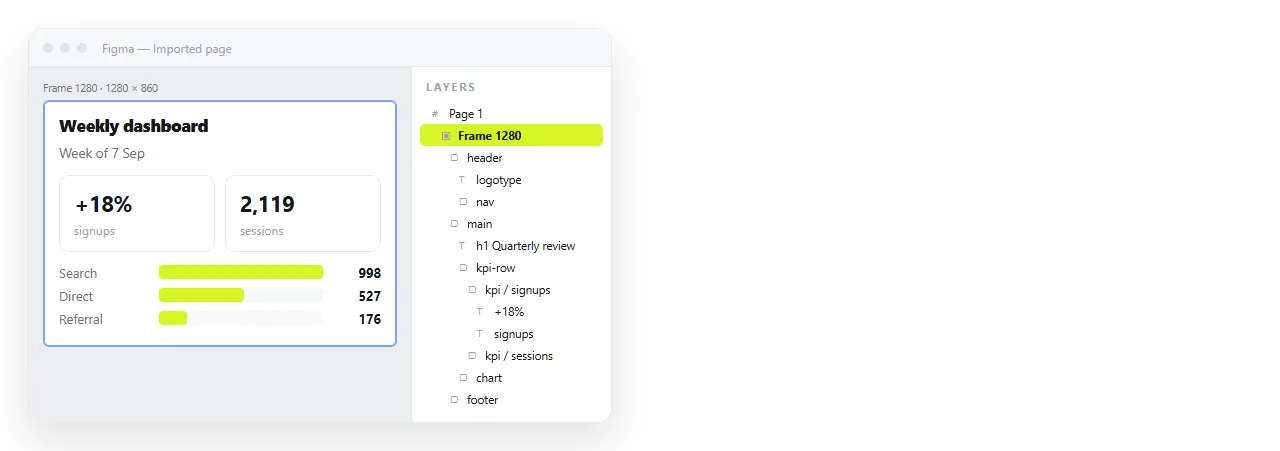
To convert HTML to Figma you pick one of three import routes, because Figma has no HTML import of its own. It opens Figma files, images and SVG, so the page has to arrive as one of those.
The routes differ on one axis: how much of the page stays editable afterwards. Everything else follows from that.
Three ways to convert HTML to Figma
| Route | Arrives as | Editable | Good for |
|---|---|---|---|
| Import plugin | Frames, text, shapes | Mostly | Redesigning an existing page |
| Paste SVG | Vector layers | Fully, as vectors | Charts, icons, diagrams |
| Place an image | One flat layer | Not at all | Reference, slides, moodboards |
Most work that starts with "convert HTML to Figma" is actually route one or route two. Route three is the fallback when the page resists both.
Route 1: an import plugin
Community plugins read a page and rebuild it as Figma layers. html.to.design is the one most teams land on.
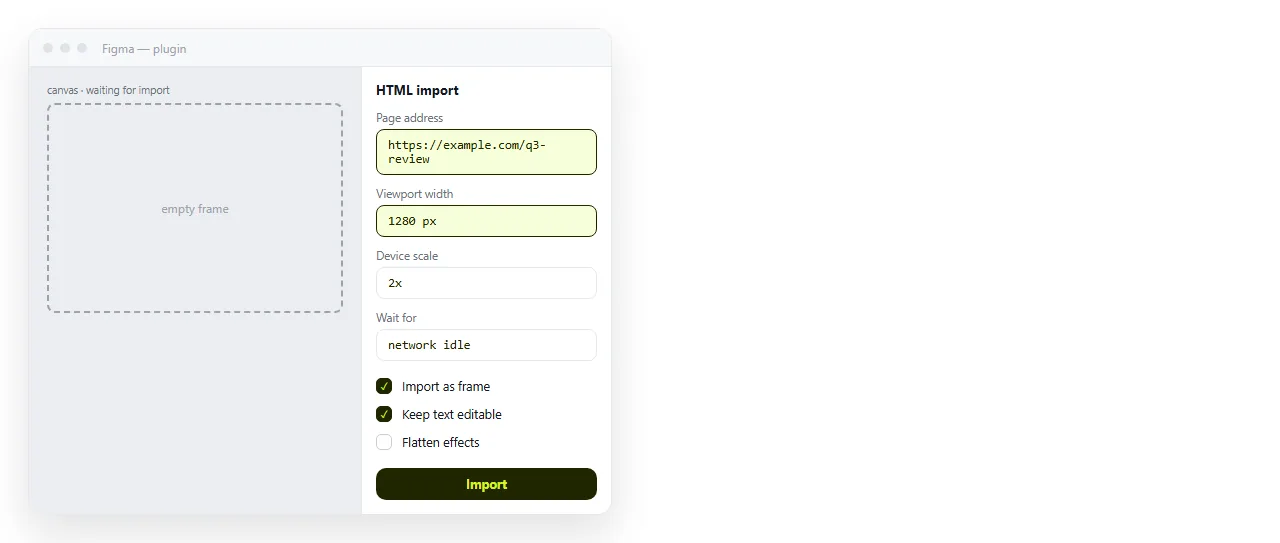
They generally want an address, not a file on your disk. A local file has no URL the plugin can fetch, so the first step is often putting the page somewhere it can be loaded from.
- Publish the page at an address the plugin can reach.
- Run the plugin and paste the address in.
- Pick the viewport width you care about. Importing a mobile and a desktop version separately is usually easier than trying to import a responsive page once.
- Wait for the import, then inspect the layers panel rather than the canvas. The canvas can look right while the structure is unusable.
What tends to survive. Frame structure, text content, fills, spacing, and often auto layout.
What tends not to. Anything a script drew after load, unusual CSS effects, and fonts that the Figma file does not have access to.
Getting an address for a local file
If the page only exists as a file on your machine, the plugin has nothing to fetch.
Paste the HTML into a NOS document and it renders as written, with its own address. Copy the share link and give that to the plugin.
That takes one paste, where a static host takes a project, a deploy and a wait. Turning HTML into a link is the step on its own.
Route 2: paste SVG for the vector parts
Figma converts pasted SVG into real vector layers. Copy an SVG, click the canvas, paste, and you get editable paths.
This is the best route for charts, because most charting libraries already render SVG into the page. You are not converting anything; you are taking what is there.
- Open the page and inspect the chart.
- Find the enclosing
<svg>element in the Elements panel. - Right click, copy the outer HTML, and paste it onto the Figma canvas.
Two things to check afterwards. Styling that lived in a page stylesheet does not come with the element, so colours may be wrong. And SVG text that used a web font will substitute.
Converting HTML to SVG covers producing SVG when the page does not already contain any.
Route 3: place an image
Drag a PNG onto the canvas and it becomes an image layer. Nothing inside it is selectable.
That is enough when the page is a reference you will redraw, or when you need it in a deck rather than in a design. Capture at double density so it does not look soft when zoomed.
Converting HTML to PNG covers the capture, and the HTML to image tool does it without an install.
Fonts are the usual disappointment
Fonts substitute quietly. A heading in a licensed web font becomes something else, and the layout shifts by a few pixels everywhere.
- Check headings first. They carry the most visible weight change.
- Note the font stack from the page before importing, so you know what it should have been.
- If the font is unavailable in Figma, decide whether to accept a substitute or convert that text to outlines from SVG.

Images that came from relative paths
An import plugin fetches images from the address it loaded. Images on relative paths that only resolve inside your folder will be missing.
The fix is the same as it is everywhere else: make the page self contained before you export it. Base64 images travel with the markup, and images not showing in HTML covers diagnosing the rest.
The copy goes stale immediately
Whatever route you take, the Figma version is a snapshot of the page at one moment. The page keeps changing and the snapshot does not.
That is fine while a redesign is in progress and misleading afterwards. Reviewers open the Figma file and comment on a layout that shipped differently two weeks ago.
Keep the live page linked from the Figma file, and treat the page as the source of truth for what is currently true. The design file is the source of truth for what should be true next.
A NOS document serves that role well, because the address does not change when the content does. The link you pasted into the file in March still shows the current page in June.