Turning HTML to an image or PDF needs nothing installed: the browser you already have renders the page, and its print dialog saves a PDF or, through a screenshot, an image. There are two reasons to do it. One is good: the destination genuinely cannot take a link, a printed handout, a slide, a form that accepts only image uploads. The other is habit, and it costs more than people realise, because a picture of a page removes the text, the numbers, the date and anything that responds. This guide covers the export, the print rules that stop the output looking broken, what the picture costs, and when to send the page instead. There are two reasons to turn a page into a picture. One is good: the destination genuinely cannot take a link — a printed handout, a slide, a form that accepts image uploads only. The other is habit, and it costs more than people realise.
HTML to image or PDF: exporting with what you already have
You do not need a converter service. Your browser has a renderer and a PDF writer built in, and they produce better output than most converters because they are rendering the page rather than re-interpreting it.
- Render the page in the tool above.
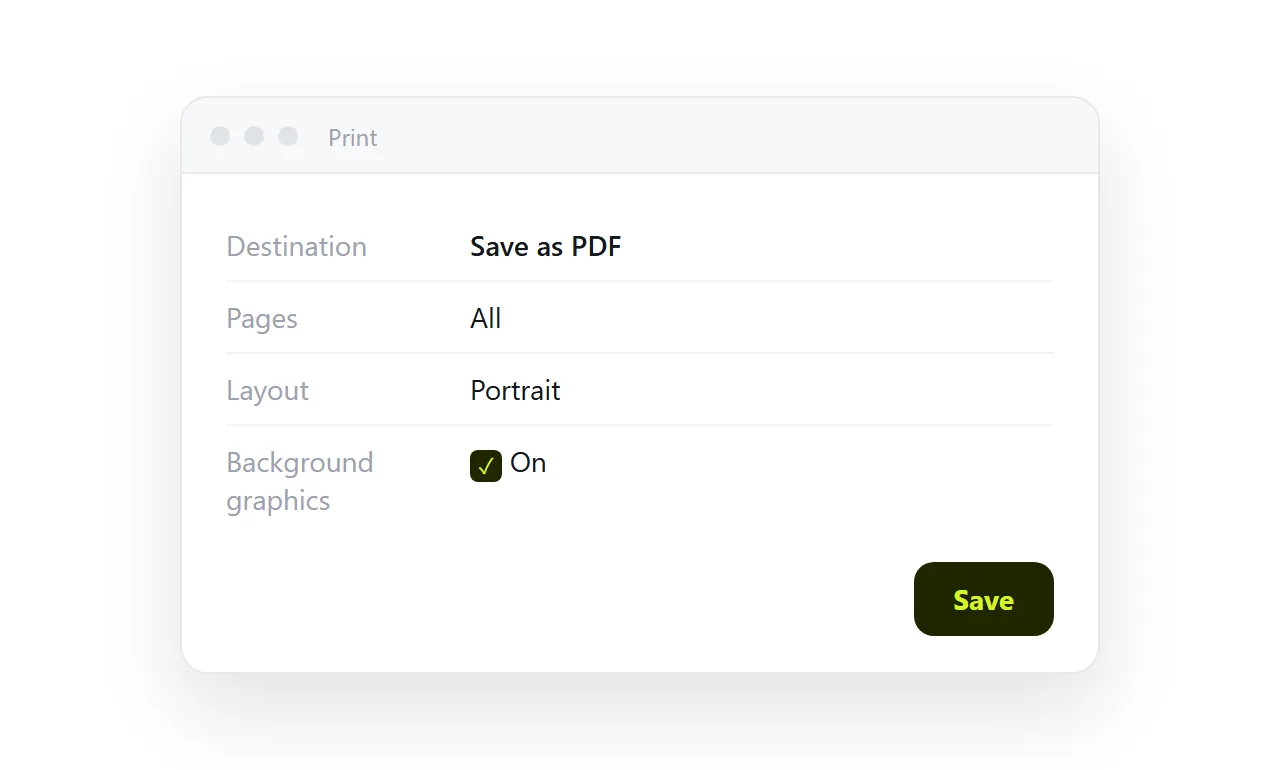
- Press "Save as image or PDF." This opens the browser's own print dialog for the preview frame.
- Choose the destination. "Save as PDF" gives you a document. For a picture, use your operating system's screenshot shortcut on the rendered area instead.
No account, no upload, no watermark.
Making the output not look broken
A page designed for a screen and a page designed for paper are different documents. Three rules cover most of the damage.
Let the content flow
<style>
  @media print {
    body { min-height: auto; }
    .full-screen { height: auto; }
  }
</style>
Anything sized in vh units assumes a screen of a known height. On paper there is no such thing, so a "full height" hero section becomes a full sheet of empty space with one line at the top.
Control where the breaks land
<style>
  @media print {
    table, figure, .card { break-inside: avoid; }
    h2 { break-after: avoid; }
    .chapter { break-before: page; }
  }
</style>
break-inside: avoid on a table stops the header row landing on one sheet and the data on the next. break-after: avoid on a heading stops a heading being orphaned at the bottom of a page.
Remove what is not printable
<style>
  @media print {
    nav, .no-print, button { display: none; }
    a[href^="http"]::after { content: " (" attr(href) ")"; font-size: 11px; }
  }
</style>
Navigation and buttons are noise on paper. That last rule is the useful one — it writes each link's address next to the link text, so a printed page does not silently lose every reference it had.
Image or PDF
A PDF keeps the text as text: it can be searched, selected and read by a screen reader, and it prints at any size. An image keeps only pixels. If the destination accepts either, choose the PDF.
Use an image only where an image is the only thing accepted, and size it to the width it will be shown at rather than exporting a 4,000-pixel capture of a 900-pixel page.
What the picture costs
This is the part worth being deliberate about, because the loss is invisible until someone needs the thing that is gone.
| In the picture | On the page |
|---|---|
| Text is pixels | Text can be selected, copied and searched |
| Numbers must be retyped | Numbers can be copied into a spreadsheet |
| A chart is one frozen frame | A chart still responds to hover |
| Screen readers find nothing | Screen readers read the content |
| Stale the moment the data changes | Update the source, and the address is current |
| One fixed width | Reflows for whatever screen opens it |
The last two rows are the expensive ones in practice. A picture of a report is out of date the moment the underlying number moves, and nothing about the file announces that. People keep circulating it, and the number keeps being wrong, and nobody notices because a picture looks authoritative.
A reasonable rule
Send the page. Export a picture only when you know the destination will not take a link.
If the reason you were reaching for an export is "the file will not open for them" or "I cannot attach this" — that is not an export problem. Giving the page an address solves it properly, and everything in the right-hand column above stays intact.
In NOS the published page keeps the HTML exactly as written and holds a stable address, so the numbers stay correctable and the link you sent last month still shows the current version. Export when paper is genuinely the destination; link the rest of the time.
Export or link
| The content | Send |
|---|---|
| Final, and paper is the destination | A PDF |
| Final, and the destination takes only images | An image |
| Has figures that can change | A link |
| Has a chart worth interacting with | A link |
| Will be read on a phone | A link |
| Is a contract or a dated quote | A PDF, as the record |
Three of those six are links, and they cover most working documents. The staleness problem is the deciding factor — see screenshot versus live page.
Getting the export right
The rules that stop tables being sliced and full-height sections becoming empty sheets are all in one media block — see print stylesheets. Without it, the export is legible by luck.
Sizing an image export
If the destination is a slide or a form field, it has a width. Export at that width, or at twice it for a high-density screen, and no larger; a 4,000-pixel capture of a 900-pixel page is a large file that gets scaled down anyway.
Crop to the content rather than the whole window, and check the text is still readable at the size it will be shown.
Export or link, the short version
If the reader could open a link, send the link. The screenshot comparison lists what a picture removes. Export when the destination is paper, a slide, or a field that accepts only files, and name the export with the date so nobody mistakes it for the current page.
Exporting the page: 4 steps
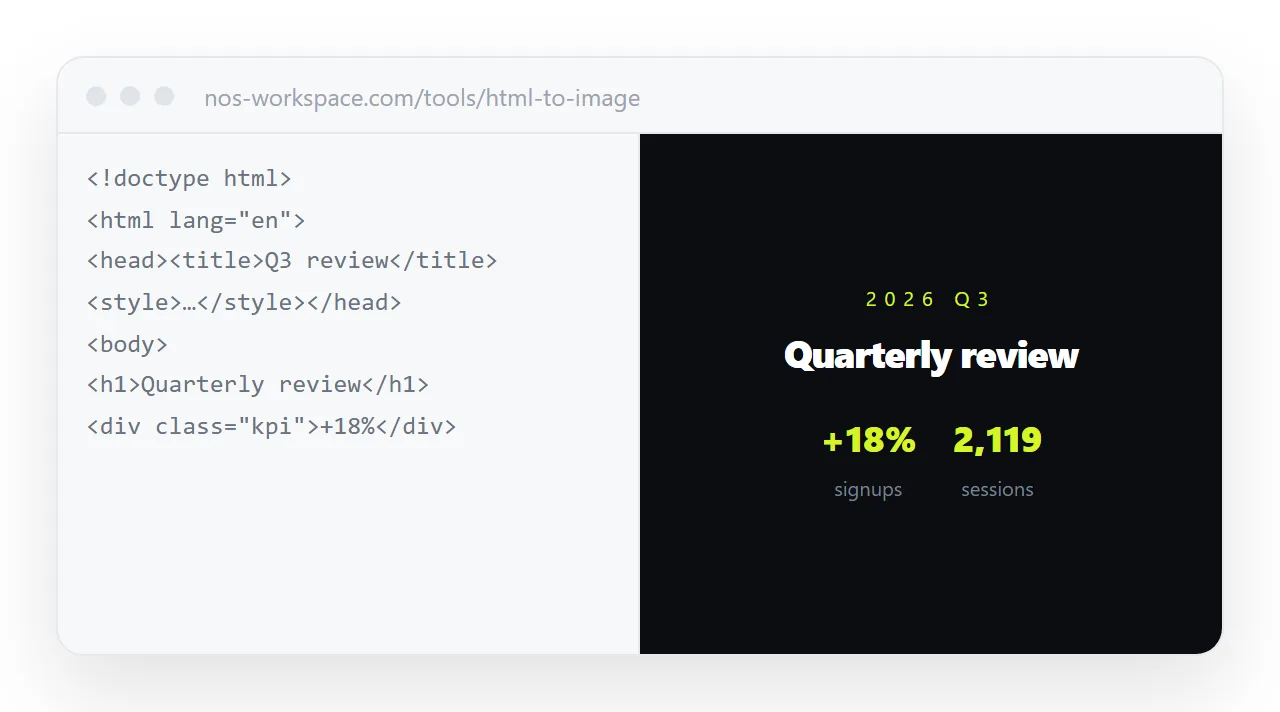
- Render the page in the viewer above. Check it at full width first; what renders here is what exports.
- Add the print rules to the page. Hide navigation and buttons,
break-inside: avoidon rows and cards, link addresses written after the link text, and a paper size in@page. Print stylesheets has the block. - Print, then Save as PDF, or screenshot for an image.
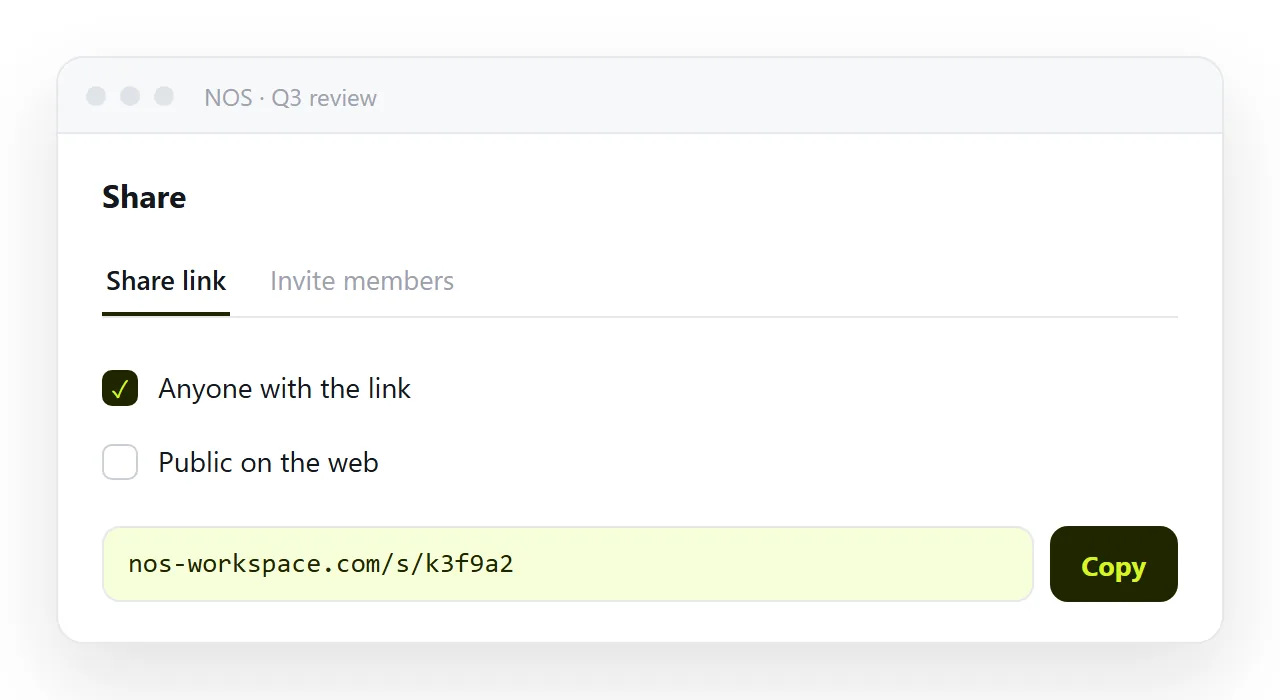
Ctrl+PorCmd+P, destination Save as PDF, check page one and every table in the preview. For an image, the browser's full-page screenshot. - Ask whether the destination really needs a file. If the reader could open a link, send the page: paste it into a NOS document, then Share, then Share link, then Create link. The export is for the cases where a link cannot go.