A print stylesheet is the block of CSS inside @media print that applies only when a page is printed or saved as a PDF.
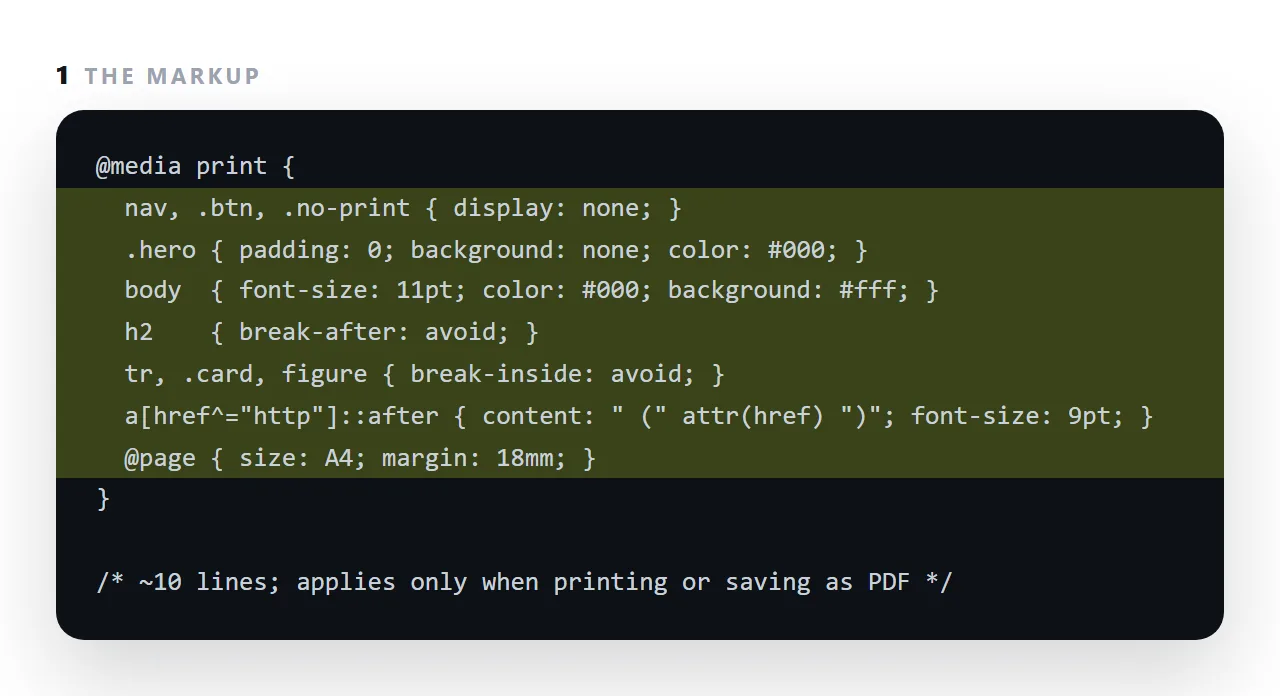
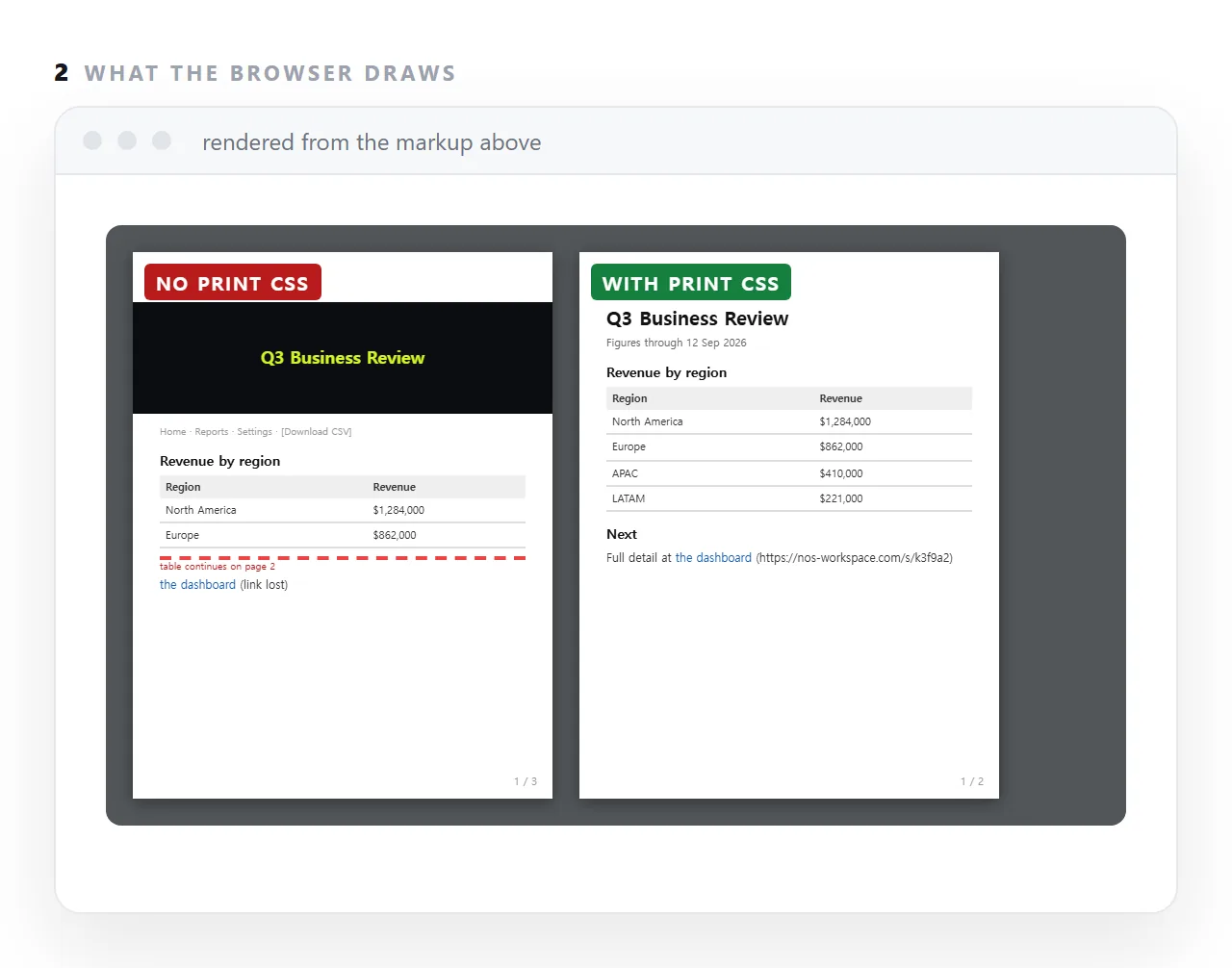
Screens scroll and paper does not, so a page that reads well on screen prints with the navigation at the top of every sheet, a hero band that empties the first page, tables cut mid-row, and blue link text with no address.
Ten lines fix all four, and they are the difference between an export that looks like a document and one that looks like a mistake.
This guide gives the block, explains what each part fixes, and covers page size, margins and the cases where a PDF is the wrong send.
@media print {
  /* … */
}
Everything in that block applies only when printing or saving to PDF. Here is the version worth copying.
The print stylesheet block
@media print {
  /* 1. let content flow instead of filling screens */
  body, .hero, .slide, .full { min-height: auto; height: auto; }

  /* 2. keep things together */
  table, figure, .card, li { break-inside: avoid; }
  h1, h2, h3 { break-after: avoid; }
  thead { display: table-header-group; }

  /* 3. remove what has no meaning on paper */
  nav, button, .no-print, video { display: none; }

  /* 4. keep the references */
  a[href^="http"]::after { content: " (" attr(href) ")"; font-size: 9pt; word-break: break-all; }

  /* 5. ink-friendly */
  body { font-size: 11pt; line-height: 1.45; color: #000; background: #fff; }
  .card, table { box-shadow: none; border: 1px solid #999; }

  /* 6. margins */
  @page { margin: 18mm 16mm; }
}
What each part fixes
1. Content flow
Anything sized in vh or svh assumes a screen of known height. On paper there is none, so a "full height" section becomes a full sheet of white space with one line at the top. This is the biggest single fix and it applies to nearly every modern page.
2. Breaks
break-inside: avoid on tables and cards stops a block being cut across two sheets. break-after: avoid on headings stops a heading being left alone at the bottom of a page with its content overleaf.
thead { display: table-header-group } is the underused one: it repeats the header row at the top of every sheet a long table spans. Without it, sheets two onward are columns of unlabelled numbers.
3. Hiding
Navigation, buttons and video have no function on paper. A sticky header also prints on the first sheet only, which reads as a mistake.
4. Keeping references
a[href^="http"]::after { content: " (" attr(href) ")"; }
Without this, a printed page silently loses every link it had. For a report or a résumé, that can mean losing the link to the work being described.
word-break: break-all stops a long address pushing the line off the edge of the sheet.
5. Ink
Drop shadows print as grey mud; a hairline border does the same job. Black text rather than a soft grey, because grey that reads well on a bright screen is faint in ink.
6. Margins
@page sets the printable margin. Browsers apply a default, and being explicit avoids surprises across printers.
What is not printed by default
Background colours and images. The reader must enable "background graphics" in the print dialog, and most do not. So a page whose structure depends on tinted panels prints as undifferentiated text. Use borders for structure that must survive.
Anything hidden. Collapsed details elements print closed. If the content should be on paper, open them for print:
@media print {
  details { display: block; }
  details > summary { list-style: none; font-weight: 700; }
  details > *:not(summary) { display: block !important; }
}
Testing
Use the print preview, not a printer. In the dialog, check:
- No nearly-empty sheets — if there are, revisit rule 1.
- No table split across a break — revisit rule 2.
- Link addresses present — revisit rule 4.
- Readable with background graphics off.
Exporting
The browser's print dialog with "Save as PDF" is the export. No converter service, and the output is better than most converters because the browser is rendering the real page — see HTML to image or PDF.
Symptom to rule
| On paper | Rule that fixes it |
|---|---|
| A nearly empty first sheet | min-height: auto on full-height blocks |
| A table split mid-row | break-inside: avoid on table |
| A long table losing its header | thead { display: table-header-group } |
| A heading alone at the foot of a page | break-after: avoid on headings |
| Navigation and buttons printed | display: none on them |
| Links with no addresses | a::after { content: attr(href) } |
| Grey mud where cards were | Remove shadows, add borders |
| Collapsed sections missing | Force details open for print |
| Text too pale | Set color: #000 |
Nine symptoms, nine one-line rules. Together they are the block at the top of this page.
When paper is not really the destination
Before writing any of this, ask whether the output needs to be a document at all. A PDF is frozen the moment it is exported, with nothing to indicate that — so for anything with figures that move, the print stylesheet is polishing an artefact that will be wrong within a month.
Export when paper, an archive, or a process that demands a file is genuinely the destination. Otherwise send the page and keep the print stylesheet for the reader who prints it anyway.
Page breaks, in detail
break-inside: avoid on a table row, a card or a figure keeps that element on one sheet. break-after: avoid on a heading keeps the heading with the paragraph that follows it, so a section title does not sit alone at the bottom of a page. break-before: page on a section forces a new sheet, which a report with an appendix wants.
Browsers honour these well for block elements and less well for very long tables, where a repeated header row via thead is what keeps the columns labelled on every page.
Dark pages on paper
A dark dashboard prints as a black rectangle. In the print block, set the body background to white and the ink to black, override the card backgrounds, and give bars a mid-grey. If the page uses colour variables, that is four lines; if colours are hard-coded, it is a search.
Making a page print well: 4 steps
- Add the
@media printblock to the page's stylesheet. The ten lines above: hide navigation and buttons, collapse the hero, keep rows and cards whole, write link addresses out, set the paper. - Print preview and look at page one and every table.
Ctrl+PorCmd+P. The preview is the test; the HTML to PDF tool walks through it. - Set the paper size for the readers you have.
A4orletterin@page, so the export does not depend on the printer dialog. - Save as PDF from the same page when a file is needed, and send the address otherwise. The PDF is the snapshot; the page at Share, then Share link, then Create link. is the version that stays correct.