Turning AI-generated HTML into a PDF goes wrong in four predictable ways, because nothing in a generated page was written for paper: the navigation prints, a full-screen hero leaves the first sheet empty, tables are sliced between pages, and every link becomes blue words with no address.
One print stylesheet fixes all four, and it is worth asking for in the prompt. This guide covers the faults, the stylesheet, the export, and the cases where a PDF is the wrong answer and a link is the right one.
Generated pages are written for screens, and nothing in the prompt mentioned paper. Printing one without a print stylesheet produces four predictable faults.
The four faults when AI HTML goes to PDF
| On paper | Cause |
|---|---|
| First sheet mostly empty | A block sized in vh or svh units |
| Tables split mid-row | No break rules |
| A heading alone at the bottom of a sheet | No break rule on headings |
| Navigation and buttons printed | No print-only hiding |
The print stylesheet that fixes them
Paste this at the end of the page's CSS:
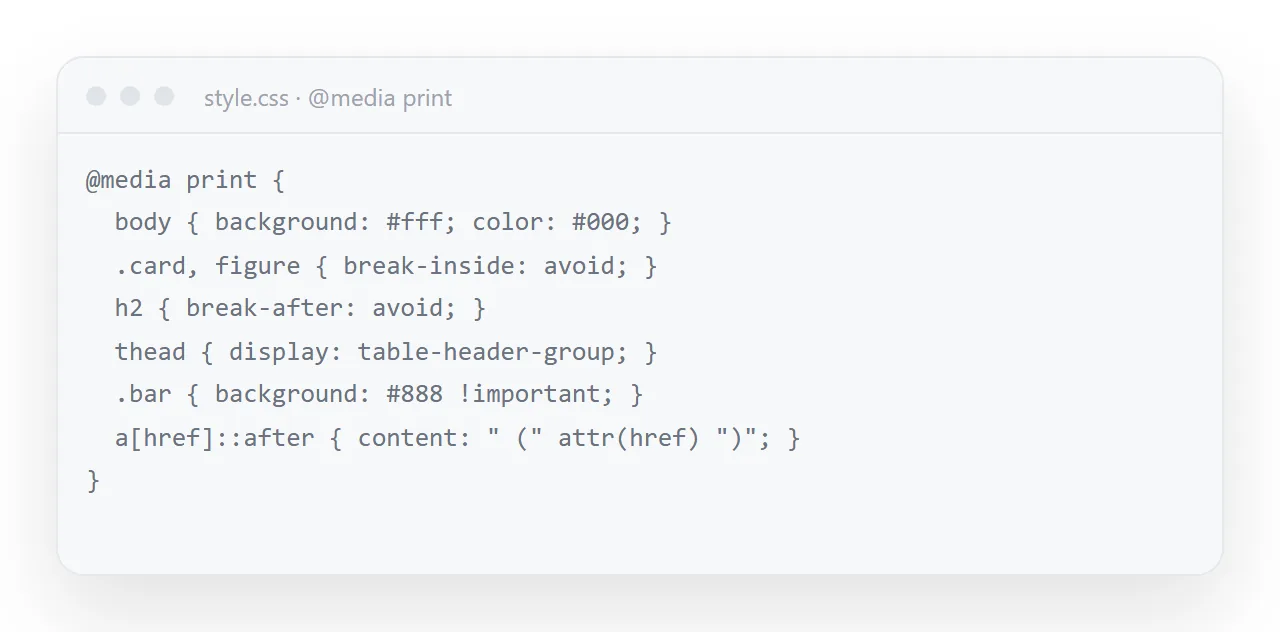
@media print {
  /* let content flow instead of filling screens */
  body, .hero, .slide, .full { min-height: auto; height: auto; }

  /* keep things together */
  table, figure, .card, .row { break-inside: avoid; }
  h1, h2, h3 { break-after: avoid; }

  /* remove what has no meaning on paper */
  nav, button, .no-print { display: none; }

  /* keep the references */
  a[href^="http"]::after { content: " (" attr(href) ")"; font-size: 9pt; }

  /* readable ink */
  body { font-size: 11pt; color: #000; background: #fff; }
  .card, table { box-shadow: none; border: 1px solid #999; }
}
Each block earns its place:
min-height: auto — the single biggest fix. Anything sized to a screen height becomes a full sheet of white space with a line of text at the top.
break-inside: avoid on tables and cards — stops a header row landing on one sheet and its data on the next.
break-after: avoid on headings — stops a heading being orphaned at the bottom of a page with its section overleaf.
Hiding navigation and buttons — a printed "Download CSV" button is noise, and a printed sticky header appears on the first sheet only, looking like a mistake.
Writing link addresses next to link text — the important one in a report. A printed page that silently loses every reference it had has lost most of its value.
Removing shadows, adding borders — drop shadows print as grey mud. A hairline border does the same job in ink.
Exporting
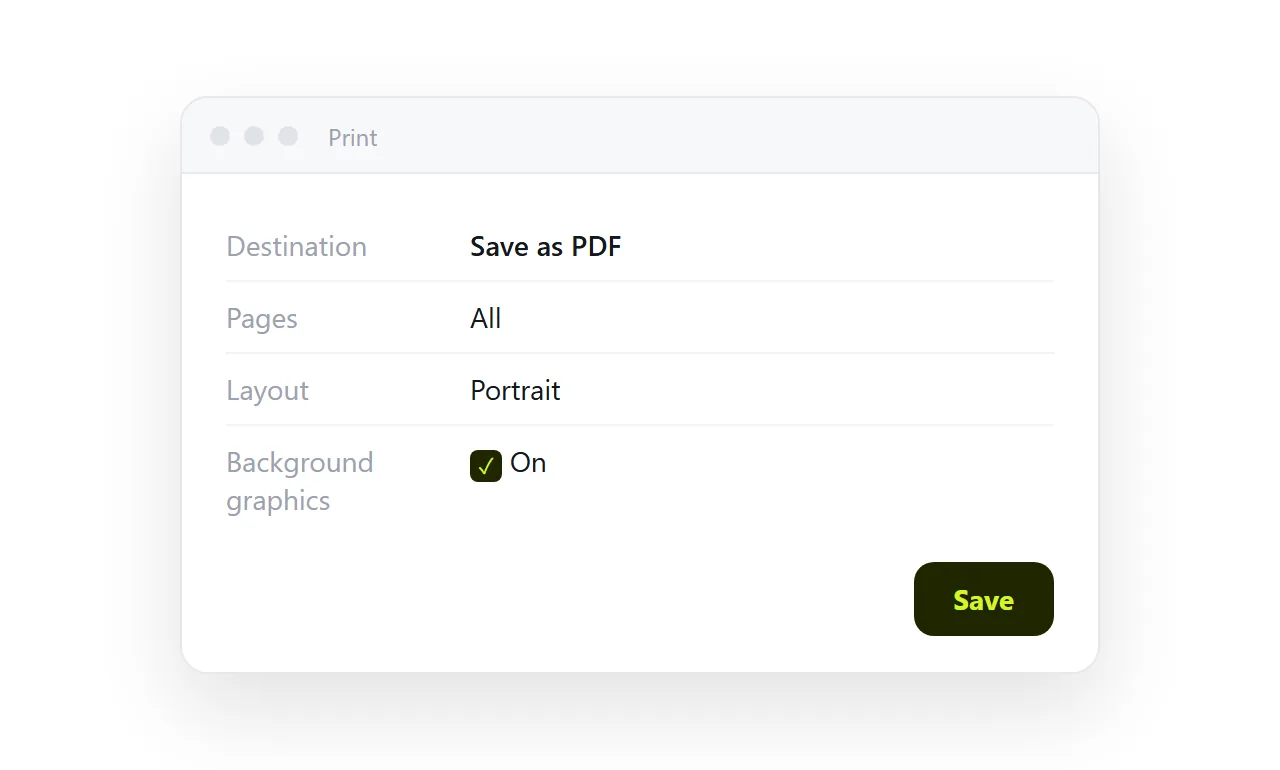
- Render the page — the HTML viewer has a print button that calls the browser's dialog on the preview.
- Choose "Save as PDF" as the destination.
- Turn background graphics on if your design relies on tinted panels, and off if you want to save ink.
- Leave scaling at 100% unless a table is genuinely too wide.
No converter service, no upload, and the output is better than most converters produce because the browser is rendering the real page.
Page size and margins
Generated pages assume a screen and print at whatever the browser's default paper is. Set it: @page { size: A4; margin: 18mm } at the top of the print block, or letter for readers in North America. Two lines, and the export stops depending on the printer dialog. Keep body text at 11pt in print; screen sizes come out large on paper.
Ask for the print rules up front
Include an @media print block: min-height auto on full-height sections,
break-inside avoid on tables and cards, break-after avoid on headings,
hide nav and buttons, and print link addresses after link text.
Generated pages will not include this unless asked, and asking costs one line.
When a PDF is the wrong answer
A PDF is a good archive and a poor read. On a phone it is a fixed-width page you pinch and drag. Text is selectable but the layout cannot reflow. And it is frozen the moment you export it, with nothing to indicate that — so the copy in somebody's Downloads folder keeps showing last quarter's figures and looking official.
Send a PDF when paper is the destination, when a fixed document is contractually required, or when someone has asked for one.
Otherwise send the link. In NOS the pasted page renders exactly as written at a fixed address, so the reader gets the live page and the figures stay correctable — and you can still export a PDF from the same page whenever somebody wants the file.
Charts and dark backgrounds on paper
A dark dashboard prints as a black rectangle that eats toner and hides the numbers. In the print block, set the page background to white and the text to black, and give bars a mid-grey so they survive a monochrome printer.
Charts drawn with inline SVG print sharp; charts drawn by a script print only if the script ran before the print, so wait for the page to finish before opening the dialog.
Page numbers and a date
Printed pages get separated.
Put the document title and the date in a small line at the top of every page with a fixed-position element shown only in print, and add page numbers with a counter in the @page margin box where the browser supports it.
A reader holding page three of a stack then knows what it belongs to and when it was true.
When the PDF is the deliverable
A contract, a signed-off statement, a document that must not change after a date: those want a PDF, and the page is the master it is exported from. Keep the page at its address as the working copy, export the PDF at the moment of sign-off, name it with the date, and treat the PDF as the record.
From generated HTML to a usable PDF: 4 steps
- Add the print stylesheet. Hide navigation and buttons, collapse the hero to a heading,
break-inside: avoidon rows and cards, and print each link's address after its text. - Check the preview. Print, then Save as PDF. Look at page one and at every table before saving; those are where the faults show.
- Name the file after the content and the date.
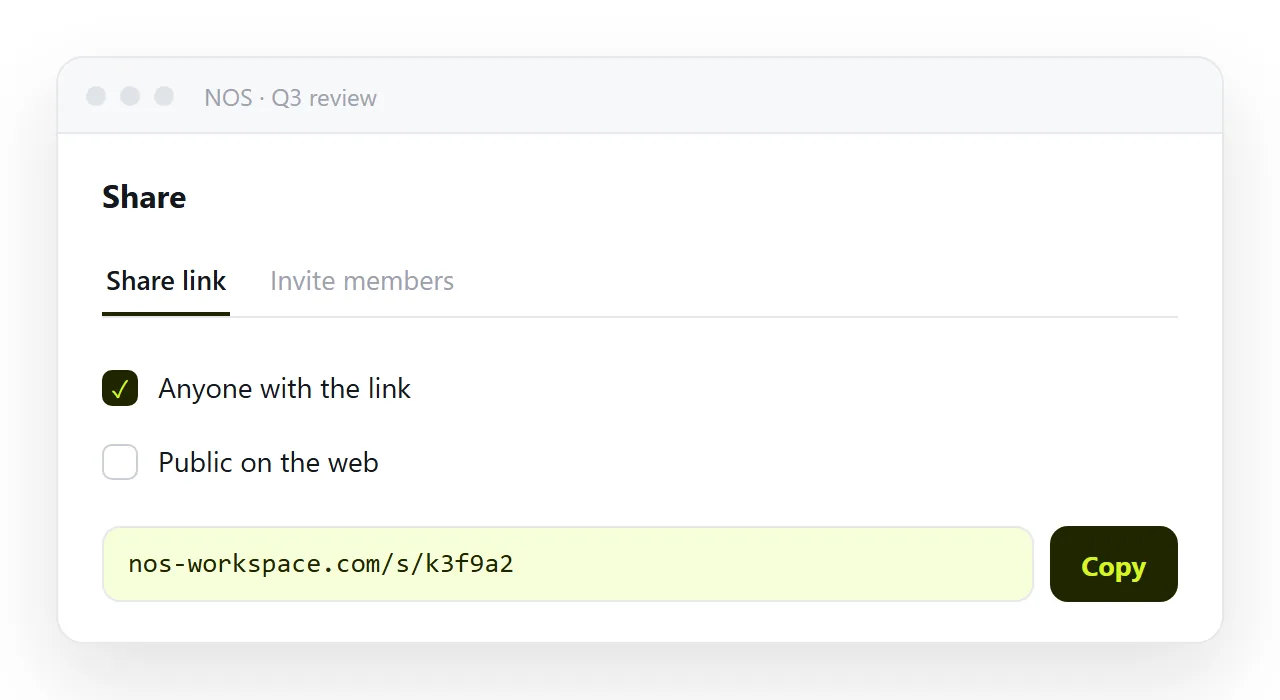
q3-review-2026-09-12.pdf, notfinal-v4.pdf. - Send the link as well, unless the reader needs paper. Paste the page into a NOS document and share it: Share, then Share link, then Create link. The PDF is the archive copy; the page at an address is the one that stays correct.