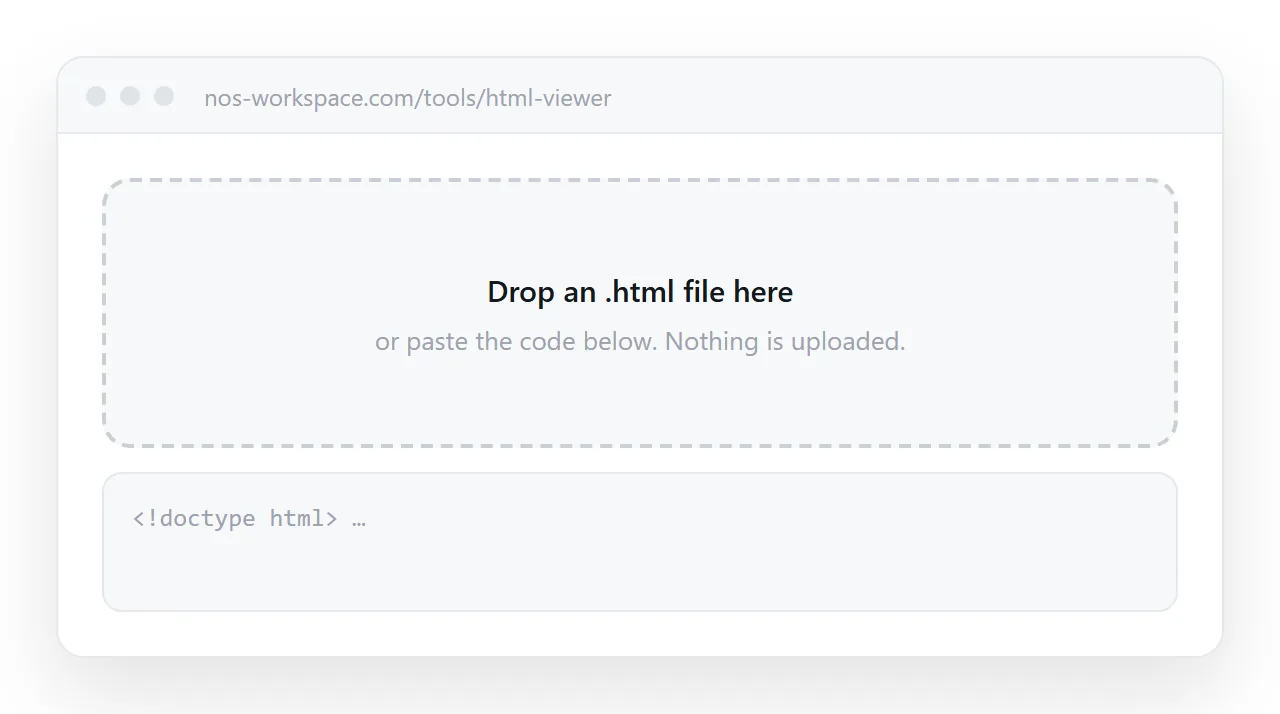
This HTML viewer takes a file or pasted code and draws the finished page: stylesheet, layout, scripts and all. Nothing is uploaded, nothing to install, no account. It exists for the moment when double-clicking an .html file shows you a wall of code, or nothing at all, and you just want to see what the page looks like.
What the HTML viewer shows you
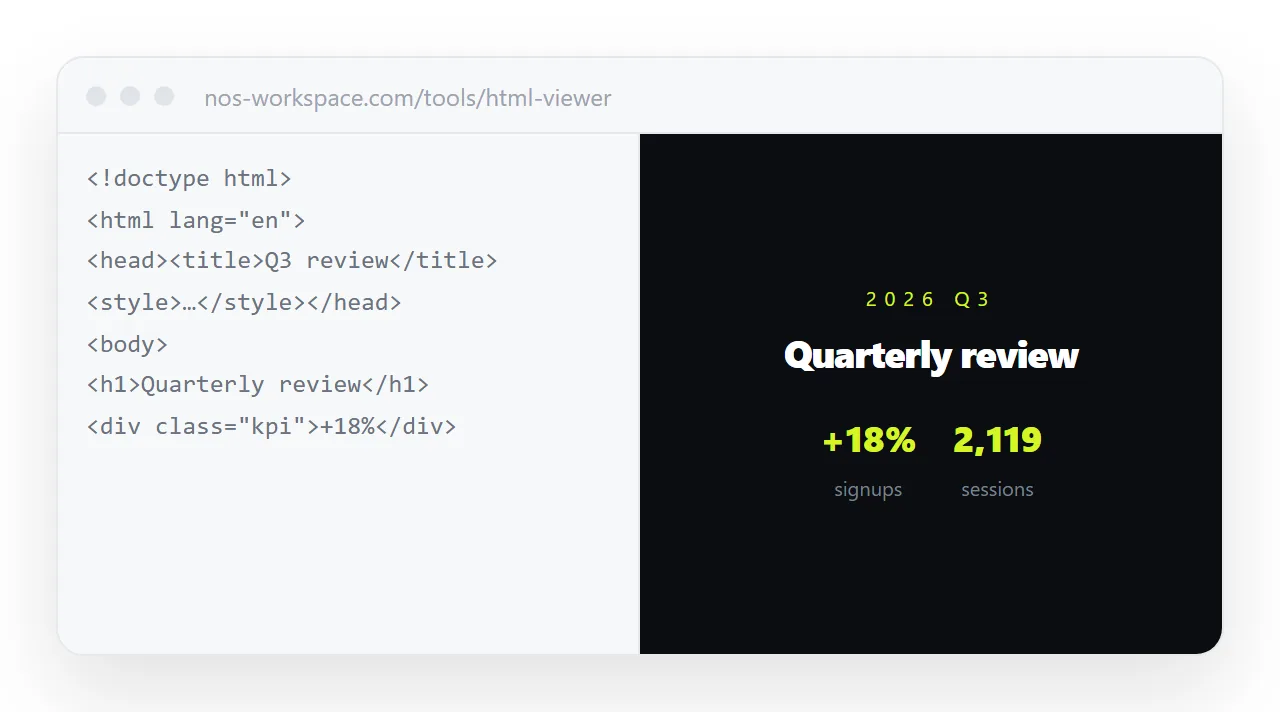
The right-hand side is a real browser frame, not a picture of one. Buttons click. Tables sort. A chart that animates on load will animate. That matters because the usual way of showing someone a page, a screenshot, quietly removes everything that made it worth sending.
The frame is deliberately walled off. It can draw, run scripts and accept your clicks, but it cannot reach this site's cookies or storage, and it cannot reach anything on your machine.
That is the whole reason it is safe to paste in a file somebody sent you and look at it before you trust it. The sandbox attribute is what enforces this.
How to use the HTML viewer
- Drop the file, or paste the code. Drag an
.htmlfile anywhere onto the tool, or paste the markup into the left-hand box. A complete document with<html>and<head>works; so does a fragment such as a single table or a card. - Read the result on the right. Scroll it, click it, sort it. If something is missing, it is nearly always a missing neighbour file, covered below.
- Edit in place. The left box is live. Change a heading or a number and the preview redraws a moment after you stop typing. The sample buttons along the bottom load a dashboard, a sortable table, a chart, a slide and a quote if you want something to start from.
- Publish when you want an address. The preview is gone the moment you close the tab. To keep the page and hand it to someone, paste the same HTML into a NOS document. It renders the same way and gets a link that stays put.
What you can paste or drop
| Input | Works | Notes |
|---|---|---|
A complete .html or .htm file |
Yes | Drag it onto the tool, or paste its contents |
| A fragment: one table, one card, one section | Yes | It is wrapped in a minimal page and drawn |
| A page exported by a report or dashboard tool | Yes | If it came with a folder of assets, see the table below |
| A page written by an AI assistant | Yes | This is the fastest way to check one before sending it |
| A mail template | Yes | Note that mail clients render less CSS than a browser does |
A .zip of a whole site |
No | Unzip it and drop the main page; assets in other files will be missing |
When the preview looks broken
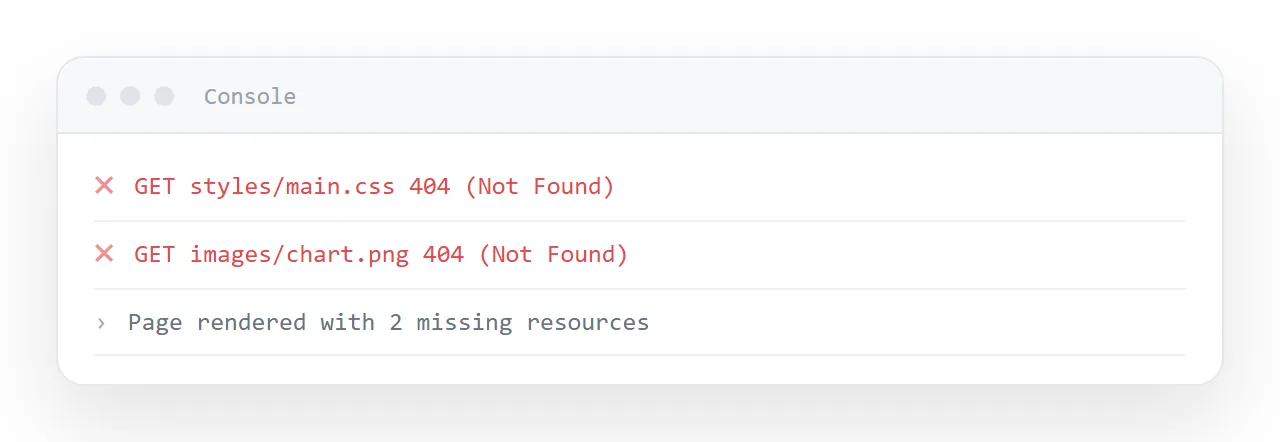
Most "my HTML is broken" reports are not broken HTML. They are files that expect company.
| What you see | What it usually means | Fix |
|---|---|---|
| Unstyled text, correct content | The stylesheet lives in a separate file that did not come along | Put the CSS inside a <style> tag in the same file |
| Boxes where images should be | Images are referenced by folder path, not carried inside | Use a full https:// address, or embed the image in the file |
| Blank white page | A script failed on the first line and stopped everything after it | Open the browser console and read the first error only |
| Fallback font everywhere | A font file is being loaded from a folder that is not there | Name fonts every machine already has, or load one from a public font service |
| Everything renders, nothing responds | The script is fine but never got attached | Move the script to the end of the body, or wrap it in a load handler |
The pattern behind all five: a page that depends on files next to it is only complete inside its original folder. A page that carries everything inside one file is complete anywhere. Self-contained HTML covers how to get there.
Viewing, editing and sharing are three different jobs
They get mixed up constantly, and picking the wrong one wastes an afternoon.
| What you need | What suits it | What does not |
|---|---|---|
| Check what a file looks like, once | A viewer like this one | Anything that asks you to sign up first |
| Rewrite the markup and watch it change | A live code editor | A viewer with a read-only pane |
| Hand the finished page to five people | A page with its own web address | An email attachment |
| Keep the finished page findable next quarter | A workspace that stores it alongside your other documents | A folder on one laptop |
A code playground is built for the second row. It shows the code as the main event, with the result as a side panel, and its address points at the code.
A static file host covers the third row but treats the page as a frozen artefact: to change one number you re-upload the file. Neither is wrong.
They are answering a different question than "how do I get this in front of my team by Thursday".
What people use an HTML viewer for
- Checking a page an AI assistant wrote. The assistant shows you code; the viewer shows you the page. Pasting it here is the quickest way to see whether the layout holds up before anyone else sees it.
- Opening a file someone sent. Mail clients and phones handle
.htmlattachments badly. Save the file, drop it here, read it. - Looking at an export. Report tools, survey tools and dashboards export HTML. The viewer shows what the export actually contains.
- Proofing before sending. If it renders correctly in a viewer that has never seen your folder, it will render correctly for the recipient.
Turning a preview into something you can send
The moment the page is worth showing to someone, the requirement changes. It is no longer "draw this" but "give this a home".
Attachments fight you at every step. Mail security rules treat an HTML attachment with suspicion because it can contain scripts, which is exactly why yours is interesting. Phones save it to storage instead of opening it. And the moment you spot a typo, every copy you sent is stale.
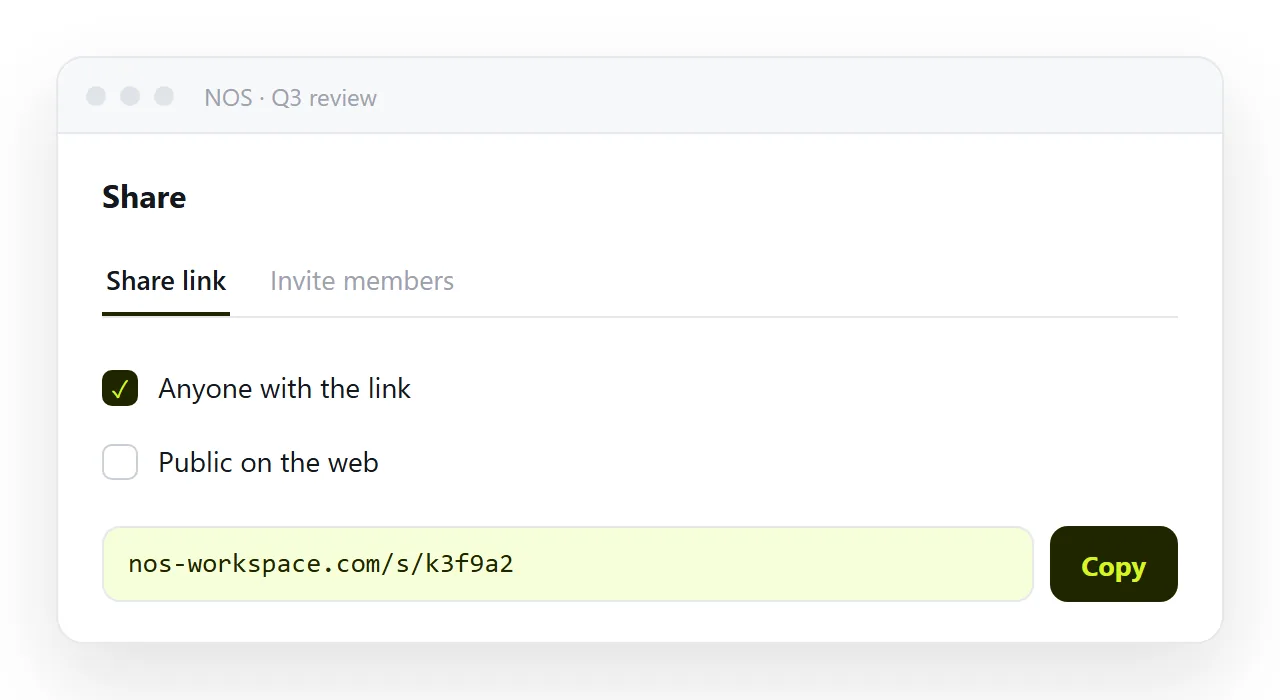
An address behaves the opposite way. It passes through mail and chat because it is just text. It opens in whatever browser the recipient already has. When you fix the typo, the address still points at the corrected page, so there is nothing to resend.
That is what NOS does with a pasted page: the HTML renders as-is in a document of its own, the wording can be changed by clicking it rather than by editing markup, and the share link stays the same however many times you revise.
A small habit that saves a lot of time
Before sending any HTML page, open it once in a plain viewer like this one, not in the editor that produced it. The editor knows where all the neighbour files live. A viewer does not, and neither does your recipient.
Where to go next
| If you want to | Go to |
|---|---|
| Change the markup and watch it update | Online HTML editor |
| Give the page an address | HTML to link |
| Build a table people can type into | Editable table builder |
| Export the page as an image or PDF | HTML to image or PDF |
| Understand why a file will not open at all | HTML file opener |
| Know what makes a page survive being sent | Self-contained HTML |