Images not showing in an HTML page is almost always one thing: the page is asking for a file that is not where it expects.
It works on your machine because the folder is there, and breaks for everyone else because they got the HTML alone. There are five causes, they look identical on screen, and the Network panel tells them apart in ten seconds.
This guide covers the five, the check, and the two ways to make images travel with the page.
The five causes
1. A folder path that did not travel
<img src="images/chart.png">
This means "a folder called images, right next to this file". It is correct on your machine and meaningless anywhere else. Sending the HTML alone sends a page full of instructions to look at files that are not there. This is the cause nine times out of ten, and relative versus absolute paths explains the rule.
2. An absolute disk path
<img src="C:/Users/you/Desktop/chart.png">
This works only on your account on your machine. Sometimes it is worse than nothing, because it reveals your folder structure to whoever reads the source. Editors and export tools write these more often than you would expect.
3. A name or case mismatch
Chart.PNG and chart.png are the same file on Windows and macOS by default, and two different files on the servers most pages end up on.
A page that works locally and breaks once served is very often this, and it is maddening precisely because nothing looks wrong. The same goes for .jpg in the tag and .jpeg on disk.
4. An http image on an https page
The browser blocks it as mixed content and shows nothing. There is no visible error unless you have the console open. Change the address to https://; if the host does not serve it that way, copy the image somewhere that does.
5. A frame that is not allowed to load outside resources
If the page is being rendered inside a restricted frame, a preview pane or an embed, outside requests may be blocked by design. The image is fine; the surroundings will not fetch it. Open the page directly and the image appears.
How to tell them apart in ten seconds
- Open the Network panel. Press F12, click Network, filter by Img, and reload the page.
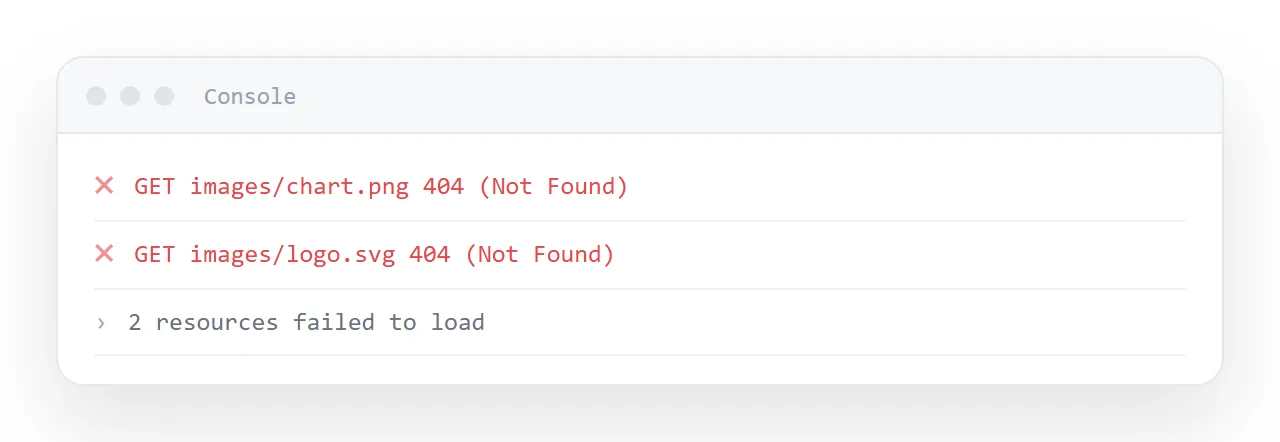
- Read the failed address. Every image request is listed with its status and the full address the browser asked for. That address tells you which of the five you have:
| What the address looks like | Status | Cause |
|---|---|---|
file:///.../images/chart.png |
failed, file not found | Folder path, file not there |
file:///C:/Users/... |
failed | Absolute disk path |
| Correct web address | 404 | Name or case mismatch |
http://... on an https page |
blocked: mixed-content | Mixed content |
| No request made at all | Frame is blocking it |
- Fix the reference using one of the two methods below.
- Check in a fresh window. Open the file in a viewer that has never seen your folder, such as the HTML file opener. Images that survive there will survive for the reader.
Making images travel with the page
Two options, different trade-offs.
Embed as a data URI
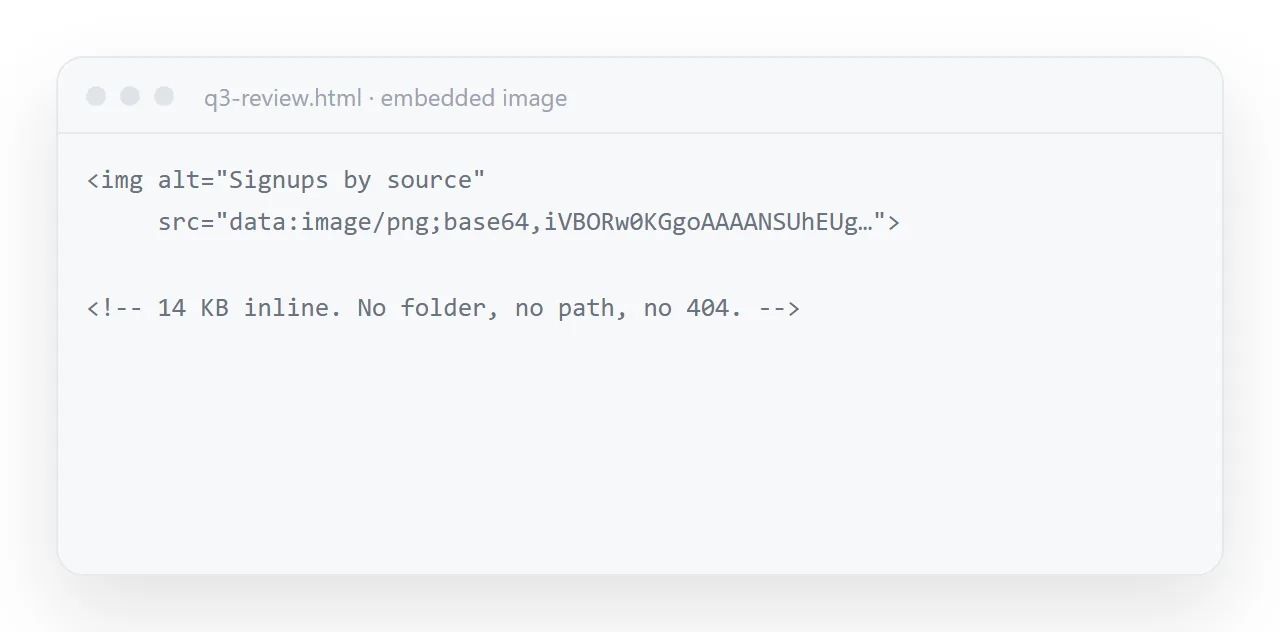
<img src="data:image/png;base64,iVBORw0KGgoAAAANSUhEUg..." alt="Weekly signups">
The image is now inside the file. Nothing can separate them, and the page works with no network at all.
The cost is size: base64 encodes every three bytes as four characters, so the text is a third larger by definition, and everything is carried in one file. Compress the image before encoding.
A screenshot saved straight out of a phone is several megabytes and does not need to be; resized to the width it will be shown at and saved as WebP or a compressed PNG, it is a few tens of kilobytes.
See base64 images for how to produce the string.
Use a full address
<img src="https://example.com/img/chart.png" alt="Weekly signups">
Keeps the file small and works from anywhere with a network. The page now depends on that address continuing to serve the image, which is fine if you control it and a slow-acting time bomb if you do not.
A link to an image inside a chat app or a drive is not a stable address; it expires or requires a login.
Images from an export or an AI assistant
Two sources produce broken images more than any other. Report and dashboard tools export report.html plus a folder of assets, and only the .html gets sent.
And an AI assistant writing a page will invent an image address, a placeholder such as images/hero.png or a stock-photo link that does not exist, because it cannot supply the picture.
In both cases the fix is the same: replace the reference with an embedded image or a full address you control, and drop the placeholder if there is no real picture to put there. Fixing AI-generated HTML covers the other things assistants leave behind.
Use SVG where you can
For charts, diagrams, logos and icons, SVG beats both options.
It goes straight into the markup as text, so it is embedded by definition, it is usually smaller than the equivalent picture, it stays sharp at any zoom, and its colours can be driven by your CSS, including adapting to dark mode, which a fixed image cannot do.
Every diagram on this page is inline SVG for exactly those reasons.
Always write the alt text
<img src="..." alt="Weekly signups by source, search highest">
Two reasons, and the second is the one people forget. It is what screen readers read. And it is what shows instead of the image when the image fails to load, so a page with good alt text degrades into something still readable rather than into empty boxes.
When the page is served rather than sent
If the page lives at an address instead of being sent as a file, most of this disappears: images on full addresses are fetched normally, and nobody is holding a copy with a missing folder.
In NOS pasted HTML renders as written and the page is served rather than handed over, so an image on a full https:// address simply appears, for everyone, and an embedded one travels inside the document.
The check is the same either way: open the page in a fresh window before you send the link.