An HTML viewer for iPad can be one of three things: a viewer page in a Safari tab, an installed app, or a page at an address you open like any other site.
All three put markup on screen. They differ in what happens after you close it.
Safari on an iPad is a full browser. Nothing about rendering is missing, so a viewer is solving a delivery problem, not a display one.
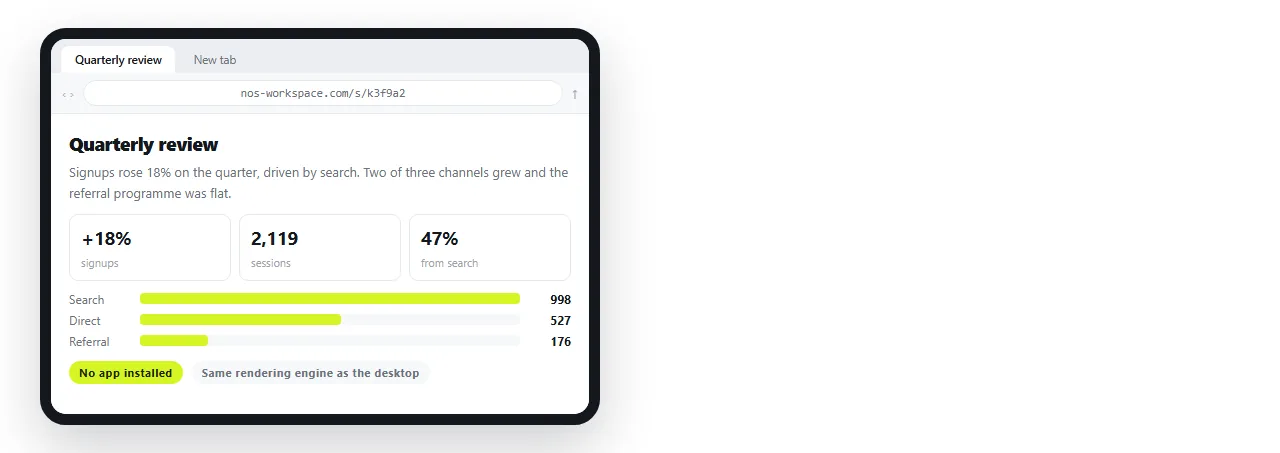
HTML viewer for iPad: the three options side by side
| Option | Renders scripts and modern CSS | Install | Handles linked folders | Still current next week |
|---|---|---|---|---|
| Viewer page in a Safari tab | Yes | No | No | No |
| Installed viewer app | Varies by app | Yes | Sometimes, by import | No |
| Page at a shared address | Yes | No | Yes, when served together | Yes |
Choose by the last column if the document has a life beyond today.
Option one: a viewer page in a tab
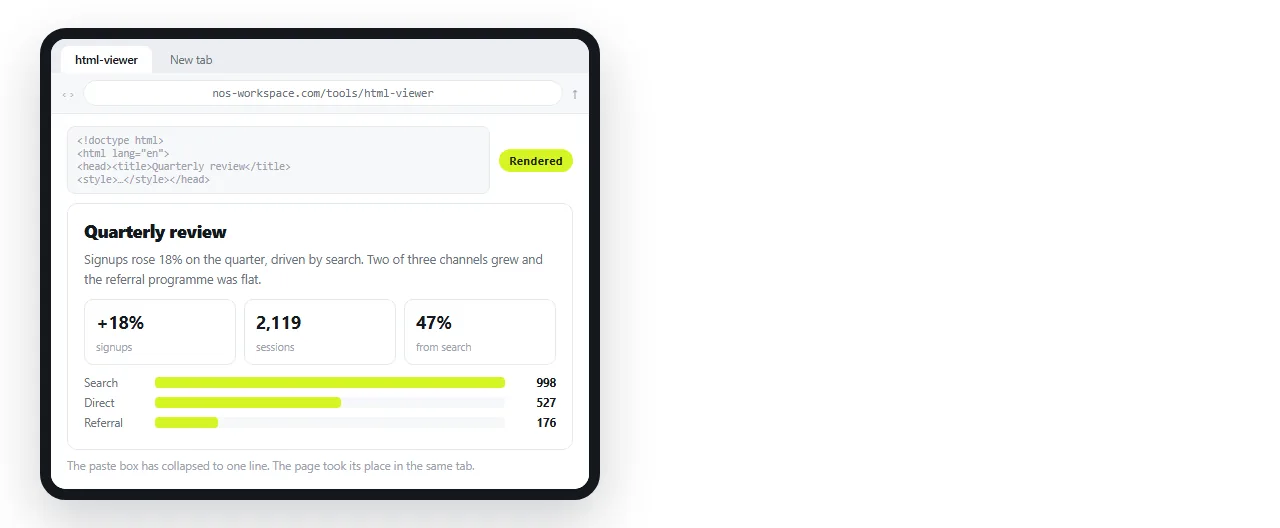
Paste the markup into the HTML viewer and it renders in the tab you are already in. Nothing installed, nothing stored.
This is the right answer for a file someone sent you once. It runs scripts, applies modern CSS, and uses the same engine as every other page on the device.
Its limit is memory. Close the tab and the copy is gone, so do not use it for anything you will need on Tuesday.
If you also want to change something, the HTML file opener is the same idea with the markup still in reach, and the online HTML editor keeps the source beside the result.
Option two: an installed viewer app
Worth it in one situation: you receive loose HTML files regularly, and often without a network.
Before installing one, check four things.
- Does it run scripts? If not, charts, tabs and sortable tables will be blank.
- Does it support modern CSS? Grid and flex layouts collapse in a weak renderer, and the page looks broken through no fault of the file.
- Can it import a folder? A single file that references a stylesheet beside it renders unstyled anywhere. Folder import is the only way that reference resolves locally.
- What access does it ask for? You are granting file access for a job a browser tab already does.
An app that fails the first two is doing less than Safari, with an install on top.
Option three: the page at an address
For review work that repeats, this is the option that removes the problem instead of coping with it.
- Paste the HTML into a NOS document. It renders as written, dark theme, charts and scripts included.
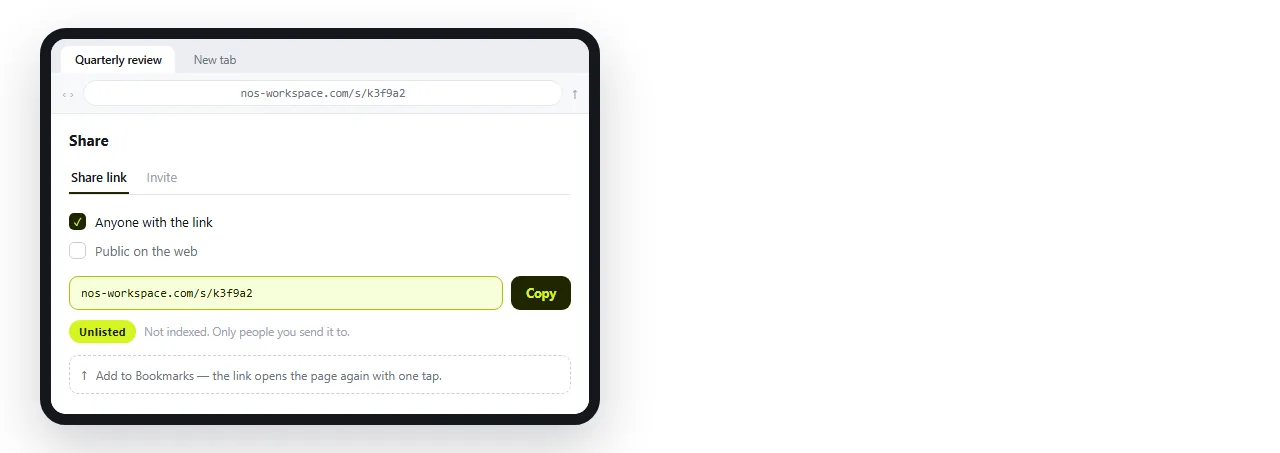
- Create the share link. Share, then Share link, then Create link. Unlisted by default, so only people with the link can open it.
- Bookmark it on the iPad. It opens like any other page, and it can sit in Split View next to mail or notes.
- Corrections happen on the page. The address does not move, so your bookmark is never stale.
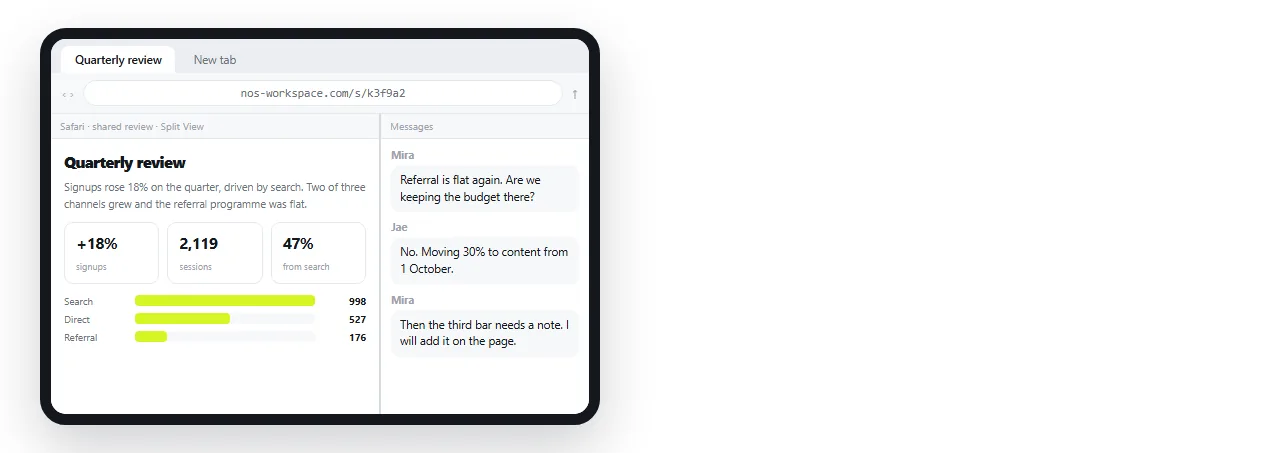
The text in the rendered page stays clickable, so a wrong figure can be corrected on the iPad without opening any markup. Editing AI generated HTML without code is the same mechanism described from the authoring side.
Why files render unstyled, in any viewer
This complaint is usually blamed on the viewer and is almost never its fault.
A page written on a desktop refers to things sitting beside it: a stylesheet, a logo, a font file. Hand over the .html alone and those references resolve to nothing.
- Unstyled text means an external stylesheet did not travel.
- Empty boxes mean images on folder paths. Base64 images is the form that travels.
- A blank page usually means a script failed or the file was truncated.
Self contained HTML is what to ask the sender for. It renders identically in every one of the three options above.
The iPad specific part: reviewing with other people
Most HTML on an iPad is being read rather than written, often in front of someone else. That changes which option is comfortable.
Split View. A page at an address sits beside mail or notes. A preview and most viewer apps take the whole screen.
Handing the device over. A tab with a pasted copy is fine until someone asks for it later, and then there is nothing to send.
Presenting from the tablet. A link opens on the room's screen too, at the same address, showing the same version.
Marking something up. A capture is the right artefact for annotation. HTML to image produces one from the rendered page, and the live link stays as the reference.
Which one for which job
| The job | Use |
|---|---|
| Read a file someone sent once | Viewer page in a tab |
| Read local files regularly, often offline | An installed app, checked against the four questions |
| Review the same document repeatedly | A page at a shared address |
| Show the page to a client across the table | A shared link, opened in Safari |
| Keep a copy that cannot change | An export, not a viewer |
The general trade between keeping files and keeping pages is set out in a static host versus a document. On an iPad the balance tips further towards the page, because the device has no comfortable place to keep a folder of linked files.