To open an HTML file on iPad, do not try to open the file. Put the HTML at an address and open the address in Safari, because iPadOS treats .html as something to store rather than something to display.
That is the short version of how to open an HTML file on iPad. The rest of this page explains what each route actually does, so you can tell a missing image from a file that was never going to open.
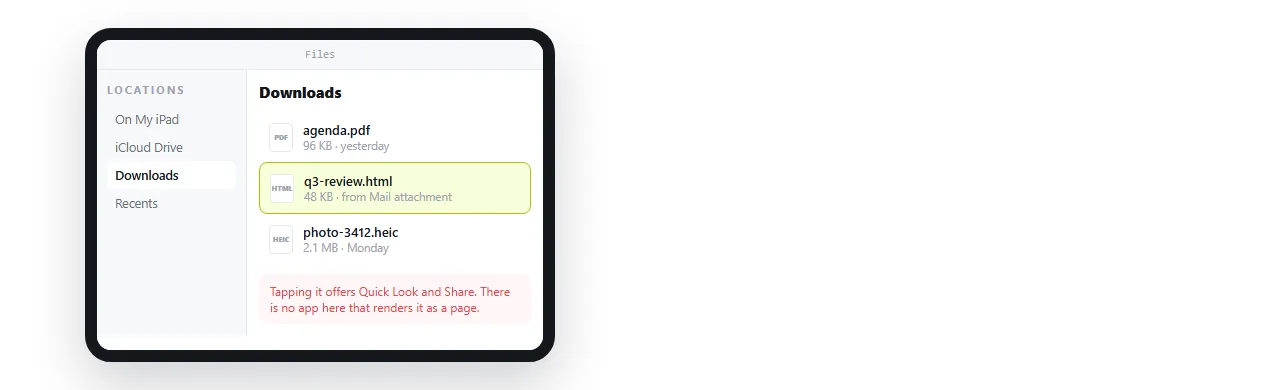
What happens to the file on an iPad
An attachment from mail or chat is saved, not opened. A download in Safari goes to the downloads location. Either way you end up with a file and no browser tab pointing at it.
Tapping it produces a preview. A preview will often show text and basic styling, and that is enough for a plain page. It is not a browser tab, so treat anything beyond plain markup as unreliable.
The routes, ranked
| Route | Renders the page | Notes |
|---|---|---|
| Open the page at an address in Safari | Always | A normal tab, scripts and layout included |
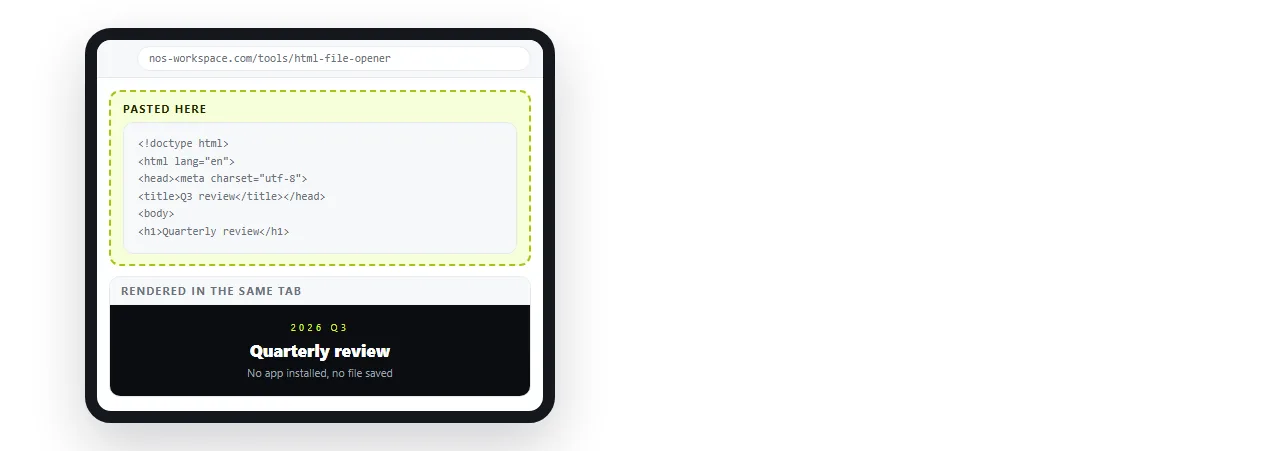
| Paste the markup into a viewer page | Always | Works offline in the tab you already have open |
| Preview in Files | Sometimes | No address, neighbour files may not resolve |
| A viewer app from the store | Varies | Another install, and quality varies |
| Mail the file to yourself again | No | Same file, same result |
The first two are the same idea. The page needs a container that behaves like a browser, and a browser is already on the device.
How to open an HTML file on iPad without installing anything
- Locate the file. Attachments arrive in storage. Downloads go to the downloads location under the same app.
- Try the preview once. If the page looks complete, stop here.
- Get the markup onto the clipboard. Open the file as text and select all, or copy it from the chat or editor it came from.
- Paste it into the HTML file opener. The page renders in the Safari tab you are already in. Nothing to install.
- If you need to send it on, paste it into a NOS document instead and create a share link.
Why the images and fonts go missing
This is the second failure, and it is not iPadOS doing it.
A page written on a desktop usually refers to files that sit beside it: a stylesheet, a logo, a font. Send the .html alone and those references point at nothing.
The fix is to make the file carry its own contents. Self contained HTML covers folding styles in, and base64 images covers embedding pictures. Relative versus absolute paths explains which references travel.
Check before sending, not after. Open the file in a window that has never seen the project folder, and whatever survives there will survive on the iPad.
Reading it side by side with something else
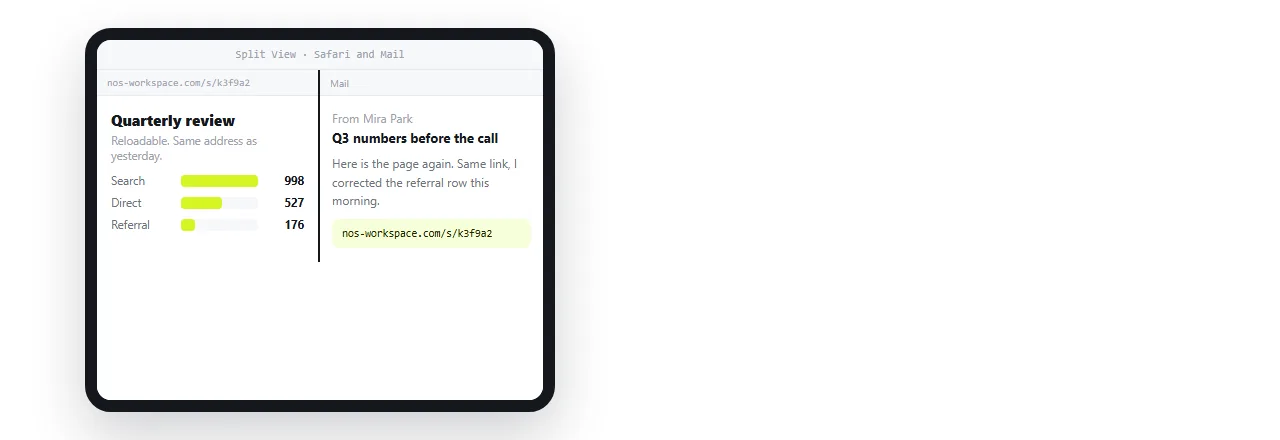
An iPad is often the second screen in a review, which is where the address route earns its keep.
A page at an address can sit in Split View next to mail or notes, be reloaded after a correction, and be handed to the person across the table with one link.
A file in storage cannot do any of that. It is one copy on one device, and the next correction produces a second copy.
Giving the HTML an address, in three steps
- Paste the HTML into a NOS document. It renders as written, dark theme, charts and scripts included.
- Create the link. Share, then Share link, then Create link. Unlisted by default, so only people with the link can open it.
- Open the link on the iPad, or send it to whoever needs it.
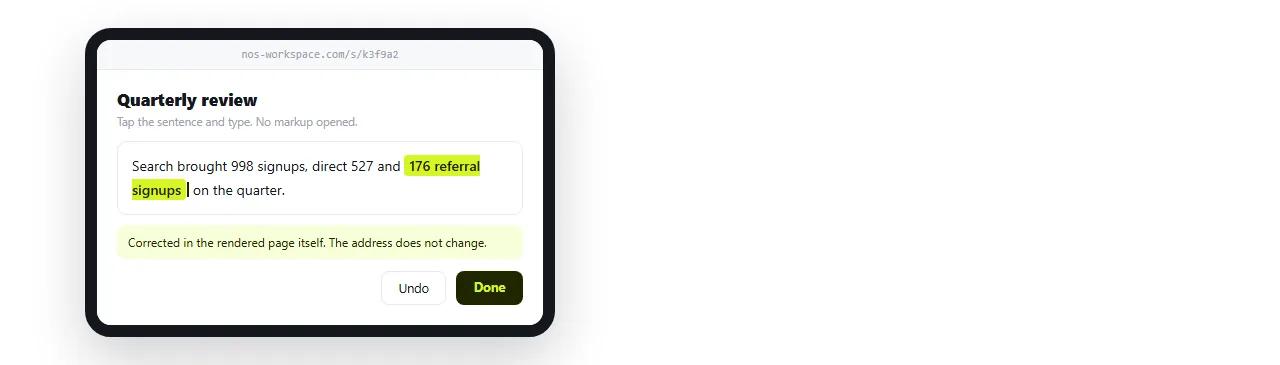
Editing keeps working from the iPad afterwards. The text in the rendered page is clickable, so a number can be corrected without touching the markup. Editing AI generated HTML without code is the same mechanism.
What about a folder of files
A single page is the straightforward case. An export with a stylesheet, an images folder and several linked pages is the one that defeats people on an iPad.
Every page in that set expects its neighbours at a relative path. Move one file across and those references point at nothing, so links between pages dead end.
There are two fixes, and both happen before the files reach the tablet.
- Make each page carry its own assets. Styles inline, images embedded, no external references.
- Serve the set from an address. Relative paths then resolve the way they were written, because there is a real location behind them.
Unzipping the archive on the iPad does not help. The files are present, but nothing on the device serves them, so you are back to previewing one file at a time.
When it still will not render
- Blank page. Usually a script that failed, or markup that was truncated on the way. Check the end of the file is present.
- Text with no styling. The stylesheet is a separate file that did not travel. See external stylesheets.
- Boxes where charts should be. The chart library loads from an address the page cannot reach. It will work at an address with a network.
- Downloads instead of opening. The host is serving the wrong type. HTML that downloads instead of opening covers that case.
The pattern under all four is the same. A file is a lump of bytes, and a page is bytes plus an address. iPadOS is strict about the difference, so give it the address and the problem disappears.