To open an HTML file on a phone, save it to the phone first, then open it from the Files app on iPhone or from the file manager with Chrome on Android.
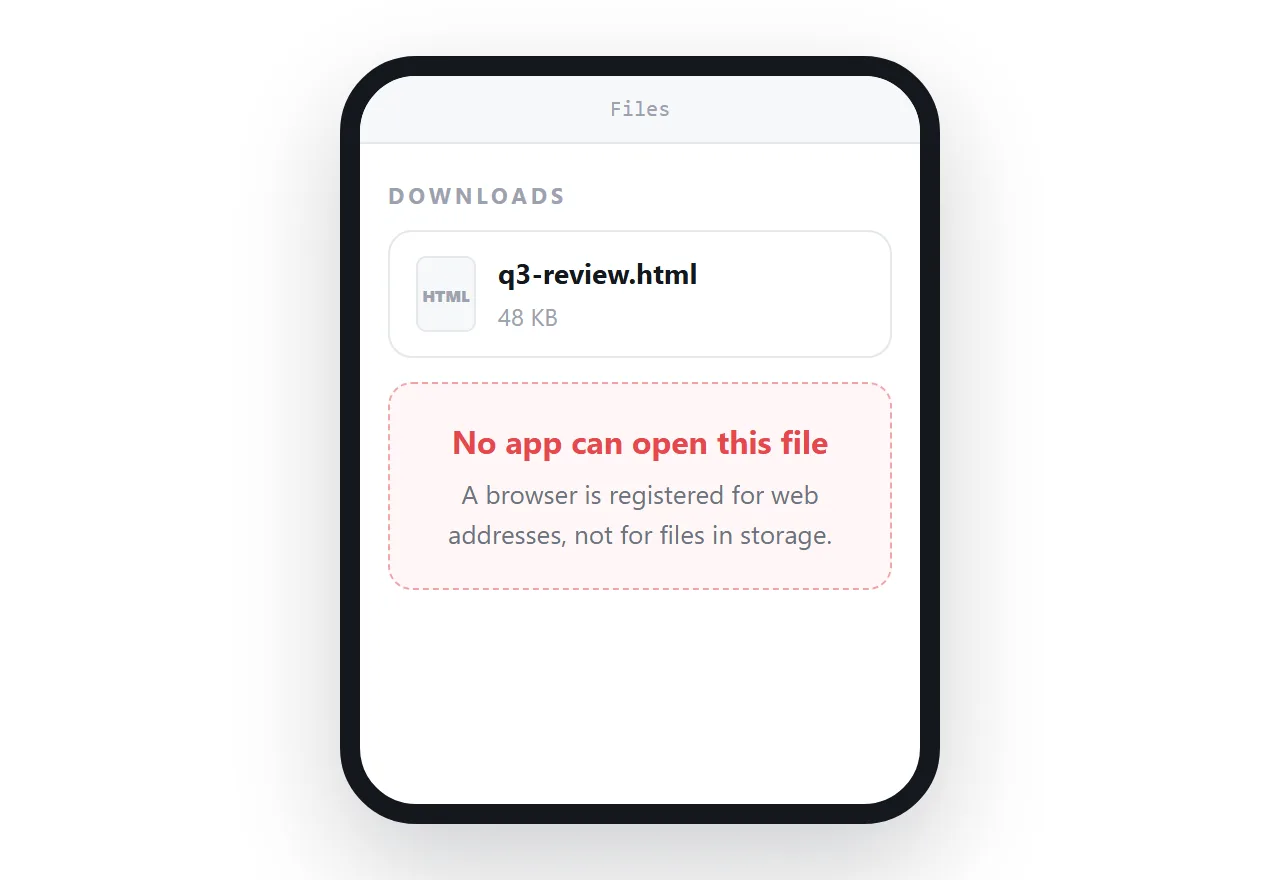
Tapping the attachment in mail rarely works, and even the routes that do work render the page with limits.
This guide gives the steps for each platform, what each one does and does not show, and the one route that behaves the same on every phone.
Why a phone does not just open it
A desktop keeps a table of "this extension opens with that program", and a browser is an ordinary program that can be pointed at a local file. Phones work differently.
Apps are sandboxed, and the browser registers itself for web addresses, not for files sitting in shared storage. So a downloaded .html file has no default owner, and a tap in the mail app often does nothing at all.
That is also why the answer differs by platform. iPhone solves it with a built-in preview. Android solves it by asking which app should take the file. Neither is wrong; they just need one extra step that a link does not.
How to open an HTML file on an iPhone
- Save the attachment to Files. In Mail, tap the attachment, then the share button, then Save to Files. In most chat apps the share sheet has the same option. Pick Downloads or any folder.
- Open the Files app and tap the file. Files renders HTML in its preview. Headings, text, tables and any styles written inside the file all show.
- Check what is missing. The preview runs no scripts, so a chart drawn by JavaScript stays blank. It also loads nothing from other files, so a page that reaches for
styles.cssnext to it shows unstyled. - For a page that needs scripts, hand it to a viewer app. Tap the share button in the preview and choose an app such as Documents by Readdle, Textastic or HTML Viewer Q. These open the file in a full web view with scripts on.
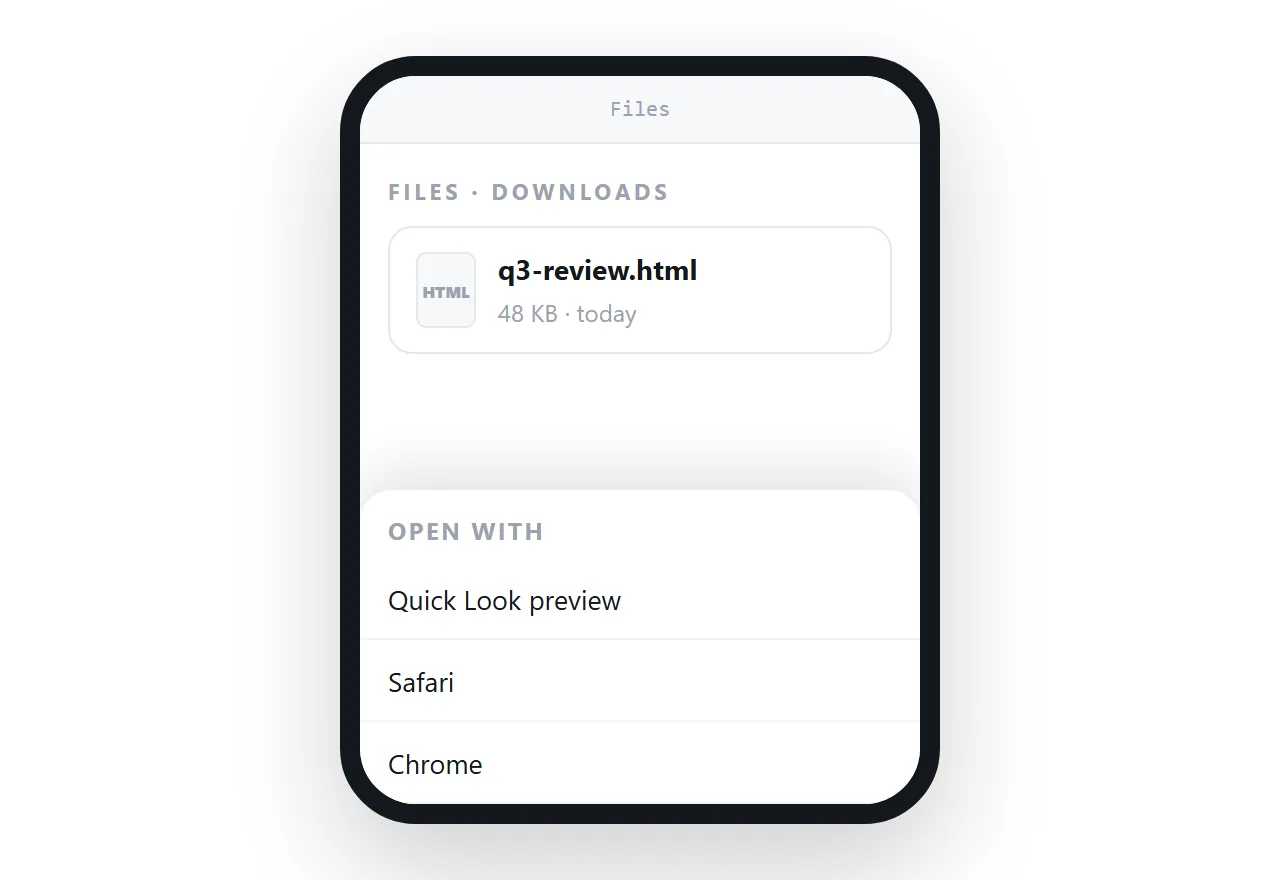
Safari itself will not help here. Typing a file:// path into Safari on iOS does nothing, and Safari does not appear in the share sheet for a local file. The Files preview or a viewer app are the two real options.
How to open an HTML file on Android
- Download the attachment. Gmail and most chat apps save it to the Download folder.
- Open the file manager and tap the file. On a Pixel that is Files; on a Samsung phone it is My Files. Tapping a
.htmlfile brings up an Open with sheet. - Pick a browser from the sheet. Chrome, Firefox and Samsung Internet all render a local file, with styles inside the file applied and scripts running.
- If no browser is offered, type the path. Open Chrome and enter
file:///sdcard/Download/followed by the file name. Chrome and Firefox on Android open local files this way. On a few phones with strict storage rules the browser reports the file as not found; the Open with route or a viewer app still works there.
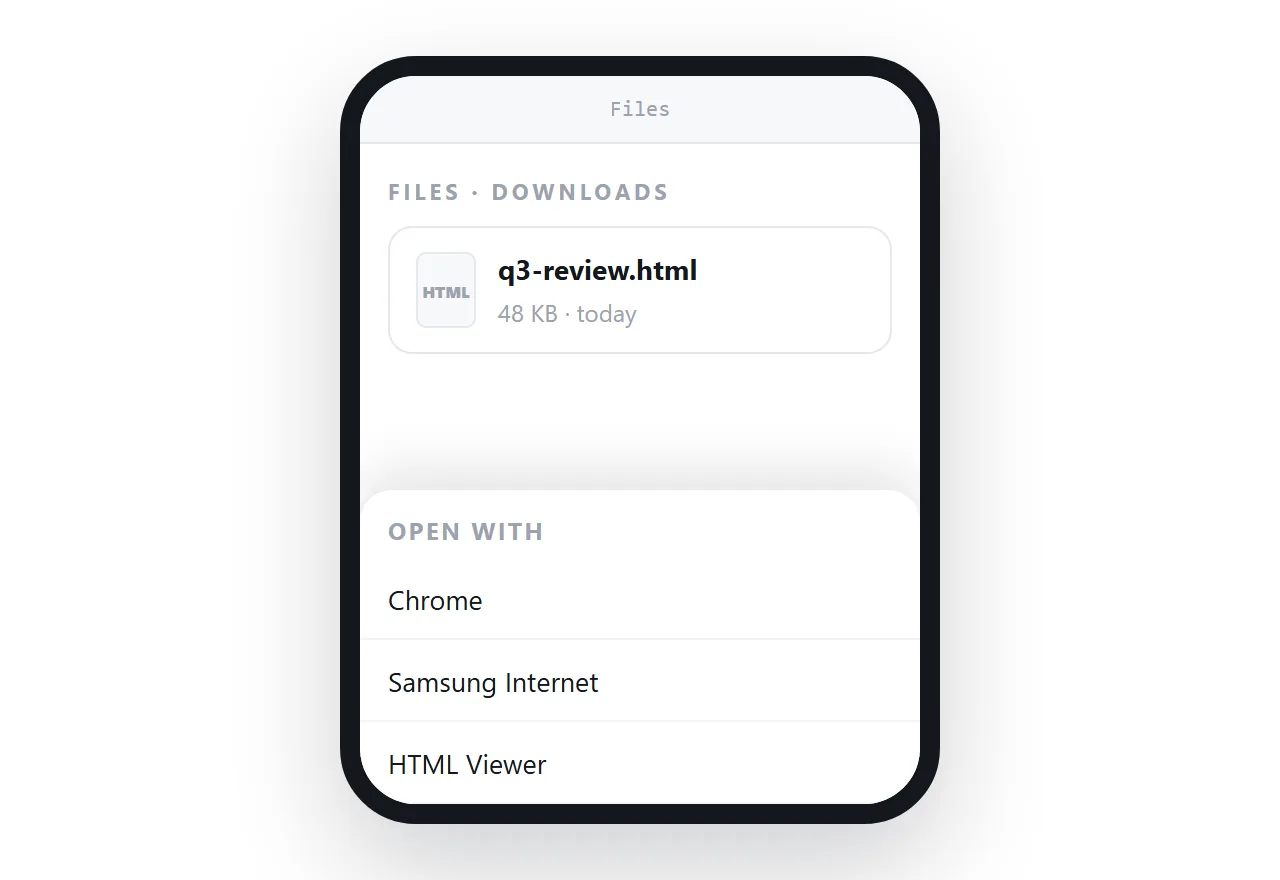
Which apps appear in the sheet depends on the phone maker and what is installed, not on the file. The same attachment offers Chrome on one phone and nothing on the next. If you are sending the file to someone, that is the part you cannot control.
Opening it from mail or a cloud drive
The two places people tap first are the two that work least. In Gmail on Android, tapping a .html attachment downloads it rather than showing it, so you are back at step 1.
In Mail on iPhone, the tap opens the same scripts-off preview that Files shows.
A file sitting in a cloud drive is worse on both platforms: the drive app has no HTML viewer, so it offers a download, and the downloaded copy then needs one of the routes above. Save first, then open from Files or the file manager.
Why the page can open and still look wrong
Getting the file open is half of it. Three things commonly go wrong afterwards.
The stylesheet is in another file. A page exported by a tool often comes as report.html plus a folder of styles and images. Only the .html file was sent, so the phone renders bare text. The fix is a self-contained file, with styles inside it and images at public addresses.
The page has no viewport line. Without it, the phone assumes a desktop-width page and shrinks the whole thing to fit, which produces text too small to read. One line in the head fixes it:
<meta name="viewport" content="width=device-width,initial-scale=1">
See the viewport meta tag for what the values mean.
Scripts are off. The iPhone Files preview does not run JavaScript, so anything drawn or filled in by a script is missing. A viewer app, or a link, brings it back.
The honest summary
| Route | iPhone | Android |
|---|---|---|
| Tapping the attachment in mail | Preview, sometimes | Downloads it, usually |
| Saving, then tapping in the file manager | Renders, scripts off | Renders in a browser if one is offered |
Typing a file:// path in the browser |
No | Chrome and Firefox, usually |
| A viewer app | Yes, scripts on | Yes, scripts on |
| Opening from a cloud drive | Offers a download | Offers a download |
Opening an https:// address |
Always, scripts on | Always, scripts on |
The last row is the entire point. No saving, no Open with sheet, no app to install, and no difference between phone models. A link is the one thing every phone handles identically.
If you are the one sending it, do not send the file
Everything above is what the recipient has to do. If they might be on a phone, and outside a desk job they usually are, an HTML attachment is close to unopenable for them. Publish the page and send the address.
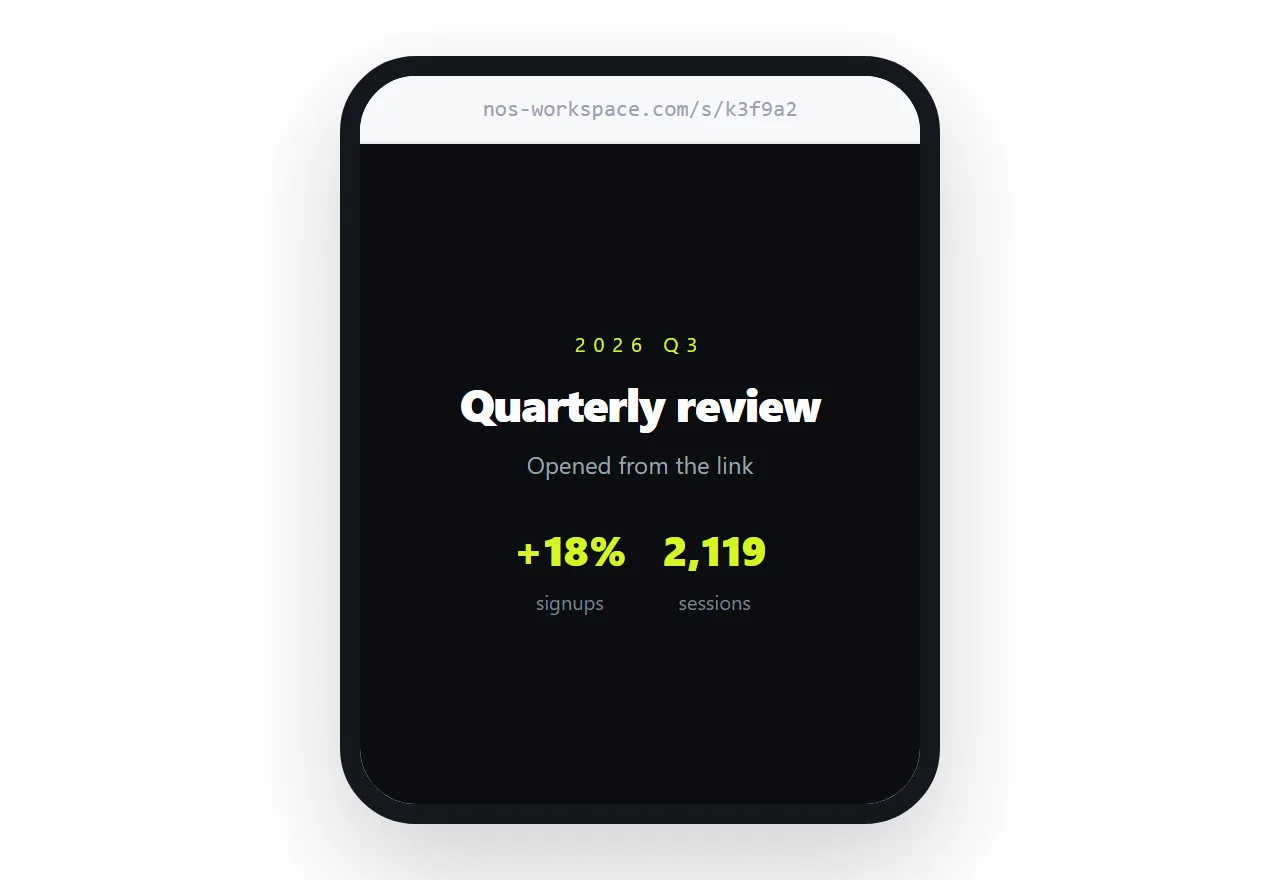
Turning the page into a link takes one paste and removes the whole class of problem.
It opens on a phone with scripts on, it renders at phone width if the page carries the viewport line, and chat apps draw a preview card for it.
In NOS the pasted HTML becomes a page at its own address, and the address does not change when you revise, so the link you sent before the train journey still shows the corrected numbers afterwards.
Before you send: a 20-second check
- Is it one file? Styles inside it, images at public addresses. If it came with a folder, it is not one file yet.
- Does the head have the viewport line? If not, add it.
- Does it need scripts? If yes, do not rely on the iPhone preview. Send an address.
- Will it change? Then send an address that stays the same after edits, so nobody is holding an old file.