To open HTML on Safari on iPhone, give the markup an address and load that address, or paste the markup into a page that renders it. Safari opens addresses, and a file in local storage does not have one.
This is the single fact that explains every dead end on the phone. The browser is capable, the input route is narrow.
So how to open HTML on Safari iPhone comes down to two moves: paste the markup into a page that renders it, or publish the page and open the link.
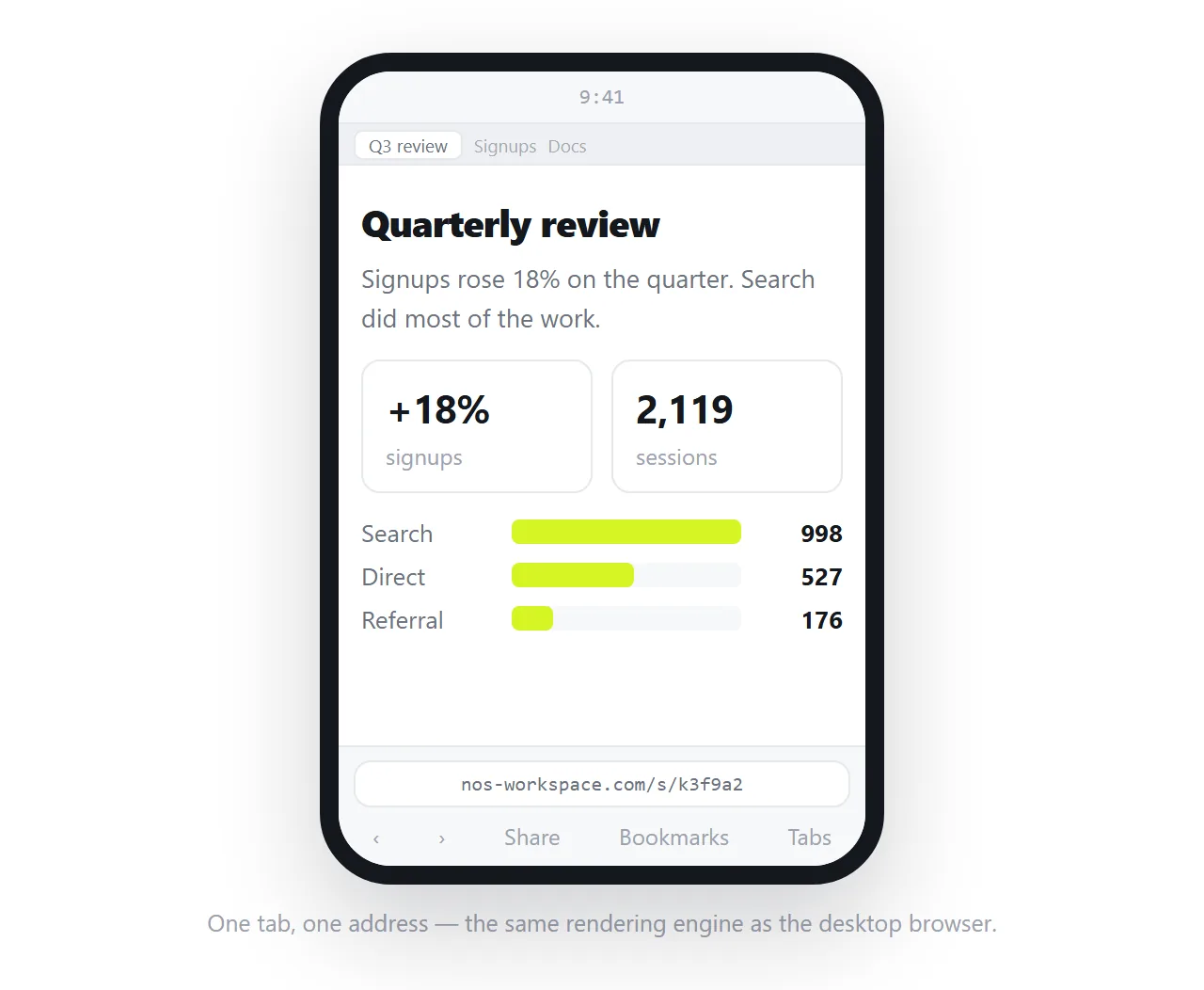
What Safari accepts on the phone
| Input | Safari loads it | Why |
|---|---|---|
| A link to a served page | Yes | It is an address |
| A shared document link | Yes | Also an address |
| Markup pasted into a viewer page | Yes | The page renders it in the tab |
| A file sitting in storage | Not dependably | No address to point at |
| A cloud drive file link | Usually not the page | The drive shows a file view, not a rendered page |
The fourth row is the one people spend the most time on. It is worth ten seconds, not ten minutes.
For the phone side of this, see Opening an HTML file on a phone.
How to open HTML on Safari iPhone: route one, paste the markup
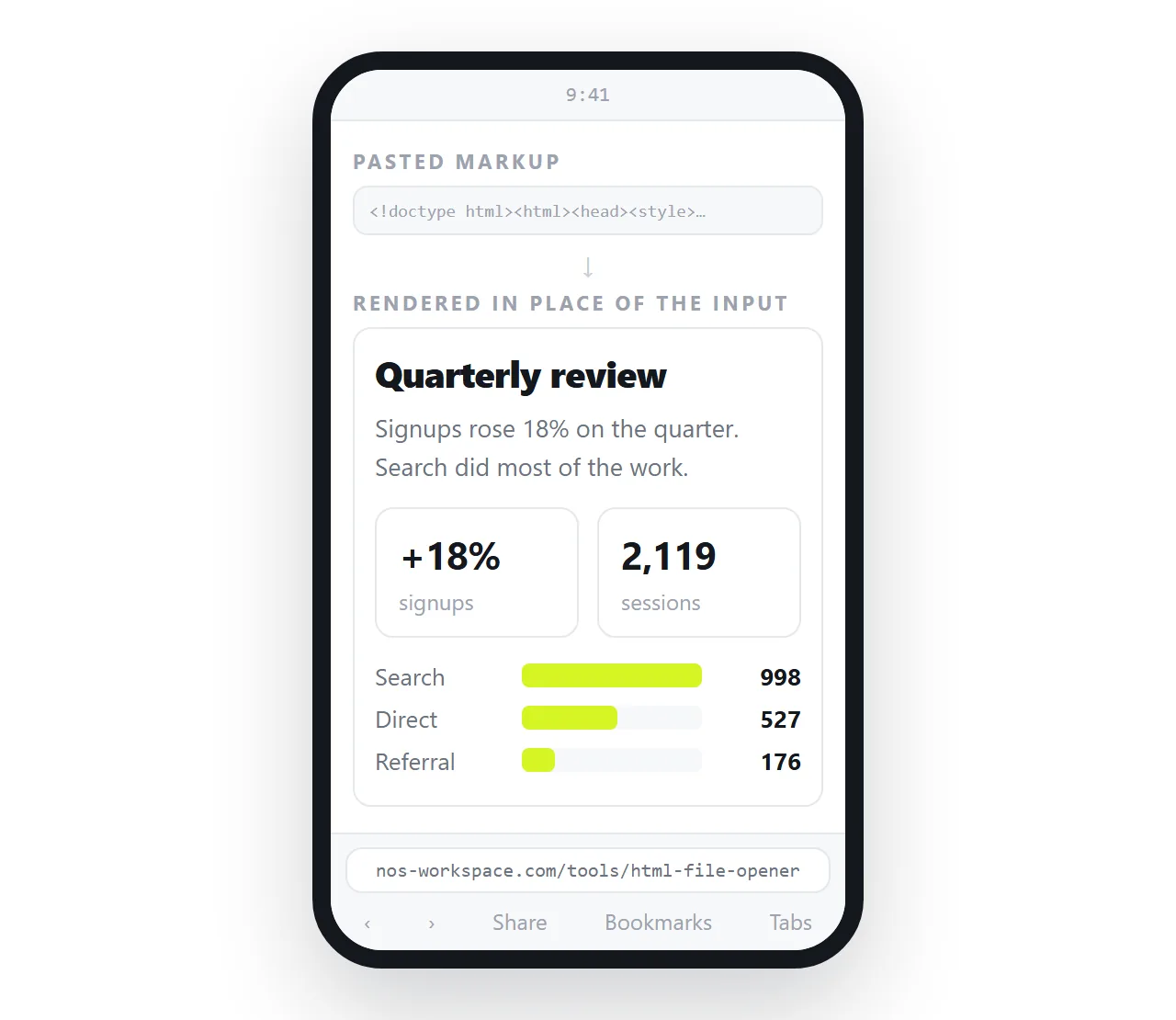
Use this when you have the HTML and no way to publish it.
- Copy the HTML. From the chat that produced it, from mail, or from the file opened as text.
- Open the HTML file opener in Safari. It is an ordinary address, so it loads without argument.
- Paste. The page renders in that tab, styling and scripts included.
- Read it. For a one time look, you are finished.
Route two: give it an address
Use this when you will need the page again, or when someone else needs it.
- Paste the HTML into a NOS document. It renders as written, dark theme and charts included.
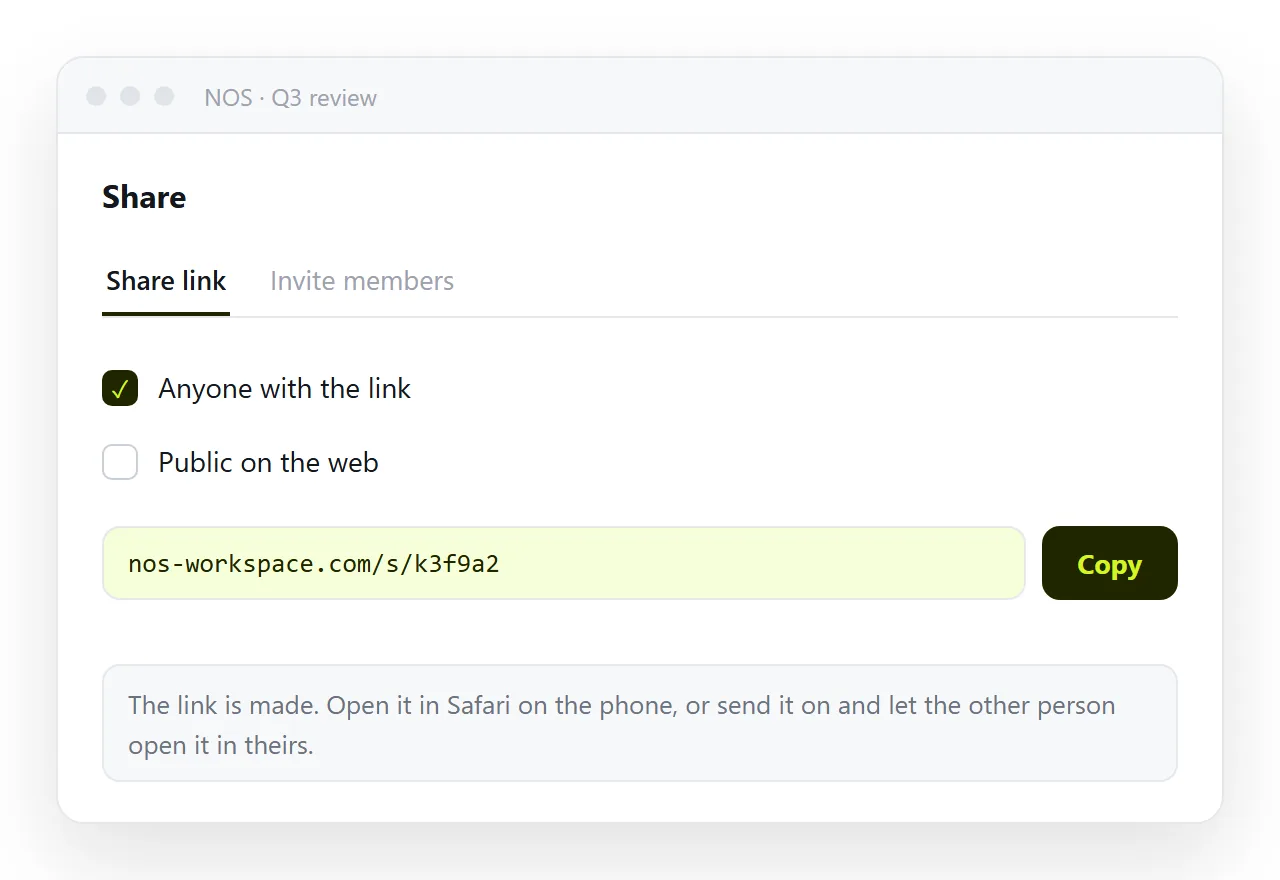
- Create the share link. Share, then Share link, then Create link. Unlisted by default, so only holders of the link can open it. Tick Public on the web only if it should appear in search.
- Open the link in Safari and bookmark it. Add it to the home screen if you read it often.
- Correct the page rather than making a new file. The address does not move.
Turning HTML into a link is that sequence on one page, and the HTML viewer is the read only version when you are not keeping anything.
Making it readable once it renders
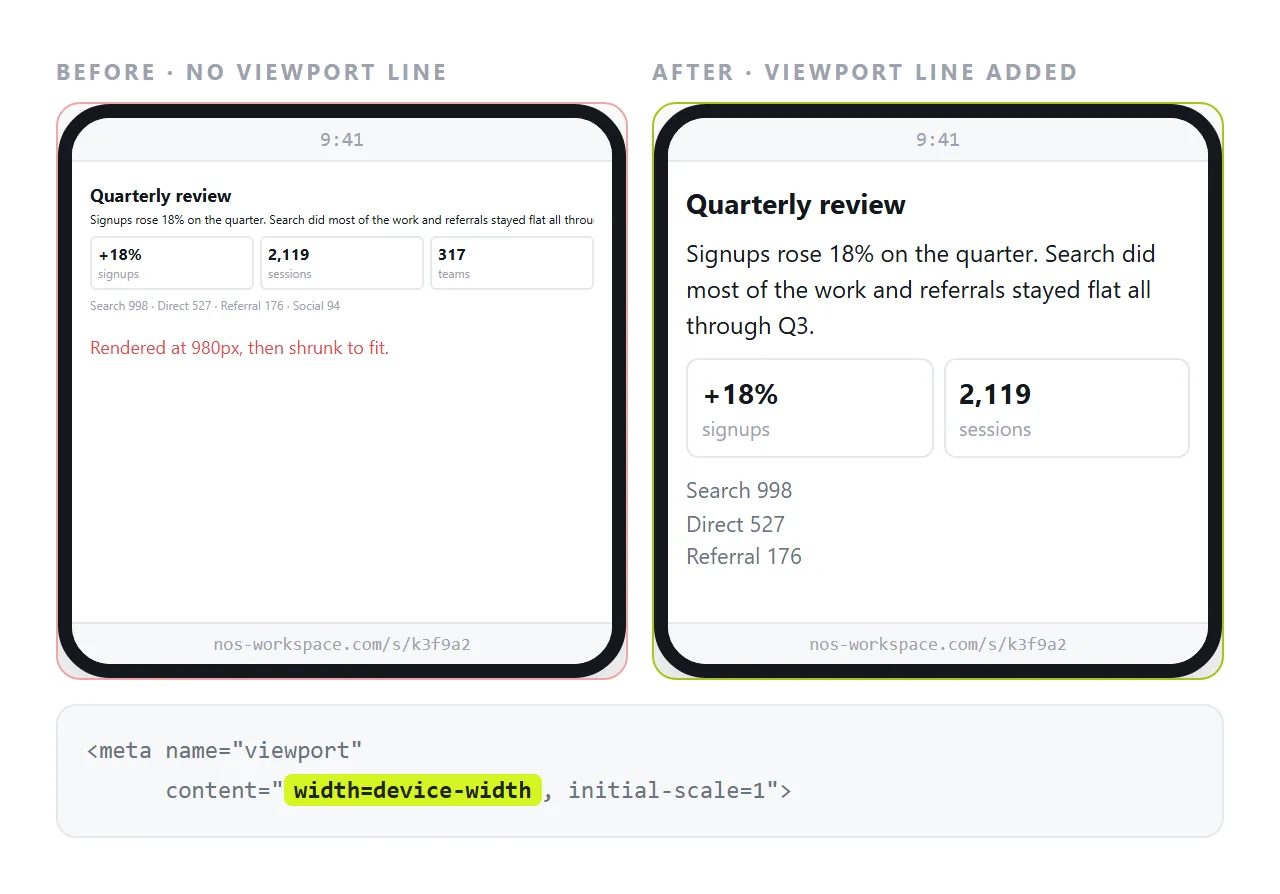
A page written on a wide screen can render correctly on the phone and still be hard to read.
Add the viewport line. Without the viewport meta tag, Safari assumes a desktop width and scales the whole page down.
Watch fixed widths. A table set to a wide pixel value forces sideways scrolling. Media queries let the layout change below a threshold.
Check the fonts. A web font that fails to load falls back, and spacing built for the original face can collapse. See fonts not loading.
Why the drive link route disappoints
Sending a file to a cloud drive and opening the drive link on a phone is the most common workaround, and it mostly fails.
A drive is built to show files. For .html it shows a file view or the source text, because serving arbitrary markup as a live page from user storage is a security decision the drive has already made.
HTML files in Google Drive covers what happens there in detail. The short version is that a drive gives the file an address without serving it as a page.
Reading the page as a page, not as a tab
Once the HTML is at an address, Safari treats it like any other site, and the small conveniences start working again.
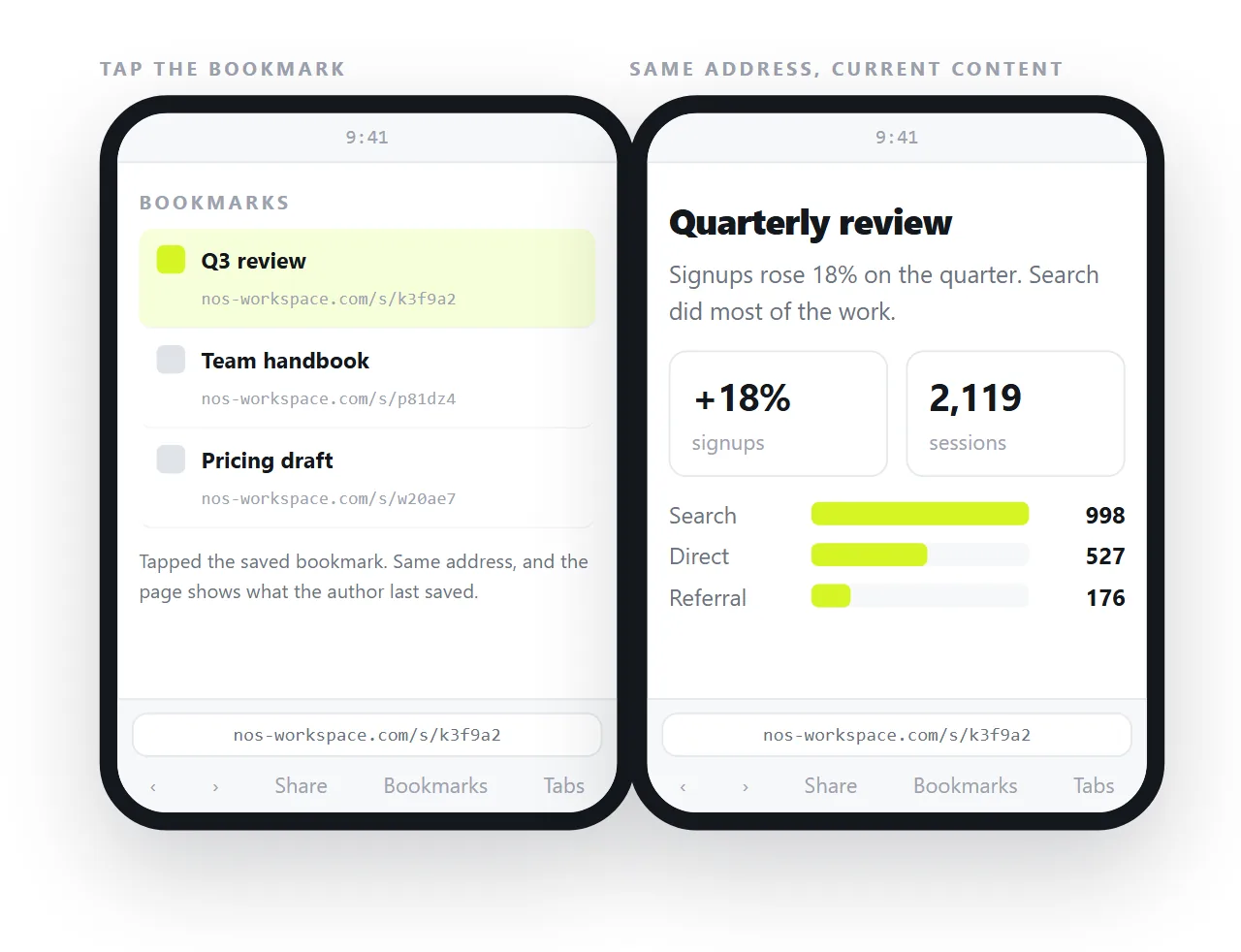
Bookmarks and the home screen. A link can be saved and reopened. A pasted copy cannot, because it lives only in that tab.
Reader behaviour and text size. System text settings apply to a normal page in the usual way.
Sharing onward. The share sheet passes a link that works for the next person. Passing a file does not.
Find on page. Searching inside a long report works because the content is a page rather than a preview.
None of these are available to a file in storage, and together they are most of what makes a document usable on a phone.
What still needs the network
Once a tab has rendered, what is on screen stays on screen. What the page fetches afterwards does not.
- Remote images and remote stylesheets need a connection. Embed them if the reading might happen offline.
- Chart and component libraries loaded from an address will not draw without one.
- Fonts fall back to a system face.
A page built for a desktop network is the one that disappoints here. It looks complete on a fast connection and arrives half empty on a phone with two bars, which reads as a broken page rather than a slow one.
Self contained HTML is the form to ask for when the reader may be on a train. Everything the page needs is inside the markup, so the only thing the network has to deliver is the page itself.