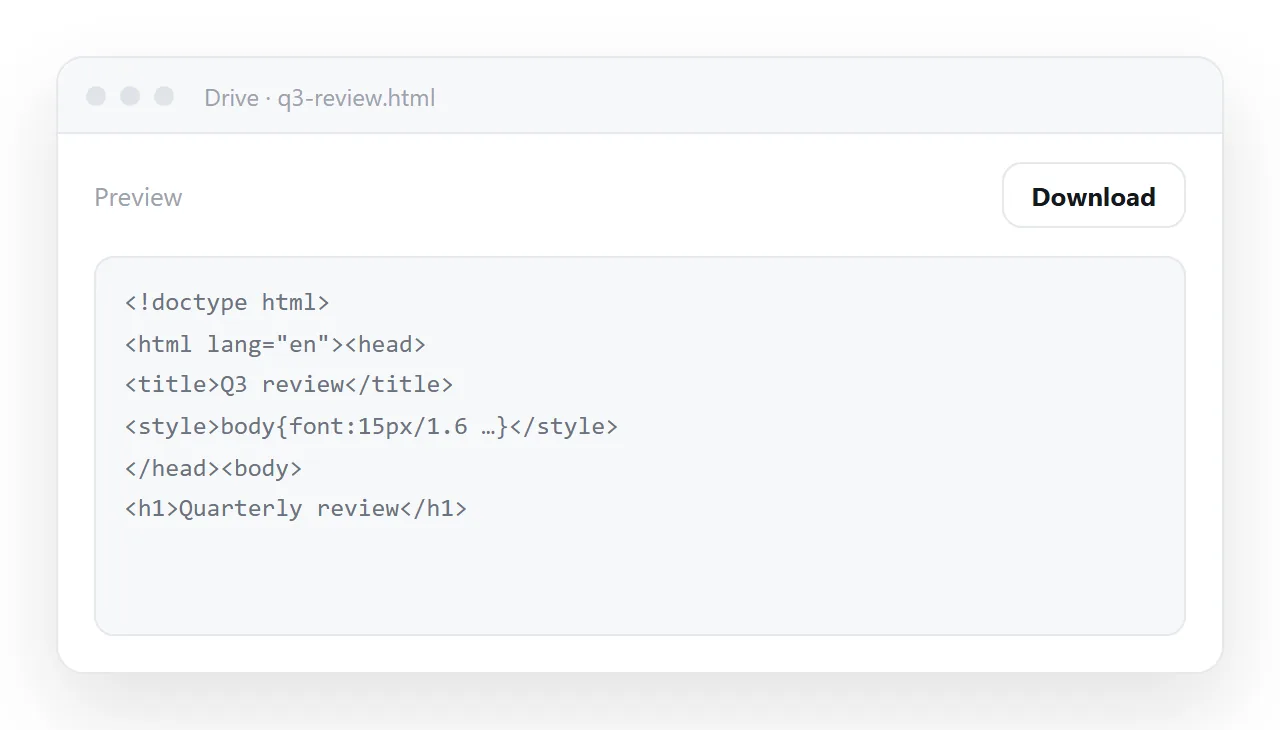
An HTML file in Google Drive uploads fine and the share link works. What the link opens is Drive's viewer with your markup shown as text, an Open with menu that offers editors but no browser, and a download button.
Drive stores files; it does not serve pages. To get a link that opens the page, put the HTML somewhere that serves it and send that address.
This guide explains what Drive does with an HTML file, why it will not change, the tricks that used to work, and the route that does.
What the Drive share link actually opens
A Drive share link does not point at your page. It points at Drive's interface with your file inside it: a toolbar, a preview area and a set of actions.
The preview area can render the formats Drive knows, which are documents, spreadsheets, slides, images, PDFs and video. HTML is not one of them, so the preview shows the source code as text.
This was not always the case. Drive's preview used to render HTML, and Gmail's attachment preview did too. Google changed both to show the raw code, for security and for consistency across its products. Company help desks still get the question every week, which is why this page exists.
The Open with menu offers whatever apps are connected to your Drive: a text editor, Docs, perhaps a code editor. A browser is not among them on the web.
On a computer with the Drive desktop app installed, Open with can hand the file to the browser as a local file, which works for you and is useless for the person you sent the link to.
The download button hands over the file, delivered as an attachment rather than a page, so the browser saves it. The recipient is now holding a file and has to open it themselves.
Why Drive will not render it, and why that is not going to change
Serving user-uploaded HTML from your own domain means anyone who can upload can run a script in your domain's context, with access to whatever a page on that domain can reach.
That is a serious security problem, and it is why general file storage services refuse to do it. The refusal is a feature, not an oversight, and no support ticket changes it.
It is also why the old approach went away. Until 2016, a public Drive folder could be used to host a small website.
Google retired that, and the "direct download" address tricks that circulated afterwards change how the bytes are delivered, not what they are: the file arrives as a download, not as a page.
A browser extension exists that opens Drive HTML files in a new tab, but it helps only the person who installed it.
What happens for the recipient
| Step | What they see |
|---|---|
| Click the share link | Drive's viewer, not your page |
| Look for the content | The raw markup, as text |
| Try Open with | Editors, no browser |
| Download it | A file in Downloads |
| Open the file | Depends on what program owns .html on their machine |
| On a phone | It lands in storage and stops |
| Ask you about it | A message you now have to answer |
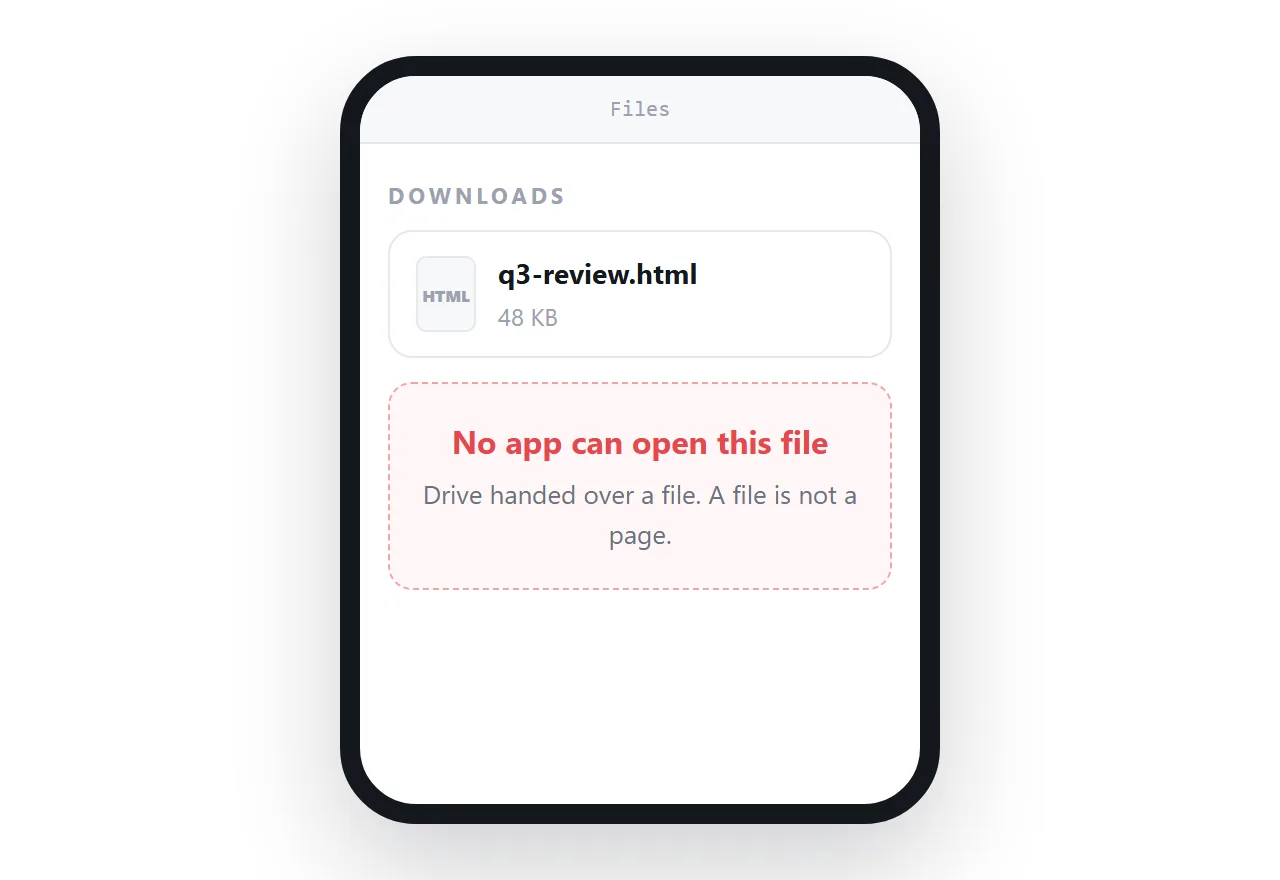
Five places to lose them, and the content never appeared.
Where a drive is still the right place
A drive is good at exactly what it is for: keeping the file, versioning it, controlling who can reach it, and surviving the loss of your laptop. Keep the source file there if that is your habit.
What it cannot do is be the thing you send to somebody who needs to read the page. Those are two different requirements and one tool does not cover both.
How to get a link that opens the page: 4 steps
- Keep the file in Drive if you want it there. Nothing below requires removing it.
- Paste the HTML into a NOS document. It renders exactly as written, scripts included. If the page referenced a stylesheet or images sitting in the same Drive folder, move the styles inside the file and put the images at full
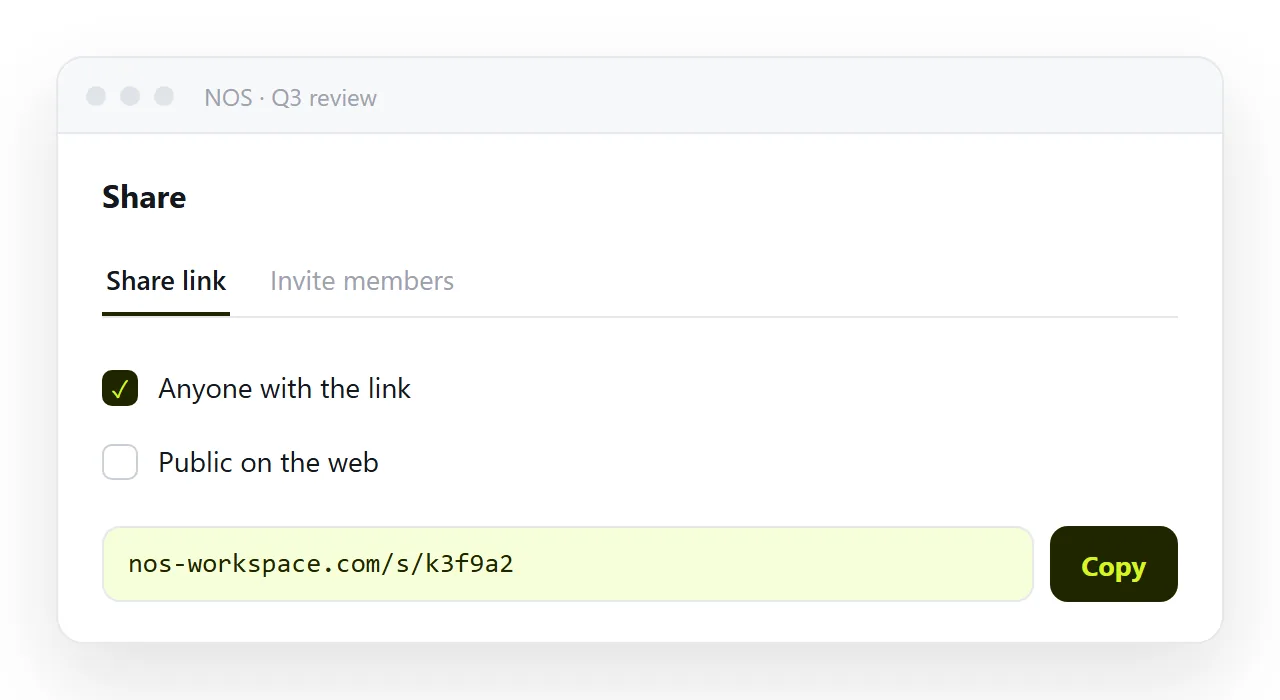
https://addresses first; self-contained HTML covers how. - Copy the share link. Share, then Share link, then Create link. The address opens the rendered page for anyone who has it, and turning HTML into a link is the whole of the work.
- Send that address instead of the Drive link. It opens in one click, on a phone too, and chat apps draw a preview card for it. Revise the document and the address stays the same, so the link you shared last month still shows the current version.
If you only need to look at it yourself
You do not need a link for that. Download the file from Drive and drop it into the HTML file opener, which draws the page in a sandboxed frame without installing anything.
On a computer with the Drive desktop app, the file is also on your disk, so a double-click opens it in the browser, provided .html is associated with a browser and not a code editor.
Both are fine for you and neither helps the person on the other end of a share link.
Comparing the options honestly
| Google Drive | Static file host | Page with an address | |
|---|---|---|---|
| Holds the file safely | Yes | Yes | Yes |
| Opens as a page in one click | No | Yes | Yes |
| Fix a typo without re-uploading | No | No | Yes |
| Findable next to your other documents | Yes | No | Yes |
| Preview card in chat | No | Yes | Yes |
| Opens on a phone | Download only | Yes | Yes |
A static host covers the serving problem and leaves the editing problem: the unit of work is still the file, so every correction is a re-upload. That is fine for a page that will never change, and quietly expensive for one that will. Static host or document goes through the trade-off.
In NOS the HTML renders exactly as written, the text inside is clickable text you can correct, and the address stays the same as the content changes. Drive keeps the file; the document shows the page.
The same problem in the other drives
Dropbox, OneDrive and Box behave the same way for the same reason: the viewer shows code or offers a download, and the old public-folder hosting features were retired years ago. HTML in Teams covers the OneDrive and SharePoint case in detail.
Whatever the drive, the answer is the same: store the file there if you like, and send the address of a served page.