A downloaded .html file is an unreliable thing to give a Chromebook class, because what happens depends on how your school manages the devices. A link to the page is more dependable. It opens in the browser, and there is no file to find.
One teacher guide suggests it this way: email that html file directly to your students or you can go old school and save it on a thumb drive. That can work. On a managed Chromebook it passes through several settings your school controls.
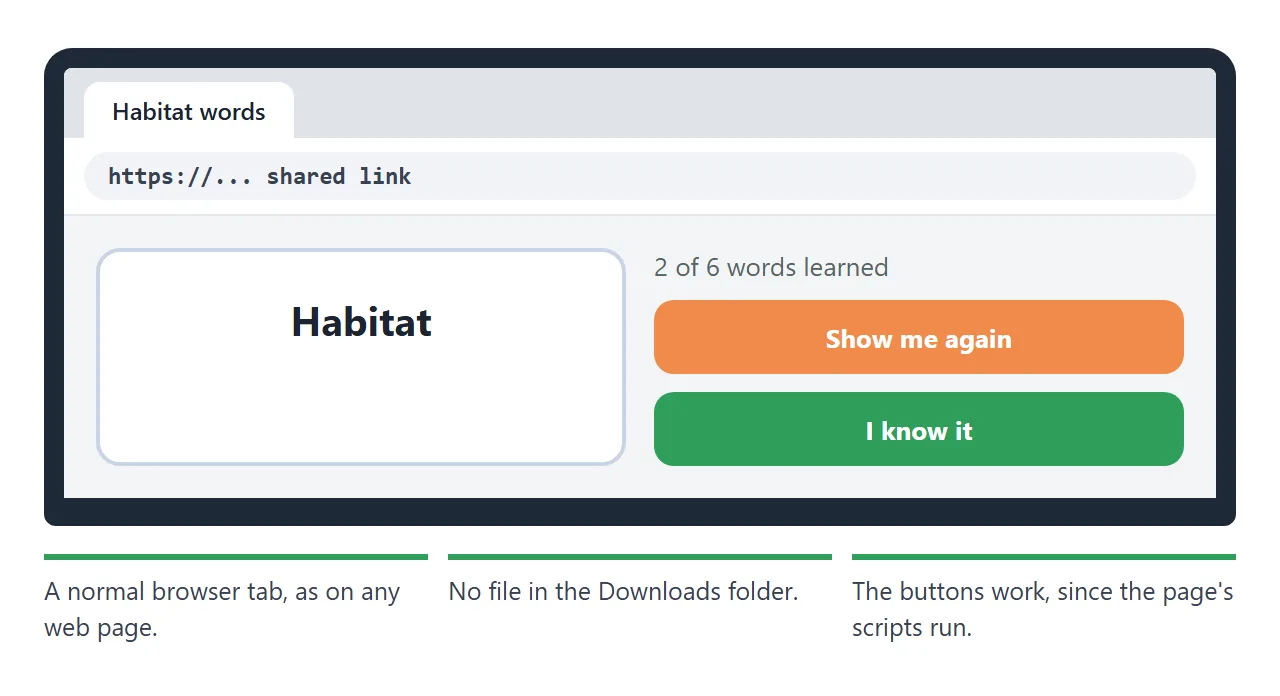
Here is a page you could hand out instead. It is a set of flash cards for a science unit. Tap the card, then choose a button.
<!doctype html>
<html lang="en">
<head>
<meta charset="utf-8">
<meta name="viewport" content="width=device-width, initial-scale=1">
<title>Habitat words: flash cards</title>
<style>
  * { box-sizing: border-box; }
  body { margin: 0; padding: 18px 14px 28px; font-family: system-ui, sans-serif; background: #f4f6fa; color: #1d2330; }
  main { max-width: 480px; margin: 0 auto; }
  h1 { font-size: 22px; margin: 0 0 4px; }
  .sub { margin: 0 0 14px; color: #566; font-size: 15px; }
  .bar { height: 10px; border-radius: 6px; background: #dfe4ee; overflow: hidden; margin-bottom: 6px; }
  .bar span { display: block; height: 100%; width: 0; background: #2f9e5b; transition: width .25s; }
  .count { font-size: 14px; color: #566; margin-bottom: 12px; }
  .card { width: 100%; min-height: 170px; padding: 22px 18px; border: 2px solid #c9d3e6; border-radius: 16px; background: #fff; font: inherit; font-size: 26px; font-weight: 700; color: #1d2330; cursor: pointer; text-align: center; }
  .card.back { background: #eaf1ff; border-color: #1d4ed8; font-size: 19px; font-weight: 500; line-height: 1.4; }
  .hint { font-size: 14px; color: #566; margin: 8px 0 14px; text-align: center; }
  .row { display: flex; gap: 10px; }
  .row button { flex: 1; font: inherit; font-weight: 700; padding: 13px 10px; border: 0; border-radius: 10px; cursor: pointer; }
  #got { background: #2f9e5b; color: #fff; }
  #again { background: #f08a4b; color: #fff; }
  #done { display: none; padding: 18px; background: #fff; border: 2px solid #2f9e5b; border-radius: 16px; text-align: center; font-size: 18px; }
  #done button { margin-top: 12px; font: inherit; font-weight: 700; padding: 11px 20px; border: 0; border-radius: 10px; background: #1d4ed8; color: #fff; cursor: pointer; }
</style>
</head>
<body>
<main>
  <h1>Habitat words</h1>
  <p class="sub">Read the word. Tap the card to see what it means.</p>
  <div class="bar"><span id="fill"></span></div>
  <div class="count" id="count"></div>

  <div id="play">
    <button type="button" class="card" id="card"></button>
    <p class="hint" id="hint">Tap the card to turn it over</p>
    <div class="row">
      <button type="button" id="again">Show me again</button>
      <button type="button" id="got">I know it</button>
    </div>
  </div>

  <div id="done">
    <div id="doneText"></div>
    <button type="button" id="restart">Start again</button>
  </div>
</main>

<script>
  // Each card: the word and its meaning
  const words = [
    { w: 'Habitat', m: 'The place where a plant or animal lives.' },
    { w: 'Predator', m: 'An animal that hunts other animals for food.' },
    { w: 'Prey', m: 'An animal that is hunted by another animal.' },
    { w: 'Camouflage', m: 'Colours or patterns that help an animal blend in.' },
    { w: 'Adapt', m: 'To change over time so it is easier to survive.' },
    { w: 'Ecosystem', m: 'Living things and their surroundings, working together.' }
  ];
  let queue, known, flipped, start;

  const card = document.getElementById('card');
  const hint = document.getElementById('hint');

  function begin() {
    queue = words.slice();
    known = 0;
    start = words.length;
    document.getElementById('play').style.display = '';
    document.getElementById('done').style.display = 'none';
    show();
  }

  function show() {
    flipped = false;
    card.classList.remove('back');
    card.textContent = queue[0].w;
    hint.textContent = 'Tap the card to turn it over';
    document.getElementById('fill').style.width = (known / start * 100) + '%';
    document.getElementById('count').textContent = known + ' of ' + start + ' words learned';
  }

  card.addEventListener('click', () => {
    flipped = !flipped;
    card.classList.toggle('back', flipped);
    card.textContent = flipped ? queue[0].m : queue[0].w;
    hint.textContent = flipped ? 'Now choose a button' : 'Tap the card to turn it over';
  });

  document.getElementById('got').addEventListener('click', () => {
    queue.shift();
    known++;
    if (queue.length === 0) finish(); else show();
  });

  document.getElementById('again').addEventListener('click', () => {
    queue.push(queue.shift());  // move this card to the back of the pile
    show();
  });

  function finish() {
    document.getElementById('fill').style.width = '100%';
    document.getElementById('count').textContent = known + ' of ' + start + ' words learned';
    document.getElementById('play').style.display = 'none';
    document.getElementById('done').style.display = 'block';
    document.getElementById('doneText').textContent = 'All ' + start + ' words learned. Nice work!';
  }

  document.getElementById('restart').addEventListener('click', begin);
  begin();
</script>
</body>
</html>
Why a file is a risky thing to hand out
A file has to be received, saved, found and opened. Each of those steps can be affected by settings that you, as a teacher, may not control.
Google's list of file types that work on Chromebooks does not include .html, as of October 2026. Administrators can also block web addresses on managed devices, and the filter format lists file as a supported scheme. So a block on local files is possible.
A thumb drive has its own switch. Google documents a policy that makes external storage unavailable in the file browser.
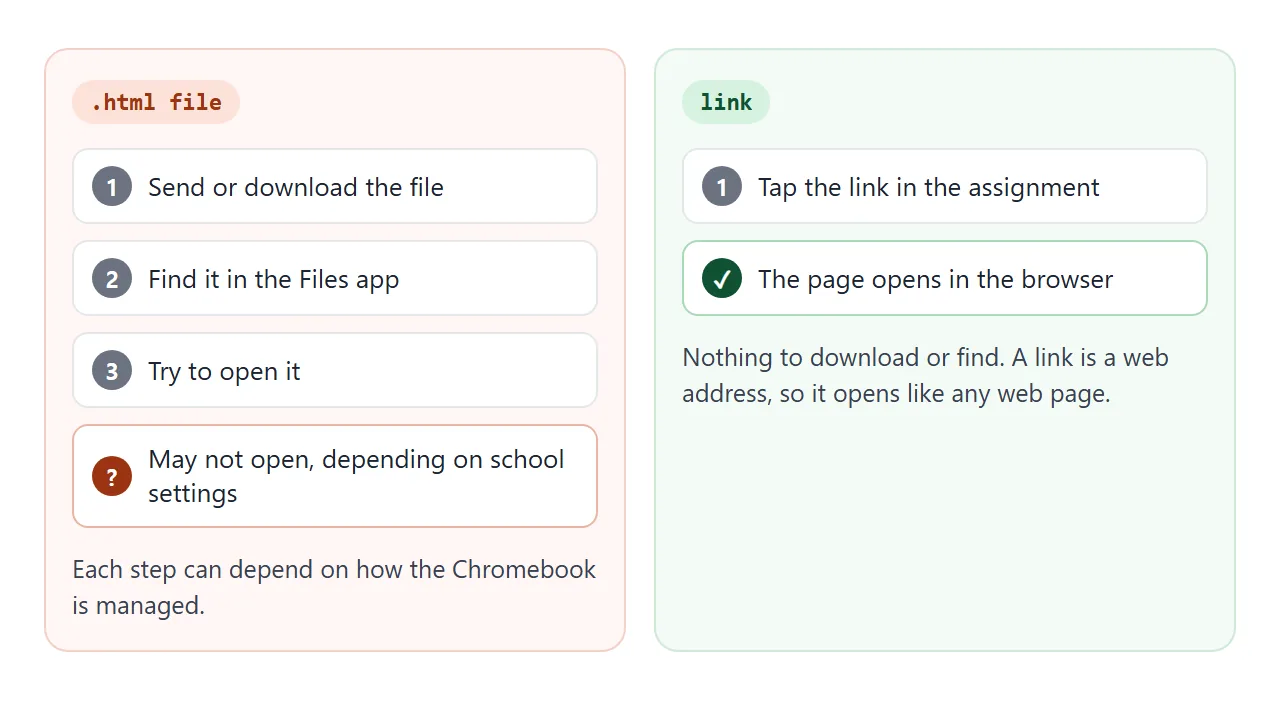
None of this says your school has these settings on. It says you cannot be sure, and that a link does not depend on them.
Make it with AI
You do not need to write code. Describe the page and ask for one file. Paste this into ChatGPT, Claude or Gemini and change the topic.
Make a single-file HTML page of flash cards for 10-year-olds.
Topic: habitat words (habitat, predator, prey, camouflage).
Tap a card to see the meaning. Two buttons: "I know it" and
"Show me again". Show a progress bar. Large text that works on
a Chromebook and a phone. No external images, fonts or scripts.
Return only the HTML.
Check three things before you copy it:
- The meanings are correct. AI can state a wrong answer with confidence.
- Nothing in it loads from the internet, such as an outside image. Ask again if it does.
- The text is large enough for a small screen.
Send it as a link
Open a NOS document and paste the HTML in. The page renders right there and its scripts run, so test every button yourself. Then choose Create share link and copy the address.
Anyone with that address can open the page in a browser, on a phone too, without an account. They can use it but cannot edit it. If you change the code later, the same link shows the new version. HTML to link walks through it.
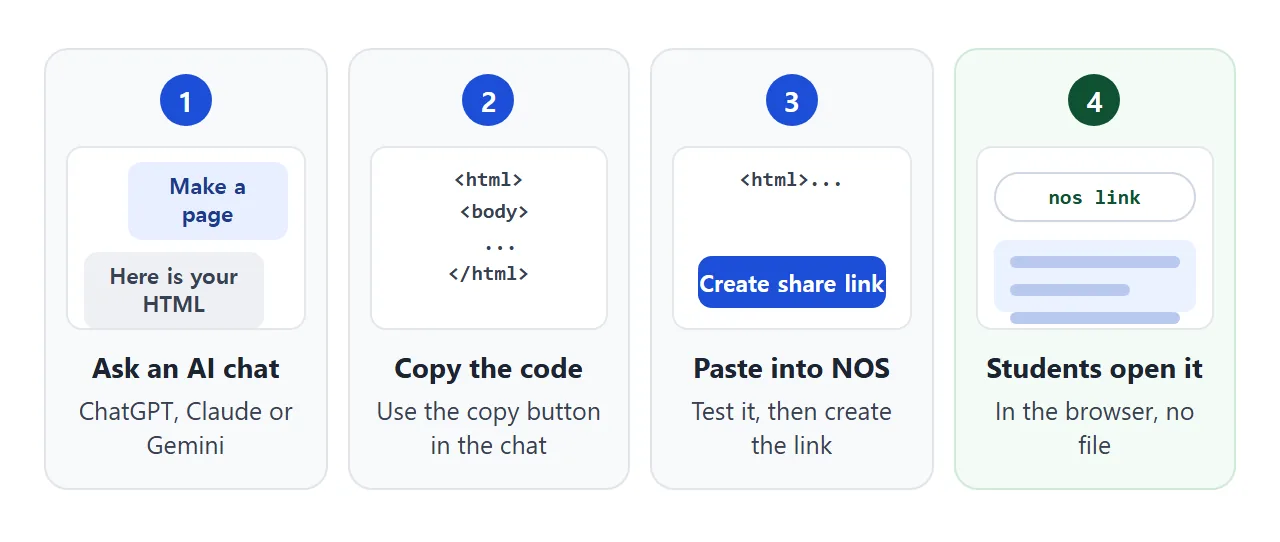
To put the link in Google Classroom, create an assignment and use the Link option, which Google describes as attaching a link to your assignment. The steps are on Google's Create an assignment page.
You can also paste the address into an email or a message. For other school systems, check your platform's own help.
Ways to hand out the page
| .html file | Link | |
|---|---|---|
| What students get | A file to find and open | A web address |
| Needs the Files app | Yes | No |
| Can school settings stop it | Yes, in several places | Only if the site is blocked |
| Fix a mistake later | Send a new file | Edit once, same link |
Gmail's list of blocked file types does not include .html, so an email attachment can arrive. The question is then what the Chromebook does with it. A Drive file is another route, and Drive stores files rather than serving pages.
Check it from a student's seat
Before class, open the link on a Chromebook set up like your students', ideally with a test student account if your school provides one. Then try it on a phone.
Here is a second page for the same class, an exit ticket. Students rate their confidence, type a question, and show the screen on the way out.
<!doctype html>
<html lang="en">
<head>
<meta charset="utf-8">
<meta name="viewport" content="width=device-width, initial-scale=1">
<title>Exit ticket</title>
<style>
  * { box-sizing: border-box; }
  body { margin: 0; padding: 18px 14px 28px; font-family: system-ui, sans-serif; background: #f4f6fa; color: #1d2330; }
  main { max-width: 520px; margin: 0 auto; }
  h1 { font-size: 22px; margin: 0 0 4px; }
  .sub { margin: 0 0 16px; color: #566; font-size: 15px; }
  fieldset { border: 1px solid #d9dee8; border-radius: 12px; background: #fff; margin: 0 0 12px; padding: 12px 14px; }
  legend { font-weight: 700; padding: 0 6px; font-size: 15px; }
  .scale { display: flex; gap: 8px; flex-wrap: wrap; }
  .scale label { flex: 1; min-width: 44px; text-align: center; padding: 10px 0; border: 2px solid #c9d3e6; border-radius: 10px; font-size: 18px; font-weight: 700; cursor: pointer; }
  .scale input { position: absolute; opacity: 0; }
  .scale label:has(input:checked) { background: #1d4ed8; border-color: #1d4ed8; color: #fff; }
  .scale label:has(input:focus-visible) { outline: 3px solid #93b4ff; }
  .ends { display: flex; justify-content: space-between; font-size: 13px; color: #566; margin-top: 6px; }
  textarea { width: 100%; min-height: 84px; font: inherit; font-size: 16px; padding: 10px; border: 1px solid #c9d3e6; border-radius: 8px; resize: vertical; }
  button { font: inherit; font-weight: 700; padding: 12px 22px; border: 0; border-radius: 10px; background: #1d4ed8; color: #fff; cursor: pointer; }
  #card { display: none; margin-top: 16px; padding: 16px; background: #fff; border: 2px solid #2f9e5b; border-radius: 14px; }
  #card h2 { margin: 0 0 8px; font-size: 17px; color: #0f5132; }
  #card p { margin: 6px 0; font-size: 16px; white-space: pre-wrap; }
  #card small { color: #566; }
</style>
</head>
<body>
<main>
  <h1>Exit ticket: fractions</h1>
  <p class="sub">Two quick questions before you pack up.</p>
  <form id="ticket">
    <fieldset>
      <legend>How sure are you about adding fractions?</legend>
      <div class="scale">
        <label><input type="radio" name="sure" value="1" required>1</label>
        <label><input type="radio" name="sure" value="2">2</label>
        <label><input type="radio" name="sure" value="3">3</label>
        <label><input type="radio" name="sure" value="4">4</label>
        <label><input type="radio" name="sure" value="5">5</label>
      </div>
      <div class="ends"><span>1 = lost</span><span>5 = could teach it</span></div>
    </fieldset>
    <fieldset>
      <legend>What is one thing you still want to ask?</legend>
      <textarea name="question" placeholder="Type here"></textarea>
    </fieldset>
    <button type="submit">Show my ticket</button>
  </form>

  <div id="card" aria-live="polite">
    <h2>Your ticket</h2>
    <p id="outSure"></p>
    <p id="outQ"></p>
    <small>Show this screen to your teacher on the way out. It stays on your screen only.</small>
  </div>
</main>

<script>
  document.getElementById('ticket').addEventListener('submit', (e) => {
    e.preventDefault();  // nothing is sent anywhere; the answers are shown on this screen
    const data = new FormData(e.target);
    document.getElementById('outSure').textContent = 'Confidence: ' + data.get('sure') + ' out of 5';
    const q = (data.get('question') || '').trim();
    document.getElementById('outQ').textContent = 'My question: ' + (q || '(none)');
    document.getElementById('card').style.display = 'block';
  });
</script>
</body>
</html>
A NOS page does not report who opened it, so nothing reaches you automatically. Students show the screen or take a screenshot. Sending course materials covers other routes.
If your HTML came from Claude Code as a file in a folder, Claude Code HTML files shows how to turn it into a link.
When it does not work
| Symptom | Cause | Fix |
|---|---|---|
| The link will not open at school | The school may block some websites on managed devices | Ask school IT to allow the address |
| Buttons do nothing | The AI left out the script, or the code has an error | Test it in NOS and ask the AI to fix it |
| Pictures are missing | The AI used an outside image | Ask for inline SVG or CSS shapes only |
| The page looks tiny on a phone | The page has no viewport setting | Ask the AI to make it mobile friendly |
| Students lose their ticks on reload | A visitor's changes are not saved | Use the page for practice only |
| You want to see who opened it | A shared page does not report that | Ask for a screenshot or an answer in Classroom |
School administrators can block or allow addresses on managed Chromebooks, according to Google's Allow or block access to websites page. Whether that affects your students depends on your school's settings.