To share an HTML file in Microsoft Teams so people see the page, share it as an address rather than as a file. Teams does accept .html uploads, but it stores them in SharePoint or OneDrive, and neither will render an HTML file.
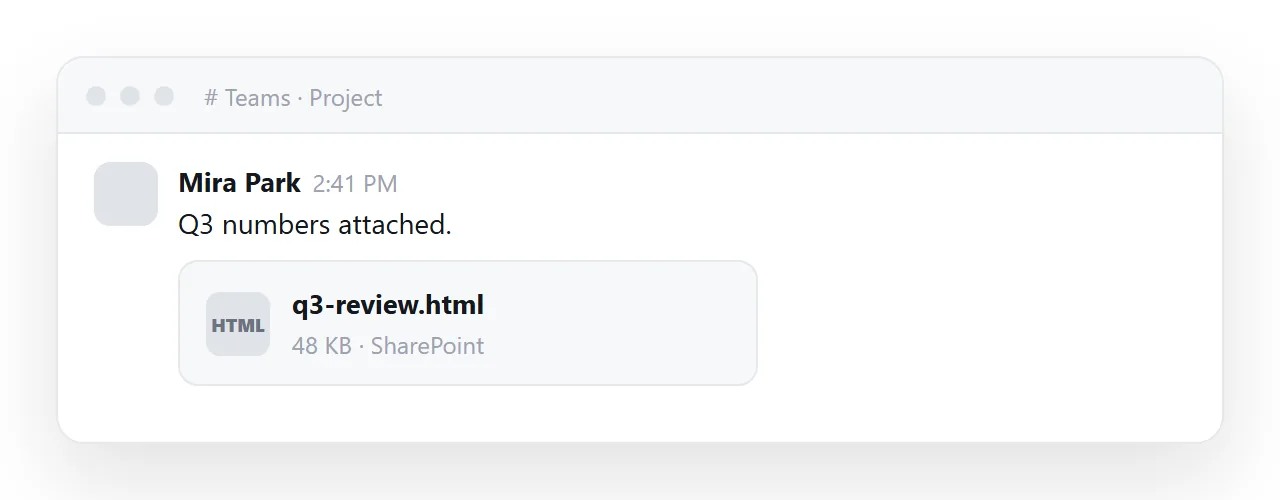
The viewer says "no preview available" and offers a download, so nobody gets to the page. Post a link to the page instead and Teams draws a preview card, or pin the page as a Website tab at the top of the channel.
This guide covers what happens to the upload, the three routes that work, and how to set up the tab.
What happens to an HTML file you upload to Teams
Teams is built on top of a document library. Post a file in a channel and it is stored in that channel's SharePoint folder; send it in a chat and it goes to your OneDrive. A card is left in the conversation pointing at that stored copy.
Clicking the card opens the library's preview, which is built for Office formats, PDFs and images. HTML is outside its repertoire. And SharePoint serves .html files as downloads on purpose, a security measure against pages that could run scripts inside the company's own domain.
So the reader gets a "no preview" message and a download button, and the download then behaves like any HTML file handed over as a file.
Teams is not blocking the file. Its weaponizable file protection blocks executables and scripts, and .html is not on the list. The upload succeeds. The failure is downstream, in the viewer.
What the reader experiences
| Step | Result |
|---|---|
| Sees the file card | No idea what is in it |
| Clicks it | "No preview is available for this file type" |
| Downloads it | A file in Downloads |
| Opens the file | Depends on what program owns .html |
| On a phone | Stops at the file manager |
Nobody gets to the page, and the conversation moves on.
The three routes that work
A link in the message
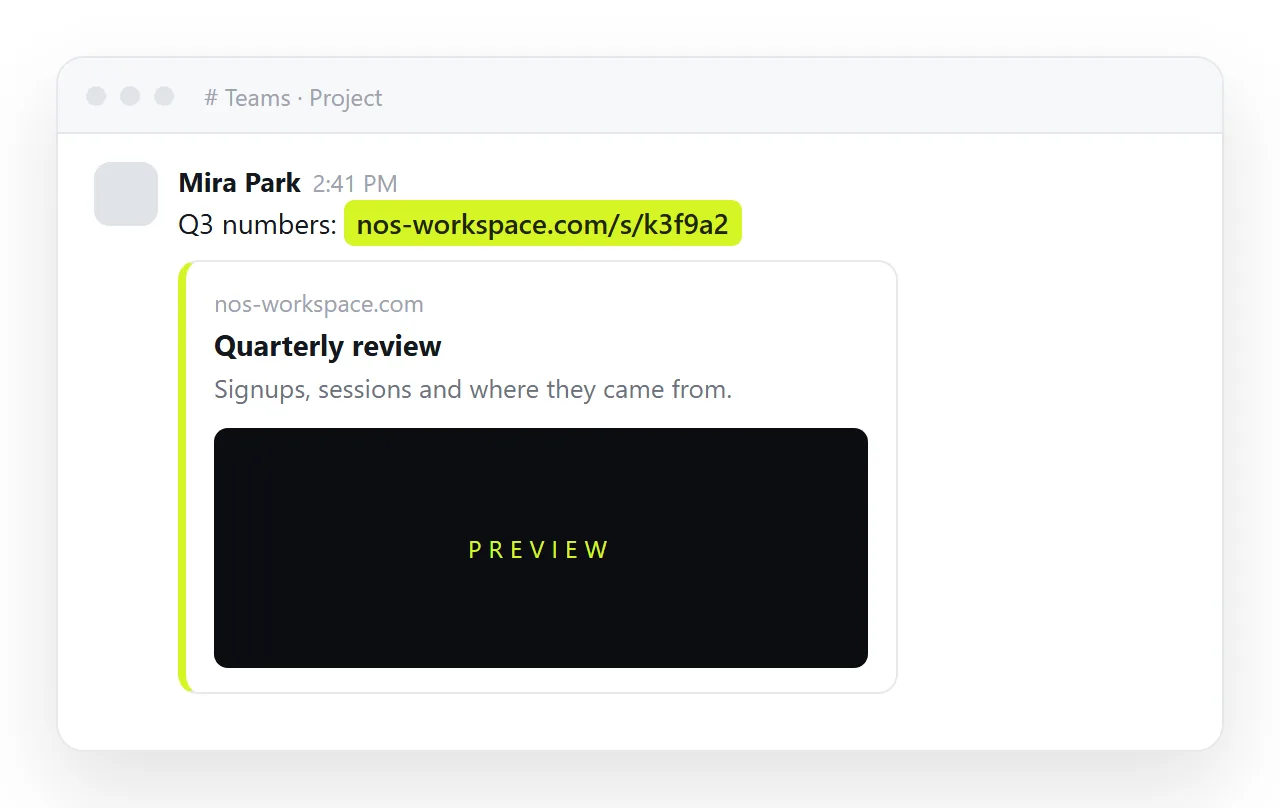
Teams fetches the address, reads the page title and description, and shows a preview card under the message. One click, the page opens, on the desktop app, in the browser and on the phone app. Make sure the page carries a title and Open Graph tags, or the card is a bare address.
A Website tab at the top of the channel
For anything recurring, a weekly dashboard, a live status page, a team handbook, this is the best option Teams has. The page sits at the top of the channel permanently, everyone knows where it is, and the content underneath changes without anyone needing a new link.
- Open the channel and click the + next to the existing tabs.
- Choose Website.
- Type a tab name and paste the page's
https://address. - Click Save. The tab appears for every member of the channel.
Two requirements: the address must be https, and the page must allow being shown inside a frame. A page that sends a frame-ancestors or X-Frame-Options header refusing frames shows blank in the tab; the iframe guide explains that header. A NOS share page does not send one, so it pins.
A PDF, when the content is final
PDFs preview inline in Teams, so they get read. Use one when nothing in the document can change. Do not use one for anything with numbers in it, because the copy in the channel will still be showing last month's figures to anyone who scrolls back, with nothing to indicate it.
How to share the page in Teams: 4 steps
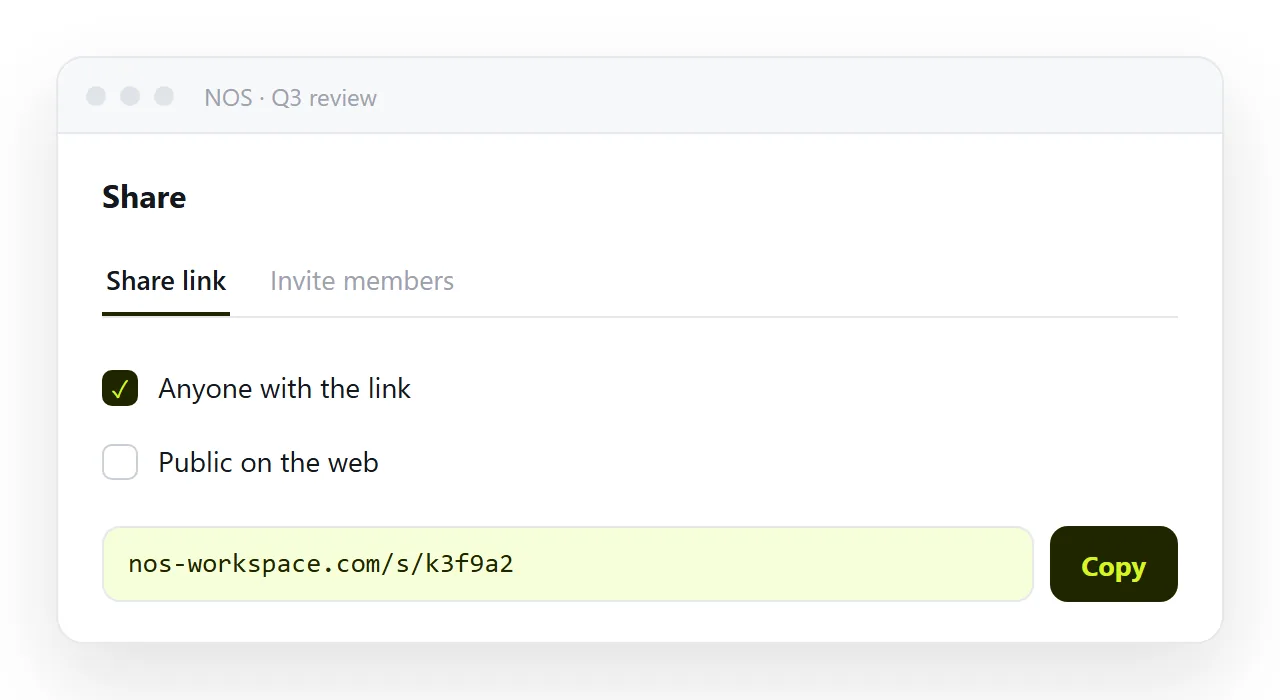
- Give the page an address. Put the HTML in a NOS document and take the address from Share › Share link. Turning HTML into a link is one paste.
- Post the link in the channel or chat with one line saying what it is. Teams unfurls the card.
- For anything recurring, pin it as a Website tab using the steps above.
- Update the page, not the post. A tab or a link points at an address. Revise the page and both show the new version. There is no file to re-upload and no old card to apologise for.
Sharing with someone outside your organisation
Files posted in Teams live inside your tenant's SharePoint, so an external guest or a client often cannot open the file at all, whatever its format.
A link to a published page has no such wall: it opens for anyone who has it, without a Microsoft account. If the page is confidential, invite named people to the document instead of sharing by link, and revoke the link when the project ends.
What the mobile app does
The Teams mobile app follows the same rules as the desktop.
A file card opens the library preview, which has no HTML mode, so the reader ends up with a download in a phone's file manager, which is the worst place for an HTML file. A link opens the page in the phone's browser.
A Website tab opens inside the app. Both work; the file does not.
Why the tab option is underused
The reason people upload files instead is that they have a file and no address. Producing an address feels like a separate project involving hosting. It is not. Publishing the page is a paste and a click, and it unlocks both the link and the tab at once.
Pasted into NOS, the same HTML becomes a page that keeps one address. Because the address does not change when you revise the contents, a channel tab pointing at it keeps showing the current version, which is exactly what you want from a weekly report that lives in a channel: one place, always right, nothing to re-post.
A note on recurring reports
The moment something is sent weekly, the file approach compounds badly: fifty-two file cards in the channel history, no way to tell which one is current, and any correction producing a fifty-third. A single address, referenced the same way each week, has none of that, and the channel stays legible.
The same problem in other tools
| Tool | Uploaded .html | What works |
|---|---|---|
| Teams | Stored in SharePoint or OneDrive; viewer offers a download | Link with preview card, or a Website tab |
| Slack | File card; inline preview in some workspaces | Link with preview card |
| Google Drive | Viewer shows source or offers a download | Link to a published page |
| Warning, no preview, often stripped at work | Link |