To open an HTML file in a text editor, right click the file, choose Open with, and pick a plain text editor rather than the browser.
That is the whole of how to open HTML in a text editor. The browser runs the file. An editor shows what is actually inside it.
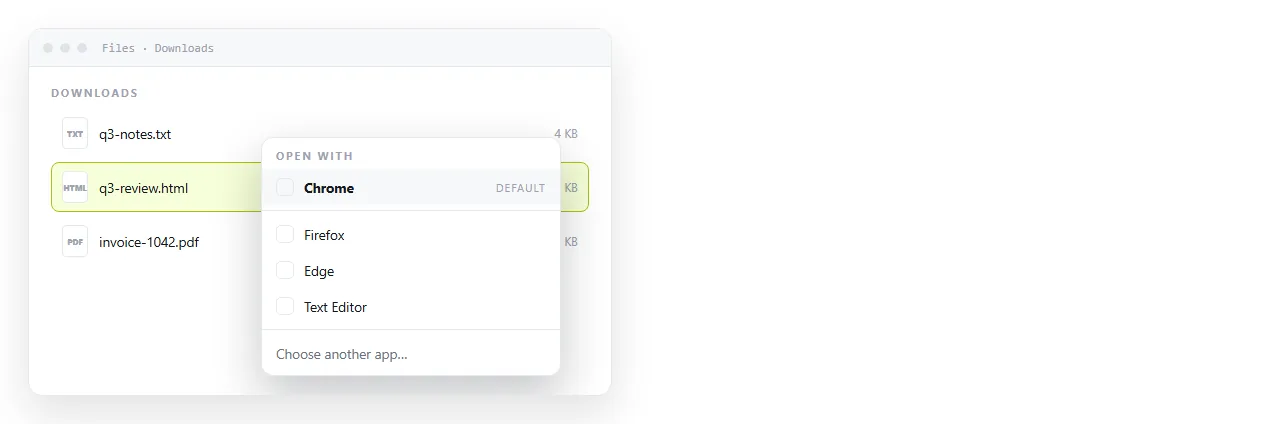
Double clicking does the opposite of what you want here. The .html extension is registered to a browser, so the browser renders the file and the markup disappears behind the result.
This guide gives the route on each platform, which editors are safe to save from, and how to watch the page change while you edit.
How to open HTML in a text editor on each platform
| Platform | Route | Editor already installed |
|---|---|---|
| Windows | Right click, Open with, Choose another app | Notepad |
| macOS | Right click, Open With, or drag the file onto the editor icon | TextEdit |
| Linux | Right click, Open With Other Application | gedit, Kate |
| Any platform | Open the editor first, then File, Open | |
| Any browser | View page source, or Ctrl+U |
The last row is the one people forget. If the page is already open in a browser, the source is one keystroke away and you never have to locate the file.
Windows: check the extension before you blame the editor
Windows hides known file extensions by default. A file shown as report may be report.html, and a file shown as report.html may be report.html.txt.
Turn extensions on in File Explorer under View, then Show, then File name extensions. Everything about which program opens what becomes easier to reason about after that.
Notepad opens any size of file and saves plain text. Set the encoding to UTF-8 when saving, otherwise accented characters and symbols can come back wrong.
macOS: TextEdit needs to be told to stay plain
TextEdit opens .html in rich text mode by default, which means it renders the page instead of showing the tags.
Switch it in Format, then Make Plain Text, before you edit. To make it permanent, open TextEdit settings and tick Display HTML files as HTML code instead of formatted text.
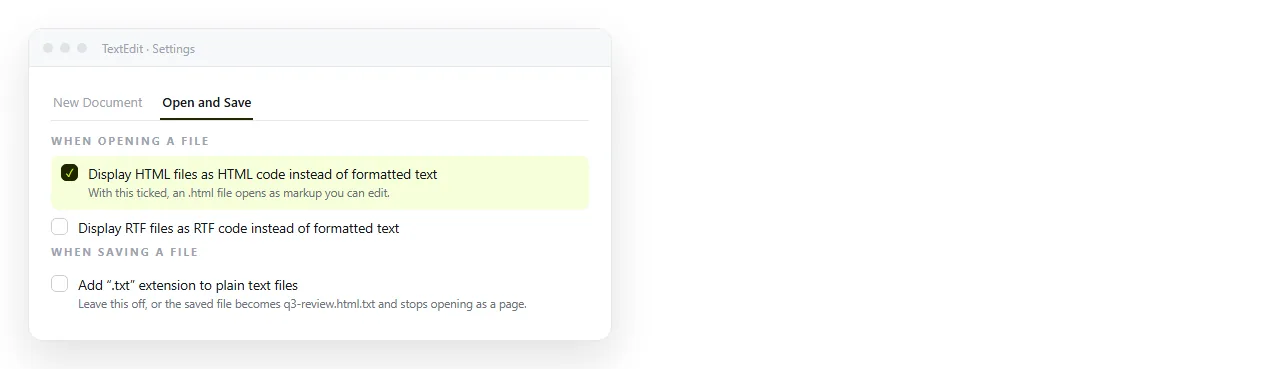
Saving from rich text mode rewrites the file with TextEdit's own markup, so check the mode before the first save, not after.
Which editor to use
| Editor | Good for | Watch out for |
|---|---|---|
| Notepad, TextEdit | A one line fix | No tag colouring, easy to miss a typo |
| VS Code, Sublime Text | Real editing | Nothing, this is the normal choice |
| An online editor | No install, preview alongside | The file has to be pasted in |
| Word, Pages, Google Docs | Nothing here | Saving rewrites the markup |
Word is the one to avoid. It reads HTML as a document and re-saves it as its own flavour of HTML, which can double the file size and change the structure you were trying to read.
Two notes that apply whichever you pick. Set the encoding to UTF-8 when you save, or accented characters and currency symbols come back as replacement marks.
And glance at the file size first. A generated report can carry megabytes of inline data, which a basic editor opens slowly and a code editor handles without complaint.
Reading what you find
Most of an HTML file is one of four things. Knowing which is which makes the file much shorter than it looks.
<head>holds the title, the viewport line and links to stylesheets. Short, and worth reading first.<style>holds the appearance rules. Often the longest block, and usually safe to skip when you are looking for text.<body>holds the content people read. This is where a wrong number lives.<script>holds behaviour. Charts, tabs and sorting are built here.
<body>
  <h1>Q3 summary</h1>
  <p>Revenue rose to 4.2m.</p>
</body>
If you are hunting for a specific word, search the file for it rather than scrolling. The text you see on the page is in the file verbatim, so a figure on screen is findable as the same characters in the source.
Indentation is a hint rather than a rule. Generated files are often written as one very long line, in which case turning on word wrap and running the editor's format command makes the structure visible again.
Anything between <!-- and --> is a comment and is not displayed. Export tools leave notes there, and they occasionally record where the data came from and when.
Seeing the page and the code together
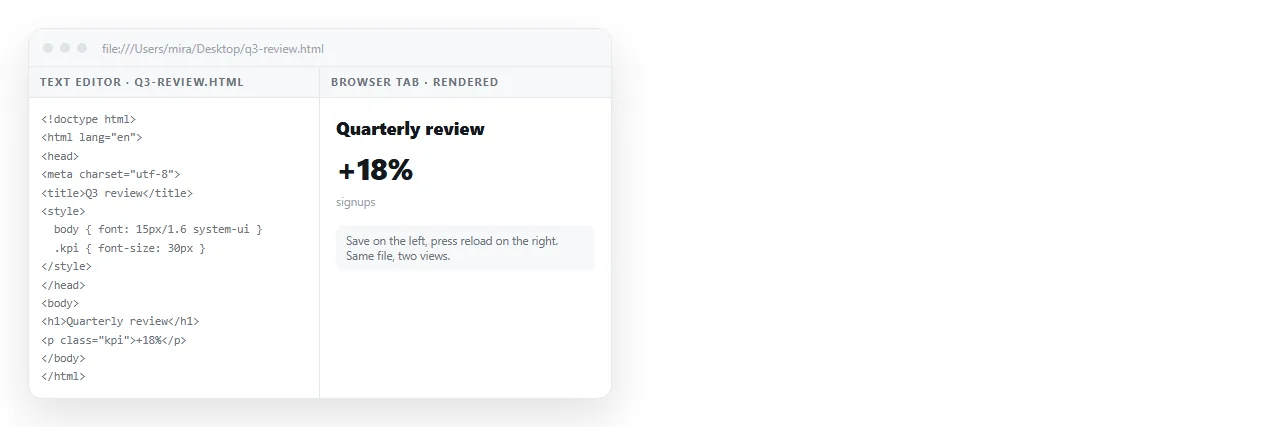
Keep the file open in the editor and the same file open in a browser. Save, then reload the tab. That loop is enough for most edits.
A file opened this way runs under file://, which blocks some things a served page allows. If parts of the page stay blank, the file protocol explains what is being refused.
An online HTML editor removes the reload step by showing the preview beside the markup. An HTML file opener does the opposite job, rendering a file you drop on it so you can check the result without installing anything.
When the text editor is the wrong tool
A text editor is right when you need to see structure, find a tag, or copy the whole file somewhere else.
It is the wrong tool when the only thing you want to change is a word or a number, and someone else has to check the result. Editing markup by hand to fix a typo risks breaking a tag that was fine.
For that case, open the page somewhere the text itself is clickable. Pasting the HTML into a NOS document renders it as a page of its own, and the words inside stay editable without touching the markup.
Editing AI generated HTML without code covers the same route when the file came out of a chat.
Whatever you change, check the file still renders before you pass it on. Reload it in a browser and read the whole page, not only the line you touched.
One deleted angle bracket can swallow everything after it, and the damage usually appears well below the point you edited.
If the file has to reach other people afterwards, the file itself is the weakest way to move it. Mail gateways strip HTML attachments routinely, and on a phone the file lands in storage with nothing offering to render it.
Give the page an address instead. Paste the HTML into a document, then Share, Share link, Create link. The link is unlisted by default, opens in one click on any device, and keeps working after every later edit.