An online HTML editor is the right tool for one specific moment: the page nearly works, you want to change something, and you want to see the result now.
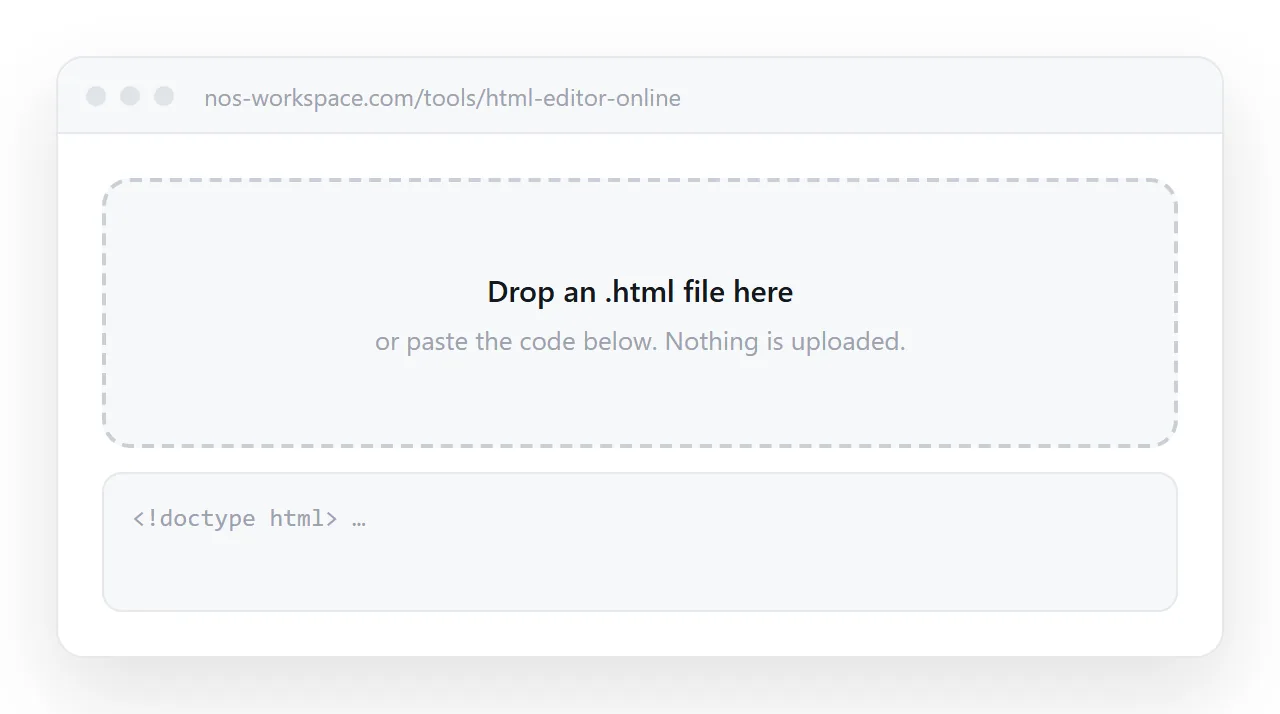
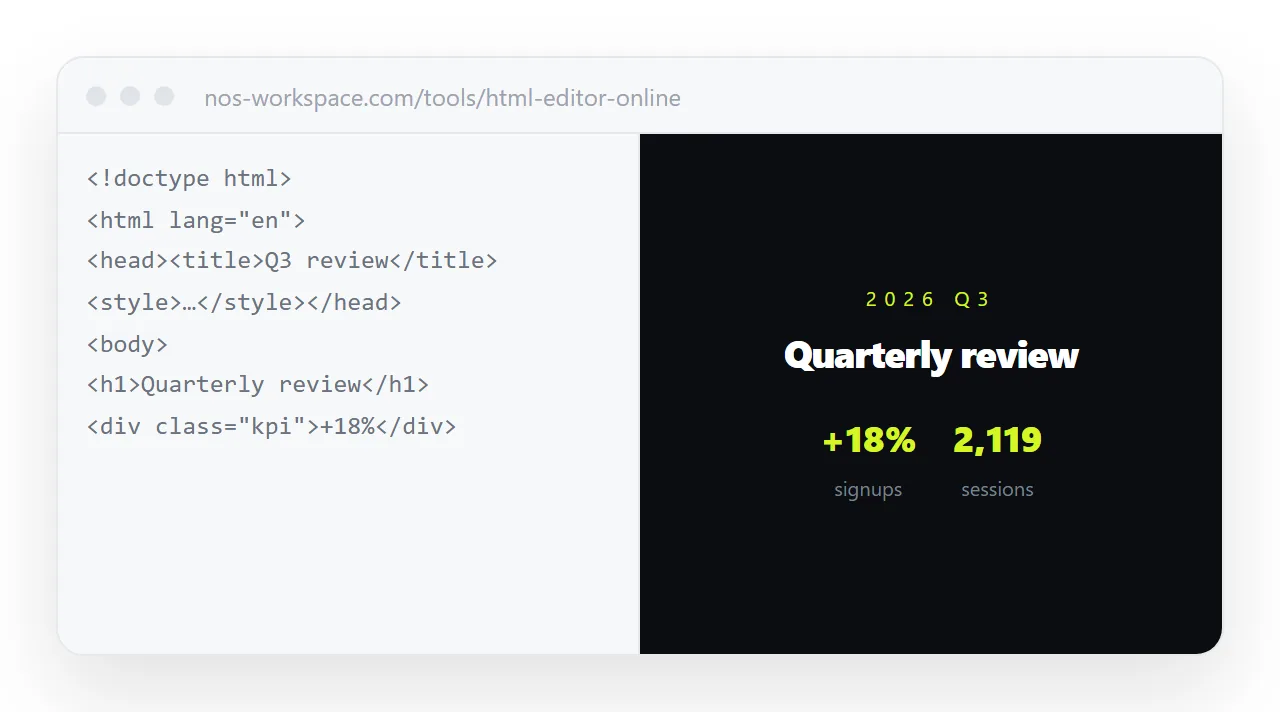
This one runs in your browser with no project setup, no local server and no build step. Paste on the left, read on the right, copy the result out when it is right.
How to use the HTML editor online
- Paste or drop the page. Paste the markup into the left-hand box, or drag an
.htmlfile onto the tool. If you have nothing to start from, the buttons along the bottom load a dashboard, a sortable table, a bar chart, a dark slide or a quote. - Change the code and watch the preview. The right pane redraws a moment after you stop typing. Styles inside the page apply and scripts run, so a counter counts and a chart draws.
- Check it at phone width. Drag the browser window narrow. If the whole page shrinks instead of reflowing, the head is missing the viewport line, covered below.
- Copy the result out. Copy HTML puts the current code on the clipboard. Save it as a file, or paste it into a NOS document to give it an address that keeps working after later edits.
How this differs from a viewer
A viewer answers "what does this file look like". An editor answers "what happens if I change this". Same split pane, different centre of gravity: here the code box is where you live, and the right side is feedback.
The preview redraws shortly after you stop typing rather than on every keystroke. That is deliberate. Redrawing on every character would restart any animation and reset any script on the page, making it impossible to work on anything interactive.
The four mistakes that break a page while you edit
The page is not in one file
Styles in a <style> tag. Scripts in a <script> tag. Images either on full https:// addresses or embedded. A page assembled from neighbouring files works on your machine and nowhere else. See self-contained HTML for what to do about images and fonts specifically.
The script runs before the elements exist
<body>
  <button id="go">Count</button>
  <p id="out">0</p>

  <!-- must sit after the two lines above, or it finds nothing -->
  <script>
    var n = 0;
    document.getElementById('go').onclick = function () {
      document.getElementById('out').textContent = ++n;
    };
  </script>
</body>
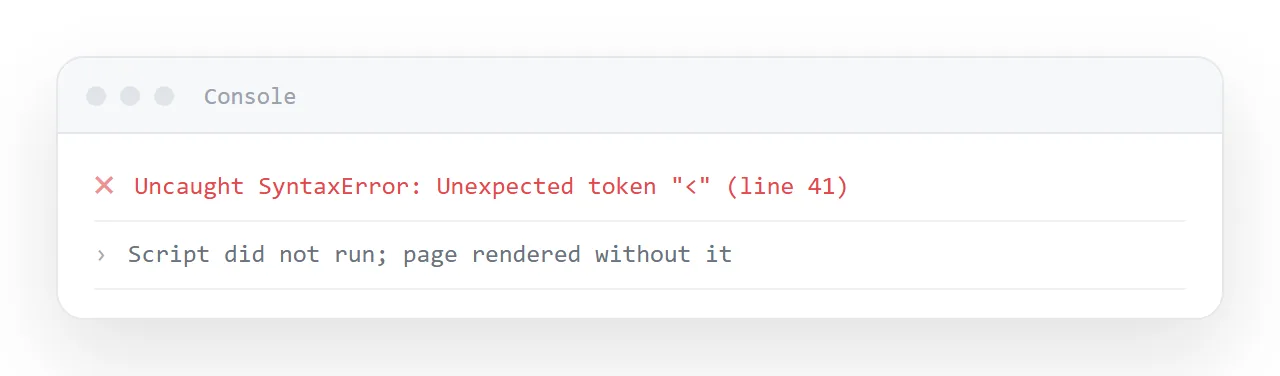
Move that script above the button and it stops working, because getElementById returns nothing when the button has not been drawn yet. This is the single most common reason a page "renders but does nothing".
The viewport line is missing
<meta name="viewport" content="width=device-width,initial-scale=1">
Without it a phone renders the page at desktop width and then shrinks the whole thing, so the text comes out unreadably small. It is the most common reason a page that looks fine on a laptop is unreadable on a phone. More on the viewport tag.
Padding pushes columns out of their width
<style>
  * { box-sizing: border-box; }
</style>
Without this line, padding is added outside the width you specified, so a column set to 50% overflows as soon as you give it breathing room. With it, width means width. Why box-sizing matters.
Editing a page an AI assistant wrote
Most pages pasted into this editor now come from an AI assistant, and they fail in predictable ways: a stylesheet link to a file that does not exist, a font loaded from a folder, a script above the elements it needs, a layout that assumes a wide screen.
The editor is the fastest place to find which one you have, because the preview shows the failure while the code that caused it is on the left. Fixing AI-generated HTML walks through each one.
What people use an online HTML editor for
- Tightening a page an assistant wrote. The structure is right, three things are off. Fix them here, with the result in view, instead of asking for another round.
- Adapting a template. Load a sample, swap the words and colours, copy the HTML out.
- Testing one idea. Does a two-column layout hold at phone width? Paste, narrow the window, know in ten seconds.
- Reading someone else's file. Drop it in, see the page and the code side by side, change nothing.
What an editor cannot do for you
It cannot make the page reachable. When you close the tab, the work is gone, which is correct behaviour for a scratchpad and a problem the moment the page matters.
The gap between "the page is finished" and "the right people have seen it" is where most of the time actually goes, and no amount of editor polish closes it. What closes it is the page having an address: publish once, send the line, and keep revising without re-sending anything.
Comparing the ways to edit a page
| Approach | Best at | Falls down when |
|---|---|---|
| This editor | Quick changes with instant feedback | The page needs to outlive the tab |
| A code playground | Showing other developers how something works | A non-developer has to change the wording |
| A desktop code editor | Large projects with many files | You want somebody else to see the result now |
| A document that renders HTML | Pages that get revised and read by colleagues | You want to restructure the markup itself |
They are not competing. The realistic route is to use two of them: an editor while the markup is in flux, and a document with an address once the content is what matters.
When to stop editing markup
There is a point where the structure is right and only the words are wrong: a stale date, a name change, a paragraph that needs cutting. That is no longer a job for a code pane, and handing a markup file to the person who owns those words is how typos survive for months.
In NOS the published page keeps its HTML exactly as written, but the text inside it is clickable text. The person who needs the date changed changes the date. The address does not move, and nobody has to open a code editor to fix a comma.
Where to go next
| If you want to | Go to |
|---|---|
| Just look at a file, no editing | HTML viewer |
| Give the page an address | HTML to link |
| Build a table people can type into | Editable table builder |
| Fix a page an assistant wrote | Fixing AI-generated HTML |
| Make the page work as one file | Self-contained HTML |