To convert HTML to MP4 you record the page while it runs. A page is a document and a video is a sequence of frames, so something has to play the page and watch it.
There are three ways to do that, and they differ in how much control you have over timing. Timing is what separates a smooth clip from a stuttering one.
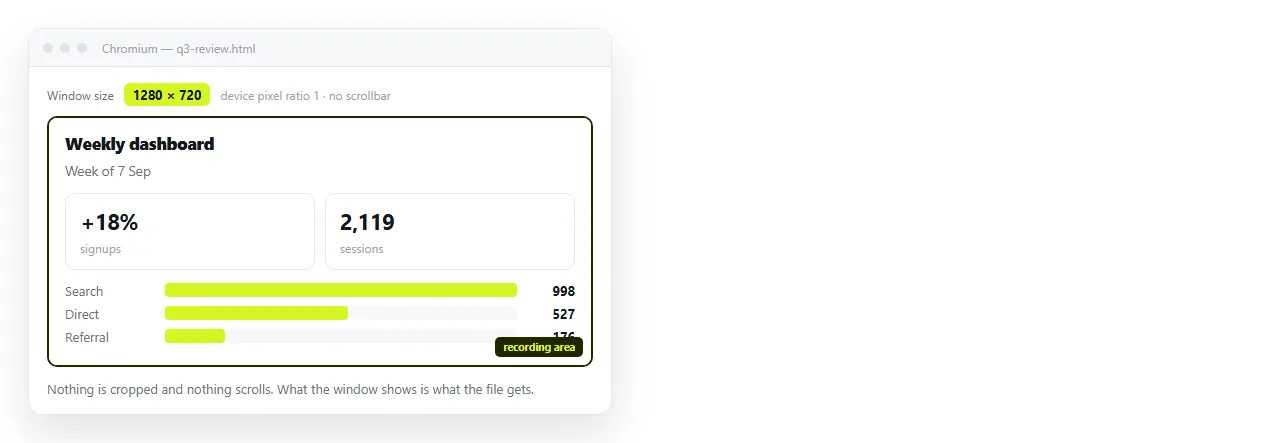
Three ways to convert HTML to MP4
| Route | Smoothness | Setup | Repeatable |
|---|---|---|---|
| Screen recorder | Depends on your machine | Install one app | No |
| Browser video capture | Usually good | A script and a browser | Mostly |
| Frame render plus ffmpeg | Exact | Node, a browser, ffmpeg | Yes |
Pick the third route if the clip goes into a product page or documentation that gets rebuilt. Pick the first if you need something in the next five minutes.
Route 1: a screen recorder
Size the browser window to the output dimensions before you start, not after. Cropping later costs resolution.
Then record, and keep three things in mind.
- Close everything else. Real time recording and page animation compete for the same processor.
- Hide the cursor unless a click is the point of the clip.
- Record a second of stillness at each end. It gives you room to trim cleanly.
The output is usually MP4 already. If it is MOV or WebM, ffmpeg converts it in one command.
Route 2: let the browser record
Playwright can write a video of a page session while your script drives it. You get a file without running a separate recorder.
import { chromium } from 'playwright';

const browser = await chromium.launch();
const context = await browser.newContext({
  viewport: { width: 1280, height: 720 },
  recordVideo: { dir: 'out/', size: { width: 1280, height: 720 } },
});
const page = await context.newPage();
await page.goto('file:///C:/pages/demo.html');
await page.waitForTimeout(6000);
await context.close();
await browser.close();
The video is written when the context closes, so closing the context is not optional. The output is WebM, which converts to MP4 with a single ffmpeg call.
This route is good for recording a scripted interaction: clicks, scrolls, a form being filled.
Route 3: render frames, then encode
This is the route that removes timing from the problem entirely. You decide the frame rate, step the page forward, and capture each frame.
const fps = 30, seconds = 5;
for (let i = 0; i < fps * seconds; i++) {
  await page.evaluate((t) => window.setFrame(t), i / fps);
  await page.screenshot({ path: `frames/f${String(i).padStart(4, '0')}.png` });
}
The page exposes a function that puts the animation at a given time, and the script calls it. Nothing depends on how fast the machine is.
Then encode:
ffmpeg -framerate 30 -i frames/f%04d.png \
  -c:v libx264 -pix_fmt yuv420p -crf 20 out.mp4
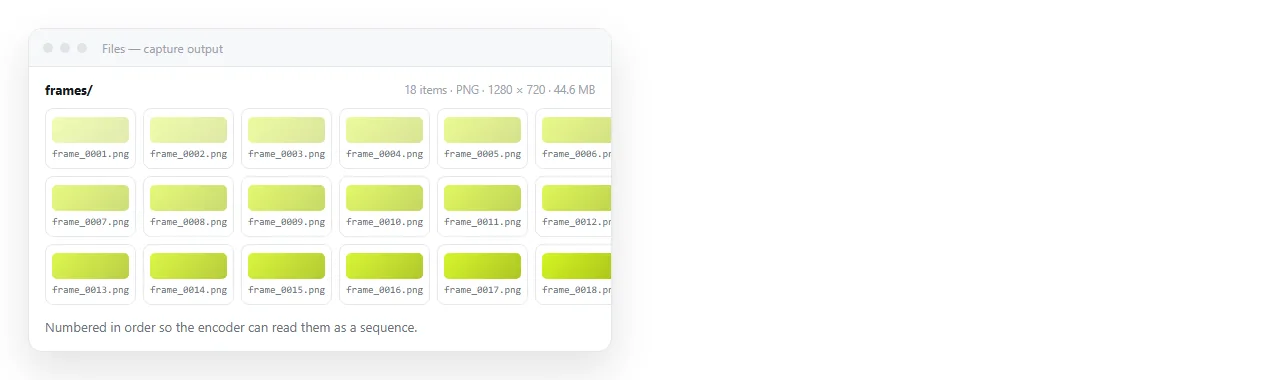
The encode settings that matter
Four flags cover almost every compatibility problem.
-c:v libx264. H.264 is the codec that plays everywhere, including in the preview panes of chat apps.-pix_fmt yuv420p. Without it, some players show a black frame or refuse the file. This is the most common cause of "it plays for me".-crf. Quality, where lower is better. 18 is visually lossless for interface footage, 23 is a reasonable default.- Even dimensions. H.264 requires them. An odd width fails the encode outright.
If a source has an odd dimension, crop or pad rather than scaling, so text stays on whole pixels.
Making the page look right on video
Interface footage compresses badly when it is full of thin lines and small text. Adjust the page rather than the encoder.
- Increase the base font size for the recording. Text that is comfortable on a laptop is unreadable in an embedded player.
- Avoid one pixel borders and hairline dividers; they shimmer under compression.
- Give animations an obvious start and end state so the viewer can follow them.
- Let web fonts finish loading before the first frame, or the opening will show the fallback.
Two more habits make clips easier to reuse. Hold the final state for a full second before cutting, so a viewer who looks up late still sees the result.
And record without a cursor unless a click is the subject. A pointer drifting across an otherwise still frame reads as an accident rather than a demonstration.
MP4 or GIF
MP4 is smaller by a wide margin at the same quality, and it supports sound and longer durations. GIF still wins for a two second loop that must autoplay with no controls.
Converting HTML to GIF covers the frame capture and palette steps for that format. The capture half is identical; only the encode differs.
What video cannot carry
A recording is a fixed path through the page. The viewer cannot hover a data point, sort a column, or read the row you scrolled past.
Numbers in the clip are also frozen. A dashboard video is out of date the day after you record it, and nothing about the file says so.
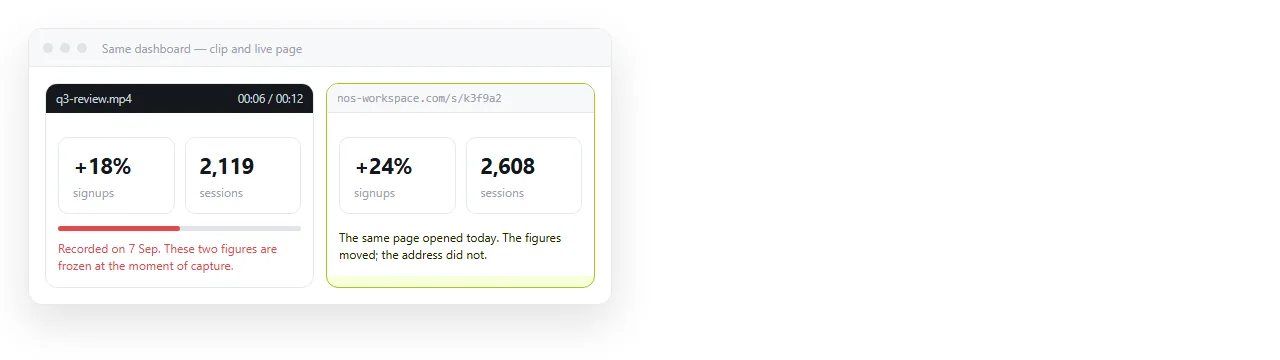
Screenshot versus live page makes the same argument for stills, and it holds for video.
Sending the page with the clip
Record the clip when you need attention in a feed or a slide. Send the page when the reader needs the detail.
Paste the HTML into a NOS document and it renders as written, scripts and animation included, at its own address. The reader gets the live page rather than a recording of it.
Turning HTML into a link is that step. After it, fixing a figure does not mean re-recording, because the link already points at the corrected page.