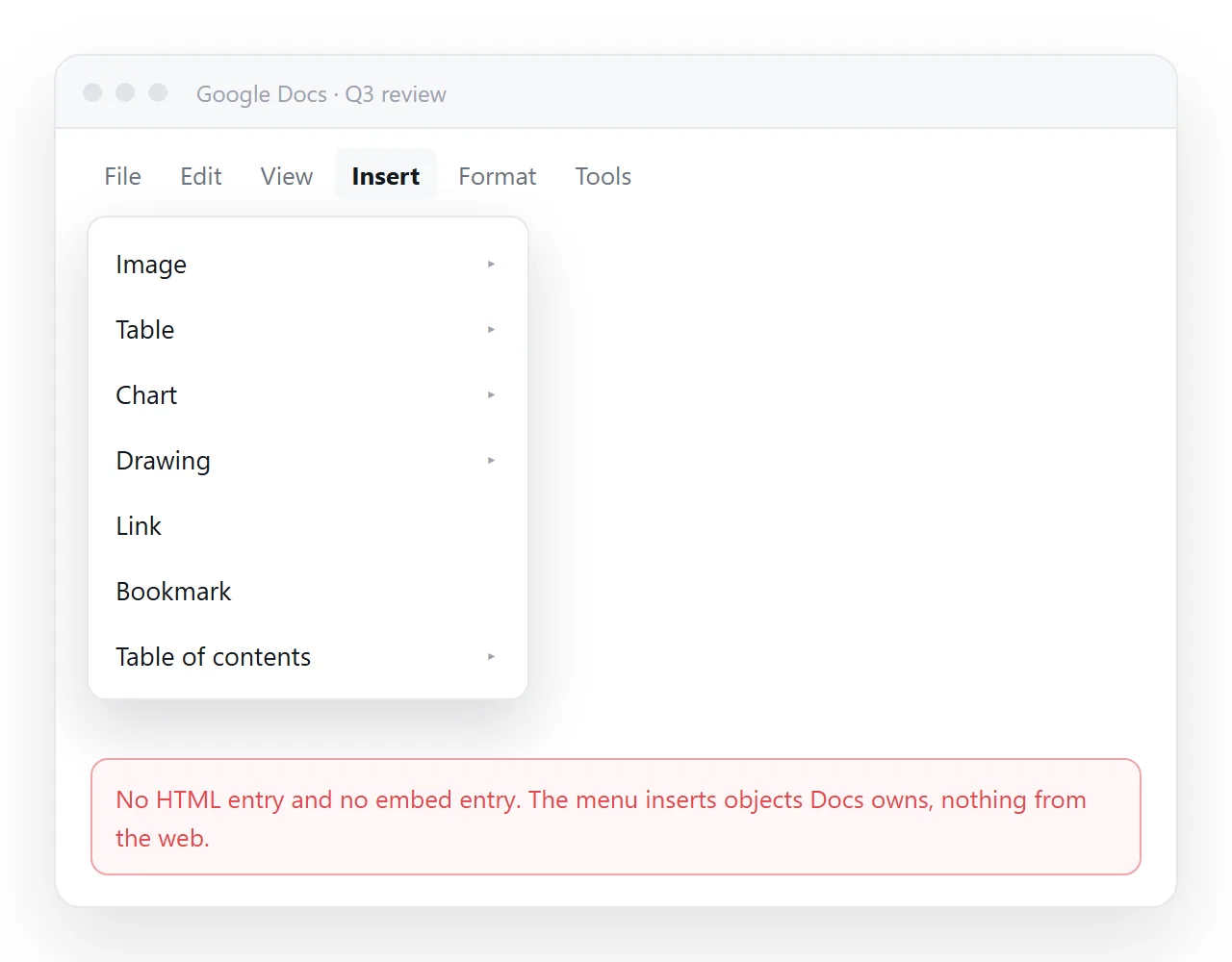
There is no Google Docs embed link that puts arbitrary markup inside a document, and no HTML embed block either. No menu item accepts markup, and a document will not render an iframe or run a script inside itself.
That is the honest answer, and knowing it early saves an hour of hunting through menus. What follows is what people do instead.
What to use instead of a Google Docs HTML embed
| Route | Reader sees | Stays current | Interactive |
|---|---|---|---|
| Insert an image of the page | The page, as a picture | No | No |
| Paste the rendered content | Text and tables, restyled | No | No |
| Link to the page at its address | The real page, in a new tab | Yes | Yes |
Only the third row keeps its promise over time. The first two are snapshots and start drifting the moment the source changes.
Route 1: a picture of the page
This is the usual answer when the page is a chart or a dashboard and the doc is a report about it.
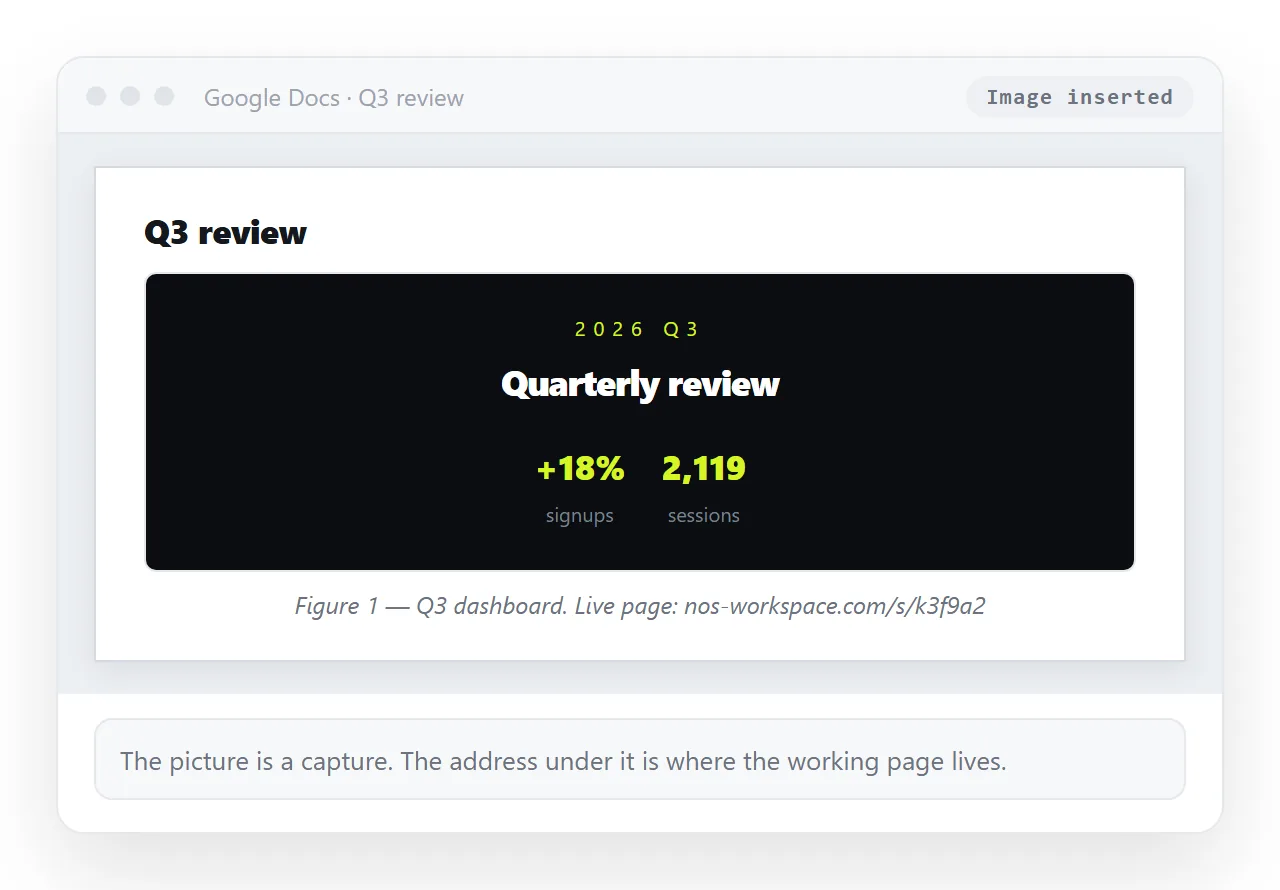
Render the page, capture it, and insert the capture with Insert, then Image. HTML to image does the capture without a screenshot tool, which matters when the page is taller than your screen.
Two rules make the result readable.
- Capture one thing per image. A whole dashboard shrunk to doc width is unreadable. One chart per image, at a size where the axis labels can be read.
- Put the address under it. A caption line with the link lets anyone who needs the numbers go and get them.
- Re-capture when the figures change. An image in a doc has no way of signalling that it is out of date.
That last point is the whole weakness of this route. A stale chart in a report is worse than no chart, because nobody can tell it is stale.
Route 2: paste the rendered content
If the page is prose and tables, pasting the rendered content into the doc gives you something editable and commentable.
Open the page in a browser or the HTML viewer, select it, copy, paste. Headings, bold, tables and links usually survive. Layout and theming do not.
Importing HTML into Google Docs covers the full list of what the conversion keeps and what it drops. The short version: anything a script drew is gone.
Route 3: link to the live page
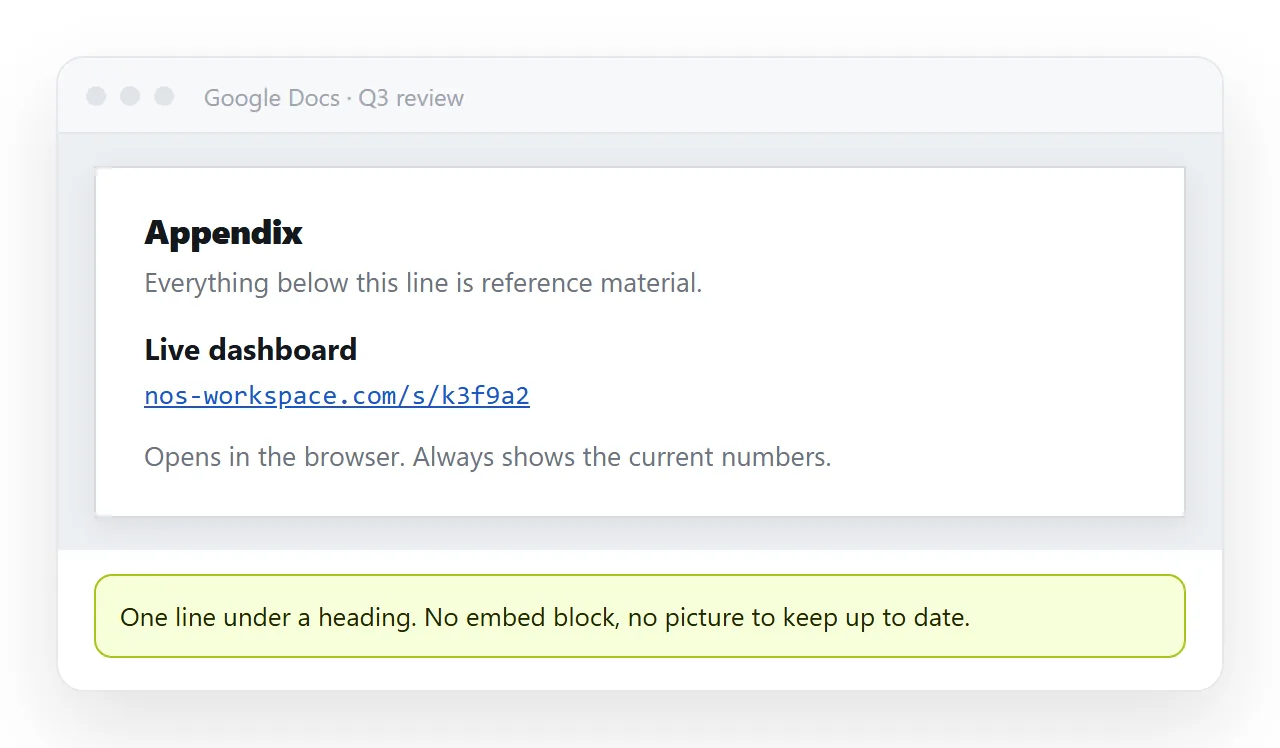
For anything that changes, or anything interactive, the link is the route that does not degrade.
The problem is that a file on your machine has no address to link to, and a file in Drive opens a viewer that shows the code rather than the page. HTML files in Google Drive explains why.
So the page needs an address first.
- Paste the HTML into a NOS document. It renders as written, dark theme, charts and scripts included.
- Share, then Share link, then Create link. Unlisted by default, which means it opens for whoever has the link.
- Copy the link and paste it into the Google Doc.
- Edit the page when the content changes. The address does not move, so the line in the doc stays correct.
Turning HTML into a link is step one and two on their own.
The combination most reports end up using
In practice the good version of a report doc is not one route, it is two.
- A capture of the key chart, sized to be read, inserted in the doc.
- The link directly beneath it, so the reader can open the version with the filters and the current numbers.
The picture survives printing and offline reading. The link survives the numbers changing. Neither alone does both.
When the doc is the wrong container
Step back if you find yourself fighting this. A document that mostly wraps an embedded live page is a page, not a document.
| The content is mostly | Use |
|---|---|
| Prose, with one figure | A doc, with an inserted image |
| A dashboard, with a note on top | A page, with the note as its intro |
| Prose that several people edit | A doc |
| Something read weekly at one address | A page |
If the second or fourth row is yours, paste the HTML into a document that renders it and write the commentary above the charts. You end up with one address instead of a doc pointing at a page pointing back.
What about Google Sites
Google Sites does have an Embed option that takes a URL or a block of markup, and it will render an iframe. If the hard requirement is a genuinely embedded live page inside a Google product, Sites is the place that supports it.
That is a different tool with a different purpose, and it does not help if the deliverable has to be a doc. In that case use the link, and stop looking for the embed block that is not there.