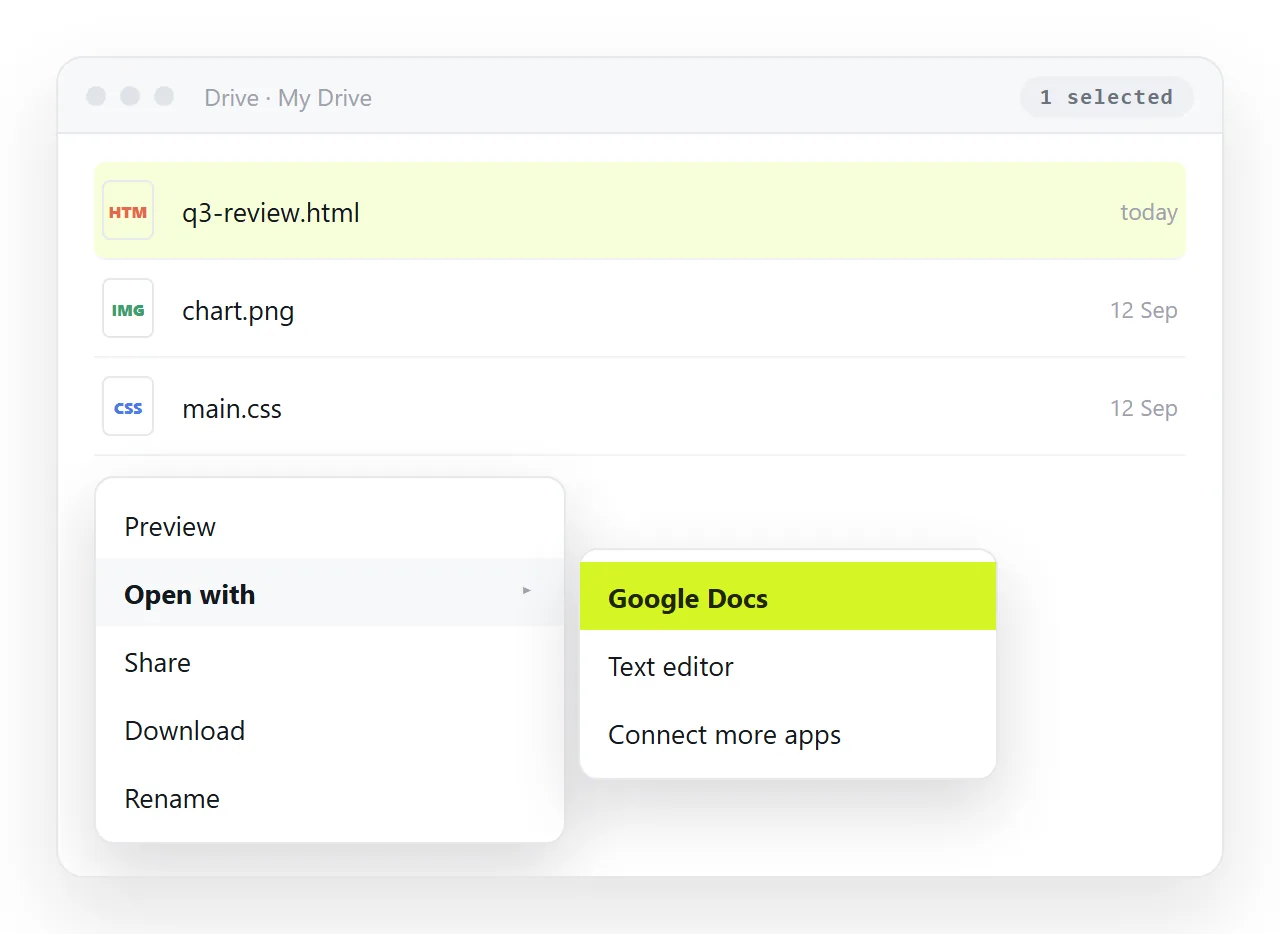
To make Google Docs import HTML, upload the .html file to Google Drive, right click it, and choose Open with, then Google Docs. Drive converts the markup into an editable doc.
The second route is plainer. Open the page in a browser, select all of it, copy, and paste into an empty doc. For styled prose this is often the closer match.
Neither route gives you the page. Both give you an approximation of it as a flowing document.
What survives and what does not
| In the HTML | After import |
|---|---|
Headings h1 to h6 |
Kept as doc heading styles |
| Bold, italic, colour, size | Kept |
| Tables | Kept, widths often reset |
| Ordered and bulleted lists | Kept |
| Links | Kept |
| Images on full addresses | Usually kept |
| Images on relative paths | Dropped |
| CSS grid or flex layout | Flattened to one column |
| Charts drawn by script | Gone |
| Forms, buttons, tabs, sorting | Gone |
| Dark theme styling | Gone |
The bottom four rows are the ones that matter. If your page is a report with a chart and a sortable table, importing it into a doc keeps the words and throws away the reason the page existed.
Route 1: upload and convert
- Drag the
.htmlfile into Google Drive. - Right click it, choose Open with, then Google Docs.
- Drive creates a new doc beside the file. The original stays as it was.
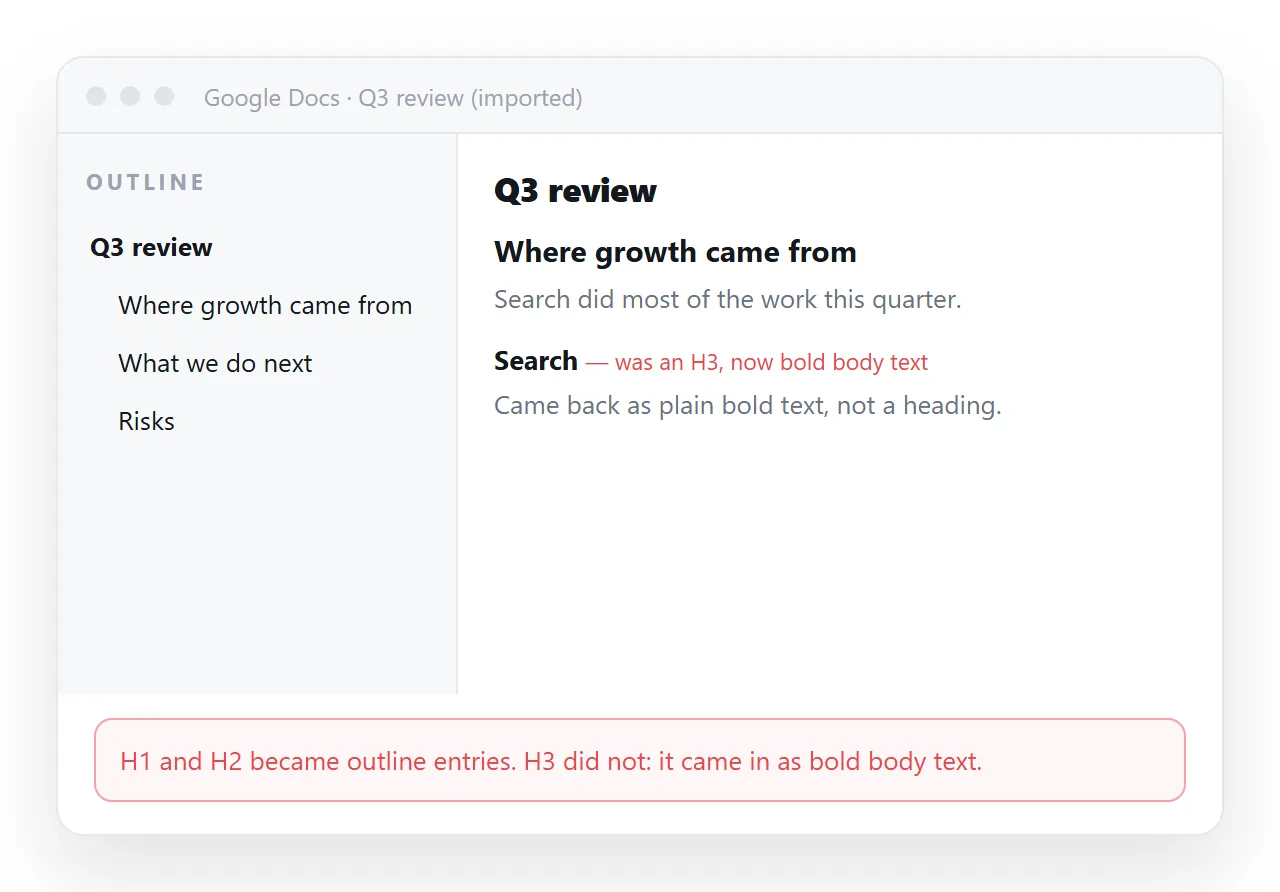
- Skim the result for heading levels, since deeply nested markup sometimes flattens.
This route handles long files better than pasting. A twenty page report pastes slowly and often loses its footnote structure; converted through Drive it tends to hold together.
If the file has pictures in an images folder next to it, they will not come across. Drive uploaded the file, not the folder. Embed the pictures into the HTML first, as self-contained HTML describes, then upload again.
Route 2: render, then paste
Open the file in a browser or in the HTML viewer, select everything on the page, and paste into an empty doc.
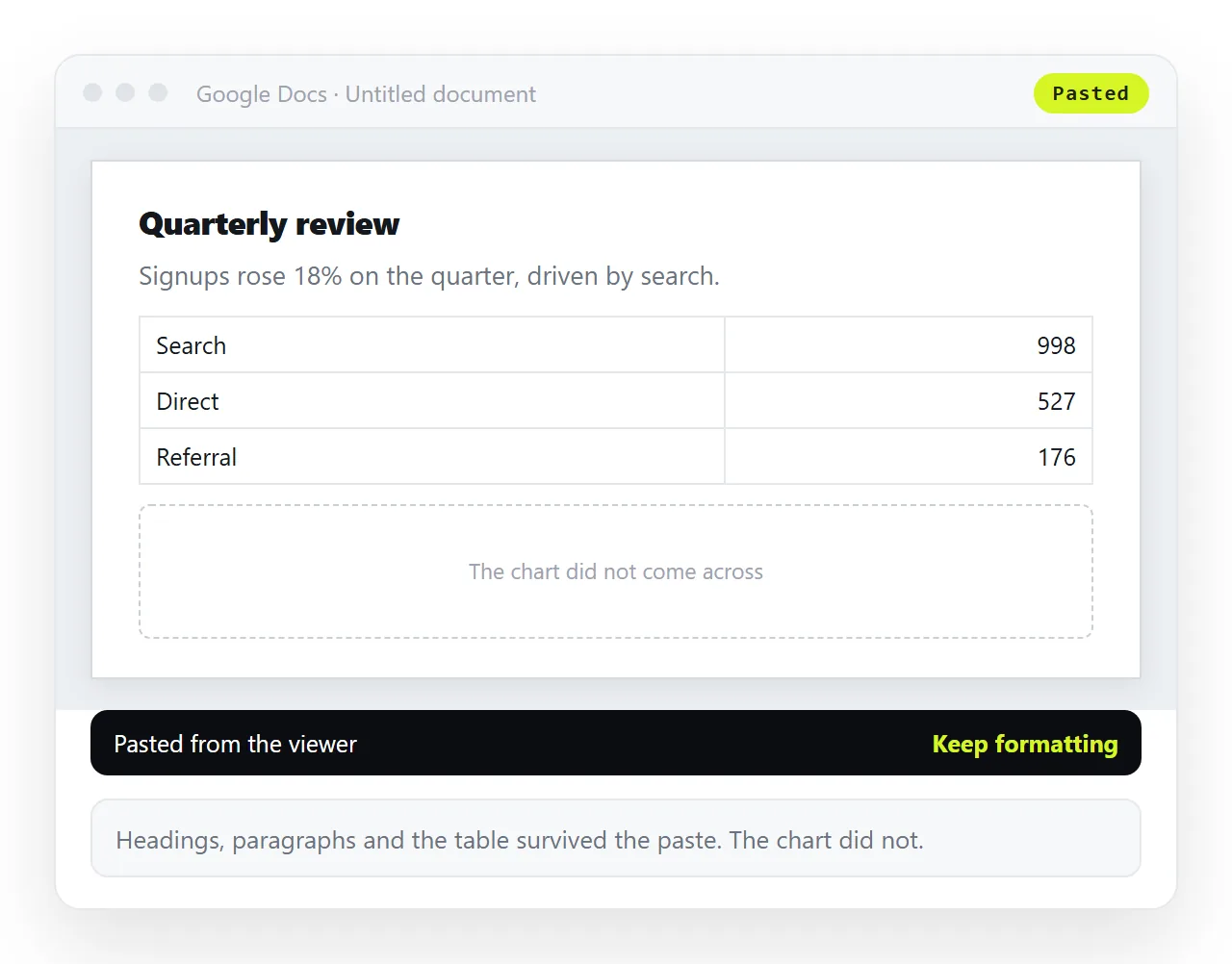
You are copying what the browser already drew, so inline styling arrives more faithfully. Tables usually keep their shading. Fonts fall back to whatever the doc has.
The weakness is structure. Long documents lose heading hierarchy, and anything positioned by CSS lands in reading order rather than visual order.
One habit helps here. Paste into an empty doc rather than into the middle of an existing one, so imported styles cannot inherit from text already on the page.
If the paste arrives as plain unformatted text, the clipboard lost its HTML flavour somewhere. That usually means you copied from a code editor rather than from a rendered page.
When Google Docs import HTML is the wrong move
Ask what the page is for. There is a clean split.
- Prose that happens to be in HTML. A memo, a spec, a set of notes. Importing is fine, and you gain comments and suggestion mode.
- A page that does something. A dashboard, a calculator, a report with filters. Importing destroys it. Keep the page.
For the second case the useful move is the opposite of importing. Give the page an address and put the address in the doc.
Paste the HTML into a NOS document and it renders as written, scripts and charts included. Share, then Share link, then Create link produces a link you can drop into the doc as one line.
The doc then carries the prose and the link carries the live page. Editing the page later does not move the link. Turning HTML into a link is that step by itself.
This split also solves a review problem. Comments and suggestions belong on the prose, where people argue about wording, not on a chart that is regenerated every week.
Free NOS accounts hold three documents, which is enough to test whether the split suits how your team reads a report.
Repairs worth doing after an import
Whichever route you took, four checks catch most of the damage.
- Heading levels. Use the doc outline pane. If everything is body text, the conversion flattened the structure and the document has no navigation.
- Table widths. Imported tables often arrive at full page width with squashed columns. Fix once, at the end.
- Missing images. Anything on a relative path is gone. Re-insert it, or go back and embed it in the source.
- Link destinations. Check a few. Links written as relative paths inside the page will not resolve from a doc.
Going the other way
If you started from a doc and want markup out of it, the export route is separate and cleaner. Google Docs to HTML covers what the zipped export contains and why the images break when you move the file.
And if the goal was to show a live page inside a doc rather than convert it, that is a third problem again. Embedding HTML in Google Docs covers what is actually possible there, which is less than most people assume.