To send an HTML newsletter in Gmail, copy the rendered page and paste that into the compose window, or send a link to the page. Gmail's compose has no source view, so pasting markup into it puts markup on screen.
That is the mechanical answer to how to send an HTML newsletter in Gmail. The larger question is whether the design you spent the afternoon on survives a mail client at all, and often it does not.
Both routes are set out below, along with what Gmail changes on the way and what to check before the list goes out.
The two routes
| Route | What the reader gets | What it costs |
|---|---|---|
| Paste the rendered page | Mail with your content inside it | Layout is simplified, long mail is clipped |
| Send a link to the page | One line and a click to the real page | The reader clicks once |
Attach the .html file |
A file card | Filters and phones, covered in sending HTML by email |
Both of the first two are legitimate. Pick on content: a short text update belongs in the body, a designed issue with charts belongs at an address.
How to send an HTML newsletter in Gmail by pasting
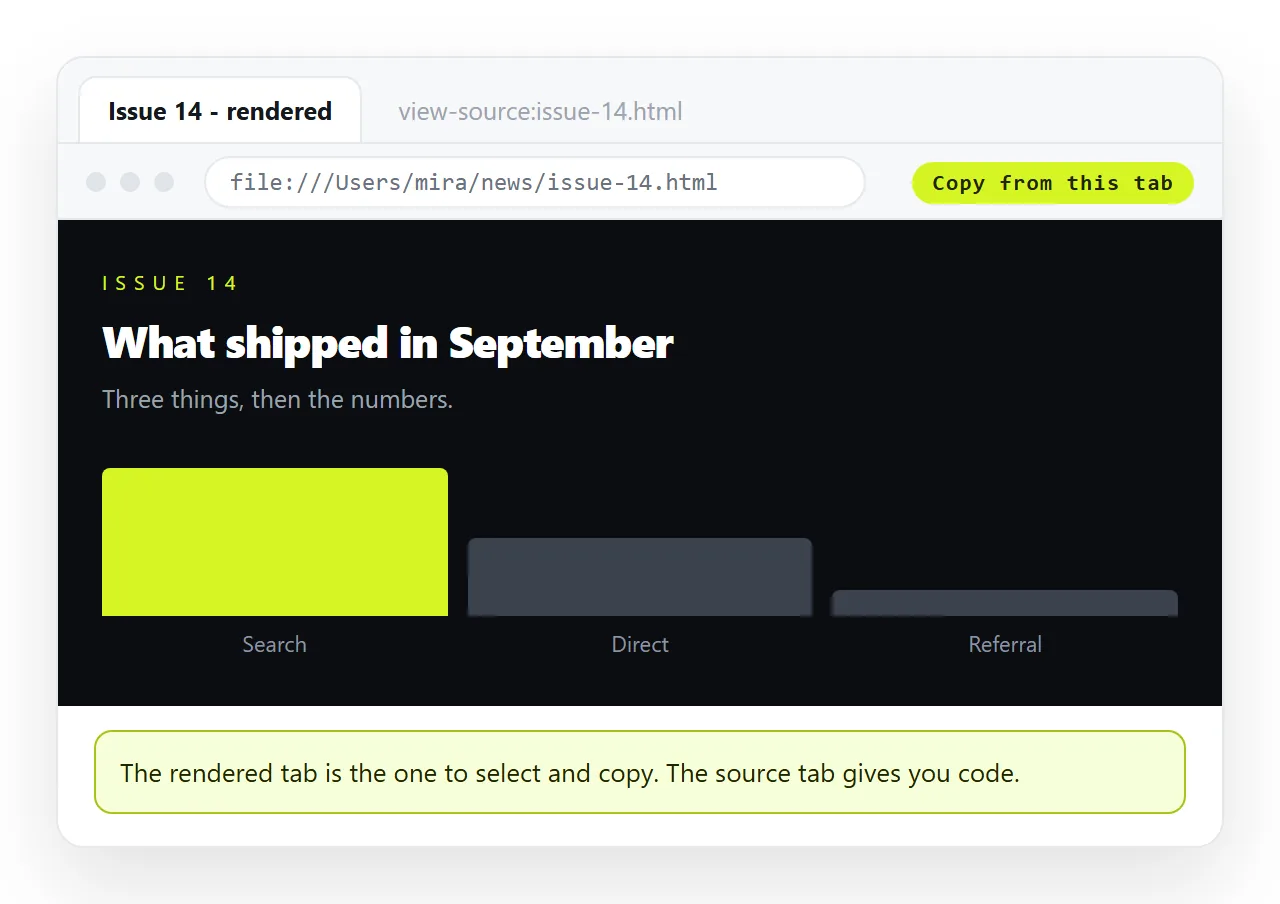
- Render it first. Open the file in the HTML file opener. You want to copy a page, not a text file.
- Check it survives outside its folder. If images or fonts vanish in that window, they are reaching for neighbouring files. Self contained HTML folds them in.
- Select all in the rendered tab and copy.
- Paste into the Gmail compose window. You get formatted content rather than markup.
- Send one copy to yourself and read it on a phone before touching the list.
What Gmail changes on the way
Mail clients do not run a page the way a browser does, and Gmail is no exception.
Scripts never run. Anything interactive, a sortable table, a tab strip, a chart that draws itself, is inert in mail. If the content depends on it, the body is the wrong container.
Stylesheet rules are unreliable. Inline styles on each element are the form that travels. Rules that live in a style block may or may not arrive intact, and external stylesheets do not load. Inline CSS explains the conversion.
Web fonts usually fall back. Expect a system face and check that your spacing still works with one. Fonts not loading applies here too.
Long messages get clipped. Gmail truncates large messages and shows a link to view the rest. Inline styles inflate size quickly, so a newsletter can hit that point while still looking short.
The link route, in four steps
- Paste the HTML into a NOS document. It renders as written, dark theme, charts and scripts included.
- Create the share link. Share, then Share link, then Create link. Unlisted by default. Tick Public on the web if the issue should be findable in search.
- Write a short plain message with a one line summary and the link.
- Fix mistakes on the page. The address stays the same, so the mail you already sent now points at the corrected issue.
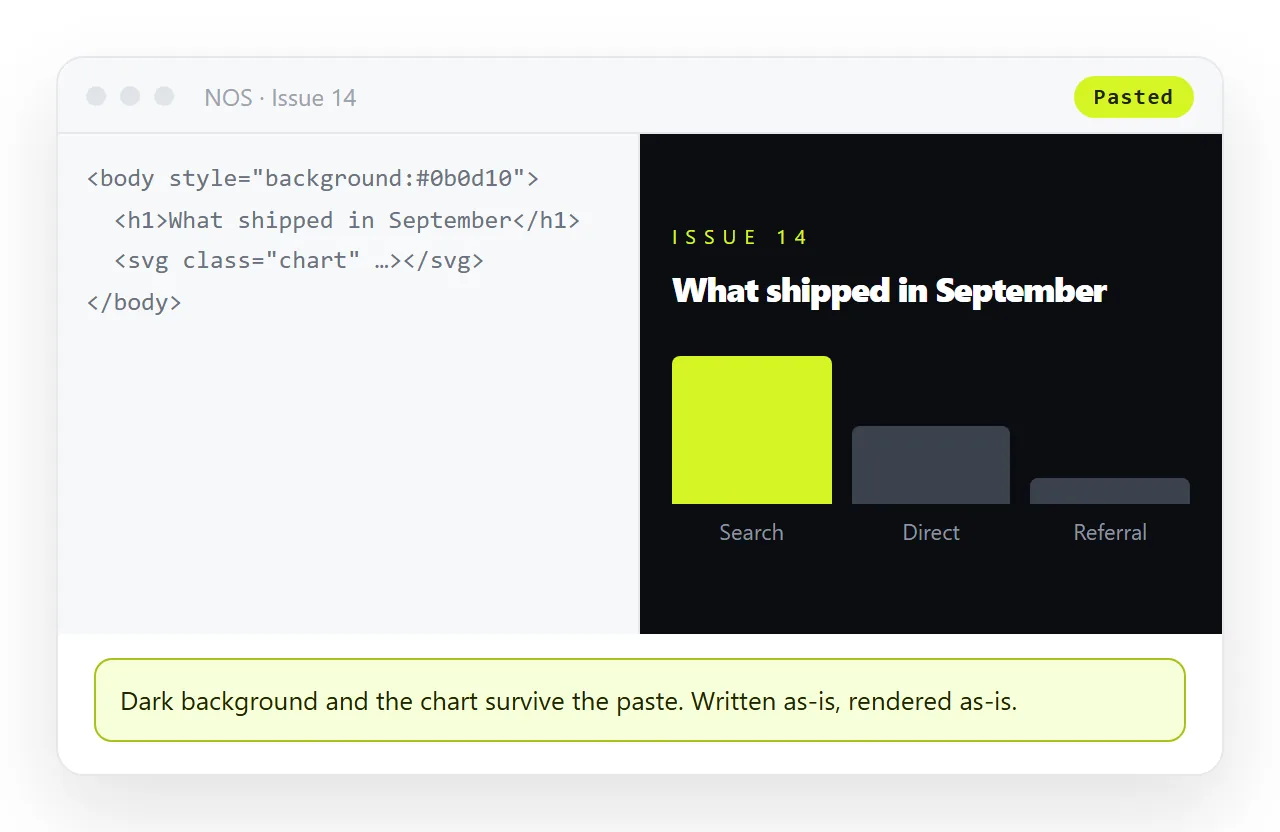
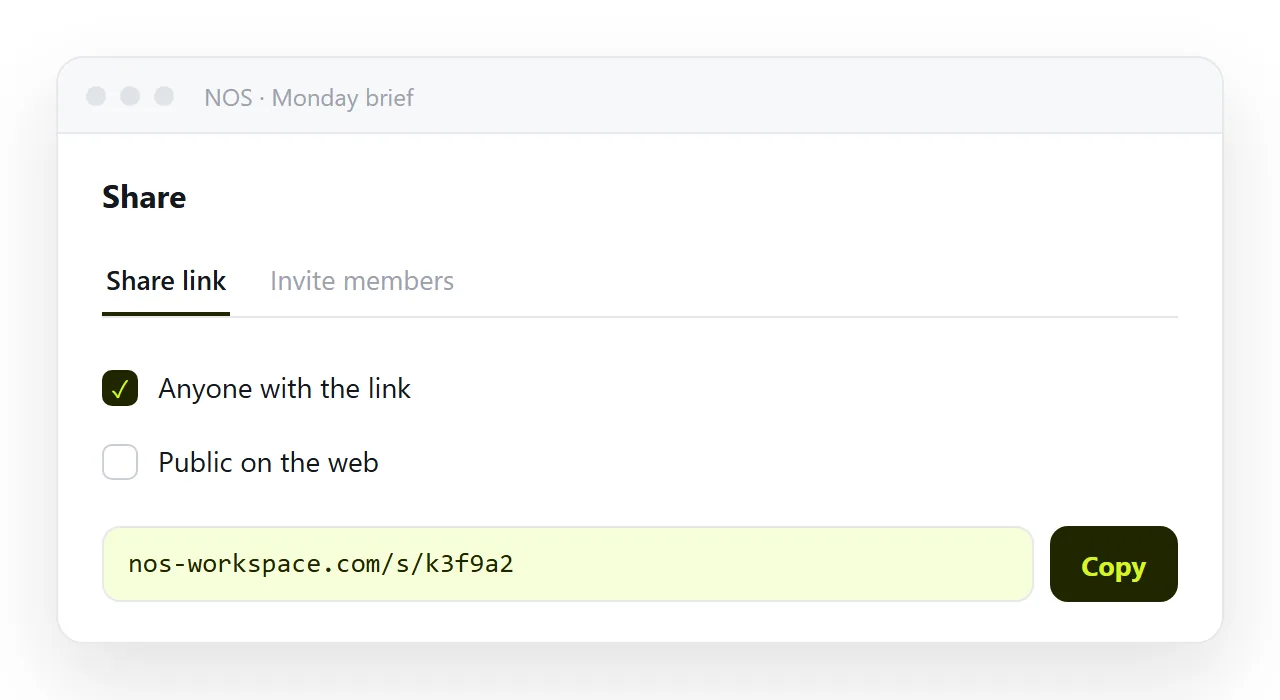
Turning HTML into a link is that sequence in one place, and email versus a link is the general comparison.
The archive argument
A newsletter sent as mail exists only in inboxes. Nobody can be pointed at issue four, a new subscriber sees nothing, and search engines never see it.
A newsletter that lives at an address is a page you can link from anywhere, resend later and correct after publication. The mail becomes a notification rather than the artefact.
If findability matters, tick Public on the web on the issues you want indexed and leave the internal ones unlisted. Open Graph tags give the link a title and image when someone forwards it into a chat.
Before the list goes out
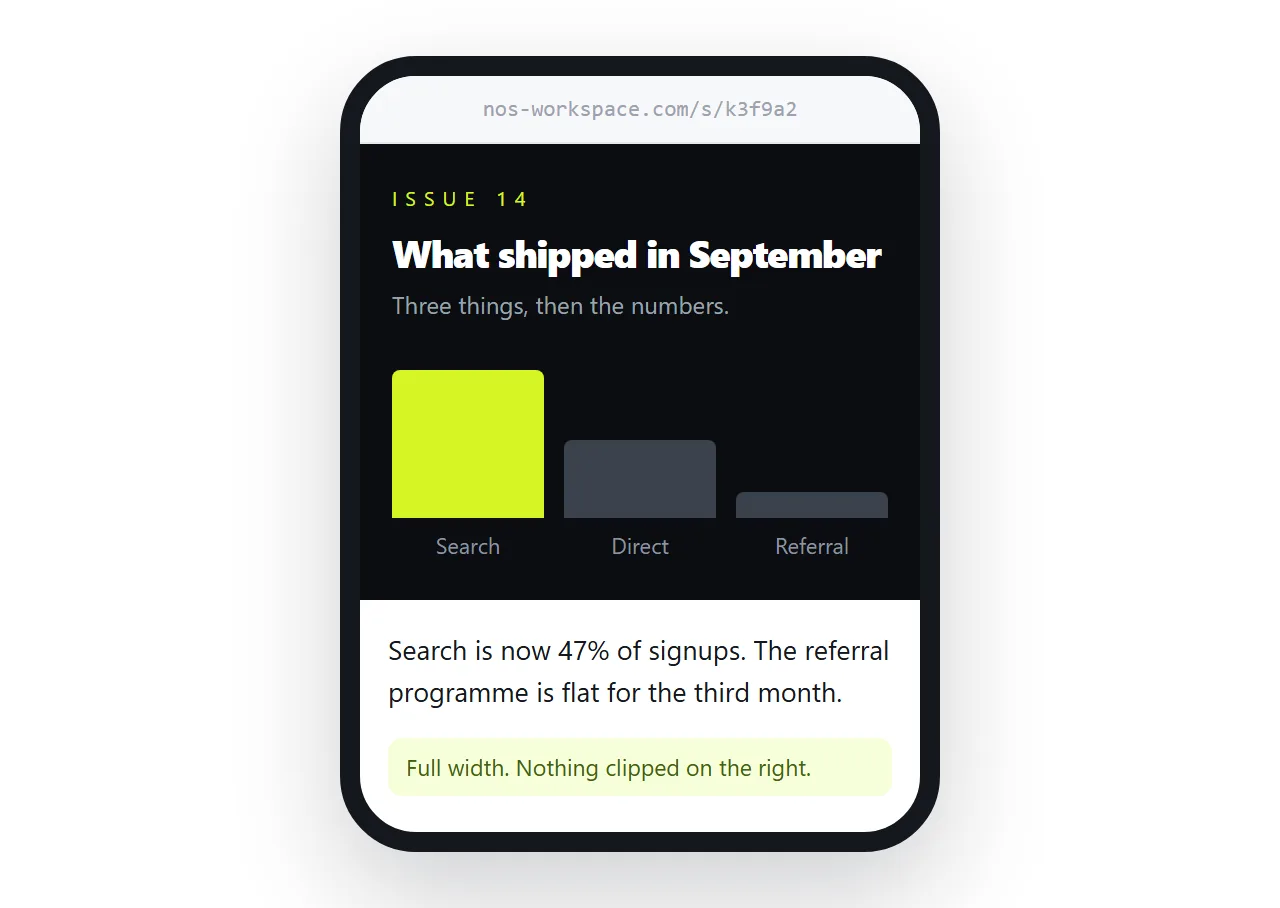
- Send yourself a test and read it on a phone. Most newsletters are opened there.
- Check the images. Folder paths do not travel. See images not showing.
- Check the bottom of the message for a clip warning.
- Check the subject and preview text. They decide whether the rest is read.
- Confirm the alternative. A one line link version is worth keeping ready for recipients whose client mangles the body.
What Gmail is not built for
Compose is a personal mail window, and a newsletter is a publishing job. The gap shows up in four places.
- No list management. Recipients go in a field. There is no segmentation, no per person state, and a mistake in the field is a mistake for everyone.
- No unsubscribe handling. Recurring commercial mail is expected to offer one, and a personal account has no mechanism for it.
- Sending limits. A personal account is not a bulk sender, and exceeding what it allows affects the account rather than the message.
- No delivery reporting. You cannot tell what arrived, what was clipped or what went to spam.
For anything recurring with a real audience, let a mailing tool handle delivery and let the issue live at an address. Gmail is then the place you send the announcement from, not the place the newsletter is built.
Which container for which issue
| The issue is | Send it as |
|---|---|
| A short text update with a few links | Message body |
| A table based template with inline styles | Message body, tested first |
| A designed issue with charts or sorting | A link |
| Something that will be corrected after sending | A link |
| Something that should be findable later | A public page, announced by mail |
Gmail is a delivery channel, not a publishing surface. Use it to notify, and let the page carry the design.