To convert Google Docs to HTML, use File, then Download, then Web Page (.html, zipped). You get a zip, not a single file, and what is inside decides how much cleanup follows.
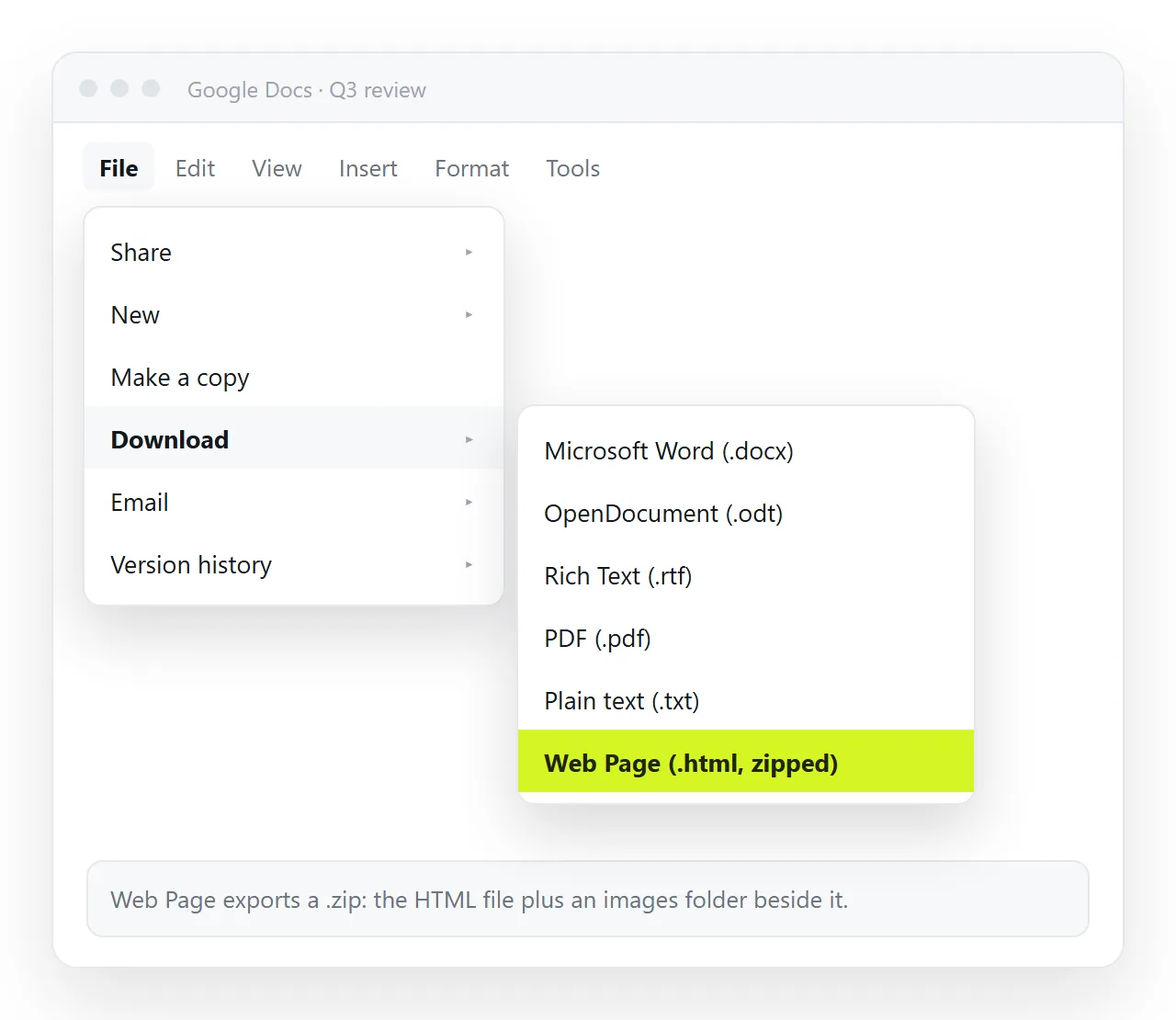
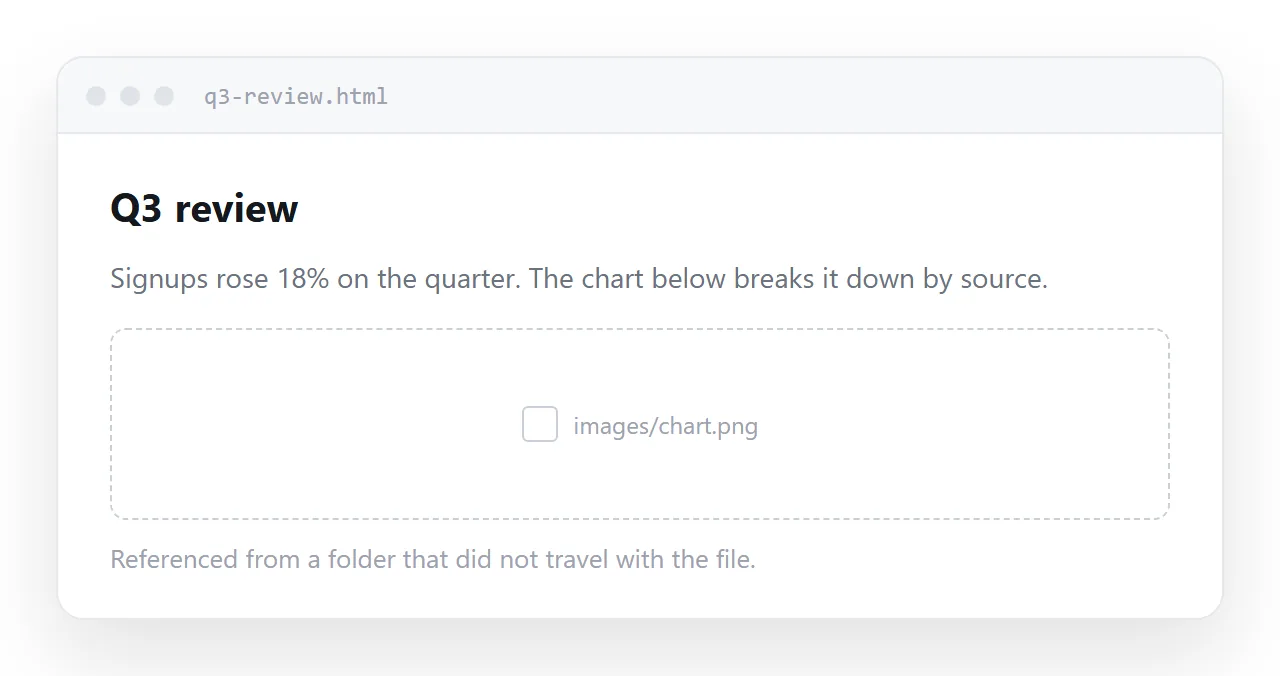
Unzipped, a typical export is one .html document plus an images folder holding every picture the doc contained. The HTML points at those pictures with relative paths.
That one detail causes most of the trouble people hit afterwards.
What the export actually gives you
| Part of the doc | In the exported HTML |
|---|---|
| Headings and paragraphs | Real h1 to h6 and p elements |
| Bold, colour, size | Generated classes in a <style> block |
| Images | Files in images/, referenced by relative path |
| Tables | Proper <table> markup, styling inlined |
| Comments and suggestions | Dropped |
| Page breaks and headers | Mostly dropped, since a web page has no pages |
| Links | Kept, sometimes wrapped in a Google redirect |
Nothing here is broken. It is just that a document format built around printed pages does not map onto a scrolling page one to one.
The verbose markup, and whether to care
The export names classes like c3 and c17 and attaches them to nearly every run of text. A two page doc can produce several hundred lines of generated CSS.
Rendered in a browser it looks right. Opened in an editor it is unpleasant to change by hand.
The practical rule: if the content will keep changing, keep editing the Google Doc and export again. Hand editing generated markup is work you will repeat every revision.
If the content is finished, the verbosity costs nothing. Nobody reads the source.
Why the images break
Inside the HTML you will find something like this.
<img src="images/image1.png" alt="">
That path means "a folder called images, next to me". Move the HTML file on its own and the folder is no longer next to it.
This is why the exported page looks correct on your desktop and arrives blank for the person you sent it to. Images not showing walks the same failure from the reader's side.
Two fixes, and they differ in effort.
- Send the folder, not the file. Zip the whole directory again and tell the recipient to unzip before opening. Reliable, and nobody enjoys it.
- Embed the pictures. Replace each
srcwith the picture encoded into the file itself. Self-contained HTML covers how that encoding works.
Google Docs to HTML versus Publish to the web
Google Docs also offers File, then Share, then Publish to web. It is a different thing and people conflate them.
Publishing serves a read-only rendering at a Google address. Edits to the doc flow through to it. You never touch markup, and you never get a file.
Exporting gives you the markup itself, which you can host anywhere, edit, or paste into something else. It is a snapshot and does not track the doc.
| You want | Use |
|---|---|
| A read-only address, tracking the doc | Publish to web |
| The markup, to put somewhere else | Download as Web Page |
| A page you can restyle | Download, then clean up |
| A page others can edit in place | Neither, paste the HTML elsewhere |
Cleaning up the exported markup
If you do need to work with the file, three edits deliver most of the improvement.
- Add a viewport line if it is missing, so the page is readable on a phone. Without it the text renders at desktop width and every reader has to pinch to zoom.
- Check the
<title>. The export usually sets it from the doc name, which is often something like "Untitled document". - Unwrap the link redirects. Exported links sometimes route through a Google redirect address. Point them at the destination.
Then open the result somewhere that has never seen your folder. The HTML file opener is a quick way to check, because it has no access to your local paths.
What you should not do is restyle the generated classes. They are regenerated on every export with different numbers, so any work you put into c17 is lost the next time the doc changes.
If the page needs its own styling, strip the generated block and write a short stylesheet against the heading and paragraph elements instead. Keep it inside the file so the page cannot arrive unstyled.
Getting the result in front of people
An exported HTML file has the same delivery problem as any other. Mail gateways filter it, phones download it and stop, chat apps turn it into a file card.
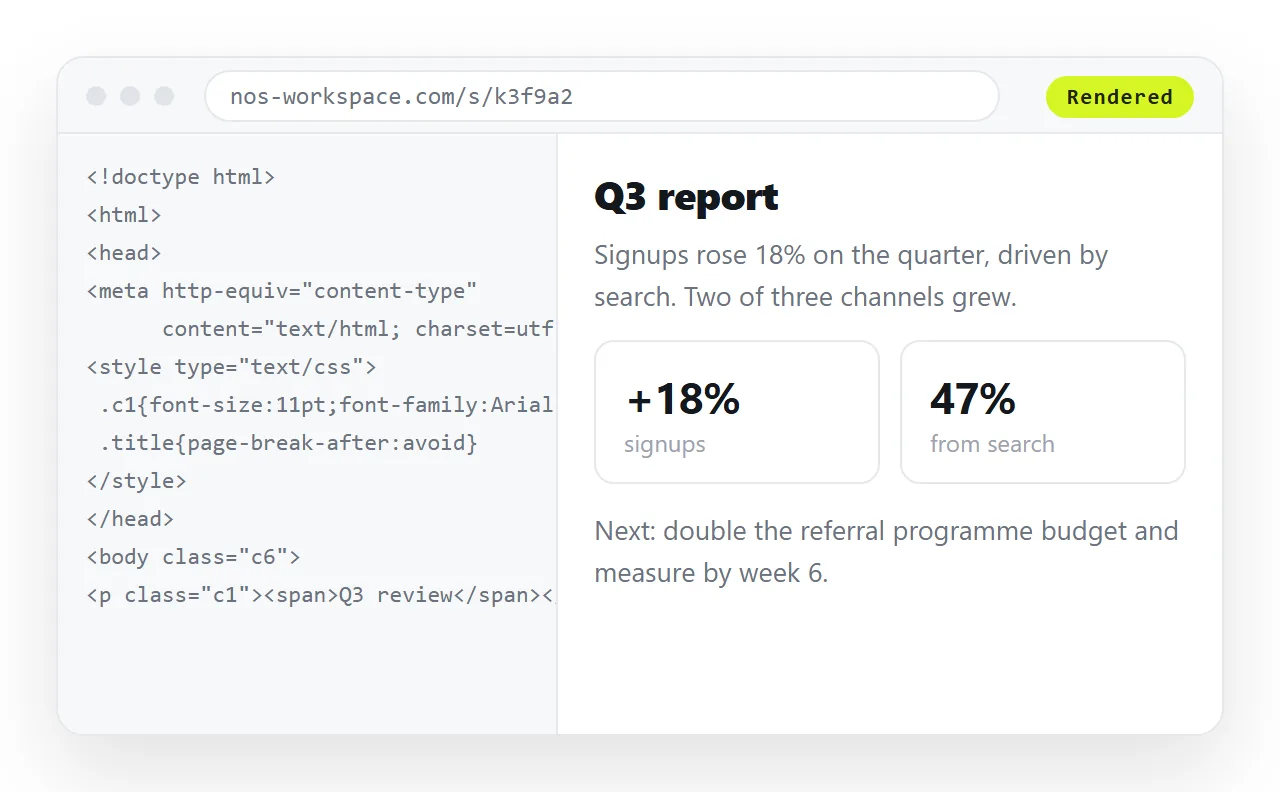
Pasting the exported HTML into a NOS document renders it as a page of its own. Share, then Share link, then Create link gives it an address you can send. The text stays clickable, so a typo is fixable without a re-export.
Editing the page does not change the address, which matters when the same document is read every week. Turning HTML into a link is that step on its own, and why links beat attachments explains what the file route costs.
The reverse direction
If what you actually want is HTML going into a doc rather than out of it, that is a different and more awkward problem. Importing HTML into Google Docs covers what survives the trip.