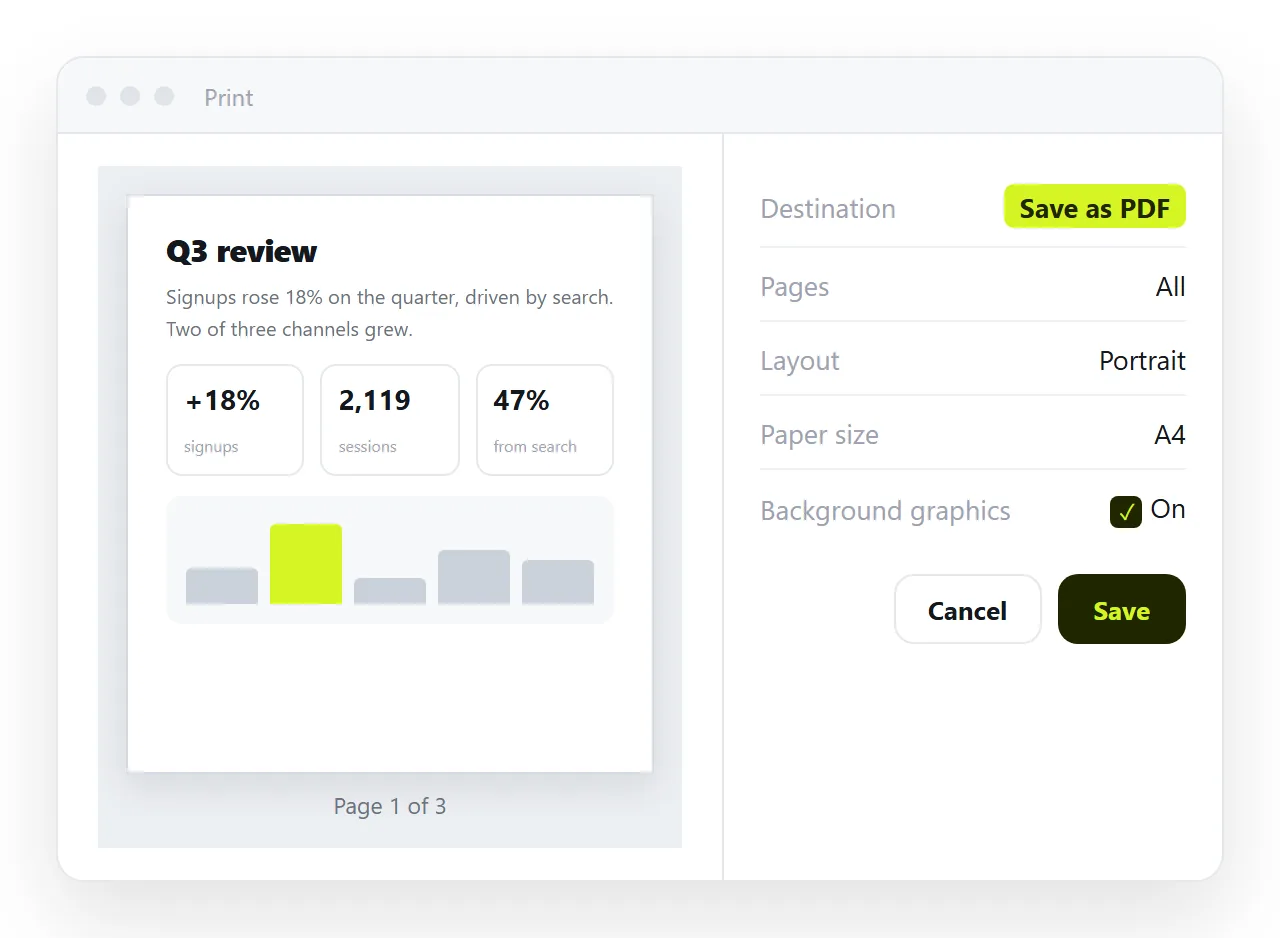
To export HTML to PDF, open the page in a browser, press Ctrl+P, and choose Save as PDF as the destination. That is the highest fidelity route available, because the browser that drew the page is the one writing the file.
There are three ways to do it, and this covers how to export HTML to PDF from each of them, plus the print stylesheet that decides where pages break.
Most complaints about PDF export are not about the tool. They are about a page that was never given instructions for paper.
How to export HTML to PDF: three routes
| Route | Fidelity | Setup | Repeatable |
|---|---|---|---|
| Print dialog | Highest | None | No |
| Headless browser | Same engine, scripted | Node and a browser | Yes |
| Canvas library | Raster, text not selectable | A script tag | Yes |
The first two use the same renderer, so they agree. The third draws the page into an image and wraps it, which is why the text in those PDFs cannot be selected.
Route 1: the print dialog
Two settings decide whether the output is usable, and both are hidden under More settings.
- Background graphics. Off by default to save ink. Coloured panels, dark themes and table row striping all print white without it.
- Margins. Default margins are generous. Set them to none if your CSS already handles spacing, otherwise you get spacing twice.
Also check Headers and footers. On, the browser adds the page title and address at the edges, which looks unfinished in a document you are sending to a client.
Set the scale to 100 rather than Fit to page width. Fit silently shrinks the whole document to avoid one overflowing element, and the result is a report in small type with no explanation for it.
Choose the paper size before you check the preview, not after. Switching between A4 and Letter moves every page break, so any break fixing you did at the wrong size has to be redone.
Route 2: a headless browser
For a report that is produced on a schedule, script it. The output matches the dialog because it is the same engine.
import { chromium } from 'playwright';

const browser = await chromium.launch();
const page = await browser.newPage();
await page.goto('file:///C:/reports/weekly.html');
await page.emulateMedia({ media: 'print' });
await page.waitForLoadState('networkidle');
await page.pdf({
  path: 'weekly.pdf',
  format: 'A4',
  printBackground: true,
  margin: { top: '16mm', bottom: '16mm', left: '14mm', right: '14mm' },
});
await browser.close();
emulateMedia is the line people forget. Without it, your @media print rules never apply and the PDF shows the screen layout.
printBackground: true is the scripted equivalent of the background graphics checkbox.
Route 3: a canvas library
jsPDF combined with html2canvas rasterises the page and places the image into a PDF. It runs entirely in the browser with no server.
The tradeoff is that the result is a picture. Text is not selectable, not searchable, and looks soft when printed. Long pages have to be sliced across pages by hand, and slices land mid line.
Use it when the export has to happen client side and the content is a single visual card. Otherwise prefer the print route.
The print stylesheet does the real work
A @media print block is what turns a screen page into a document. Four rules cover most of it.
@media print {
  nav, .sidebar, .no-print { display: none; }

  @page { size: A4; margin: 16mm 14mm; }

  h2, h3 { break-after: avoid; }
  table, figure, .card { break-inside: avoid; }

  body { print-color-adjust: exact; }
}
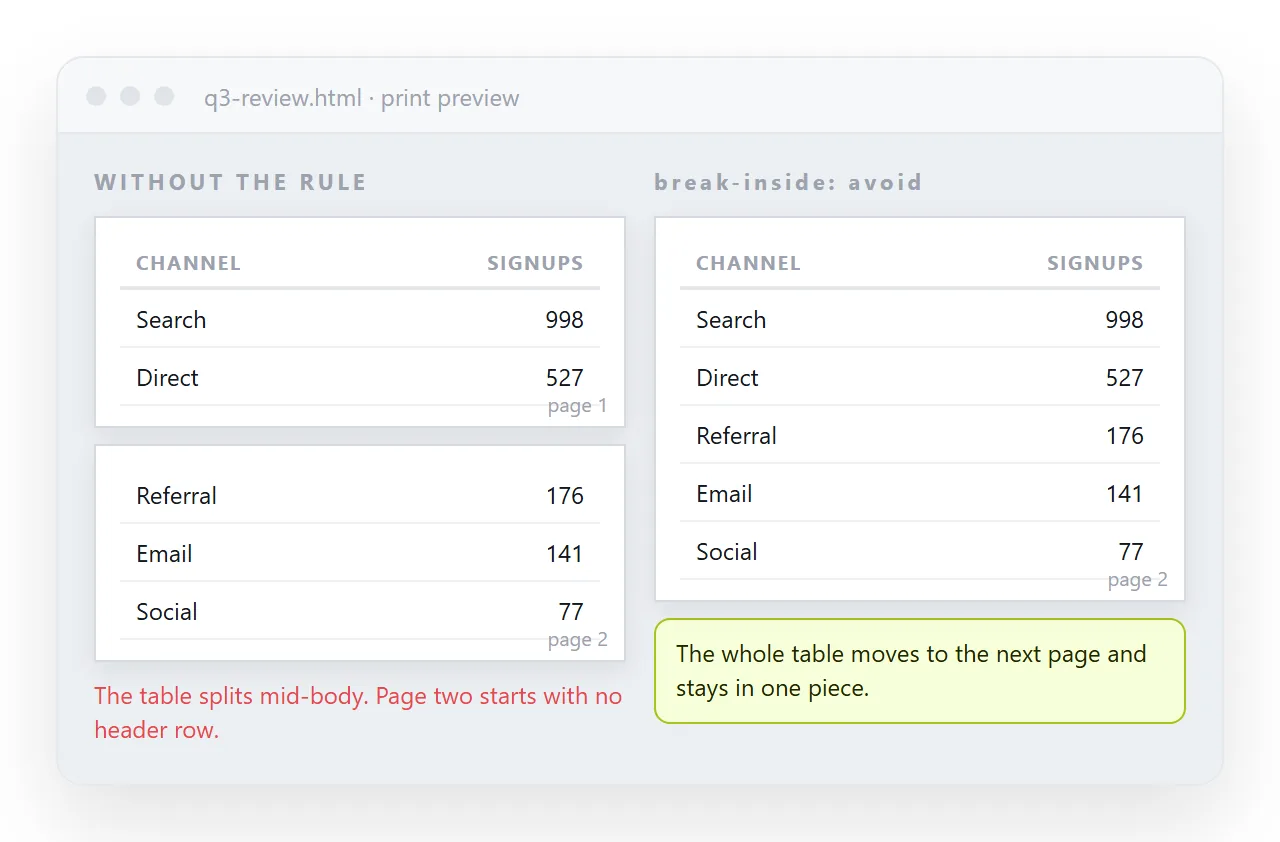
break-after: avoid on headings stops a heading being stranded at the bottom of a page. break-inside: avoid keeps a table or a card whole.
print-color-adjust: exact asks the browser to keep backgrounds even when the user has not ticked the box. Print stylesheets covers the rest.
The five problems you will actually hit
- Everything prints white. Background graphics is off, or
print-color-adjustis missing. - A table splits mid row. Add
break-inside: avoidto the rows. Keep the header in a<thead>so it repeats on each page. - Charts are blank. The script had not drawn when the print snapshot was taken. In a headless run, wait for the chart element rather than for a fixed delay.
- Content is cut off at the right. A fixed pixel width wider than the paper. Set
width: 100%andmax-width: noneinside the print block. - Fonts are wrong. The web font had not loaded. Await
document.fonts.readybefore callingpdf, or embed the font.
Checking the file
Look at the preview pane before saving, and scroll all of it rather than glancing at page one. Breaks go wrong in the middle of documents, not at the start.
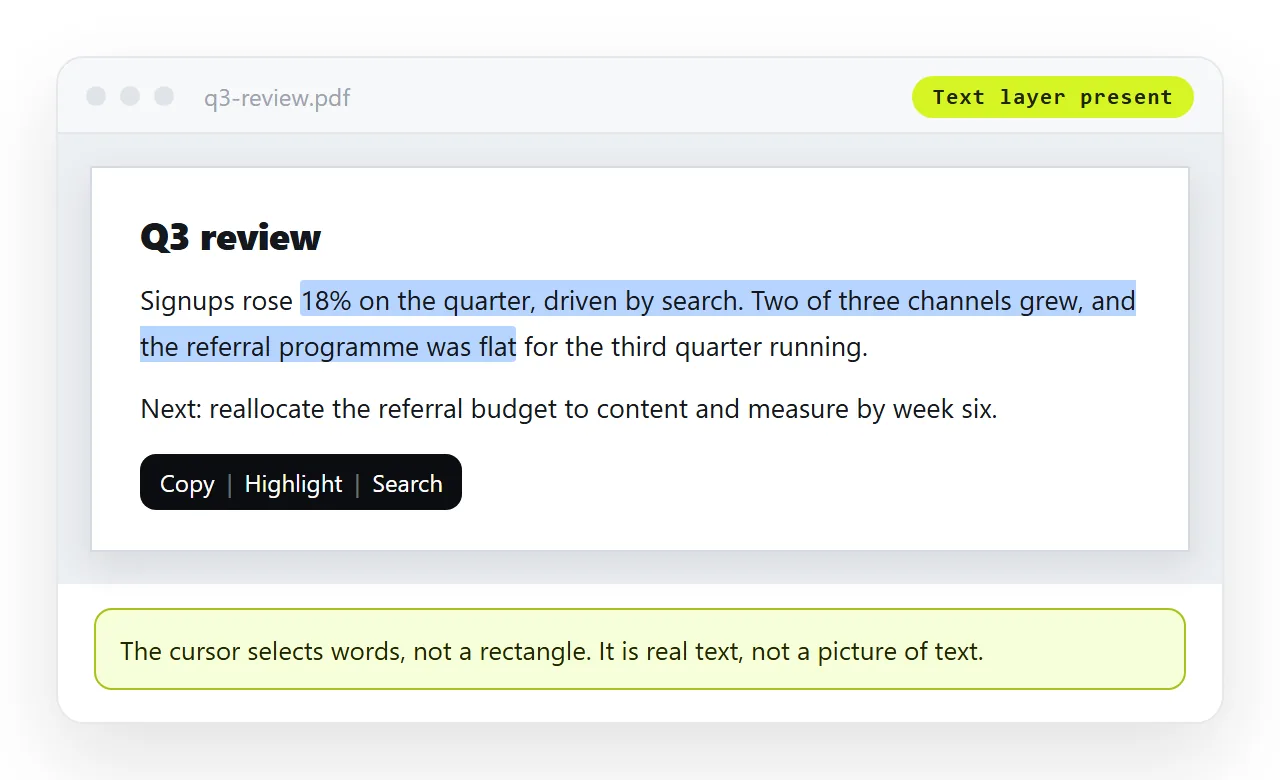
Then open the saved PDF and try to select a paragraph. If you cannot, something rasterised the page and the file is an image in a wrapper.
Check the file size while you are there. A three page report over five megabytes almost always means uncompressed images rather than anything wrong with the export.
And read the first line of each page. Headings stranded at a page foot and rows separated from their header are the two defects readers notice immediately.
When PDF is the wrong deliverable
A PDF is fixed. That is the point when the document is final, and a liability when it is not.
Numbers freeze, interactive charts become pictures, and every copy circulating is a version someone might quote. PDF versus an HTML page sets out the comparison.
Send a PDF when paper, filing or a signature is the destination. Send a link when the content still moves.
Paste the HTML into a NOS document and the page renders as written, with its own address, and the reader can still export their own PDF from it with Ctrl+P. Turning HTML into a link is that step on its own.
That combination covers both needs: the current version lives at one address, and anyone who needs paper makes it themselves from the page in front of them.