An HTML to Word JS conversion means passing the markup to a library that emits a .docx blob, then saving that blob. The conversion is never lossless, because Word and CSS describe layout differently.
That is the constraint to design around. A document of headings, paragraphs, lists and tables converts well. A page with a grid layout and absolute positioning does not.

Three HTML to Word JS approaches
| Approach | Output | Fidelity | Control |
|---|---|---|---|
| html-docx-js | Real .docx | Good for text documents | Low, you feed it markup |
| docx builder | Real .docx | Exactly what you build | High, you write the structure |
| MHTML blob trick | .doc that is HTML inside | Surprisingly high in Word | Low, and fragile elsewhere |
Approach 1: convert the markup
The shortest path. Give the library a complete HTML string and save what comes back.
import { asBlob } from 'html-docx-js-typescript';

const html = `<!doctype html><html><head><meta charset="utf-8"></head>
<body><h1>Weekly report</h1><p>Signups rose this week.</p></body></html>`;

const blob = await asBlob(html);
const url = URL.createObjectURL(blob);
const link = document.createElement('a');
link.href = url;
link.download = 'report.docx';
link.click();
URL.revokeObjectURL(url);
Two rules make the output better. Pass a complete document with a charset declaration, not a fragment. And put styles in style attributes rather than in a stylesheet.
Converters read inline styles far more reliably than they read the cascade, because they have no browser to resolve it for them.
Approach 2: build the document
When the output has to be right, stop converting and build. The docx package constructs a document from objects rather than from markup.
import { Document, Packer, Paragraph, HeadingLevel } from 'docx';

const doc = new Document({
  sections: [{
    children: [
      new Paragraph({ text: 'Weekly report', heading: HeadingLevel.HEADING_1 }),
      new Paragraph('Signups rose this week.'),
    ],
  }],
});

const blob = await Packer.toBlob(doc);
You write more code and you get real Word styles, headers, footers, page breaks and numbering. For a template that generates hundreds of documents, this is the route that stays maintainable.
The practical pattern is to read your data, not your HTML, and build both the page and the document from it.
Approach 3: the MHTML blob
Word on the desktop opens HTML wrapped in an MHTML header. You produce a .doc file that is HTML inside.
const header = `MIME-Version: 1.0
Content-Type: text/html; charset="utf-8"

<html xmlns:w="urn:schemas-microsoft-com:office:word"><head>
<meta charset="utf-8"></head><body>`;

const blob = new Blob([header + content + '</body></html>'],
  { type: 'application/msword' });
Fidelity in Word is often better than a real .docx conversion, because Word is rendering the HTML itself.
The costs are real. The file is not a .docx, so other editors may refuse it, and Word shows a format warning on open. Do not use this where the document goes into a records system.

What survives and what does not
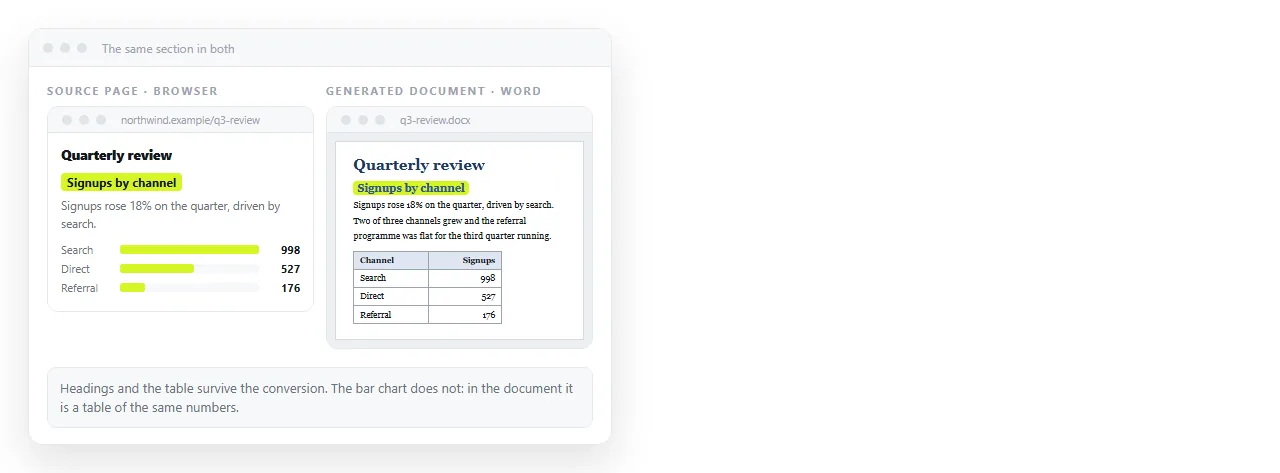
Usually survives. Headings, paragraphs, bold and italic, lists, simple tables with borders, text colour, font family and size, alignment, images embedded as base64.
Usually does not. Flexbox and grid layout, absolute positioning, CSS variables, box shadows, rounded corners, background images, anything drawn by script, and web fonts that are not installed on the reader's machine.
Plan the source markup accordingly. Tables for tabular data, headings for structure, and no layout tricks.
Headings and tables
These two carry most of the value in a converted document, and both have a rule worth following.
Use real heading elements, h1 through h3, rather than styled paragraphs. Converters map them to Word heading styles, which is what makes the navigation pane and the table of contents work.
For tables, set widths as percentages rather than pixels. Word lays out against the page width, and a table declared at 1200 pixels will overflow the margin on A4.
Put the header row inside a thead element. Word repeats it across pages when the table breaks, which is otherwise a manual fix for every generated document.
Keep column counts modest. A nine column table that reads fine on a wide screen becomes unreadable at portrait page width, and no converter will reflow it for you.
Images
Images referenced by a relative path will be missing, because the document has no folder to resolve against.
Convert them to data URLs before conversion so they travel inside the markup. Base64 images covers producing them, and images not showing in HTML covers diagnosing the failures.
Keep the dimensions explicit with width and height attributes. Word sizes images from those far more predictably than from CSS.
Testing it properly
Open the output in Word on a desktop, not only in a web viewer. The two renderers disagree, and desktop Word is what most readers use.
Check four things in order: heading levels, table borders, image placement, and page breaks. Those four account for most of what users report as broken.
Test with your longest realistic document, not a sample. Conversion problems with breaks and repeated headers only appear once the content runs past one page.
Test on Windows as well as macOS if both are in use. Font substitution differs between them, and a document that looks correct on one can reflow on the other.
Choosing Word at all
Word is the right output when the reader edits, tracks changes, or files the document. It is the wrong output when they only read it.
For reading, the layout you already built survives perfectly as a page and not at all as a document. Exporting HTML to PDF keeps the layout if a fixed file is required, and PDF versus an HTML page compares the two.
If the goal is that someone can open it on any device, paste the HTML into a NOS document and send the link. The page renders as written and the address survives every edit, so a correction reaches everyone who already has the link.