To convert HTML to GIF you record the page while it runs and encode the frames. There is no single pass conversion, because a GIF is a sequence of images and a page is one document.
That means two decisions before you start. How you capture the frames, and how the colours get reduced to the 256 that GIF allows.
Two ways to convert HTML to GIF
| Route | Setup | Framing | Best for |
|---|---|---|---|
| Screen recorder | Install one app | You drag a box | A one-off clip of a live page |
| Headless browser frames | Node, a browser, ffmpeg | Exact pixels | Repeatable output, clean edges |
If this is the only GIF you will make this month, use a recorder. If it is part of a documentation pipeline, capture frames.
Route 1: a screen recorder
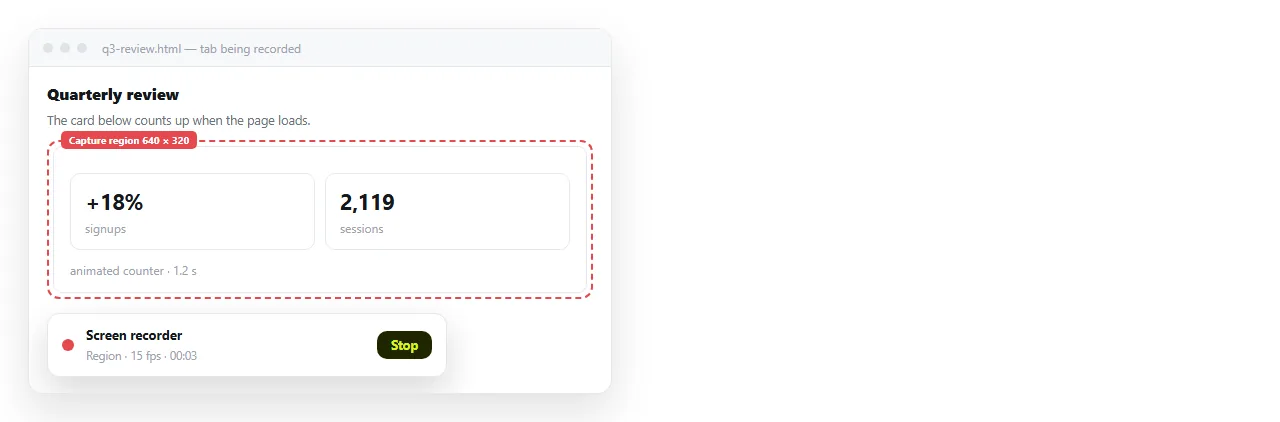
Open the page in a browser, start the recorder, frame the region, and let the animation run once or twice. Most recorders export GIF directly.
Three settings decide whether the result is usable.
- Frame rate. 12 to 15 is enough for interface motion. 30 doubles the file for little visible gain.
- Region. Crop tight to the element. Recording the whole browser window wastes most of the pixels on chrome and background.
- Loop point. Start and end on the same visual state, or the loop will jump.
Hide the cursor unless the point is where you clicked. A stray pointer in the corner makes the clip look unplanned.
Route 2: capture frames in a headless browser
This produces frames at exact dimensions with no recorder artefacts, and it reruns the same way every time.
import { chromium } from 'playwright';

const browser = await chromium.launch();
const page = await browser.newPage({ viewport: { width: 800, height: 450 } });
await page.goto('file:///C:/pages/animation.html');
await page.waitForLoadState('networkidle');

for (let i = 0; i < 45; i++) {
  await page.screenshot({ path: `frames/f${String(i).padStart(3, '0')}.png` });
  await page.waitForTimeout(66);
}
await browser.close();
Forty five frames at roughly 66 milliseconds gives about three seconds at 15 frames per second. Adjust both numbers together.
This loop does not guarantee even spacing, because each screenshot takes time. For motion that must be smooth, drive the animation by stepping it explicitly rather than by waiting.
The palette step that fixes the colour
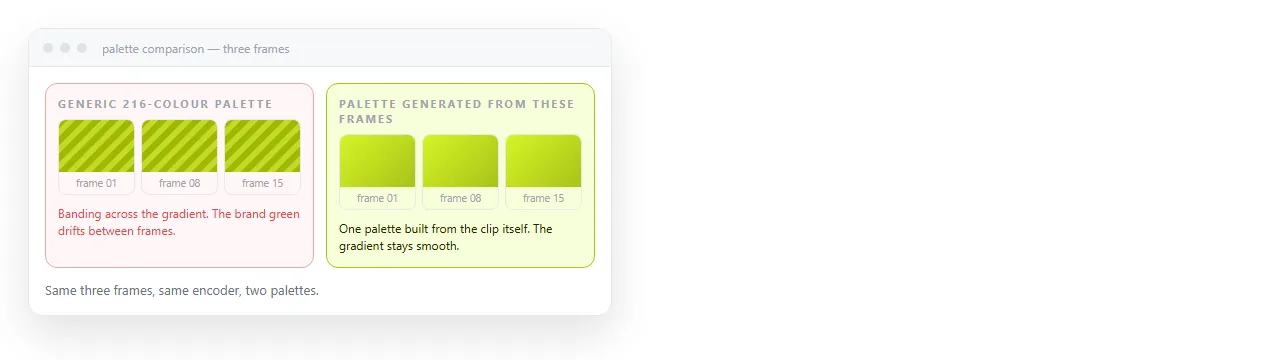
GIF stores at most 256 colours per frame. With a generic palette, gradients band and anti aliased text gets a halo.
The fix is two ffmpeg passes. The first builds a palette from your actual frames; the second encodes using it.
ffmpeg -framerate 15 -i frames/f%03d.png -vf palettegen palette.png

ffmpeg -framerate 15 -i frames/f%03d.png -i palette.png \
  -lavfi "paletteuse=dither=bayer:bayer_scale=3" out.gif
The difference is large on any page with a gradient or a shadow. Run both passes; skipping the first is the single most common cause of a GIF that looks worse than the page.
Keeping the file small
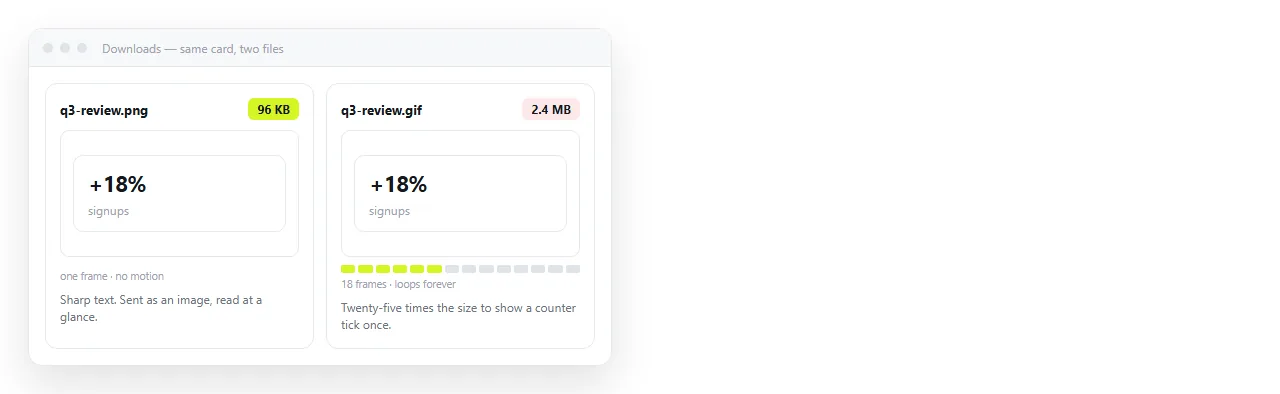
GIF has no interframe compression worth the name, so size scales with frames multiplied by area.
- Cut the duration first. Two seconds that show the point beat eight that show it slowly.
- Then the frame rate. 15 is usually indistinguishable from 30 for interface motion.
- Then the width. Halving the width quarters the pixel count.
- Only then the colours.
palettegen=max_colors=128trades visible quality for size.
A GIF above about five megabytes will be rejected or silently compressed by several chat and forum platforms.
The order matters because each step costs something different. Duration costs content, frame rate costs smoothness, width costs legibility, and colour depth costs appearance everywhere at once.
Cropping tighter is the one change that costs nothing. A clip framed around the card rather than the browser window is often half the size with the same information in it.
If the clip is a demonstration of an interface, hide anything that is not part of the point before recording. Empty sidebars and background panels are pixels you pay for in every frame.
When MP4 is the better answer
For anything longer than a few seconds, MP4 is smaller by an order of magnitude at the same visual quality, and it plays inline in most places now.
The cases where GIF still wins are narrow: autoplay with no player controls, embedding in an email client, and platforms that treat GIF as an image rather than media.
Converting HTML to MP4 covers the recording route for video, which uses the same frame capture and a different encode.
When motion is not what you need
A surprising number of GIF requests turn out to be a still image request. If nothing moves in the page, capture a PNG and the file will be smaller and sharper.
If the page has a chart that people will want to hover over, or a table they will want to sort, neither a GIF nor a PNG carries that. A recording of an interaction is not the interaction.
Sending the page as well as the clip
The usual arrangement is a short GIF so the message shows motion, and a link so the real thing is one click away.
Paste the HTML into a NOS document and it renders as written, scripts and animation included, at its own address. The reader sees the live page rather than a recording of it.
Turning HTML into a link is that step alone. After that, fixing the page does not mean re-recording the clip, because the link already points at the current version.