To convert HTML to PNG, render the page in a browser and capture it. Every method does that; they differ in who drives the browser.
PNG is the right format here rather than JPG, because pages are mostly flat colour, text and lines. PNG keeps edges sharp and supports transparency. Converting HTML to JPG covers the cases where the tradeoff goes the other way.
Four ways to convert HTML to PNG
| Method | Install | Full page | Automatable |
|---|---|---|---|
| Devtools capture | None | Yes | No |
| Headless browser | Node and a browser | Yes | Yes |
| html2canvas in the page | A script tag | Partly | Yes |
| Converter page | None | Yes | No |
Choose by how often you need it. A one-off image comes out of devtools in fifteen seconds. A nightly report image needs a headless browser.
Method 1: devtools, for a single image
This is the highest fidelity option available without installing anything, because the capture is done by the same engine that drew the page.
- Open the page and press F12, or Cmd+Option+I on a Mac.
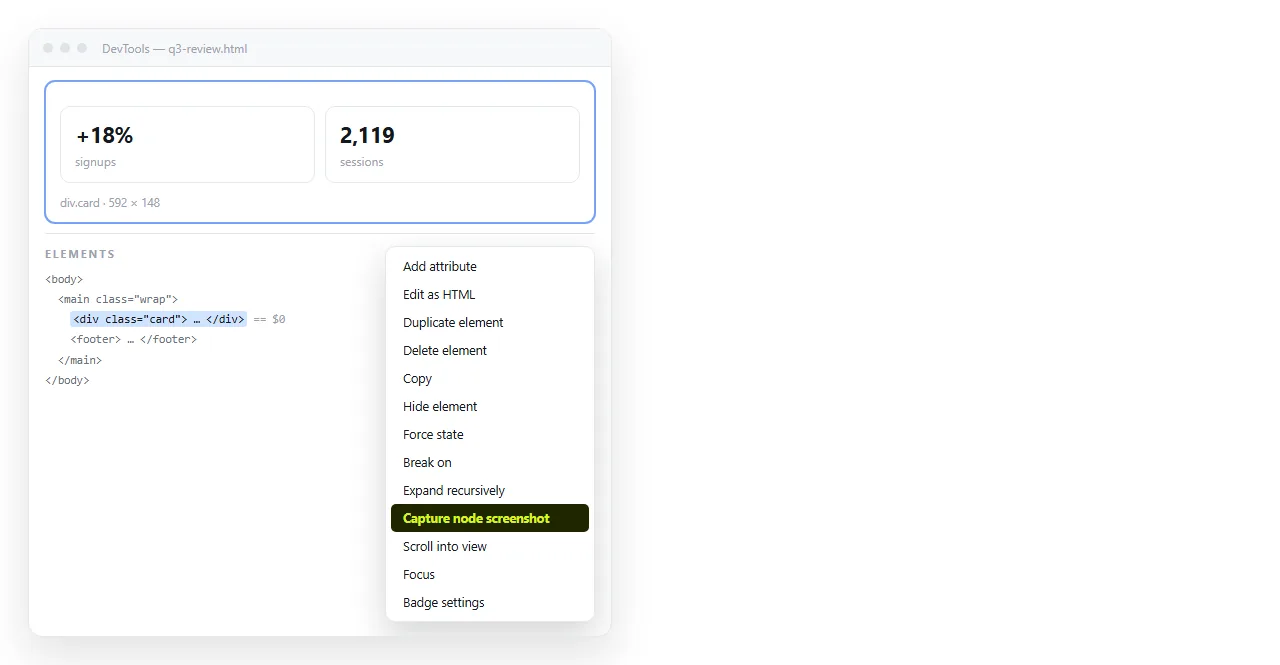
- In the Elements panel, right click the element you want and choose Capture node screenshot. The PNG contains that element at its full height, including the part below the fold.
- For the whole page, press Ctrl+Shift+P inside devtools and type screenshot, then choose Capture full size screenshot.
The node capture is the underrated one. It crops to exactly one card, table or chart with no cropping afterwards.
Method 2: a headless browser
For anything repeated, drive a browser from a script. The pattern is load, wait, capture.
import { chromium } from 'playwright';

const browser = await chromium.launch();
const page = await browser.newPage({
  viewport: { width: 1200, height: 800 },
  deviceScaleFactor: 2,
});
await page.goto('file:///C:/reports/weekly.html');
await page.waitForLoadState('networkidle');
await page.screenshot({ path: 'weekly.png', fullPage: true });
await browser.close();
Two settings decide whether the output is usable. deviceScaleFactor: 2 produces a retina density image, which is what stops text looking soft when someone zooms. fullPage: true captures past the fold.
To capture one element rather than the page, locate it and screenshot the locator instead of the page.
Method 3: html2canvas, inside the page
When the button has to live in the page itself, a client side library redraws the DOM onto a canvas and exports that canvas as a PNG.
const canvas = await html2canvas(document.querySelector('#report'), { scale: 2 });
const url = canvas.toDataURL('image/png');
Understand what it is doing. It is not a browser screenshot; it is a reimplementation that reads computed styles and paints them. Complex CSS, some filters and cross origin images can come out wrong.
Test it against the devtools capture of the same element before shipping it.
Method 4: a converter page
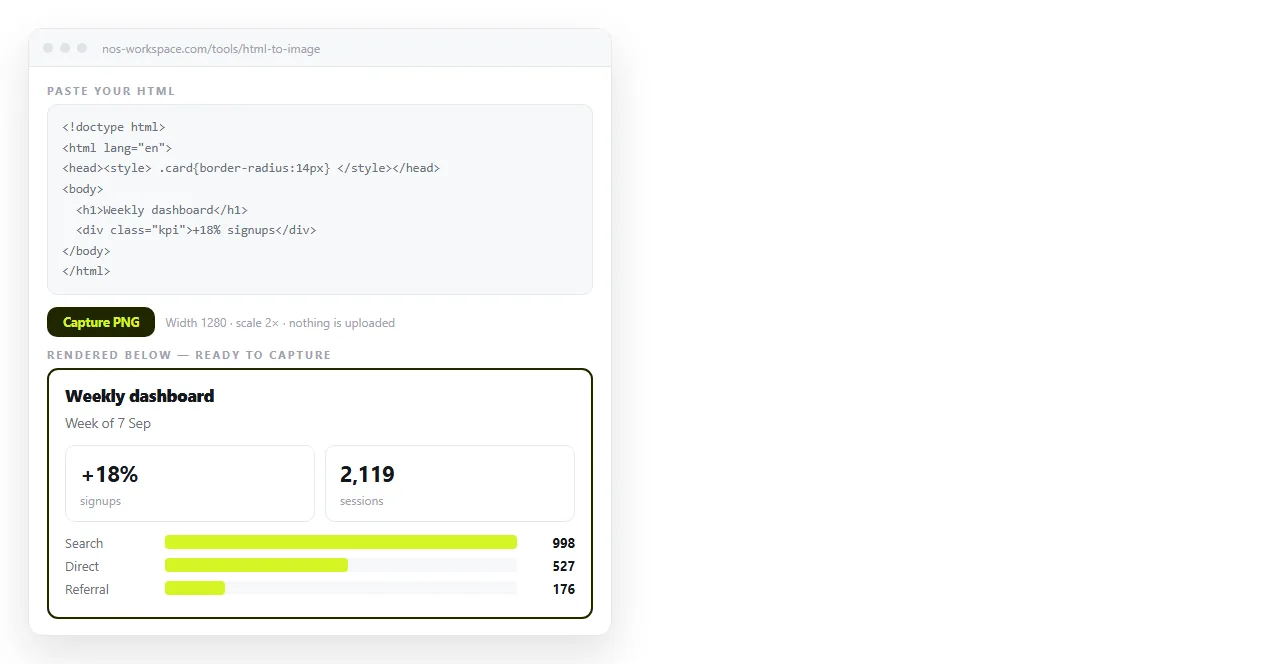
Paste the HTML, get an image back. This is the route when the HTML is not already live anywhere and you do not want to save a file first.
The HTML to image tool does this in the browser. Paste, render, capture.
The four things that go wrong
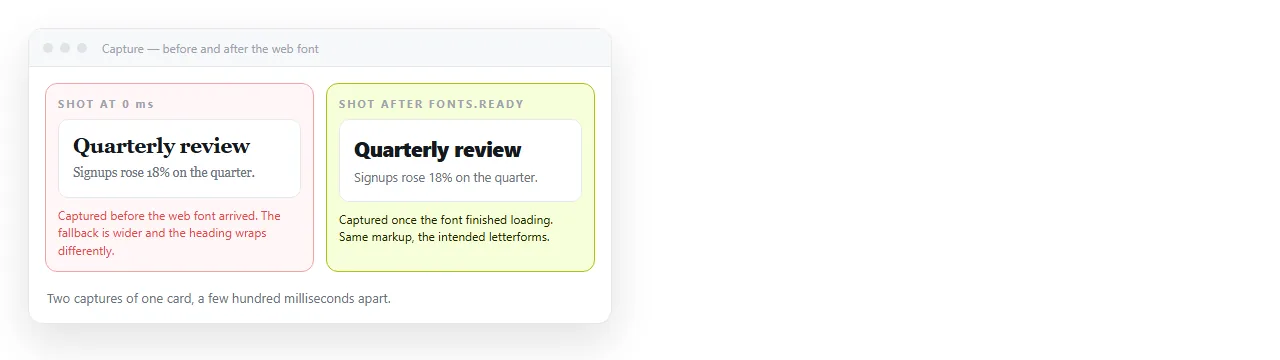
Web fonts arrive late. The capture fires before the font loads and the image shows the fallback. In a script, await document.fonts.ready before screenshotting. Better, embed the font so there is no request to lose.
Images do not travel. Anything on a relative path or a cross origin address may be blank in the capture. Base64 the images and the problem disappears.
Charts have not drawn. A chart script needs a frame or two after load. Wait for the canvas to have a non-zero size, or wait for a specific element to appear.
The scrollbar is in the shot. A full page capture at a fixed viewport can bake the scrollbar into the right edge. Widen the viewport or hide overflow for the capture.
Size and density
A PNG at one times density looks soft on every phone made in the last decade. Capture at two times and let the display downsample.
- Set
deviceScaleFactorto 2 in a headless browser, orscale: 2in html2canvas. - Devtools captures at the density of your screen, so a retina laptop already gives you this.
- PNG is lossless, so a dense page of text can be a large file. If it is a photograph rather than a page, JPG will be much smaller.
When the image is the wrong deliverable
An image is a frozen crop. That is fine for a thumbnail in a chat message and wrong for a report with numbers in it.
Three symptoms that you want a page instead. The content extends past one screen. Someone will ask what a number was last week. Anything in it sorts, filters or animates.
Screenshot versus live page sets out the comparison in full.
The practical middle ground is to send both. A PNG so the message shows something at a glance, and a link so the detail behind it is one click away.
Paste the HTML into a NOS document and the page gets its own address. The link stays correct as the content changes, because editing the text does not move the address.
Turning HTML into a link is that step alone. The HTML to image tool gives you the PNG from the same markup, so you are not maintaining two sources.
When a figure is corrected, you fix it once in the document. The link people already have points at the corrected page, and you re-capture the image only if the picture itself needs to change.