To convert HTML to JPG, render the page in a browser, capture it as an image, and save that capture with JPEG compression. The rendering part is identical to converting HTML to PNG; only the last step differs.
That last step matters more than it sounds. JPEG is lossy and it is tuned for photographs, not for the sharp edges of letters and table borders.
Before you convert HTML to JPG, pick the format
| Page content | Better format | Reason |
|---|---|---|
| Tables, text, flat colour | PNG | Lossless, sharp edges, often smaller |
| Photographs, gradients | JPG | Much smaller at the same perceived quality |
| Logos and diagrams | SVG | Scales without any resampling |
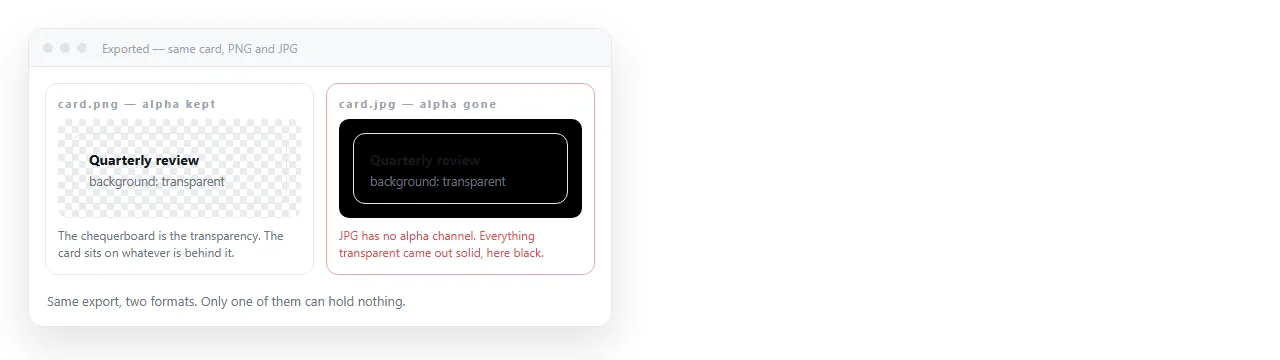
| Transparent background | PNG | JPG has no alpha channel |
If someone asked for a JPG because that is the word they know for "image", the answer is often PNG. If the page is a photo collage or a moodboard, JPG is genuinely correct.
Method 1: a headless browser
This is the only route that produces a JPG directly, at the quality you choose, without a second conversion.
import { chromium } from 'playwright';

const browser = await chromium.launch();
const page = await browser.newPage({
  viewport: { width: 1200, height: 800 },
  deviceScaleFactor: 2,
});
await page.goto('file:///C:/pages/invite.html');
await page.waitForLoadState('networkidle');
await page.screenshot({
  path: 'invite.jpg',
  type: 'jpeg',
  quality: 90,
  fullPage: true,
});
await browser.close();
Three options carry the result. type: 'jpeg' selects the encoder, quality controls the compression, and deviceScaleFactor decides whether text survives being zoomed.
Method 2: devtools, then convert
Browser devtools capture to PNG only. Right click an element in the Elements panel and choose Capture node screenshot, or run Capture full size screenshot from the command menu.
Then convert the PNG to JPG in any image tool. This adds a step and costs nothing in quality if you keep the JPEG quality high.
For a one-off image this is still the fastest route, because there is nothing to install.
Method 3: canvas in the page
If the export has to happen inside the page, draw the DOM to a canvas and export that canvas as JPEG.
const canvas = await html2canvas(document.querySelector('#card'), { scale: 2 });
const url = canvas.toDataURL('image/jpeg', 0.9);
The second argument of toDataURL is quality, from 0 to 1. Leave it out and browsers pick a default that is usually lower than you want.
Remember that this library repaints the DOM rather than screenshotting it, so unusual CSS can render differently from the browser.
Method 4: a converter page
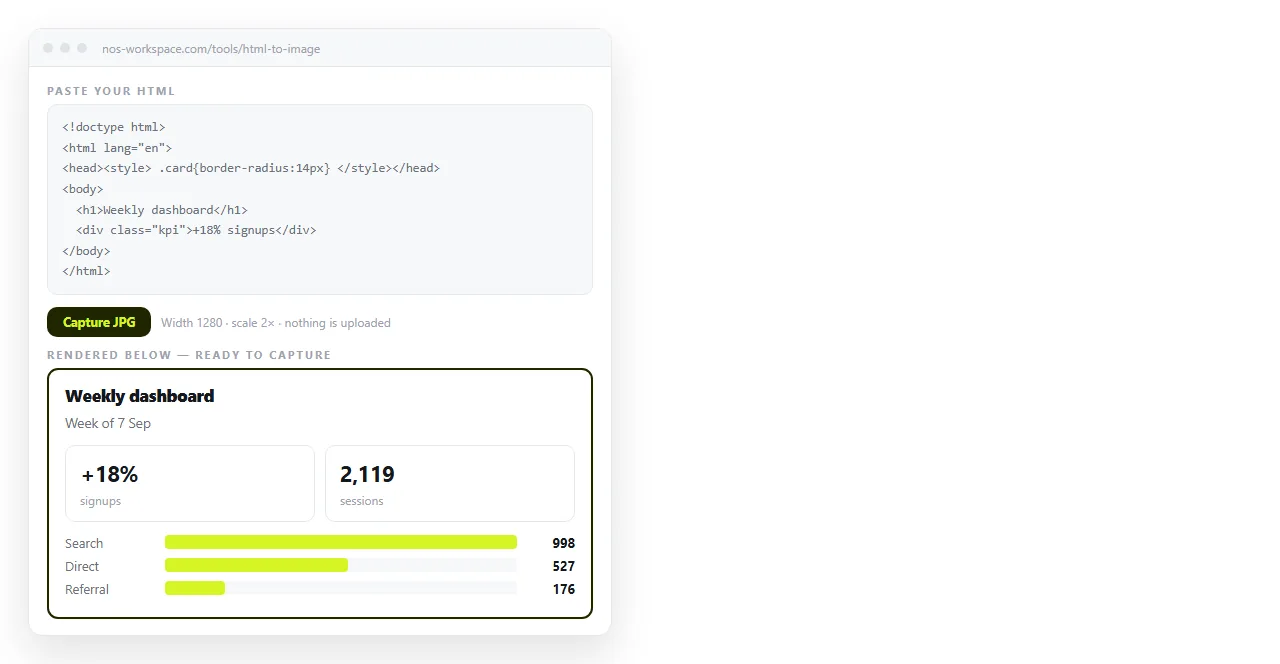
Paste the HTML and take the image out. The HTML to image tool renders the markup and captures the result, with no file to save first.
Quality settings, in practice
Quality is a number between 1 and 100 and the useful range is narrow.
- 95 and above. File size climbs sharply, visible gain is close to zero.
- 88 to 92. The working default for a page with text and charts.
- 75 to 85. Acceptable for photographs, visibly soft on letters.
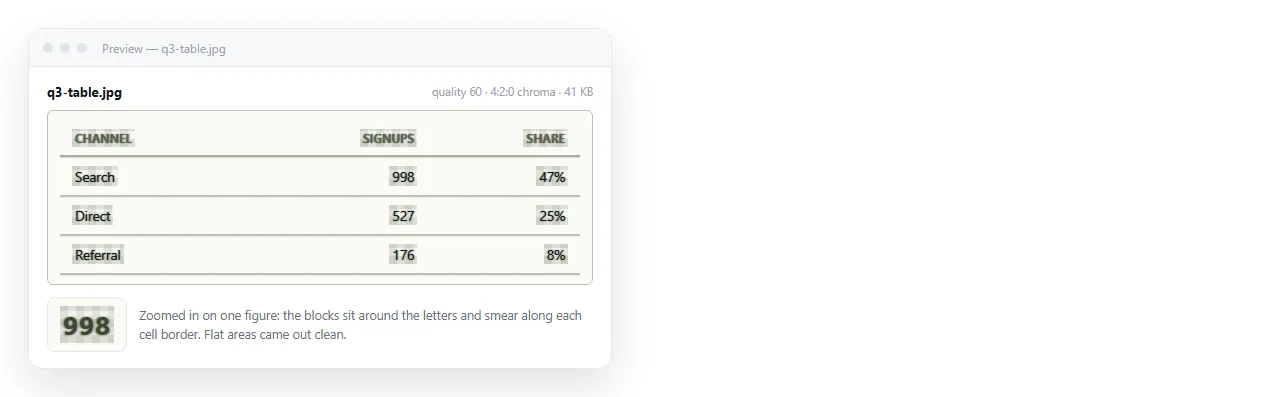
- Below 75. Blocking around text edges is obvious. Do not ship it.
If the file is too large at quality 90, the fix is usually to reduce the capture width rather than the quality. Halving the dimensions saves far more than dropping ten quality points.
There is one exception worth knowing. A page with a large photographic background compresses well at 80, because there are no sharp edges for the encoder to smear.
Judge by content, not by a rule. Open the output at full size and look at the smallest text on the page. If the letters have a visible halo, raise the quality and try again.
The problems that show up in the image
Fallback fonts. The capture fired before the web font loaded. Await document.fonts.ready before screenshotting, or embed the font.
Missing images. Relative paths do not resolve for the renderer. Base64 the images and they always travel.
Black background. The page had a transparent body and JPEG has no alpha, so the encoder filled it. Set an explicit background colour in CSS.
Empty charts. The script had not drawn yet. Wait for the specific element rather than a fixed delay.
What the image cannot do
A JPG is a fixed crop of one moment. Everything below the capture edge is gone, and every number in it is frozen at the time you pressed the button.
That is fine for a chat message where the point is that people see something without clicking. It is wrong for a report someone will read carefully.
The symptoms are consistent. Someone asks for a figure that is cut off. Someone quotes a number that changed last week. Someone tries to sort a column in an image.
Screenshot versus live page sets out the full comparison.
Sending both
The practical arrangement is an image for the glance and an address for the detail.
Paste the HTML into a NOS document and it renders as a page with its own link. The link unfurls into a preview card in chat, so the channel still shows something visual.
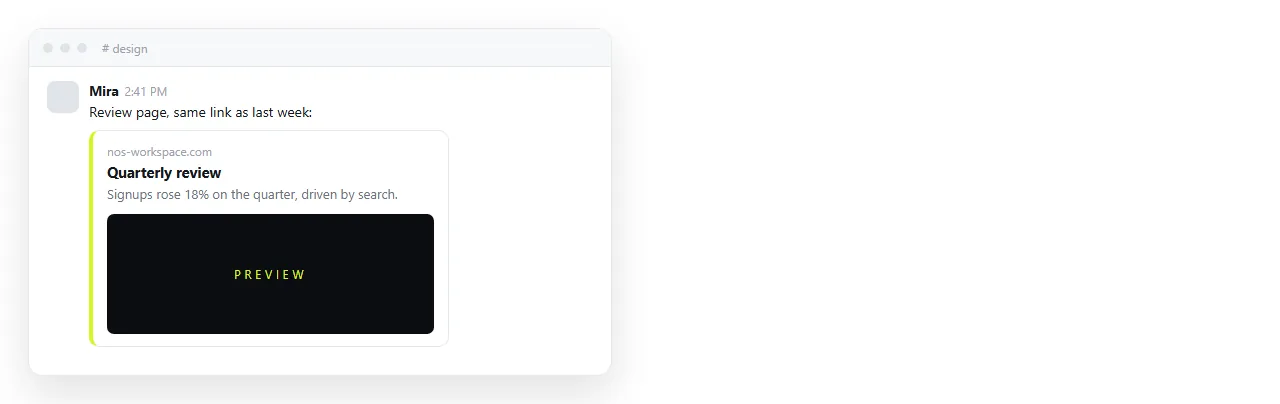
Then edits to the page do not require a new image or a new message. You click the text, fix it, and the link people already have points at the corrected version. Turning HTML into a link covers that step on its own.