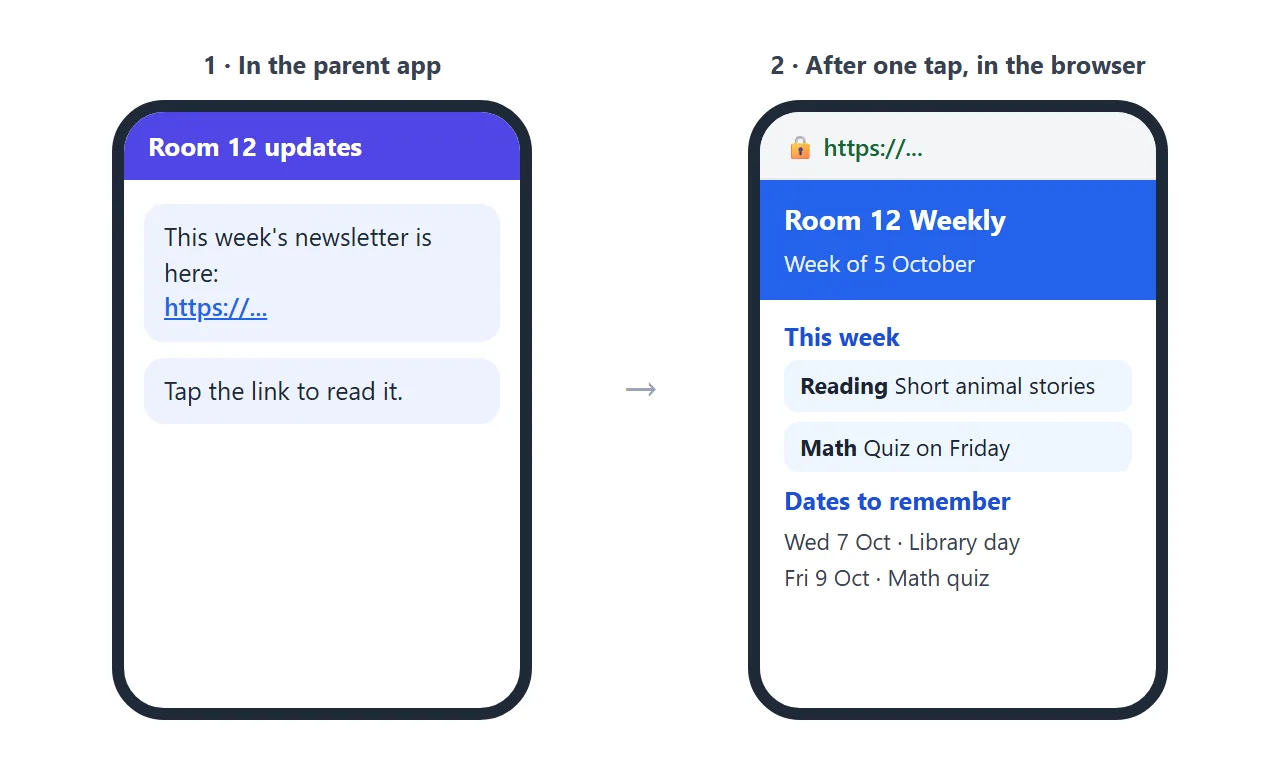
A free classroom newsletter template can be one small web page instead of a Word file. Copy the example below, change the text, and send parents a link. They tap it in the app, and the newsletter opens in their phone's browser.
Here is a weekly version. Tick the boxes in "Please bring" to see how it behaves on a phone.
<!doctype html>
<html lang="en">
<head>
<meta charset="utf-8">
<meta name="viewport" content="width=device-width, initial-scale=1">
<title>Room 12 Weekly</title>
<style>
  * { box-sizing: border-box; }
  body { margin: 0; font-family: system-ui, sans-serif; background: #f3f6fb; color: #1f2937; line-height: 1.5; font-size: 16px; }
  .wrap { max-width: 620px; margin: 0 auto; background: #fff; min-height: 100vh; }
  header { background: #2563eb; color: #fff; padding: 22px 20px 18px; display: flex; gap: 14px; align-items: center; }
  header svg { flex: none; }
  header h1 { margin: 0; font-size: 1.45rem; line-height: 1.2; }
  header p { margin: 2px 0 0; opacity: .9; font-size: .95rem; }
  section { padding: 16px 20px 4px; }
  h2 { margin: 0 0 8px; font-size: 1.1rem; color: #1d4ed8; }
  .grid { display: grid; grid-template-columns: 1fr 1fr; gap: 10px; }
  .box { background: #eff6ff; border-radius: 10px; padding: 10px 12px; font-size: .95rem; }
  .box b { display: block; color: #1e3a8a; }
  ul.dates { list-style: none; margin: 0; padding: 0; }
  ul.dates li { display: flex; gap: 12px; padding: 7px 0; border-bottom: 1px solid #e5e7eb; }
  ul.dates .d { flex: none; width: 74px; font-weight: 700; color: #1e3a8a; }
  .pack label { display: flex; gap: 10px; align-items: center; padding: 6px 0; cursor: pointer; }
  .pack input { width: 20px; height: 20px; }
  .pack input:checked + span { text-decoration: line-through; color: #6b7280; }
  .count { font-size: .9rem; color: #4b5563; margin: 4px 0 0; }
  .note { background: #fef9c3; border-radius: 10px; padding: 12px 14px; margin: 4px 0 0; }
  footer { padding: 16px 20px 26px; font-size: .9rem; color: #6b7280; }
  @media (max-width: 420px) { .grid { grid-template-columns: 1fr; } }
</style>
</head>
<body>
<div class="wrap">
  <header>
    <svg width="46" height="46" viewBox="0 0 46 46" aria-hidden="true"><circle cx="23" cy="23" r="22" fill="#fff"/><path d="M12 33l3-9 14-14 6 6-14 14z" fill="#f59e0b"/><path d="M12 33l3-9 6 6z" fill="#fde68a"/><path d="M29 10l6 6 3-3-6-6z" fill="#ef4444"/></svg>
    <div>
      <h1>Room 12 Weekly</h1>
      <p>Week of 5 October · from Ms. Hartley</p>
    </div>
  </header>

  <section>
    <h2>This week</h2>
    <div class="grid">
      <div class="box"><b>Reading</b>Short stories about animals. We practise finding the main idea.</div>
      <div class="box"><b>Math</b>Adding and subtracting within 100. A quick quiz on Friday.</div>
      <div class="box"><b>Science</b>Plants: we start growing beans in cups.</div>
      <div class="box"><b>Art</b>Autumn leaf rubbings. Old clothes are a good idea.</div>
    </div>
  </section>

  <section>
    <h2>Dates to remember</h2>
    <ul class="dates">
      <li><span class="d">Wed 7 Oct</span><span>Library day. Return your book.</span></li>
      <li><span class="d">Fri 9 Oct</span><span>Math quiz. Pajama reading hour in the afternoon.</span></li>
      <li><span class="d">Mon 12 Oct</span><span>No school.</span></li>
    </ul>
  </section>

  <section class="pack">
    <h2>Please bring</h2>
    <label><input type="checkbox"><span>Library book</span></label>
    <label><input type="checkbox"><span>Old shirt for art</span></label>
    <label><input type="checkbox"><span>Reading log, signed</span></label>
    <label><input type="checkbox"><span>Water bottle</span></label>
    <p class="count" id="count">0 of 4 packed</p>
  </section>

  <section>
    <h2>Reading at home</h2>
    <p>Fifteen minutes a night is plenty. Ask: "What was the best part, and why?"</p>
  </section>

  <section>
    <h2>A note from Ms. Hartley</h2>
    <p class="note">Thank you for the quick replies about the field trip forms. Questions are welcome in the class app.</p>
  </section>

  <footer>Room 12 · Maple Grove School (example page)</footer>
</div>

<script>
  const boxes = document.querySelectorAll('.pack input');
  const count = document.getElementById('count');

  function update() {
    const done = [...boxes].filter((b) => b.checked).length;
    count.textContent = done + ' of ' + boxes.length + ' packed';
  }
  boxes.forEach((b) => b.addEventListener('change', update));
</script>
</body>
</html>
The text is made up, so replace it with your own. Every part is plain HTML and CSS, so an AI can rewrite it for you in one go.
What the page needs
A newsletter that parents read on a phone is short and easy to scan. The example above has five blocks, and each one earns its place:
- This week: one line per subject.
- Dates to remember: the date first, then what happens.
- Please bring: the things a child needs, as a tick list.
- Reading at home: one small, doable thing.
- A note from you: two sentences, in your own voice.
Keep the page to one column and a normal reading size. The example uses a 16-pixel base font and a layout that stacks on a narrow screen, so no one has to pinch and zoom.
Make it with AI
You do not need to write HTML. Paste this prompt into ChatGPT, Claude or Gemini, then add your own notes where it says so.
Make a classroom newsletter for parents as ONE HTML file.
Use plain HTML and CSS only. No external images, fonts or scripts.
Design for a phone first: one column, readable text, a
viewport meta tag. Sections: This week (one line per subject),
Dates to remember, Please bring (a checkbox list), Reading at
home, A note from the teacher. Use my notes below. Do not
invent dates, names or events; if something is missing, leave
a clear [placeholder]. Output only the HTML.

My notes:
[paste your week here]
Then check the result before you send it:
- Dates and days: is every date on the right weekday?
- Invented details: did the AI add an event you never mentioned?
- Names and photos: remove full student names and any photo.
- Images: outside images are blocked in NOS, so a picture linked from another site will show as empty.
- On a phone: look at the preview at a narrow width. Text should not run off the edge.
If something is off, reply in the same chat with the fix, such as "move the quiz to Friday". You keep the page and change one thing at a time.
Send it as a link
Sending the file is where newsletters get lost. A link skips that step.
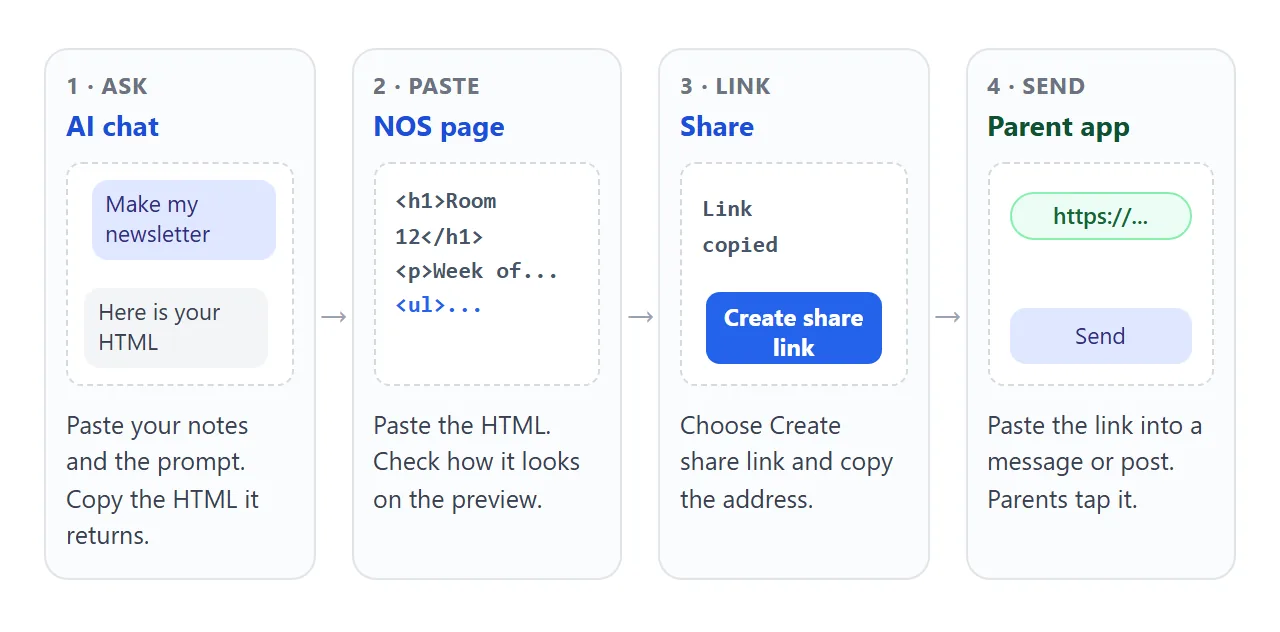
- Copy the HTML the AI gave you.
- Open HTML to link and paste it into a NOS document. The page renders as written and its scripts run.
- Choose Create share link and copy the address.
- Paste the address into a message or post in your parent app.
Whoever has the link can open the page in a browser, a phone included, without an account. They can read it but cannot edit it.
If your school asks you to keep some details private, leave them out of the page. The link works for anyone who receives it.
Google Classroom, email and paper
In Google Classroom, an announcement can include a link: choose Add, then Link, as described in Google's help page. You can post to one or more classes.
Those announcements go to students in the class, so use your parent app or email for parents. Menus can change, so check Google's page for the current steps (as of October 2026).
In email, paste the link into the message body. For paper, a QR code can carry the same address; QR code link covers that.
Weekly or monthly
Pick the rhythm that matches how fast your plans change. A monthly page works well as a calendar. Parents tap a green date and see that day's note.
<!doctype html>
<html lang="en">
<head>
<meta charset="utf-8">
<meta name="viewport" content="width=device-width, initial-scale=1">
<title>Room 12 October</title>
<style>
  * { box-sizing: border-box; }
  body { margin: 0; font-family: system-ui, sans-serif; background: #f4f7f3; color: #1f2937; line-height: 1.5; font-size: 16px; }
  .wrap { max-width: 620px; margin: 0 auto; background: #fff; min-height: 100vh; padding-bottom: 20px; }
  header { background: #15803d; color: #fff; padding: 20px; }
  header h1 { margin: 0; font-size: 1.45rem; }
  header p { margin: 2px 0 0; opacity: .92; font-size: .95rem; }
  section { padding: 16px 20px 0; }
  h2 { margin: 0 0 8px; font-size: 1.1rem; color: #166534; }
  .cal { display: grid; grid-template-columns: repeat(7, 1fr); gap: 4px; text-align: center; }
  .cal .dow { font-size: .78rem; color: #6b7280; font-weight: 700; }
  .cal button { font: inherit; font-size: .95rem; border: 0; border-radius: 8px; background: #f3f4f6; color: #374151; height: 40px; cursor: pointer; position: relative; }
  .cal button.empty { background: none; cursor: default; }
  .cal button.event { background: #dcfce7; color: #14532d; font-weight: 700; }
  .cal button.event::after { content: ""; position: absolute; left: 50%; bottom: 5px; width: 5px; height: 5px; margin-left: -2.5px; border-radius: 50%; background: #16a34a; }
  .cal button.sel { outline: 3px solid #15803d; outline-offset: 1px; }
  .detail { margin-top: 10px; background: #f0fdf4; border-radius: 10px; padding: 12px 14px; min-height: 64px; }
  .detail b { color: #14532d; }
  .themes { display: grid; grid-template-columns: 1fr 1fr; gap: 10px; }
  .themes div { background: #f0fdf4; border-radius: 10px; padding: 10px 12px; font-size: .95rem; }
  .themes b { display: block; color: #14532d; }
  @media (max-width: 420px) { .themes { grid-template-columns: 1fr; } }
</style>
</head>
<body>
<div class="wrap">
  <header>
    <h1>Room 12: October</h1>
    <p>Month at a glance · from Ms. Hartley</p>
  </header>

  <section>
    <h2>Tap a green date</h2>
    <div class="cal" id="cal"></div>
    <div class="detail" id="detail">Pick a date with a dot to see what is happening.</div>
  </section>

  <section>
    <h2>What we are learning this month</h2>
    <div class="themes">
      <div><b>Reading</b>Main idea and details in short non-fiction texts.</div>
      <div><b>Math</b>Place value, then adding and subtracting within 100.</div>
      <div><b>Science</b>How plants grow. Bean cups on the windowsill.</div>
      <div><b>Social studies</b>Our neighborhood: maps and helpers.</div>
    </div>
  </section>

  <section>
    <h2>Helpful to know</h2>
    <p>Library day is every Wednesday. The reading log goes home on Mondays and comes back signed on Fridays.</p>
  </section>
</div>

<script>
  // Edit this list: day of month -> what to show
  const events = {
    7:  'Library day. Please return your book.',
    9:  'Math quiz in the morning. Pajama reading hour in the afternoon.',
    12: 'No school.',
    16: 'Picture day. Wear something you feel good in.',
    21: 'Parent-teacher conferences, afternoon. Sign-up is in the class app.',
    23: 'Field trip to the community garden. Closed shoes, please.',
    30: 'Fall party at 2:00. Costumes optional and school-friendly.'
  };
  const firstWeekday = 4;  // 1 October 2026 is a Thursday (Sunday = 0)
  const daysInMonth = 31;

  const cal = document.getElementById('cal');
  const detail = document.getElementById('detail');

  ['S', 'M', 'T', 'W', 'T', 'F', 'S'].forEach((d) => {
    const el = document.createElement('div');
    el.className = 'dow';
    el.textContent = d;
    cal.appendChild(el);
  });
  for (let i = 0; i < firstWeekday; i++) {
    const el = document.createElement('button');
    el.className = 'empty';
    el.disabled = true;
    cal.appendChild(el);
  }
  for (let day = 1; day <= daysInMonth; day++) {
    const b = document.createElement('button');
    b.textContent = day;
    if (events[day]) {
      b.className = 'event';
      b.addEventListener('click', () => {
        cal.querySelectorAll('.sel').forEach((x) => x.classList.remove('sel'));
        b.classList.add('sel');
        detail.innerHTML = '<b>October ' + day + '</b><br>' + events[day];
      });
    }
    cal.appendChild(b);
  }
</script>
</body>
</html>
To update it, edit the events list in the code, and adjust the first weekday and number of days for a new month. An AI can do that too: paste the page and say "change this to November 2026, starting on a Sunday".
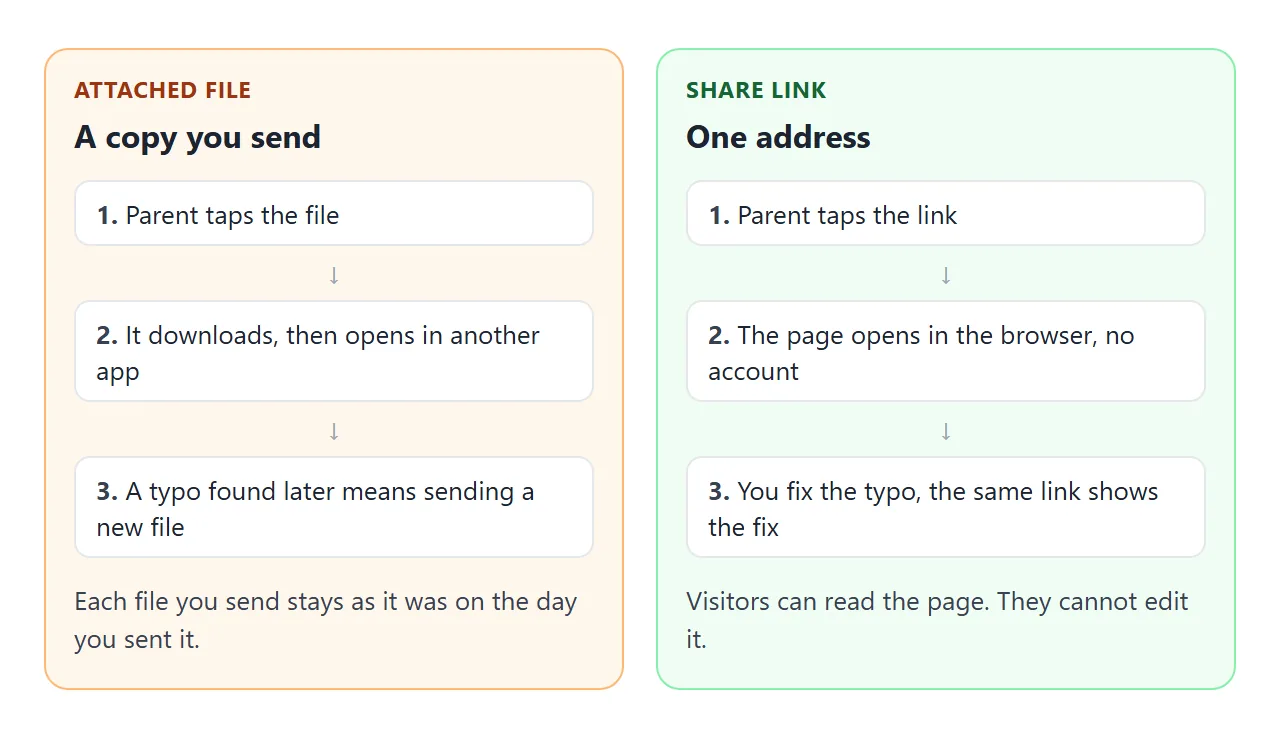
File or link: what changes
| Attached file | Text pasted in a message | NOS share link | |
|---|---|---|---|
| What parents do | Tap, download, open in another app | Read it in the app | Tap, read in the browser |
| Layout and colors | Whatever the file holds | Plain text only | Your page as designed |
| Fixing a typo | Send a new file | Send a correction message | Edit it, same link |
Pasted text is the quickest way to send three lines. The link is better when you want dates, a checklist or a calendar that is easy to scan.
For more on this choice, see email vs link for documents, and opening an HTML file on a phone explains why a bare file often fails there.
Keep one link or make a new one
Because editing keeps the same link, you can reuse one address all year. Edit the page each Friday and tell parents "same link, new news". The old issue is replaced, so nobody can look back.
If you want an archive, make a separate page for each issue and send its own link. A short post such as "Week 6 is here" with the new link works well. Digital newsletter covers giving every issue its own web address.
You, the owner, can tick items in View mode and your changes are saved. A parent's ticks are not saved, so they reset on reload. Treat the pack list as a reminder to look at, not a form that comes back to you.
When it does not work
| What you see | Cause | Fix |
|---|---|---|
| A picture is missing | The image is linked from another site, and outside images are blocked | Use a drawing made in HTML or CSS, or leave the image out |
| Parents see last week's issue | You made a new page for the new issue, so the old link still shows the old one | Edit the original page to keep one link, or send the new link |
| A sign-up form sends nothing | Sending form data to a server is blocked | Ask parents to reply in your parent app or by email |
| Text runs off the edge on a phone | The AI used fixed widths | Ask it for one column and a viewport meta tag |
| The AI added an event you did not mention | It filled gaps from guesswork | Add "do not invent dates or events" and check every date |
| Parents' ticks disappear | Only the owner's changes in View mode are saved | Use the list as a reminder, not a form |