In short
Give every speaker a named section with one short bio and one confirmed session.
Link the session title, room, time, and materials from that section.
Keep the full timetable on the programme page and link back to it.
Publish one viewer link, then update that page when materials change.
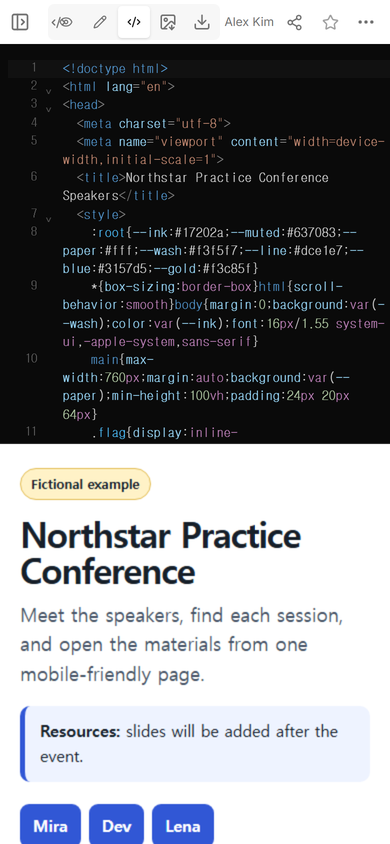
The NOS Team built a fictional page for the Northstar Practice Conference. It connects three speakers to three sessions and shows whether each set of materials is ready. The names, roles, rooms, and sessions are invented for this example.
The first version also gave each speaker a shortcut. That small navigation choice mattered because the page became long enough that a visitor should not have to scroll through every profile to reach one person.
What should a conference speaker page include?
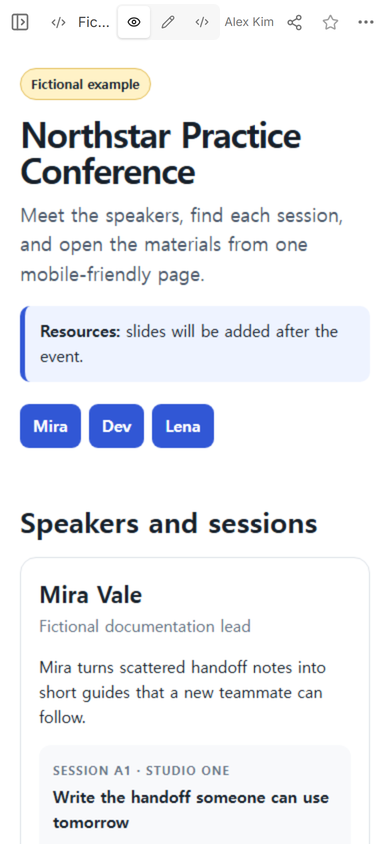
Start with the information that helps someone connect a person to a session. For this example, every speaker section uses the same five fields:
- speaker name and event role;
- a short bio written for this conference;
- session title and stable session label;
- confirmed room, start time, and length;
- links to the session materials and the full programme.
Consistency makes missing information obvious. If one profile has a room and another does not, mark the gap for the organiser instead of guessing. A speaker page is not the place to invent credentials, availability, or a final session assignment.
How do you organize pages for several speakers?
A small conference can use one page with an anchored section for each person. A larger event can use a speaker directory that opens one detail page per person. Either structure needs stable names for the people and sessions, so a title edit does not disconnect the links.
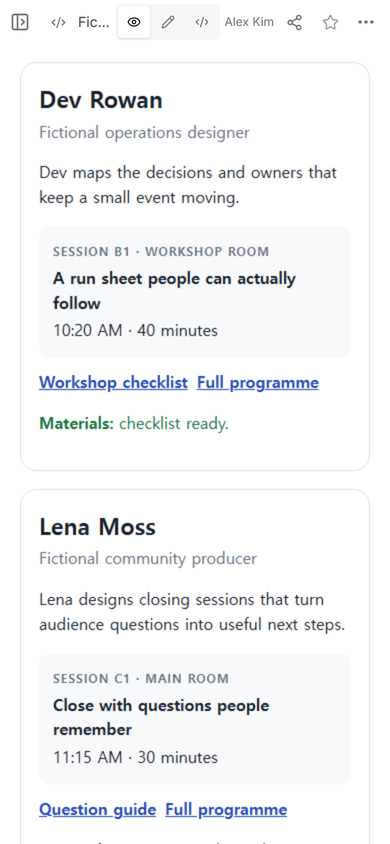
The example uses one page because three profiles remain easy to scan. Selecting Dev moves directly to Dev Rowan’s bio, session, checklist, and programme link. The next profile follows in the same format.
Keep two jobs separate: the programme answers “what happens at this time?” The speaker page answers “who is this person, what are they presenting, and where are their materials?” Link the two instead of copying the full timetable into every profile.
How do you link a speaker to a conference session?
Use the same session label in both places. In the fictional page, Mira Vale is tied to Session A1, Dev Rowan to Session B1, and Lena Moss to Session C1. Each speaker section also repeats the public title, room, start time, and length. That gives the reader enough context before following the programme link.
Link materials by purpose rather than with a vague “click here.” “Session notes,” “Workshop checklist,” and “Question guide” tell the reader what will open. If a file is not ready, show its status without presenting a dead link.
How do you share conference speaker pages?
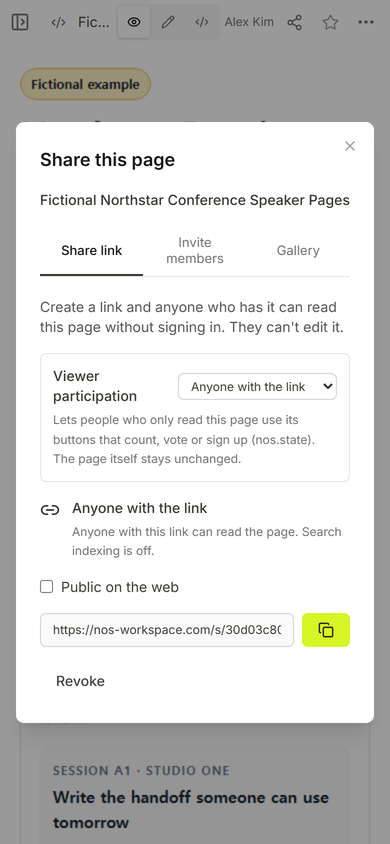
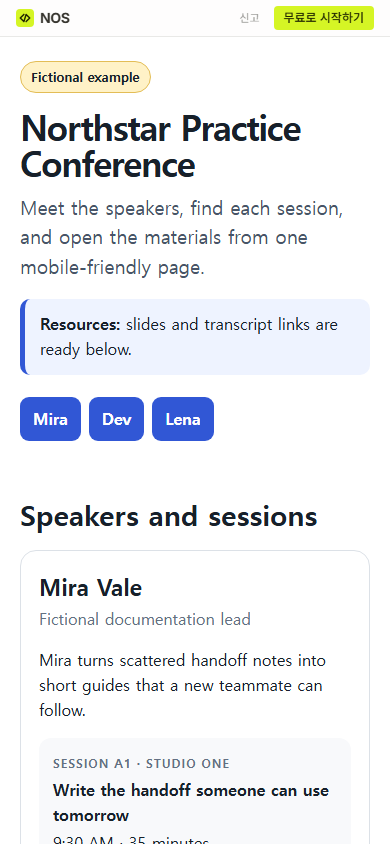
Open Share after checking the page in View. For this example, the Share panel created a viewer address and stated that anyone with the link could read the page without signing in and could not edit it. Those settings belong to the captured page, so check the panel for your own page before sending its address.
What happens when the speaker materials change?
Edit the existing page instead of making a replacement. The first Northstar notice said that slides would be added after the event. We changed that line to say that slide and transcript links were ready below.
The editable line included a bold label followed by normal text. The first selection caught only the text after the label, so replacing the whole sentence repeated the word “Resources.” Selecting only the changing phrase fixed it. The useful rule is to read the full line before choosing Done when a sentence contains mixed formatting.
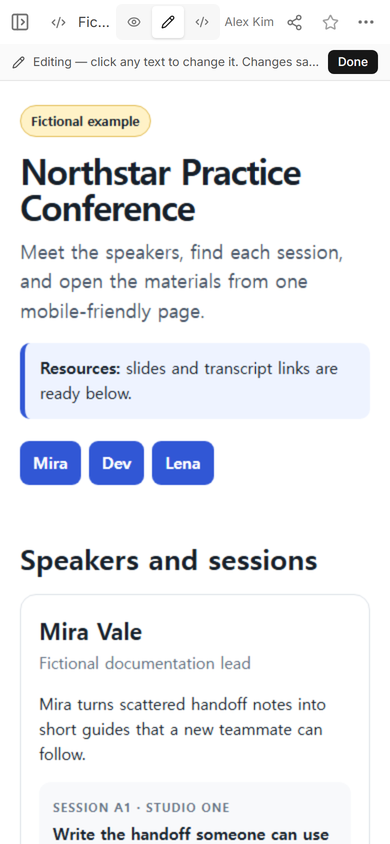
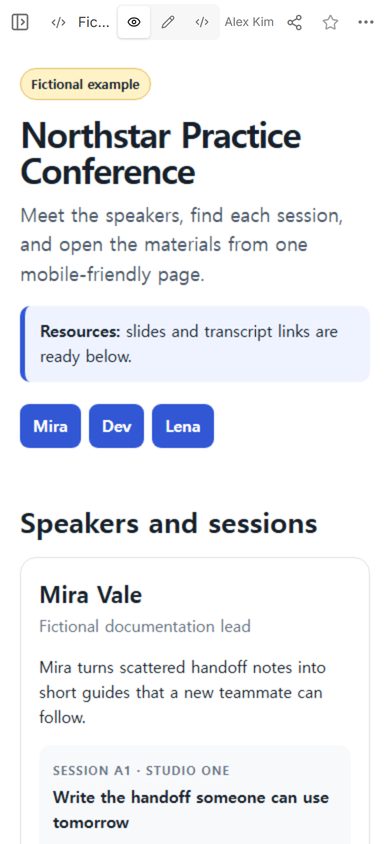
Opening the original viewer address then showed the revised notice. The page address used for this example did not need to be replaced.
Build the speaker pages in this order
- Collect confirmed facts. Ask for the public bio, session label, title, room, time, material links, and any access note.
- Choose one repeated profile structure. Do not give one speaker a detailed page and another only a name.
- Connect speaker and session records. Reuse the same labels that appear in the programme.
- Add clear material states. Link what is ready and label what is pending.
- Check the page at phone width. Use shortcuts when several profiles make the page long.
- Create and test the viewer link. Open it separately from the workspace address.
- Update the existing page. Recheck the affected profile, programme link, and public view after a change.
Open the complete fictional conference speaker example. It is a local preparation asset for this draft and is not part of the live NOS article yet.
When not to do this
- Do not use a static speaker page to collect proposals, registrations, payments, or private attendee data.
- Do not publish a bio, portrait, recording, or contact detail until the speaker has approved its public use.
- Do not duplicate the complete programme on every profile when schedule changes are still frequent.
- Do not show an invented download link for material that is not ready.
Using NOS for conference speaker pages
NOS can hold the prepared HTML, show it in View, and create a viewer link for the finished page. In this example, the same page was edited and the original viewer address showed the revision. Check the current pricing page for plan details, and keep speaker approval, registration, scheduling, and private records in the systems responsible for those jobs.
Related event pages
Build the complete timing and conflict view with the conference programme template. Separate public times from staff cues with the event schedule template. A speaker preparing a reusable pitch page can use the speaker one sheet; that is different from an organiser’s directory of speakers for one event.