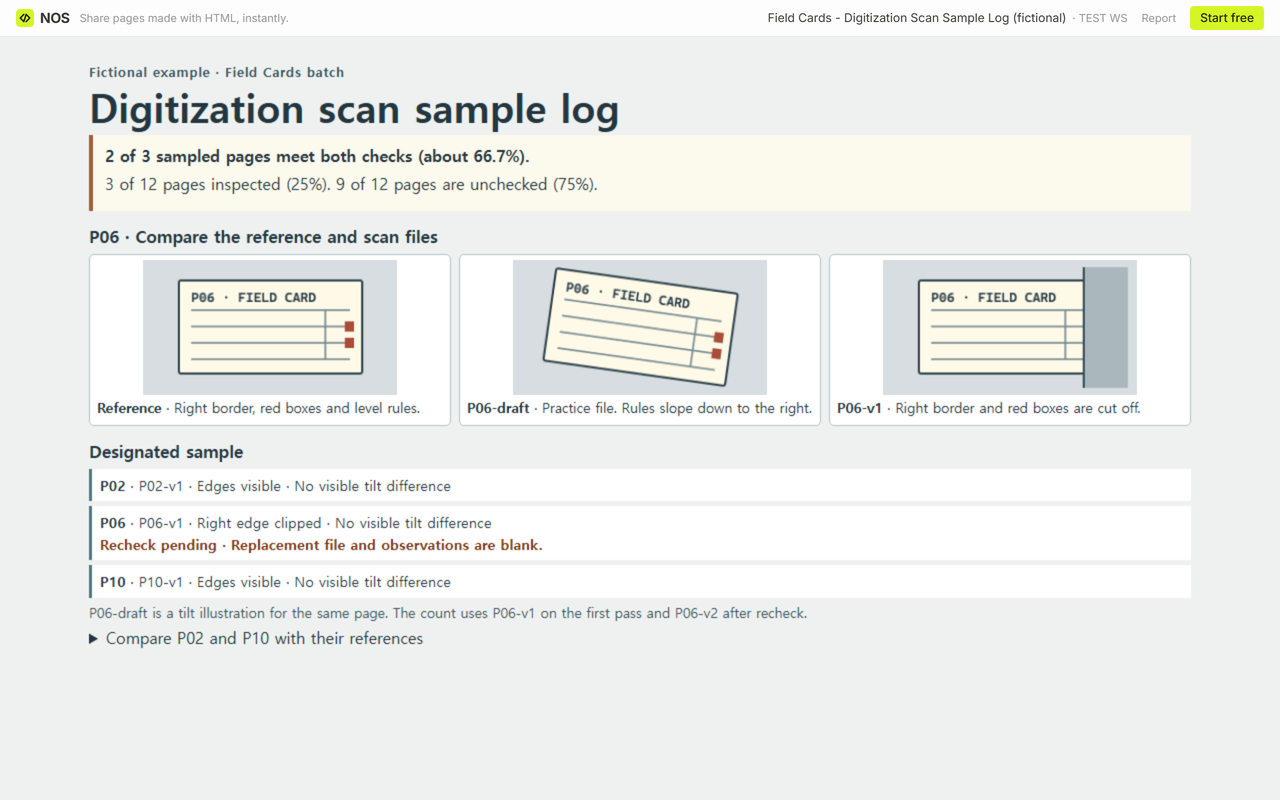
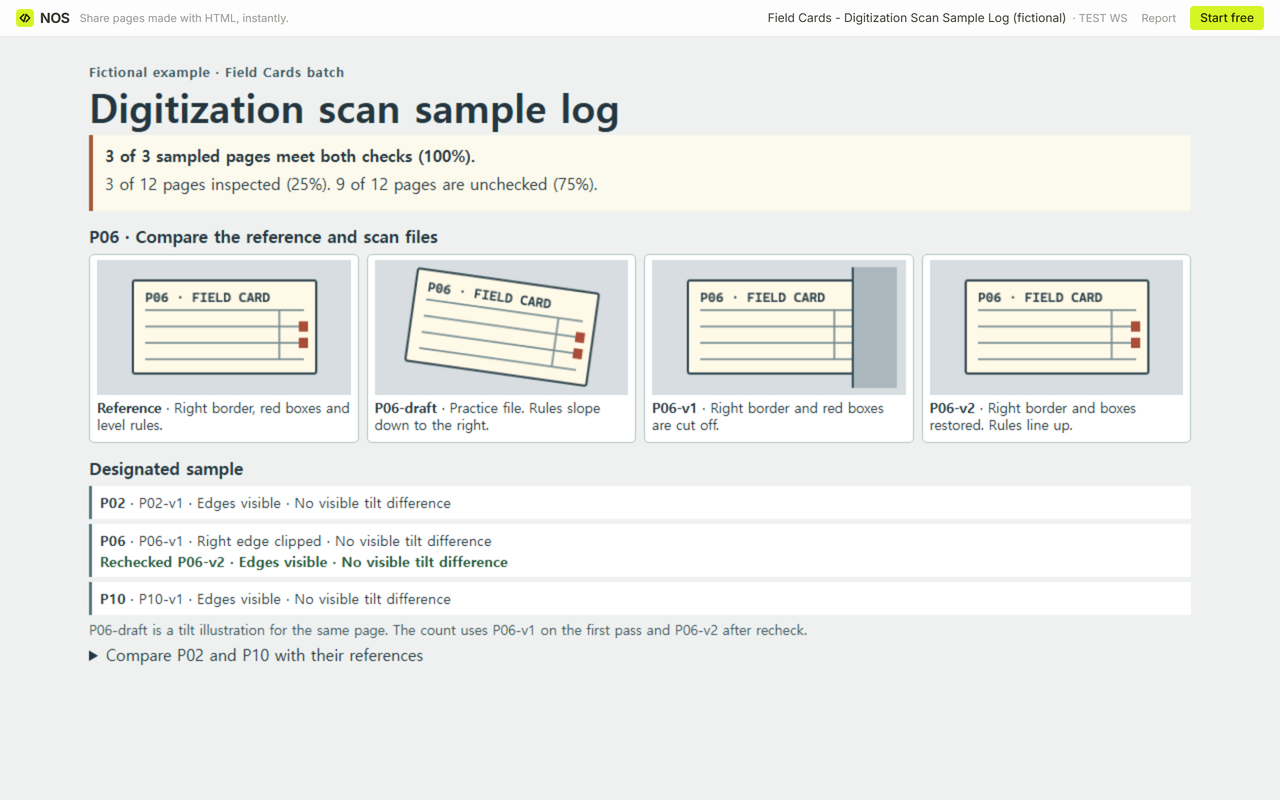
In the fictional Field Cards batch, a pair of red boxes near the right edge of page P06 disappeared in the scan. The rules across the page still looked straight. We recorded the clipped edge and left the replacement fields empty until we could open P06-v2 and check the same landmarks.
Download the blank scan sample log to start your own check. The completed CSV keeps the first pass and recheck side by side. Use the complete HTML exercise to inspect the fictional scans offline.
Where do you look for clipped edges and tilt?
Open the delivered scan beside the reference for the same page. Zoom out far enough to see all four edges, then zoom in at any edge that looks tight. Look for a border, a mark, or a line that ends differently between the two files. On P06-v1, the ruled lines stop at the crop and the right border and red boxes are missing.
Use a straight feature that appears in both images for the tilt check. The horizontal rules in P06-draft slope down toward the right. Those same rules run level in the reference and in P06-v1. P06-draft is a practice file for the same page. The first-pass count uses P06-v1.
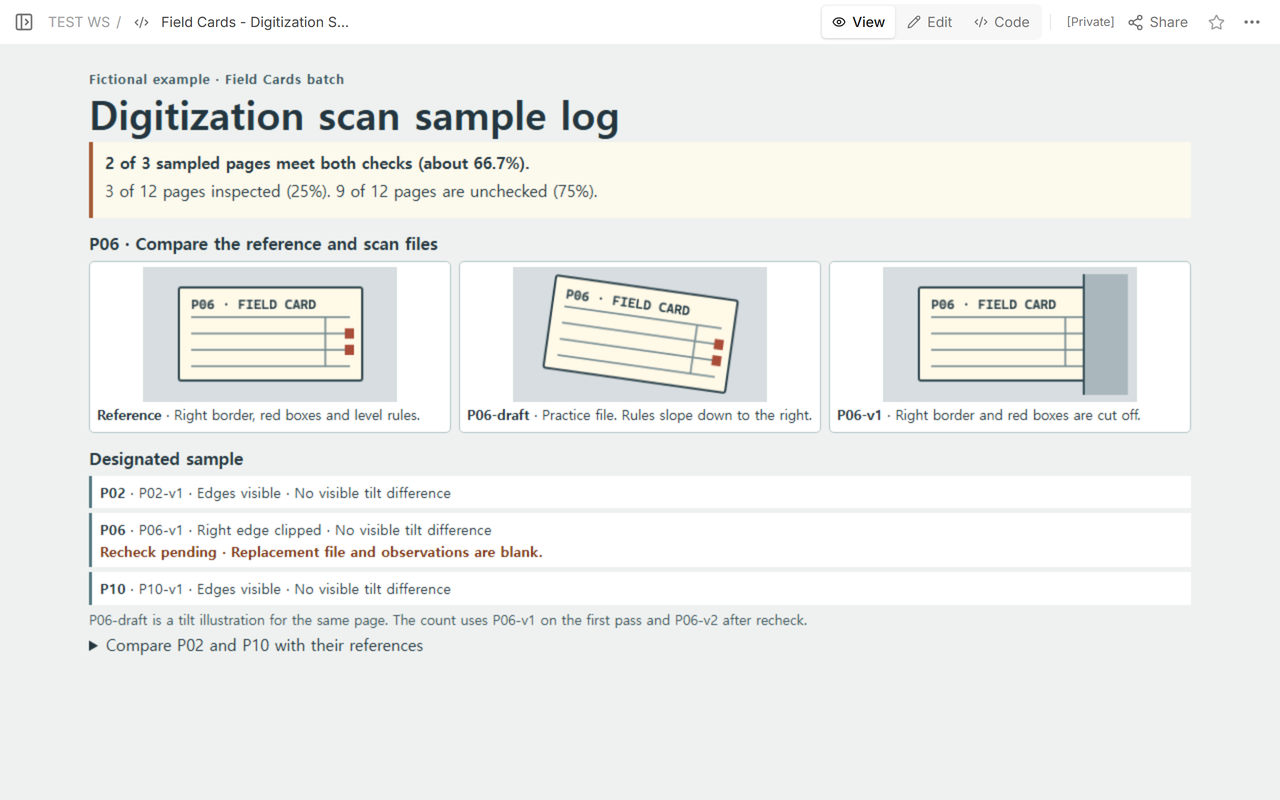
If a page is irregular, compare features inside the image with the same features in the reference. Record “Unable to verify” when the reference or a usable landmark is missing. Leave a note about what the next reviewer needs to see.
What belongs in the sample row?
Enter the batch, total page count, selected page ID, reference and exact file version. Use separate fields for the edge and tilt observations. On P06, mark the edge “Clipped,” record “No visible difference” for tilt, and describe which marks disappeared. Write the next action on the same row. Keep the replacement filename and both recheck fields blank while the replacement is pending.
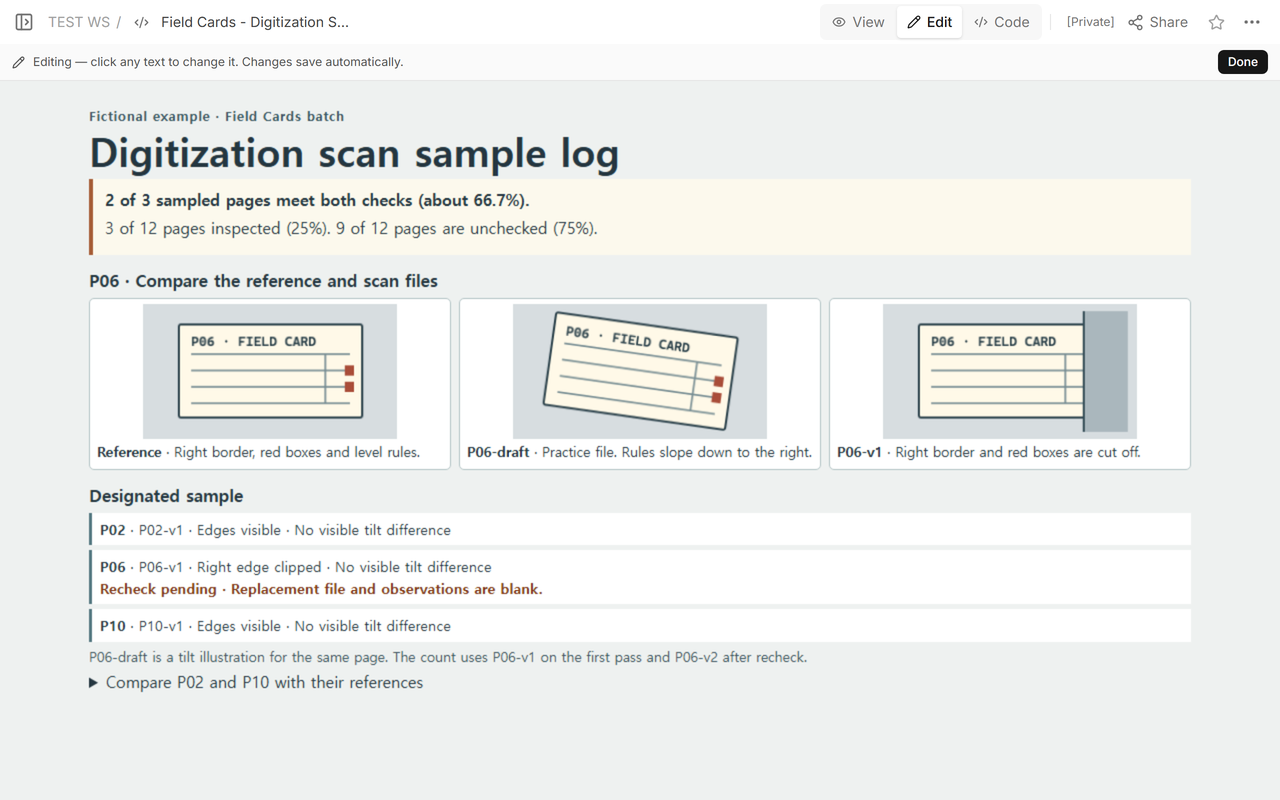
The two checks in this exercise come from visual inspection practice. The National Library of the Netherlands case study describes looking for cropping and straightness. An Indiana University case study describes inspecting a sample alongside automated file checks.
How do you close the recheck?
Open P06-v2 beside the same P06 reference. Look for the full right border and both red boxes, then check that the ruled lines still align with the reference. Enter the replacement and its observations under P06. Preserve the original file version and the note about the cut-off marks. With both checks recorded, mark the row “Rechecked.”
How do you report the result without overstating coverage?
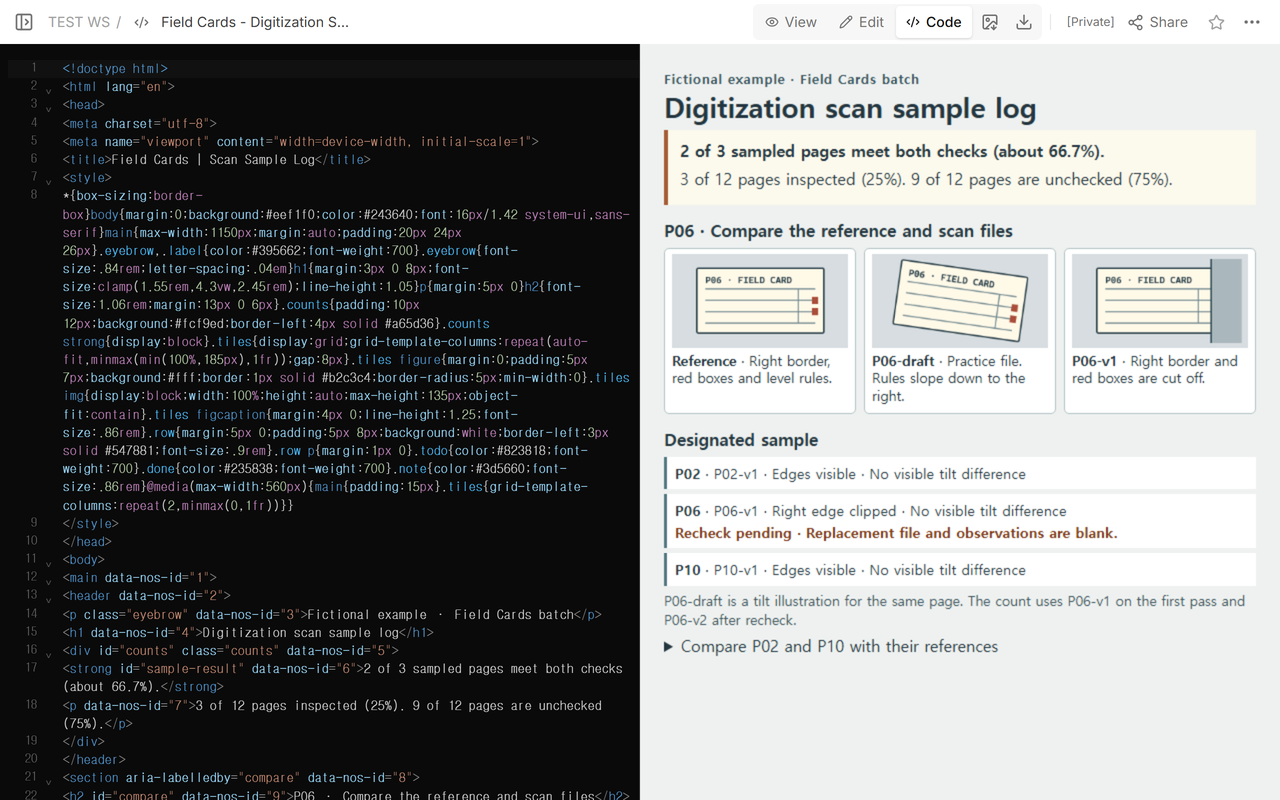
Divide the inspected pages by the number listed in the batch. Here, 3 ÷ 12 = 25%. Of those three pages, two met both checks on the first pass, so 2 ÷ 3 is about 66.7%. After reopening P06-v2, 3 ÷ 3 = 100% of the sample met both checks. The same 3 of 12 pages were inspected. The other 9 of 12 pages (75%) remain unchecked.
Count each sampled page once when you summarize the latest results. Keep the first pass and any replacements as observations on that page’s row.
When not to do this
Follow the sampling and acceptance requirements for your project when you need batch sign-off, a formal deposit or a technical image assessment. This exercise records two visual observations on designated pages. For a different handoff, use a building photo log to recover a camera position, or a content inventory to reconcile supplied lists.
How can you send the checked example?
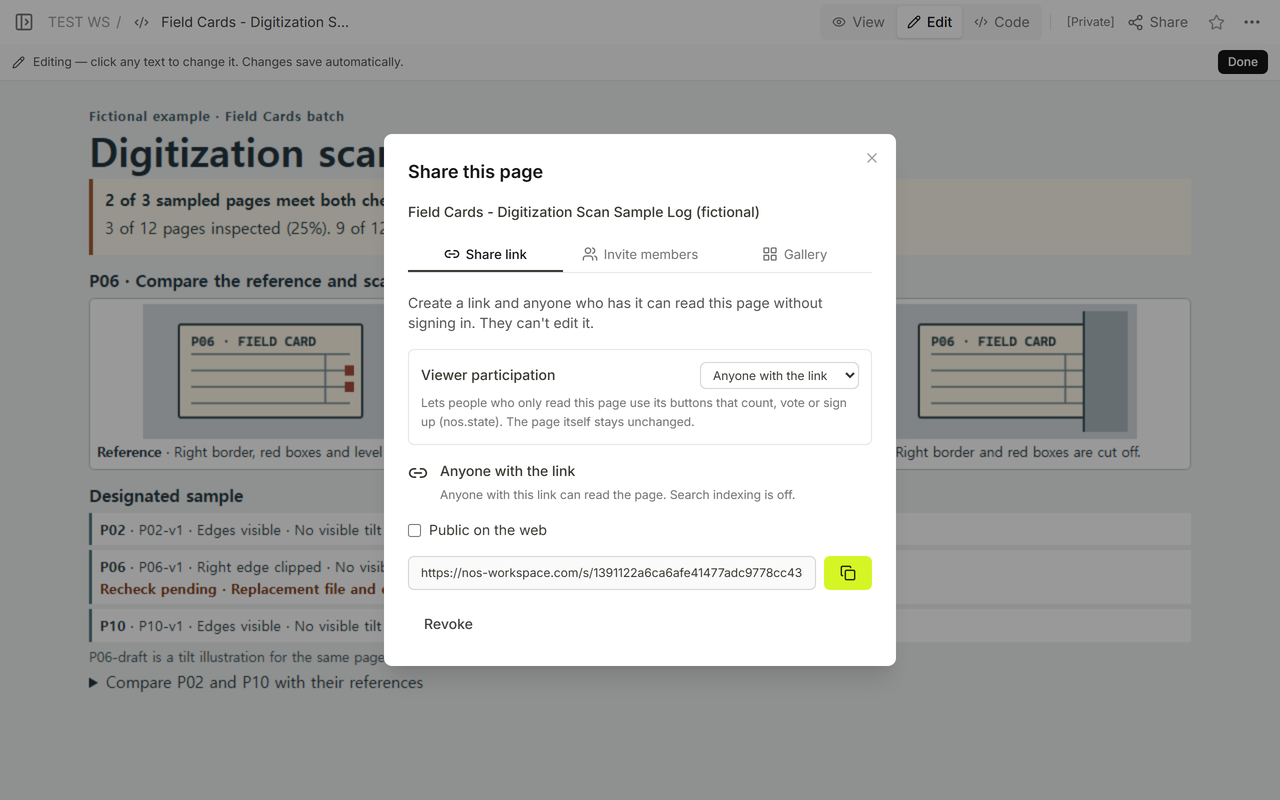
We kept the fictional scan comparisons and the recheck row on one NOS Workspace page. After updating the log, we reopened the same read-only Field Cards example signed out and saw P06-v2. Keep your own reference files and working log in the location your project uses.