In short
An employee resource website works best when it starts with the task an employee needs to finish.
For each task, place the form, the short policy explanation, and the support contact together.
Keep salary, medical, tax, and other personal records in the approved systems rather than on the resource page.
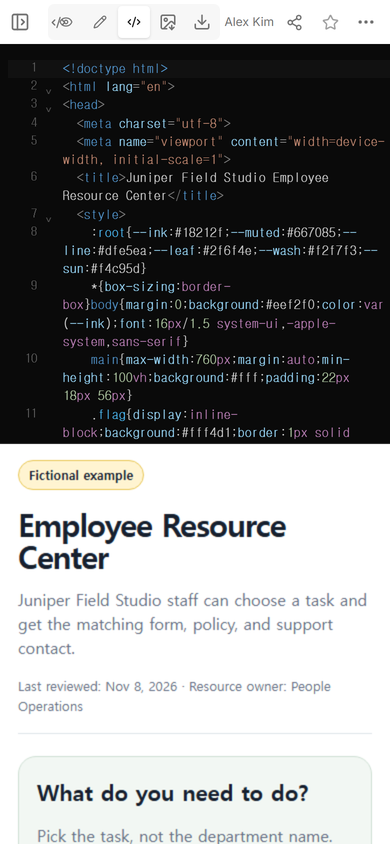
The NOS Team built a fictional employee resource center for Juniper Field Studio. The page covers four common destinations: pay and tax, time off, benefits, and workplace support. Choosing one task reveals where to start, what to read, and who can help.
What should an employee resource website include?
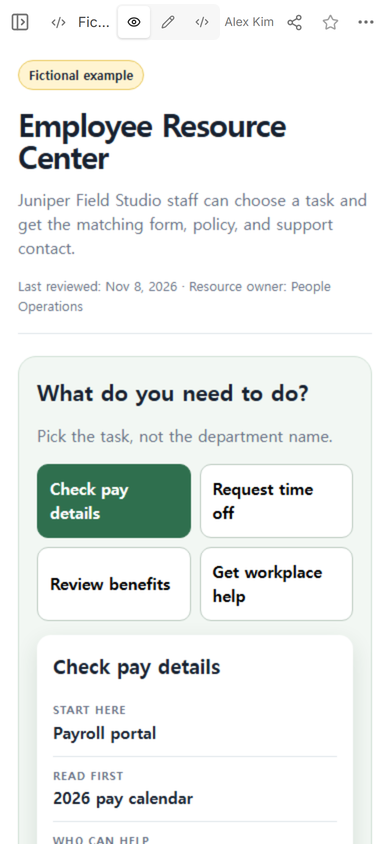
Begin with employee questions, not your internal department chart. “Request time off” is easier to recognize than a card labeled only “People Operations.” Each task in our example has the same three-part answer:
- Start here: the form or system that begins the task.
- Read first: the policy or guide that explains the rule.
- Who can help: the team or shared channel that handles questions.
We kept the sample data fictional and put the “Fictional example” label at the top. The source is one complete HTML file, available as the employee resource center example.
How do you make an employee resource website?
- List the jobs employees come to the page to do. Our list was checking pay details, requesting time off, reviewing benefits, and getting workplace help.
- Give every job a complete route. Add the form, the policy, and the support contact instead of scattering them across separate sections.
- Mark the owner and review date. The example names People Operations as the resource owner and shows Nov 8, 2026 as the review date.
- Keep private data off the page. Link to approved systems for personal records.
- Open every task before sharing. Confirm that the label and its three resources match.
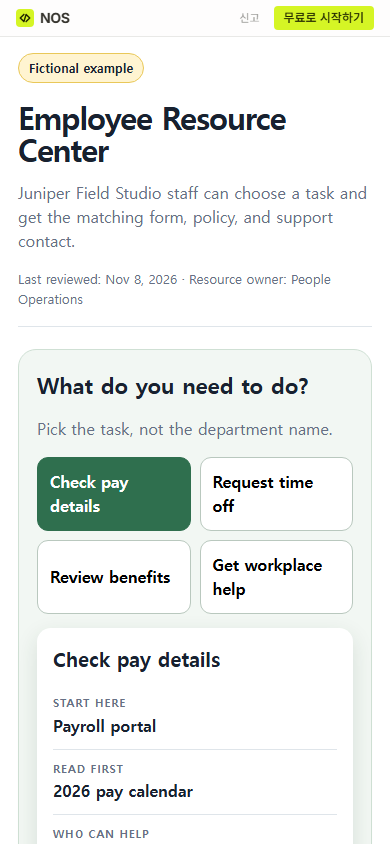
View mode showed the page at phone width before we shared it. The first task, “Check pay details,” opened by default.
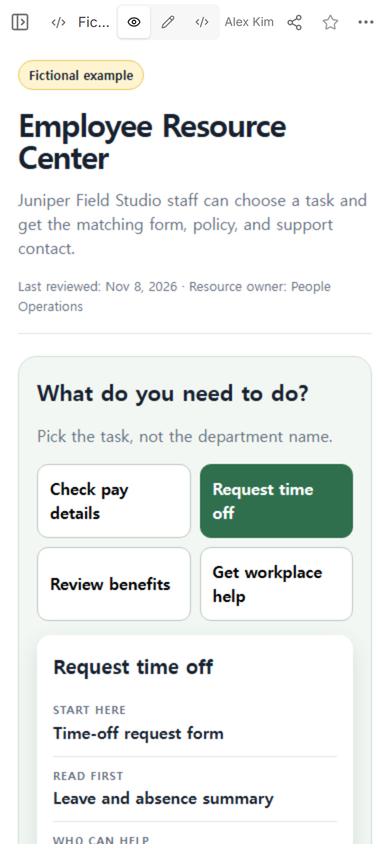
We then selected “Request time off.” The result changed to the time-off request form, the leave and absence summary, and People Operations. This check matters because a polished menu is not useful if its result points to the wrong resource.
How should forms, policies, and contacts be organized?
Keep the three items next to each other under the task they support. An employee requesting leave should not have to search one list for a form, another page for the policy, and a directory for the contact.
Use shared team contacts where possible in the real version, and name an owner for the page itself. The owner is responsible for checking the destinations and the review date; the support contact answers the employee’s question. Those are different roles.
Do not copy sensitive records into the hub. A pay card can point to a payroll portal without displaying a salary. A benefits card can point to an enrollment system without showing a person’s plan choice.
How do employees open the resource page?
We opened the Share panel for this example. It showed an “Anyone with the link” address and stated that readers can open the page without signing in and cannot edit it.
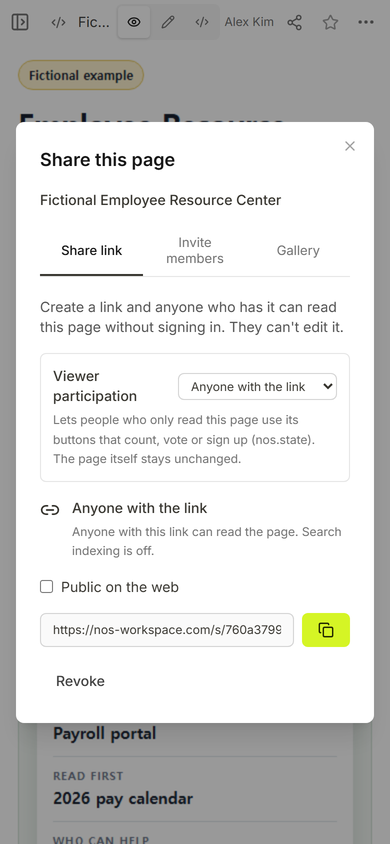
The same address opened the employee resource center in a phone-sized browser. The public view kept the fictional label, review date, task buttons, and default pay result.
What belongs on an employee benefits website?
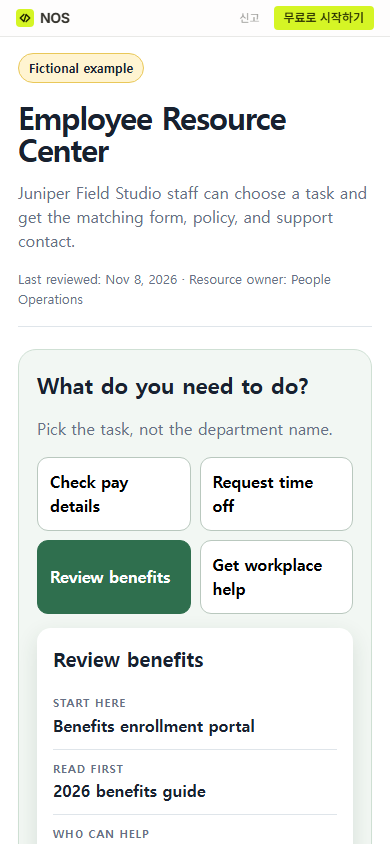
For this smaller resource hub, the benefits task contains an enrollment destination, a benefits guide, and a support contact. It does not try to store enrollment choices or personal plan information.
We selected “Review benefits” on the shared page. The card changed from payroll resources to the benefits enrollment portal, the 2026 benefits guide, and benefits support.
What went wrong while editing the page?
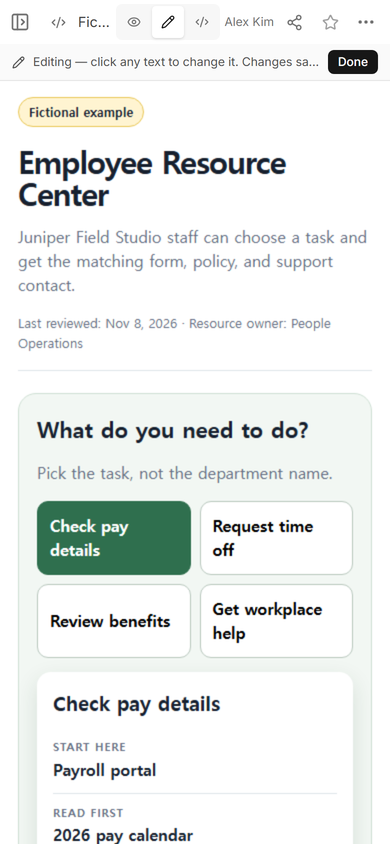
We tried changing the wrapped heading in Edit mode. Selecting the whole heading by position was unreliable, and a partial selection produced a broken title. We did not leave that version in place. We opened Code, restored the complete source, and checked the same shared address again.
The useful rule is simple: use Edit for a text block you can select cleanly. If a wrapped or repeated element is hard to target, return to the complete source instead of saving a guessed partial change.
When not to do this
- Do not use a public resource page for salary details, medical information, tax records, passwords, or personal employee files.
- Do not present a short summary as the official policy. Point to the approved document and system.
- Do not use one page when different employees require different access rules or when you need records of who read, approved, or submitted something.
- Do not add a destination until someone has opened it and confirmed that it is the right place for the task.
Using NOS for the resource hub
NOS Workspace gave this prepared HTML page a View mode, an Edit mode, a Code mode, and a share address. In the captured Share panel, anyone with the link could read the page without signing in and could not edit it. Use the current pricing page if you need to compare plans.
Related guides
If the page grows into many general team links and short instructions, read how to make a one-page internal wiki alternative. For policy summaries, use the employee handbook template. If the main problem is routing a question to the right team, start with the employee contact list template.