For a team with no wiki, one HTML page can hold the links and how-tos people keep asking for, at one address you pin in chat. It is not a wiki: no search across pages, no permissions, no edit history.
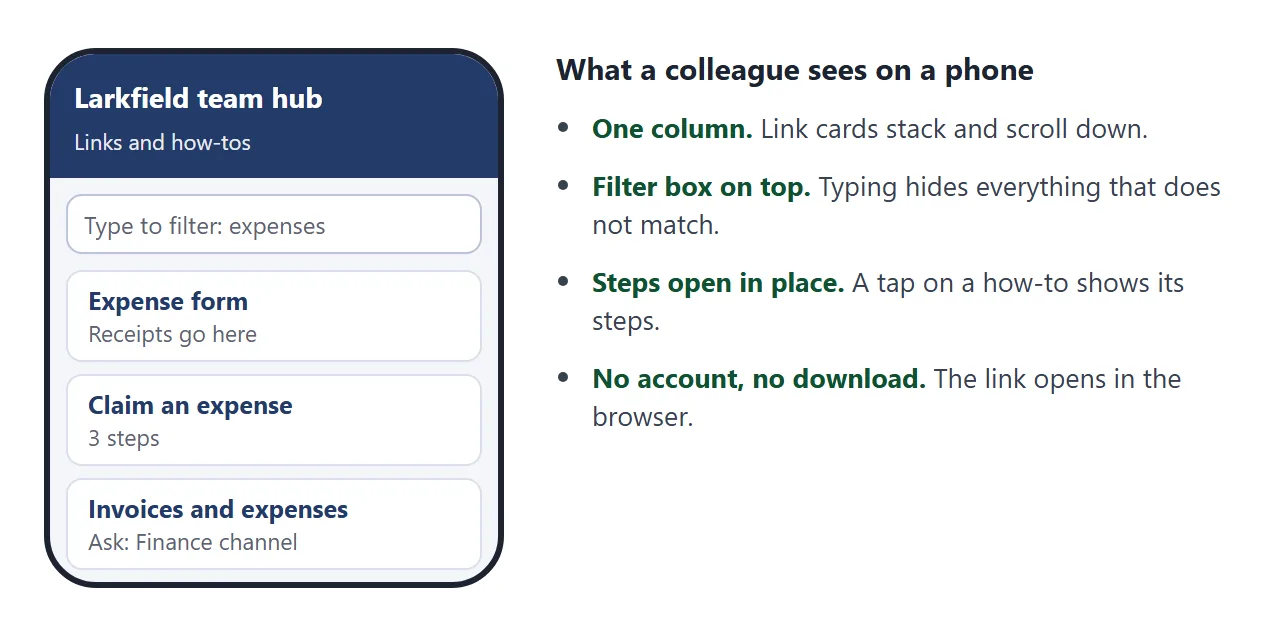
Without a wiki, the same questions come back in chat: where is the expense form, how do I book the room. The answers exist, buried in old messages. A hub page puts them in one place.
Try a page like this one, and type in the filter box.
<!doctype html>
<html lang="en">
<head>
<meta charset="utf-8">
<meta name="viewport" content="width=device-width, initial-scale=1">
<title>Larkfield team hub</title>
<style>
  * { box-sizing: border-box; }
  body { margin: 0; font-family: system-ui, sans-serif; background: #f4f6fa; color: #1d2330; line-height: 1.5; }
  header { background: #243b6b; color: #fff; padding: 22px 16px 18px; }
  .wrap { max-width: 760px; margin: 0 auto; }
  header h1 { margin: 0 0 4px; font-size: 24px; }
  header p { margin: 0; font-size: 14px; opacity: .92; }
  .search { position: sticky; top: 0; z-index: 5; background: #fff; border-bottom: 1px solid #d9dfeb; padding: 10px 16px; }
  .search input { width: 100%; max-width: 760px; display: block; margin: 0 auto; padding: 10px 12px; font-size: 16px; border: 1px solid #b9c3d8; border-radius: 8px; }
  main { padding: 16px; }
  section { background: #fff; border-radius: 12px; padding: 16px 16px 12px; margin-bottom: 14px; box-shadow: 0 1px 6px rgba(0,0,0,.06); }
  h2 { margin: 0 0 10px; font-size: 18px; }
  .grid { display: grid; grid-template-columns: 1fr 1fr; gap: 10px; }
  .item a { display: block; padding: 10px 12px; border: 1px solid #d9dfeb; border-radius: 10px; text-decoration: none; color: #1d2330; background: #fafbfe; height: 100%; }
  .item a:hover { border-color: #243b6b; }
  .item b { display: block; color: #243b6b; font-size: 15px; }
  .item span { font-size: 13px; color: #5b6472; }
  details.item { border-top: 1px solid #e6eaf2; padding: 9px 0; }
  details.item:first-of-type { border-top: 0; }
  summary { cursor: pointer; font-weight: 700; font-size: 15px; }
  details ol { margin: 8px 0 2px; padding-left: 20px; font-size: 14px; }
  table { width: 100%; border-collapse: collapse; font-size: 14px; }
  th, td { text-align: left; padding: 8px 6px; border-bottom: 1px solid #e6eaf2; vertical-align: top; }
  th { font-size: 12px; color: #5b6472; text-transform: uppercase; letter-spacing: .03em; }
  tr.item td:first-child { font-weight: 700; }
  .empty { display: none; text-align: center; color: #5b6472; padding: 14px; }
  footer { text-align: center; font-size: 13px; color: #5b6472; padding: 4px 16px 22px; }
  @media (max-width: 480px) { .grid { grid-template-columns: 1fr; } }
</style>
</head>
<body>
<header><div class="wrap">
  <h1>Larkfield team hub</h1>
  <p>Links and how-tos we keep asking each other for. Larkfield Office is a fictional company.</p>
</div></header>
<div class="search"><input id="q" type="search" placeholder="Type to filter this page: wifi, expenses, room..." aria-label="Filter this page"></div>
<main>
  <section data-sec>
    <h2>Links</h2>
    <div class="grid">
      <div class="item"><a href="#"><b>Shared calendar</b><span>Holidays, launches, who is out</span></a></div>
      <div class="item"><a href="#"><b>Expense form</b><span>Receipts go here, not by email</span></a></div>
      <div class="item"><a href="#"><b>Room booking</b><span>Meeting rooms and the quiet room</span></a></div>
      <div class="item"><a href="#"><b>Brand folder</b><span>Logos, colours, slide template</span></a></div>
      <div class="item"><a href="#"><b>Time off request</b><span>Form goes to your manager</span></a></div>
      <div class="item"><a href="#"><b>IT help desk</b><span>Laptop, accounts, printer</span></a></div>
    </div>
  </section>

  <section data-sec>
    <h2>How-tos</h2>
    <details class="item"><summary>Book a meeting room</summary>
      <ol><li>Open Room booking.</li><li>Pick the room and the time.</li><li>Add the room to the invite as a guest.</li></ol></details>
    <details class="item"><summary>Claim an expense</summary>
      <ol><li>Photograph the receipt.</li><li>Fill in the Expense form within 30 days.</li><li>Choose the project code from the list.</li></ol></details>
    <details class="item"><summary>Connect to the office wifi</summary>
      <ol><li>Choose the Larkfield-Staff network.</li><li>Sign in with your work account.</li><li>Guests use Larkfield-Guest. Ask reception for today's code.</li></ol></details>
    <details class="item"><summary>Use the printer on floor 2</summary>
      <ol><li>Ask the IT help desk to add it to your laptop once.</li><li>Print as usual and tap your badge on the printer.</li></ol></details>
  </section>

  <section data-sec>
    <h2>Who to ask</h2>
    <table>
      <thead><tr><th>If you need</th><th>Ask</th></tr></thead>
      <tbody>
        <tr class="item"><td>Laptop or account</td><td>IT help desk</td></tr>
        <tr class="item"><td>Invoices and expenses</td><td>Finance channel</td></tr>
        <tr class="item"><td>Holidays and contracts</td><td>Your manager, then People team</td></tr>
        <tr class="item"><td>This page</td><td>The page owner (see below)</td></tr>
      </tbody>
    </table>
  </section>
  <p class="empty" id="empty">Nothing matches. Try a shorter word.</p>
</main>
<footer>Last checked 1 Oct 2026 by the page owner. Spot a wrong link? Tell the owner in chat.</footer>

<script>
  // Hide every item that does not contain the typed text.
  const box = document.getElementById('q');
  const items = document.querySelectorAll('.item');
  const sections = document.querySelectorAll('[data-sec]');
  box.addEventListener('input', () => {
    const text = box.value.trim().toLowerCase();
    items.forEach((el) => {
      const hit = el.textContent.toLowerCase().includes(text);
      el.style.display = hit ? '' : 'none';
      if (el.tagName === 'DETAILS') el.open = hit && text !== '';
    });
    let shown = 0;
    sections.forEach((s) => {
      const any = [...s.querySelectorAll('.item')].some((el) => el.style.display !== 'none');
      s.style.display = any ? '' : 'none';
      if (any) shown++;
    });
    document.getElementById('empty').style.display = shown ? 'none' : 'block';
  });
</script>
</body>
</html>
What one page can do, and what it cannot
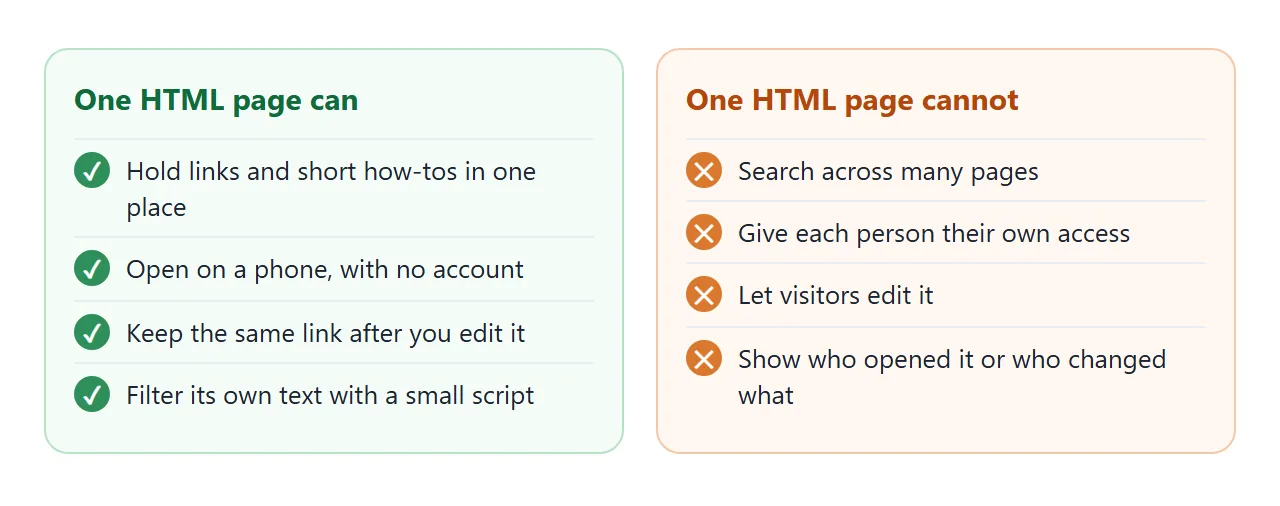
A wiki is built for many pages, many editors and search across all of them. One page is built for the short list of things your team asks for every week.
Pick it when the real problem is "nobody knows where things are", not "we need a knowledge base".
| You need | A wiki tool | One HTML page |
|---|---|---|
| Search across everything | Built for it | Only the text on that page, with a small script |
| Different access per person | Depends on the tool | No. Anyone with the link can open it |
| Several people editing | Built for it | One owner edits. Visitors cannot |
| Who opened or changed what | Depends on the tool | No |
| Set up in an afternoon | Depends on the tool | Yes, with an AI prompt |
If you need the right-hand column to say yes more often, read free Confluence alternatives for what is actually free in a wiki tool.
Make it with AI
Gather your list first: the ten links people ask for most, and three or four how-tos in plain steps. Then paste a prompt like this one into ChatGPT, Claude or Gemini.
Make a one-page team hub as ONE HTML file. Put all CSS and JavaScript
inside the file. No external images, fonts or scripts. Sections: Links
(cards), How-tos (each one opens to show numbered steps), and Who to ask
(a table). Add a filter box at the top that hides items that do not
match what I type. Make it readable on a phone. Use my list below, and
put the word REPLACE in any link address I did not give you.

MY LIST:
(paste your links and steps here)
When the page comes back, check these before you share it.
- Every link. AI tools can invent addresses. Click each one and fix or delete the ones that fail.
- Every step. Read the how-tos as a new colleague would. A wrong step costs more than a missing one.
- Nothing private. No passwords, no customer names, no salary details.
- The filter box. Type a word you know is on the page. Matching items should stay and the rest should hide.
- A date. Ask for a line such as "Last checked 1 Oct 2026". It tells readers how far to trust the page.
Here is a second page the same kind of prompt can make: a first-week checklist. In your own page, the boxes tick only on the screen of whoever uses it.
<!doctype html>
<html lang="en">
<head>
<meta charset="utf-8">
<meta name="viewport" content="width=device-width, initial-scale=1">
<title>First week checklist</title>
<style>
  * { box-sizing: border-box; }
  body { margin: 0; font-family: system-ui, sans-serif; background: #f4f6fa; color: #1d2330; line-height: 1.5; padding: 16px; }
  .card { max-width: 640px; margin: 0 auto; background: #fff; border-radius: 12px; padding: 18px 18px 14px; box-shadow: 0 1px 6px rgba(0,0,0,.08); }
  h1 { margin: 0 0 2px; font-size: 22px; }
  .sub { margin: 0 0 12px; font-size: 14px; color: #5b6472; }
  .bar { height: 10px; background: #e3e8f2; border-radius: 6px; overflow: hidden; }
  .bar i { display: block; height: 100%; width: 0; background: #2f8f5b; transition: width .2s; }
  #count { font-size: 13px; color: #5b6472; margin: 6px 0 12px; }
  h2 { font-size: 15px; margin: 14px 0 4px; color: #243b6b; }
  label { display: flex; gap: 10px; align-items: flex-start; padding: 9px 4px; border-top: 1px solid #eef1f7; font-size: 15px; cursor: pointer; }
  input[type=checkbox] { width: 20px; height: 20px; margin-top: 2px; flex: none; }
  label small { display: block; color: #5b6472; font-size: 13px; }
  input:checked + span { color: #6b7380; text-decoration: line-through; }
  .done { display: none; margin-top: 12px; padding: 10px 12px; background: #e8f7ee; border: 1px solid #b7e2c6; border-radius: 8px; color: #0f5132; font-size: 14px; }
</style>
</head>
<body>
<div class="card">
  <h1>First week checklist</h1>
  <p class="sub">Larkfield Office (fictional). Tick items as you go.</p>
  <div class="bar"><i id="fill"></i></div>
  <div id="count">0 of 7 done</div>

  <h2>Day 1</h2>
  <label><input type="checkbox"><span>Pick up your laptop<small>IT help desk, floor 1</small></span></label>
  <label><input type="checkbox"><span>Sign in to email and chat<small>Use your work account</small></span></label>
  <label><input type="checkbox"><span>Add the shared calendar</span></label>

  <h2>Week 1</h2>
  <label><input type="checkbox"><span>Book a 30-minute chat with your manager</span></label>
  <label><input type="checkbox"><span>Read the team hub page<small>Links, how-tos, who to ask</small></span></label>
  <label><input type="checkbox"><span>Submit your first expense, even a small one<small>So you know the steps</small></span></label>
  <label><input type="checkbox"><span>Tell the page owner one thing that was unclear</span></label>

  <div class="done" id="done">All done. Welcome to the team.</div>
</div>

<script>
  // Count ticked boxes and move the bar.
  const boxes = document.querySelectorAll('input[type=checkbox]');
  function update() {
    const n = [...boxes].filter((b) => b.checked).length;
    document.getElementById('fill').style.width = (n / boxes.length * 100) + '%';
    document.getElementById('count').textContent = n + ' of ' + boxes.length + ' done';
    document.getElementById('done').style.display = n === boxes.length ? 'block' : 'none';
  }
  boxes.forEach((b) => b.addEventListener('change', update));
</script>
</body>
</html>
Send it as a link
Paste the finished code into a NOS document and choose Create share link. HTML to link walks through it. The page renders as written and its scripts run, so the filter box and the how-tos work for whoever opens it.
The link opens in a browser, on a phone too, and nobody needs an account. Visitors cannot edit the page.
When a link on the page changes, edit the code in your NOS document. The address you already shared shows the new version.
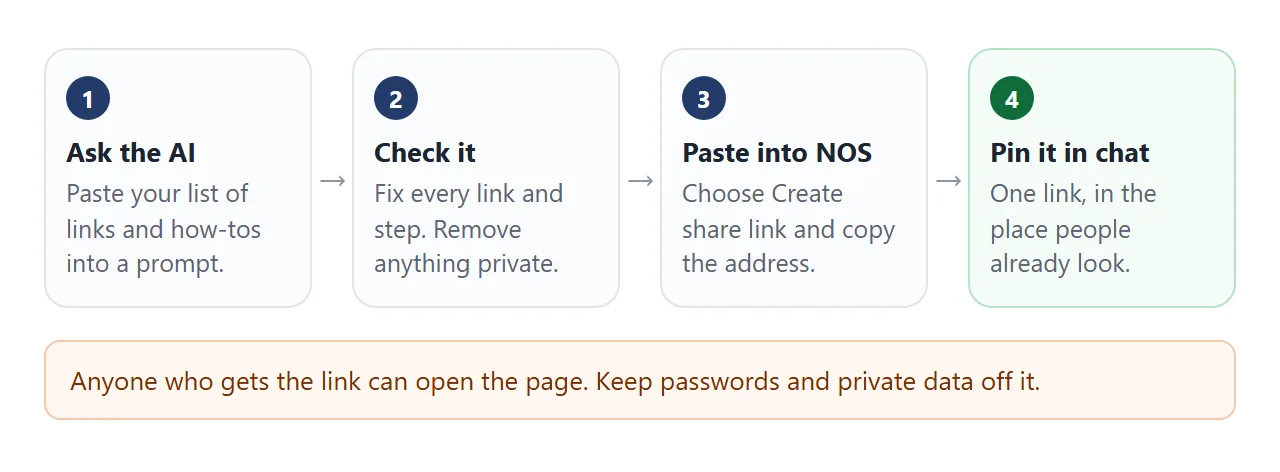
Before you post it, open the share link on your phone and tap every link once. A page that opens is not proof that each link on it works.
NOS saves the owner's changes made in View mode, such as ticks and added rows. A visitor's ticks are not saved. So a checklist on the page is a personal checklist for each reader, not a shared tracker.
Where to put the link
The page only helps if people find it in the place they already look. As of October 2026, here is what the official help pages say about the common ones.
Slack. Slack's help describes adding a link to a channel from the plus sign at the top: choose Link, enter the address, pick a folder and click Add. It says anyone in the conversation can add and remove content, on all plans.
You can also pin a message that holds the link. Send an HTML file in Slack explains why a file shows up as a card instead.
Microsoft Teams. In a channel you select Add a tab. Microsoft's developer blog describes a Website tab that loads a web page inside Teams.
The same post says some sites cannot be shown there and give a blank screen, with an Open in browser button. Test yours first. Sharing an HTML file in Teams covers the file side.
For a printed copy on the office wall, turn the link into a QR code. QR code link shows how, and the code keeps working after you edit the page.
Ways to share the hub, compared
| Way | What people get | Watch out for |
|---|---|---|
| HTML file attached in chat | A file they must open in a browser | Old copies stay in chat after you fix the page |
| Link posted in chat | The page, always the latest version | Scrolls away unless pinned |
| Slack channel link | The page, one click from the channel | Someone has to add it once |
| Teams Website tab | The page inside the channel, if the site allows it | Can show blank. Use Open in browser |
| QR code on the wall | The page, from a phone camera | Only useful where people can see it |
A link beats an attachment here because the page changes. Link vs attachment lists six differences.
Keep it from going stale
A hub nobody maintains is worse than none, because people stop trusting it. Give it one owner, a "last checked" line, and a ten-minute check once a month: click each link, read each how-to, update the date.
For a new joiner, split the checklist from the hub. Onboarding HTML templates covers one page per task and a who-to-ask page.
When the page outgrows its single owner, many pages, or needs permissions, that is the sign to move to a real wiki. The links and how-tos you gathered carry over.
When it does not work
| What you see | Cause | Fix |
|---|---|---|
| A link on the page does nothing | The AI left a placeholder address | Search the code for REPLACE and put the real address in |
| Filter box shows nothing | The words you typed are not on the page | Clear the box, or add the missing item |
| Colleagues cannot edit the page | Visitors cannot edit a NOS share link | They tell the owner in chat, and the owner edits |
| Someone outside the team opened it | The link was forwarded | Anyone with the link can open it. Move private items elsewhere |
| Blank page in a Teams Website tab | The site cannot be shown inside Teams | Select Open in browser, or post the link in the channel |
| Images are missing | Outside images are blocked | Ask for shapes or emoji drawn inside the file |