In short
This download is a complete, manually maintained event calendar in one HTML file.
Visitors can combine a keyword, an exact date, and a category, then open the full facts for one matching event.
A no-match search clears the previous selection and explains how to return to the schedule.
The example does not register attendees, sell tickets, or synchronize another calendar.
We built a fictional Harbor Studio calendar to finish one specific reader task: browse several upcoming events, narrow the list, and read the full details without leaving the page. The five events, venue, rooms, and descriptions are invented. There are no attendee names, contact records, or real bookings.
What does the finished event calendar include?
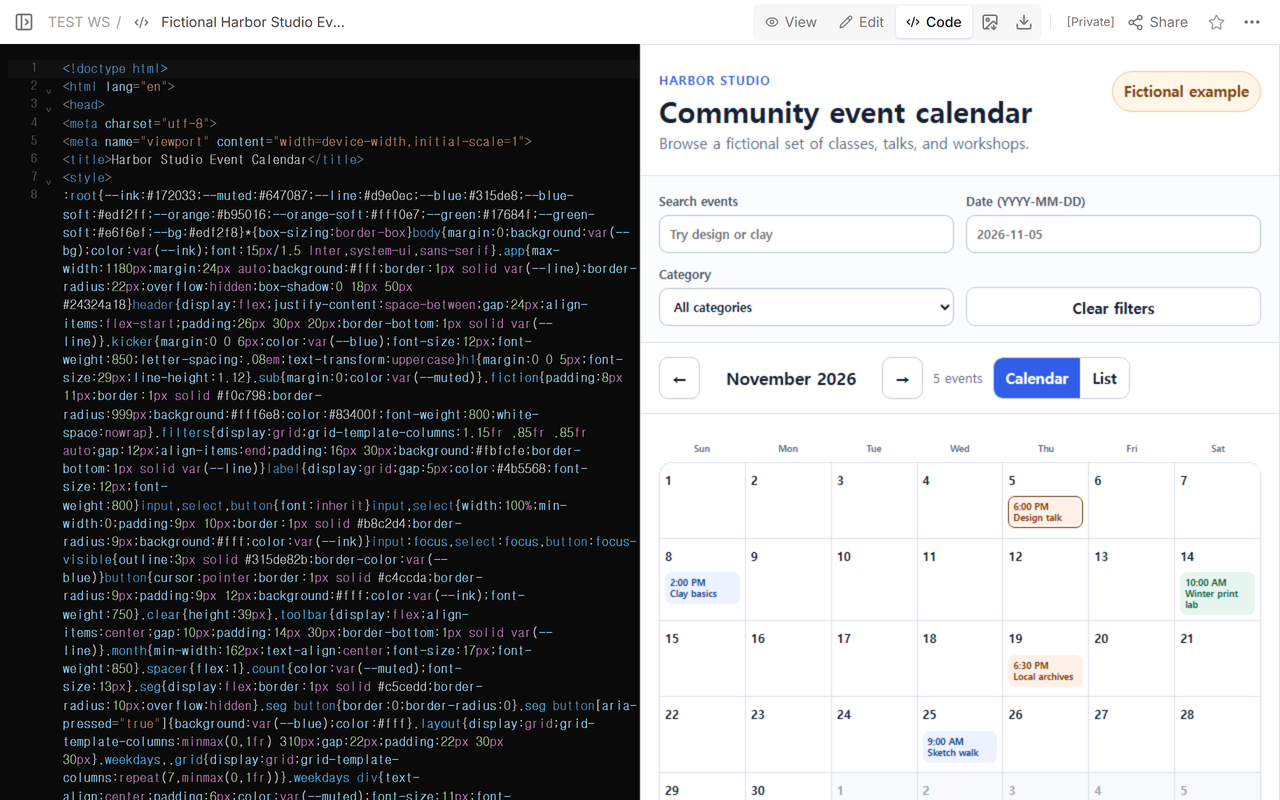
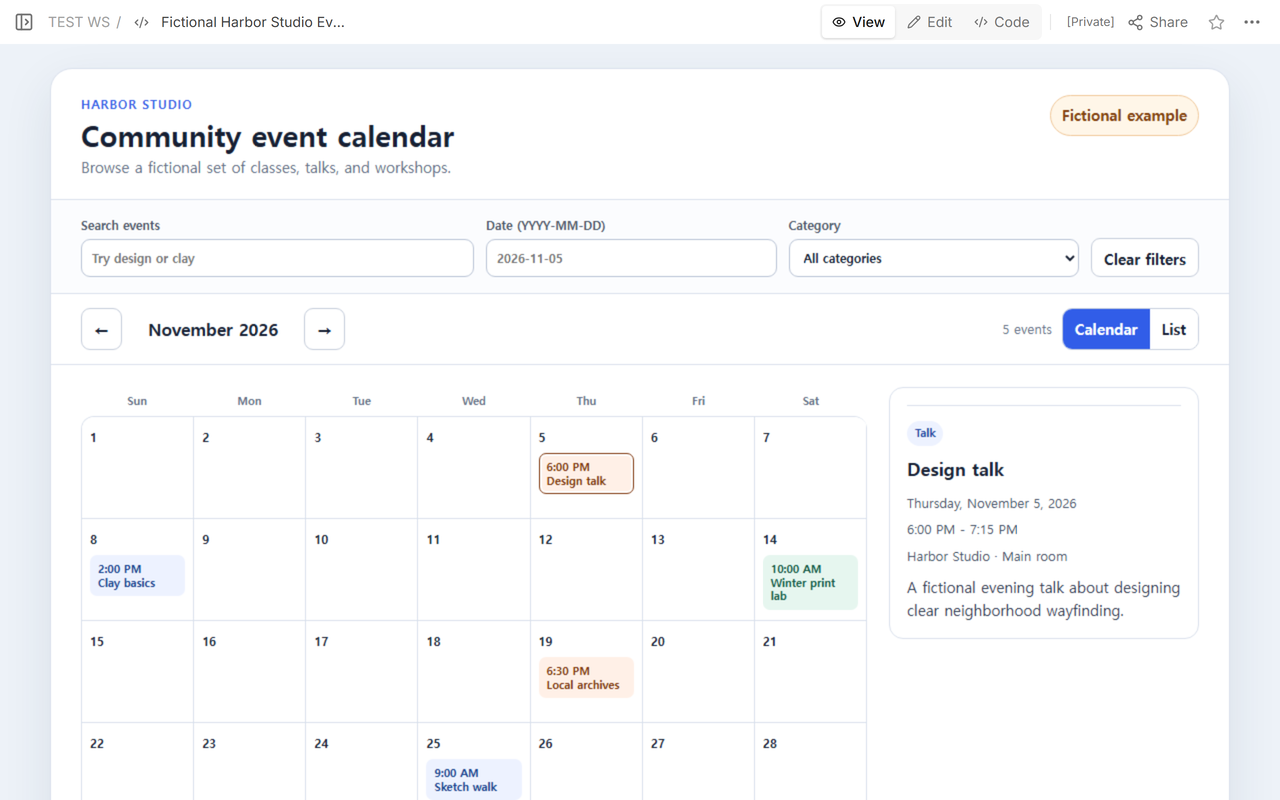
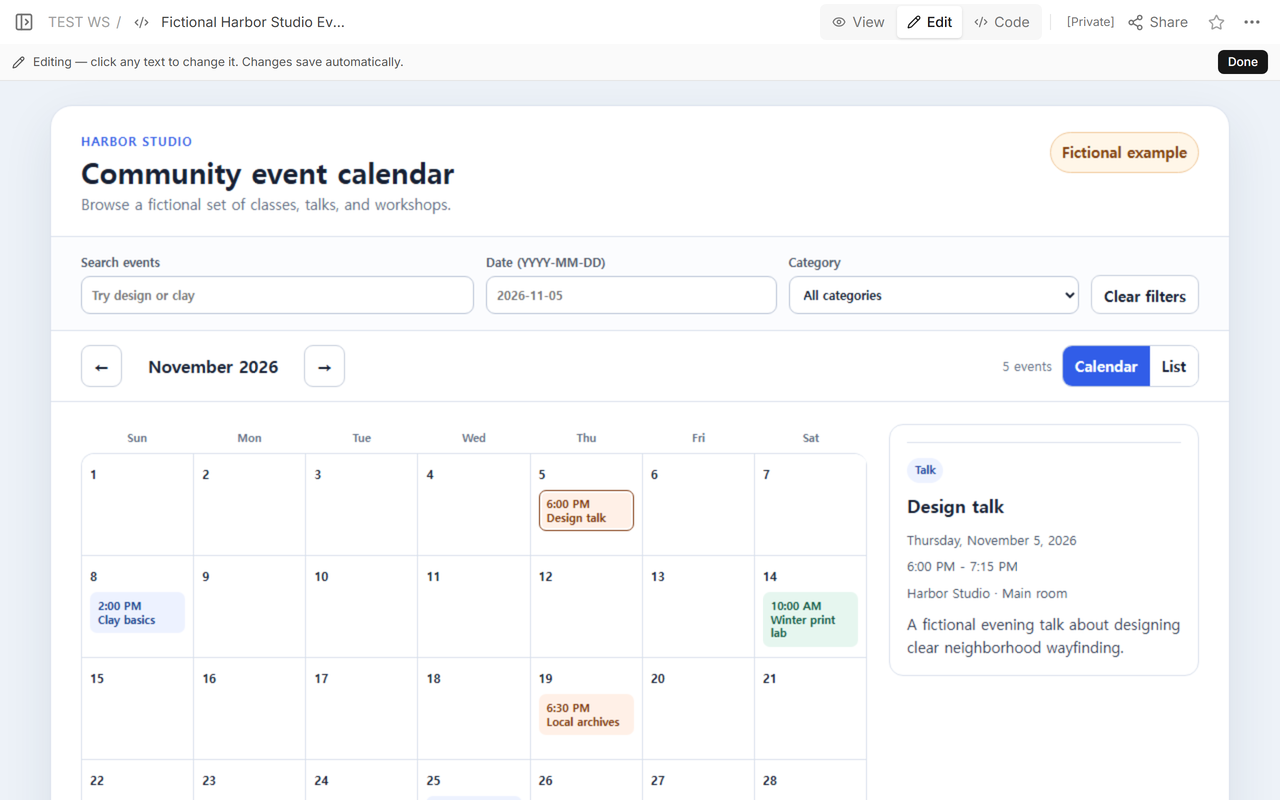
The first screen shows November 2026 with five fictional events. Every calendar card has a start time and short title. The selected-event panel adds the category, full date, start and end time, place, and description. That split keeps the month scannable while still giving one event enough room for useful facts.
The example is intentionally manual. The event records live in the downloaded HTML file, so the person who maintains the page edits that file when a date, place, or description changes. The footer states that the page has no registration, ticketing, external calendar synchronization, or live inventory.
Which event facts should you keep in each record?
Each object in the events list has seven fields: id, date, category, title, time, place, and description. In the finished example, the Design talk record reads:
- Date: 2026-11-05
- Category: Talk
- Title: Design talk
- Time: 6:00 PM - 7:15 PM
- Place: Harbor Studio · Main room
- Description: a fictional evening talk about designing clear neighborhood wayfinding.
These are not universal event fields. They are the fields this download actually displays. Connecticut’s official event-page training separately lists a title, description, event date, start time, end time, event type, and location among its editable fields. That current official example supports keeping those facts distinct instead of hiding them in one paragraph.
How do the date, search, and category filters work together?
We opened the reader address and entered design, 2026-11-05, and Talks. The result count changed from five events to one. The remaining card was Design talk, and its full detail panel stayed visible.
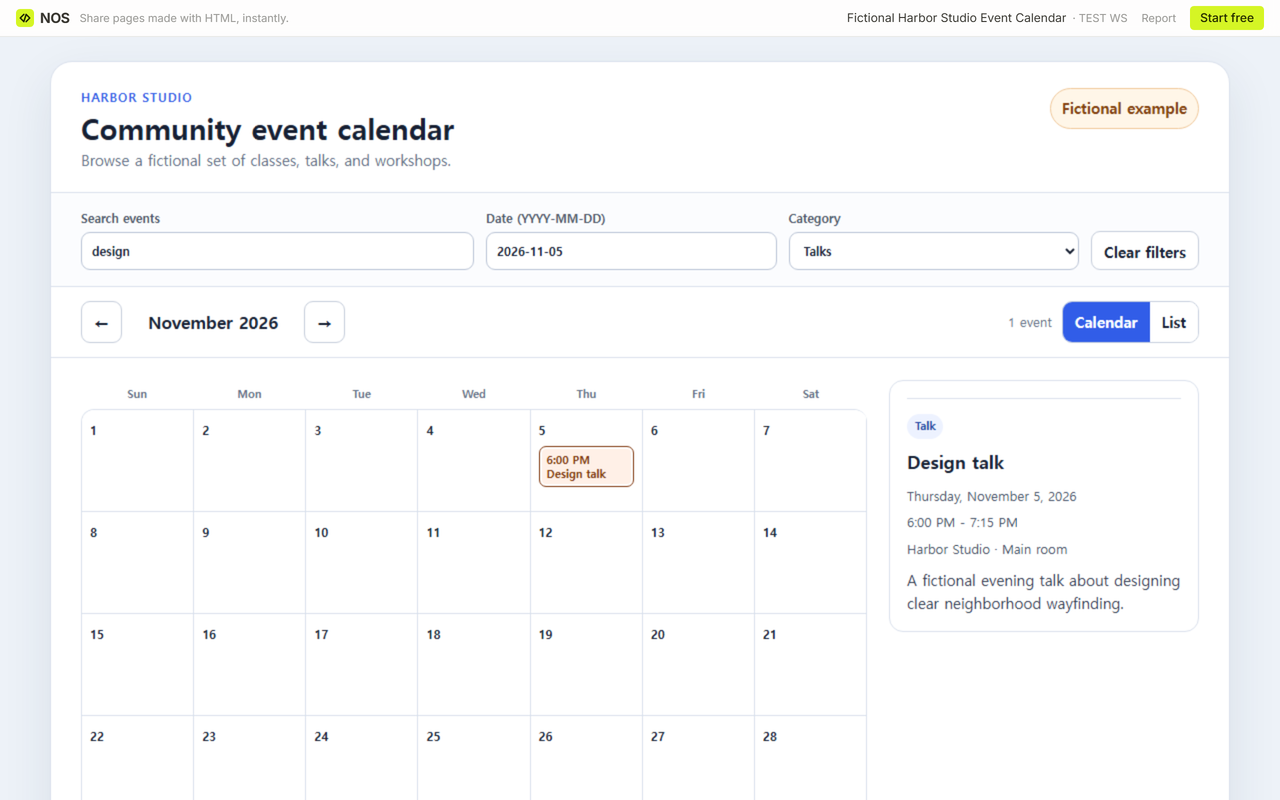
The keyword search checks the title, place, description, and category text. The date field expects the visible YYYY-MM-DD format. The category menu uses the same category values stored in the event records. Rutgers’ current event-calendar documentation also describes date and keyword search plus list, month, and day views; this example implements the smaller combination shown in the screenshots: keyword, exact date, category, calendar, and list.
Filtering does not change the saved schedule. It changes which records are visible in the open page. Clicking Clear filters restores November 2026, all five fictional records, and the first matching event detail.
What should happen when no events match?
We entered concert on the same reader page. The count changed to zero and the calendar showed “No events match these filters.” The previous Design talk details disappeared. The side panel returned to “Choose an event to see its full facts,” so the page did not leave a stale date or place beside an empty result.
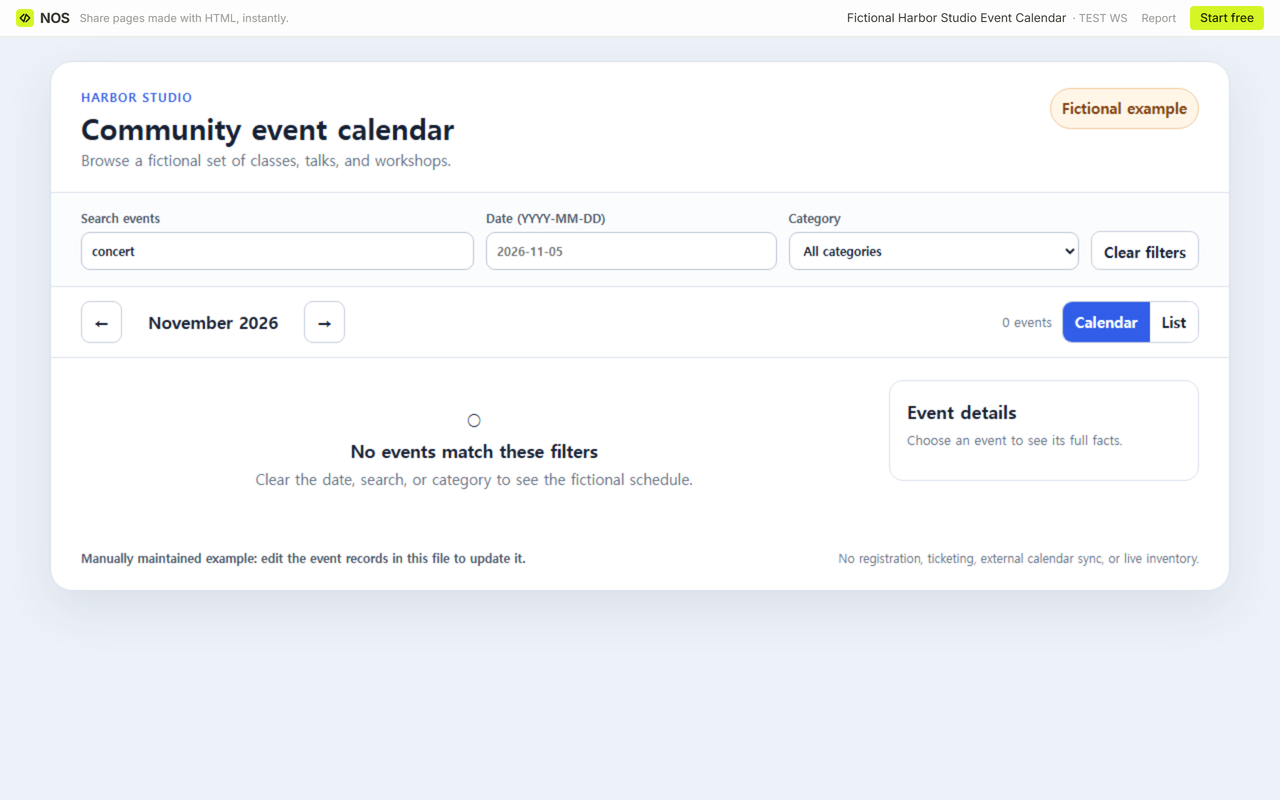
The wording is part of the download. Search for No events match these filters to replace the heading, then replace the sentence immediately below it. Keep the message tied to the controls that caused the empty result. This example points to the date, search, and category fields because those are the three filters on the page.
How do you replace the fictional schedule with your own?
- Replace the event objects. Find
const events=[. Keep one object per event and give every object a uniqueid. - Write dates consistently. Use
YYYY-MM-DDin eachdatefield. The filter compares that value with the date typed by the reader. - Keep the category values aligned. If you add
musicto an event, add a matching option to the Category menu. Change both the stored value and the visible label when you rename a category. - Replace places and descriptions. The
placeappears in the detail panel and list view. Thedescriptionappears in the detail panel and is also searchable. - Update the visible month. Change the starting year and month in the
stateobject when your schedule no longer begins in November 2026. - Rewrite the empty state. Replace both no-match sentences if your filters or reader action are different.
- Keep the boundary honest. Remove the no-registration sentence only after the page is connected to a real system and that complete action has been tested.
After editing, test at least one exact event, one partial keyword, every category, one date with no event, the previous and next month buttons, Calendar and List, and Clear filters. Then narrow the browser. In this file, the detail panel moves below the calendar on a narrow screen instead of forcing a horizontal scroll.
How did we check the editable and reader versions?
We opened Edit on the existing Harbor Studio page after the new source was saved. The screen showed the revised search, date, and category controls and the complete Design talk detail. Edit did not turn the filter into a registration form; the example remained the same manually maintained HTML page.
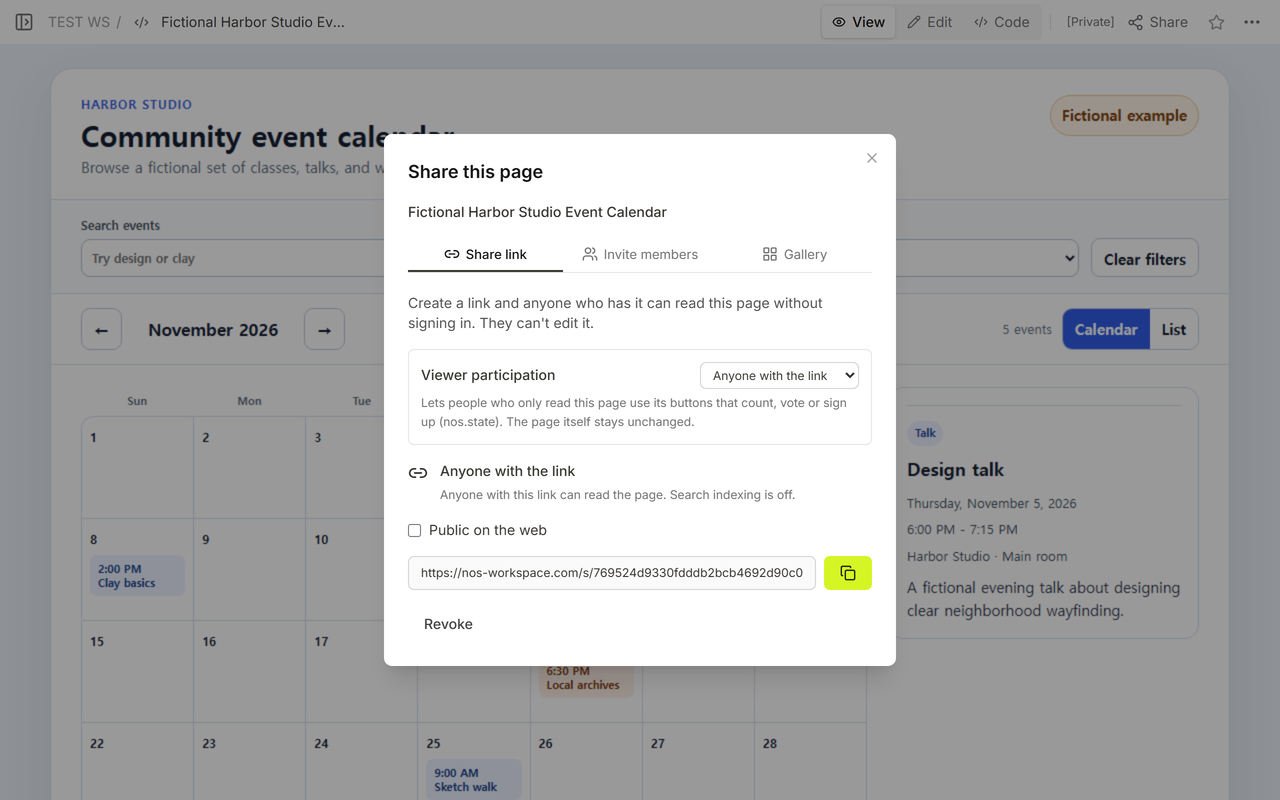
We then opened Share on that page. The captured panel said that anyone with the link could read without signing in and could not edit; search indexing was off in the captured state. The address in that panel is the reader address used for the filtered and empty-state checks above.
When not to do this
- Do not use it as proof that somebody registered, paid, or reserved a place. The file sends no registration.
- Do not expect an outside calendar or ticket inventory to update it. The records change only when an editor changes the HTML.
- Do not place private attendee data, access codes, or internal contact records in the public file.
- Do not let several editors maintain separate copies. This download has no conflict handling or shared data source.
- Do not keep a past event visible just because it is still in the array. Review the records and visible starting month before sharing the page.
Using NOS for the event calendar
NOS displayed the complete HTML in Code, rendered the controls in View and Edit, and provided the reader address opened in this test. The same reader address showed both the one-result filter state and the zero-result state. Check the current NOS pricing page if plan details matter. Keep the maintained event facts in the downloaded file unless you deliberately connect and verify another system.
Related event guides
Use Calendar Invite Link when the task is distributing one event with an add-to-calendar file. Use Event Recap Website for the record people read after an event. Use Newsletter Content Calendar Template for editorial planning rather than a public multi-event browser.