In short
Give every past issue a title, date, topic, short summary, and destination.
List the newest issue first, then add only the filters that help with a longer archive.
Test the public page with a broad topic and a narrow search before sharing the archive link.
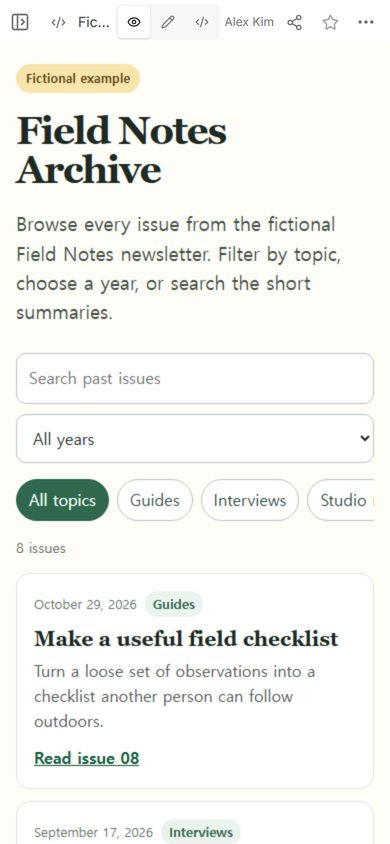
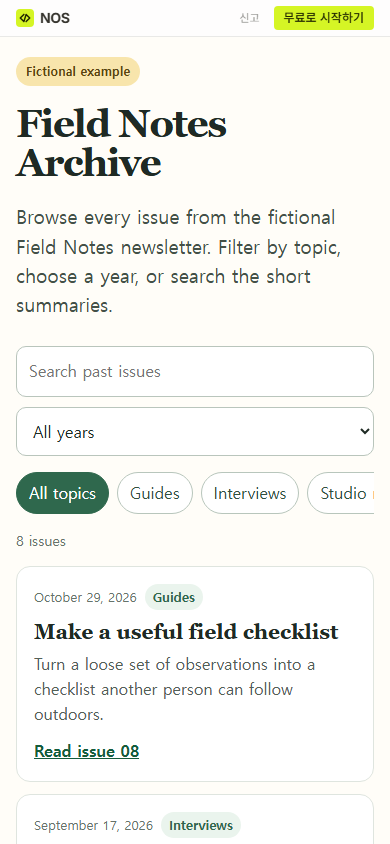
We built a fictional archive for a newsletter called Field Notes. The finished page holds eight issues from 2025 and 2026, split across Guides, Interviews, and Studio news. A reader can see the full list, narrow it to four Guides, or search “historian” to reach one matching issue.
What should a newsletter archive page include?
Start with the issue records, not the page design. For each issue, collect five items:
- the publication date;
- a title that identifies the subject;
- one topic label;
- a one-sentence summary;
- the link to that issue’s web version.
Those fields are enough to scan a list and recover an issue whose exact title has been forgotten. Keep the label set small. The Field Notes example uses three topics for eight issues, so each label groups more than one item instead of becoming another title.
Write the short summary for retrieval. “September update” gives no clue later. “A fictional conversation about choosing landmarks before drawing details” gives a reader words such as “map,” “illustrator,” or “landmarks” to recognize.
How do you organize a newsletter archive?
Put the newest issue first. That makes the archive useful as a current landing page without hiding older material. Use the full date rather than an issue number alone, because a date still makes sense to somebody who did not follow the series from the beginning.
Then add a year selector if the list crosses years. Add topics only when the same labels can be used consistently. Search is the final layer: it helps when a reader remembers a phrase from a summary but not the issue date.
The public version below shows all eight fictional issues before any filter is chosen. The controls remain above the results, and the first card exposes the date, topic, title, summary, and issue link in that order.
How do readers find old newsletter issues by topic?
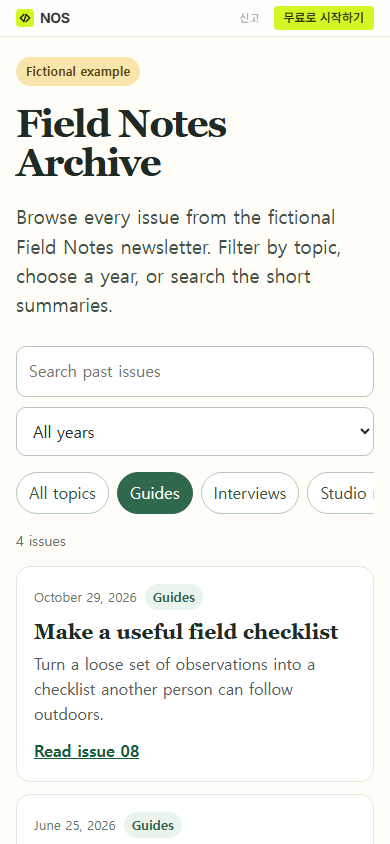
Make each topic button change the result count and the visible cards. The selected state also needs to remain visible. In this example, choosing Guides turns that button green and changes the count from eight issues to four.
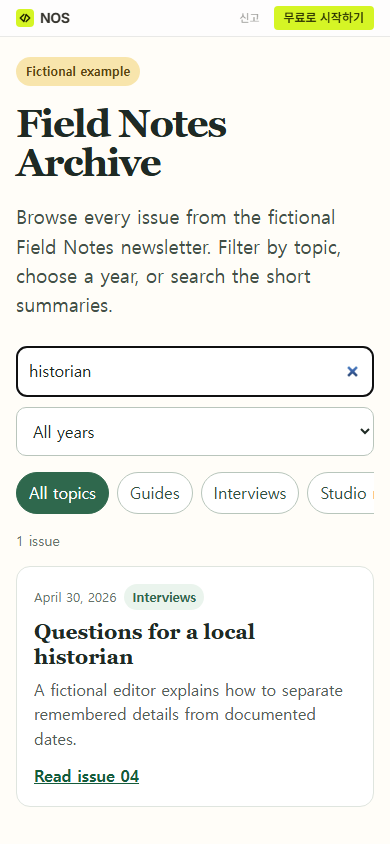
A text search should look through the useful words readers can see: titles, summaries, dates, and topics. We entered “historian” on the public page. The archive returned one issue, “Questions for a local historian,” with its summary and link still visible.
How do you share a newsletter archive?
Open the public link before you place it in a newsletter footer, profile, or welcome message. Check the heading first, then try one topic and one search term. Open at least one issue destination as well; a polished index cannot repair a missing or incorrect issue link.
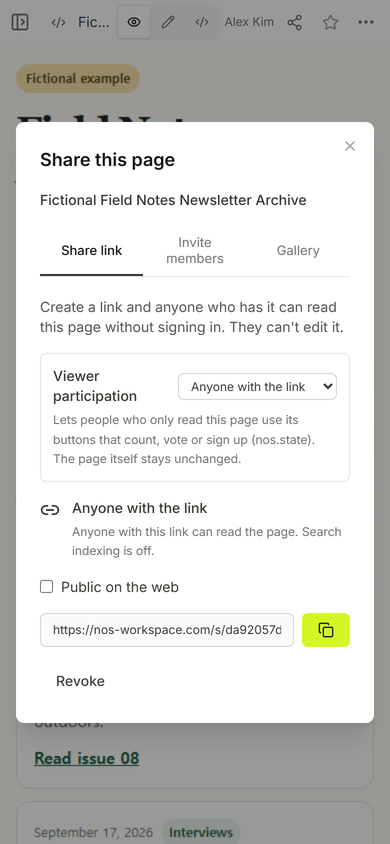
The Share panel for this example says that anyone with the link can read the page without signing in and cannot edit it. It also shows that search indexing is off. Those settings fit a link-only fictional example. Choose the visibility that fits the real archive before you distribute its address.
How do you update the archive when a new issue is published?
Add one new record at the top, reuse an existing topic when it fits, and test the count again. Edit the visible words for a small correction. Open the page structure when you need to add another filter or change how issue records behave.
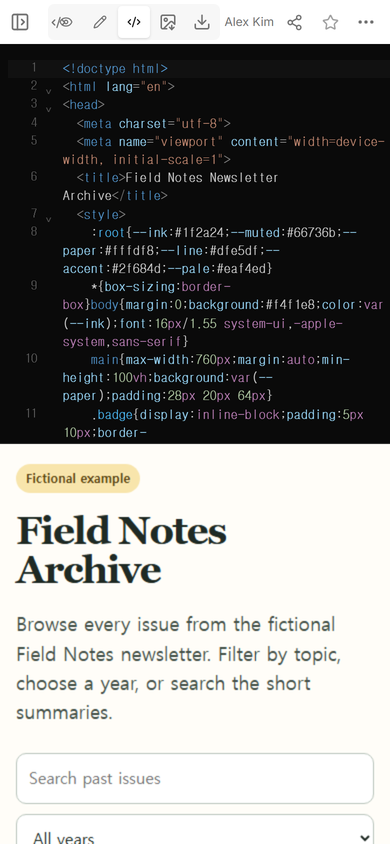
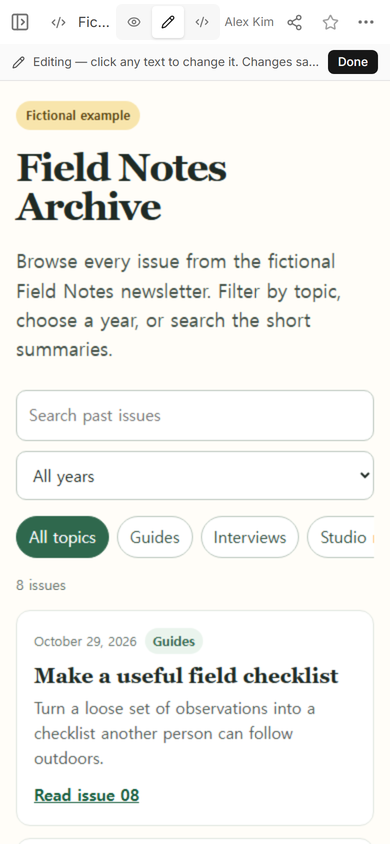
We opened Edit mode on the same Field Notes page. At phone width, the search controls and first issue stayed in view, and the page showed the Done control. That is the point to select a visible sentence for a small correction; use Code mode when the archive fields or filter behavior need to change.
Keep a small update routine: add the issue, confirm its date and topic, test its destination, run one filter, and open the public archive. That check protects the part readers actually use.
Download the complete newsletter archive example
Download the fictional Field Notes archive HTML. It contains the eight issue cards, year selector, topic buttons, and text search shown in the screenshots. Replace the fictional records and hash destinations with your own issue links before sharing it.
If the issues themselves still need web versions, start with Digital Newsletter or the web-version section in HTML Email Newsletter. Use the Newsletter Content Calendar Template earlier in the process when the next issues still need topics and sources.
When not to do this
Do not treat a static archive page as an email service. It does not manage subscribers, send campaigns, schedule delivery, record consent, or provide a paywall. Keep those jobs in the systems that already own them, and use the archive as the reading index.
Where NOS fits
NOS can hold the finished archive HTML, show it in View mode, and provide the Share panel used for this fictional example. The reader-facing job remains narrow: one address opens the archive, while the issue links lead to the separate published issues.