In short
A print job ticket is the production record that travels with one defined job. Identify the exact file and approved proof reference before recording the physical specification. Then carry the same job number through print, finishing, inspection, packing, and delivery. Keep the ticket separate from the price quotation, customer legal approval, and machine settings.
Download the completed fictional print job ticket
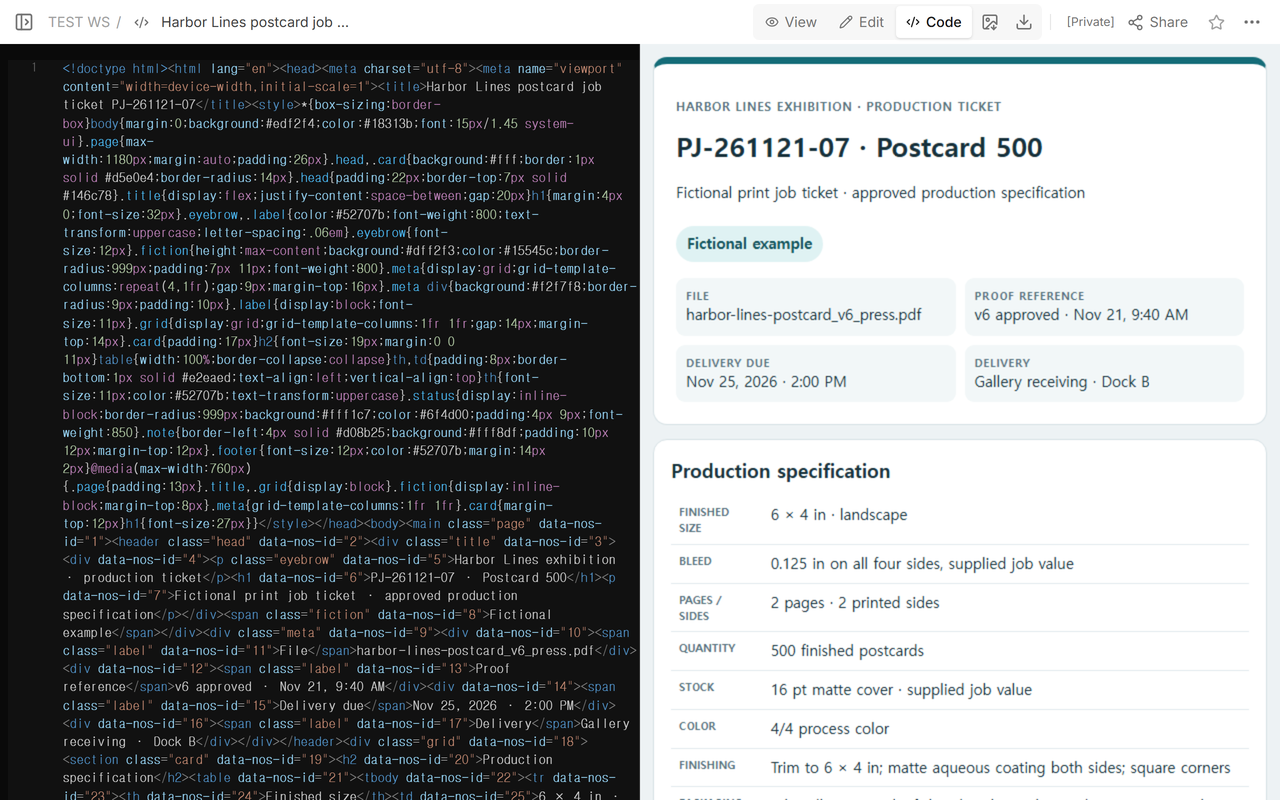
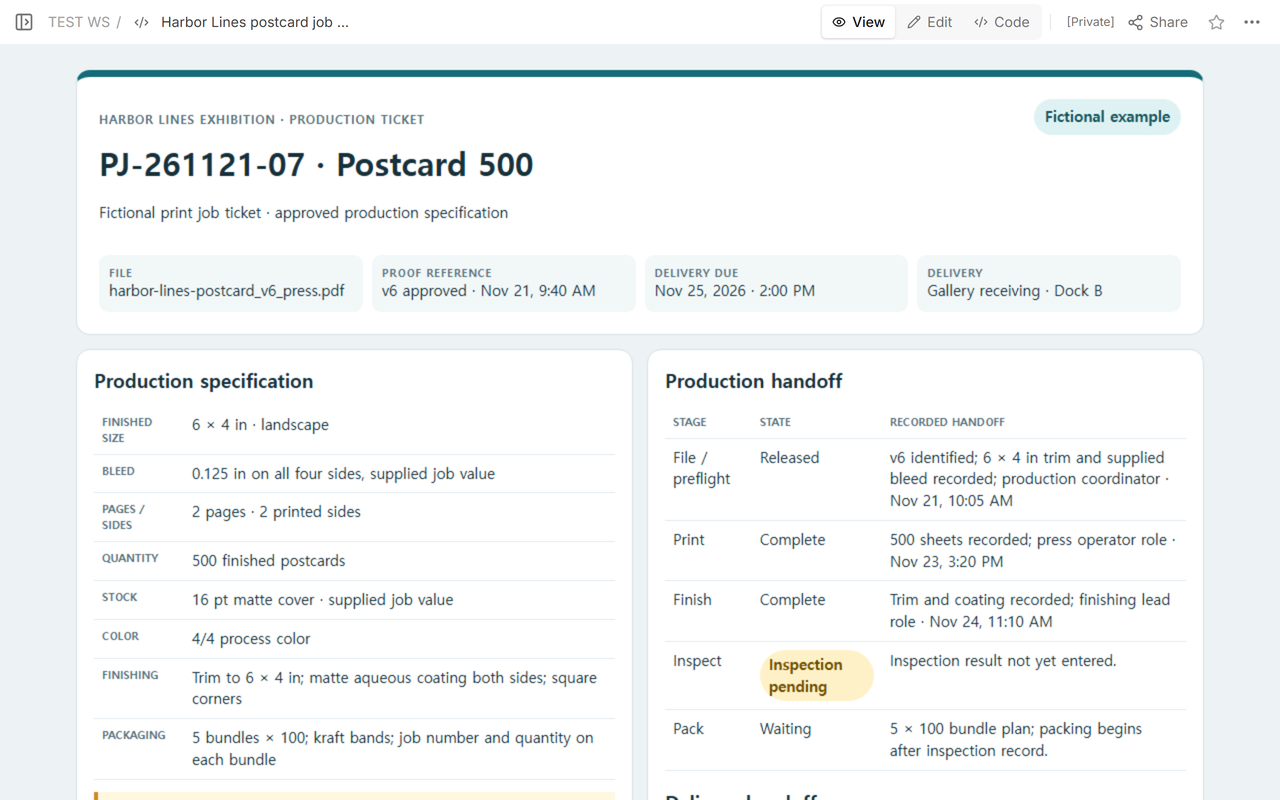
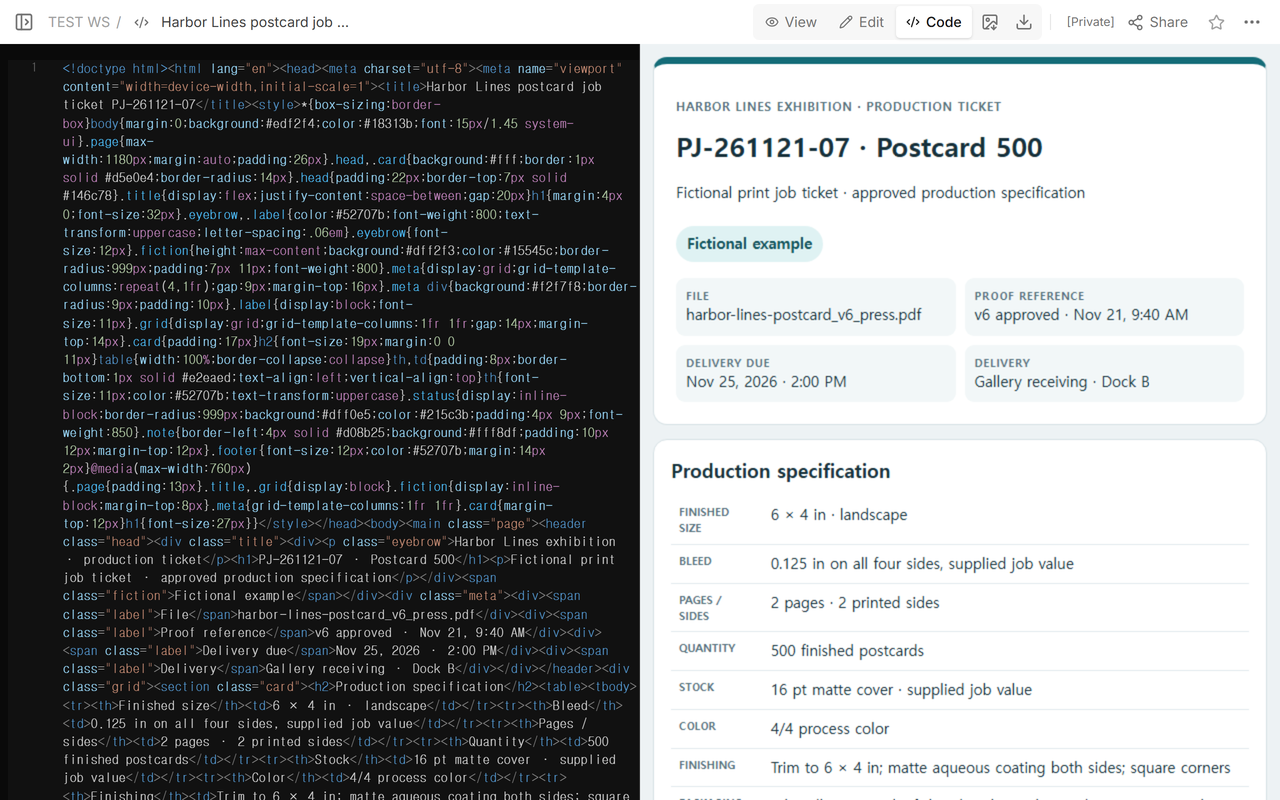
The download is a finished example, not a blank shell. PJ-261121-07 records a fictional run of 500 two-sided exhibition postcards from harbor-lines-postcard_v6_press.pdf. It includes the v6 proof reference, 6 × 4 inch finished size, supplied 0.125 inch bleed, 16 pt matte cover, 4/4 process color, coating and trim, five bundles, and a delivery deadline. The production trail ends with an inspection sample and packing count.
What belongs at the top of a print job ticket?
Give the job a unique number and a plain-language description. Add the customer or internal owner where your workflow requires it, then identify the file version, proof reference, requested quantity, and delivery deadline. Those fields answer the first questions at every handoff: which job, which version, how many, and when is it due?
Wye's public job ticket guide describes the ticket as the source of production information and lists a job number and description, customer, salesperson, production specifications, special instructions, and delivery instructions among its typical contents. This example uses that recordkeeping idea without treating one company's field list as a universal production rule.
How do you lock the file and proof trail?
Write the complete production filename, not “latest” or “final.” Record the matching proof reference and its approval date or other identifier used by your organization. The Harbor Lines example pairs the v6 press file with the v6 proof reference. A later reader can see that the print and inspection notes refer to the same version.
Do not let the ticket silently become the customer's legal approval. If your organization requires a signed proof, contract, purchase order, or release, keep that document in its required system and reference it according to policy. The job ticket carries the production identity; it does not create authority that was never granted.
Which production specifications should stay together?
Record the finished size and orientation, bleed supplied with the artwork, page count or printed sides, finished quantity, stock, color, finishing, packaging, and delivery destination. Keep units explicit. “6 × 4 in finished” and “0.125 in bleed on all four sides” are different values serving different purposes; a bare “6 × 4” or “with bleed” invites interpretation.
Canon's PRISMAsync Remote Manager documentation shows that job information can include job number, job name, customer, quantity, paper, requested date, flat pages, and color information. Field names vary by workflow and product. Use the fields your production system and equipment documentation require, and verify that the ticket's terms mean the same thing to preflight, print, and finishing staff.
How do production handoffs work?
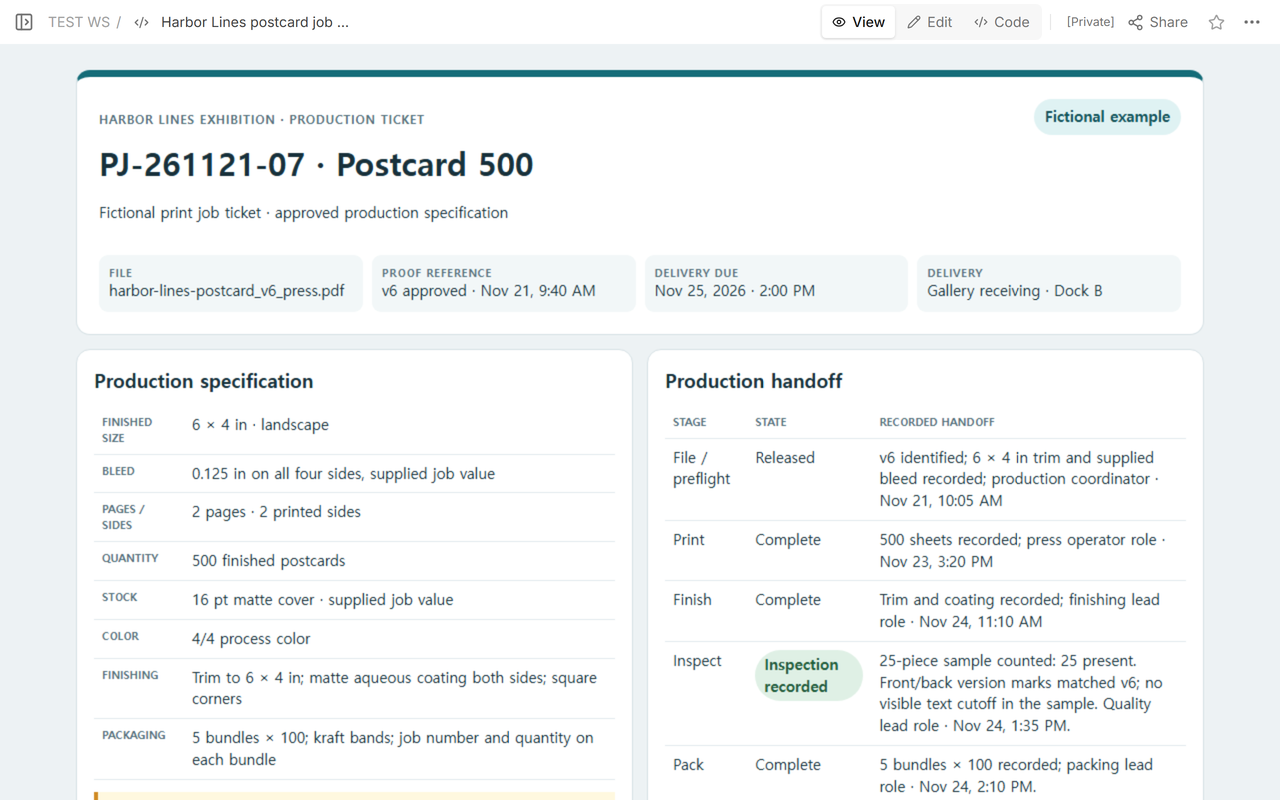
Use one row per stage and name the state, responsible role, recorded time, and concrete evidence passed forward. In the example, file/preflight releases v6, print records 500 sheets, and finishing records trim and coating. Inspection does not begin as “complete”; it remains pending until a sample result is entered. Packing waits behind that state.
This sequence is a record flow, not an equipment-control program. The ticket does not choose press profiles, ink limits, imposition, cutter settings, coating parameters, or other machine values. Those belong in qualified operating procedures and the actual equipment workflow.
What should an inspection entry say?
Record the sample and the observations actually made. The fictional quality-lead entry says 25 pieces were counted, the front and back version marks matched v6, and no visible text cutoff was seen in that sample. It does not claim that every postcard was examined or that the ticket certifies a defect-free order.
Keep the claim no wider than the check. “No visible text cutoff in the 25-piece sample” is traceable. “All 500 perfect” would not be supported by that sample.
How do you close packing and delivery?
Make the packed quantity reconcile with the finished quantity. This example records five bundles of 100 for a 500-piece job, with the job number and quantity on each bundle. It then names Gallery receiving, Dock B, and the recorded delivery deadline. If the count does not reconcile, keep the exception open instead of rounding the record into agreement.
The delivery field is an operational destination and deadline. It is not a freight quote, transfer of legal title, or proof of receipt. Add carrier details, tracking, delivery signature, or custody fields only when the real workflow requires them.
How does this differ from a quotation or production schedule?
The printing quotation template structures scope and pricing before production commitment; it should not be used as the live shop-floor status record. The newsletter production schedule template coordinates dates, owners, dependencies, and release timing across an editorial cycle. This print job ticket stays narrower: it carries one approved version and its physical specification through production handoffs.
How do you reuse the template?
- Replace the fictional job number, description, file, proof reference, and delivery details.
- Enter the confirmed finished size, bleed, pages or sides, quantity, stock, color, finishing, and packaging.
- Keep the approved version reference unchanged as the job moves through stages.
- Record each handoff with its state, responsible role, time, and evidence.
- Describe inspection by sample and observation; do not widen it into an unsupported guarantee.
- Reconcile printed, inspected, packed, and delivered counts under your actual workflow.
When not to do this
Do not use this template as a price quotation, purchase order, contract, customer legal approval, color certification, equipment setup, or automated press instruction. Do not replace a controlled management system, regulated production record, or printer-specific job ticket when one is required. If a file version, approval, material, count, or delivery instruction is unresolved, stop the handoff under your real escalation process rather than filling the gap with a plausible value.
Where NOS fits
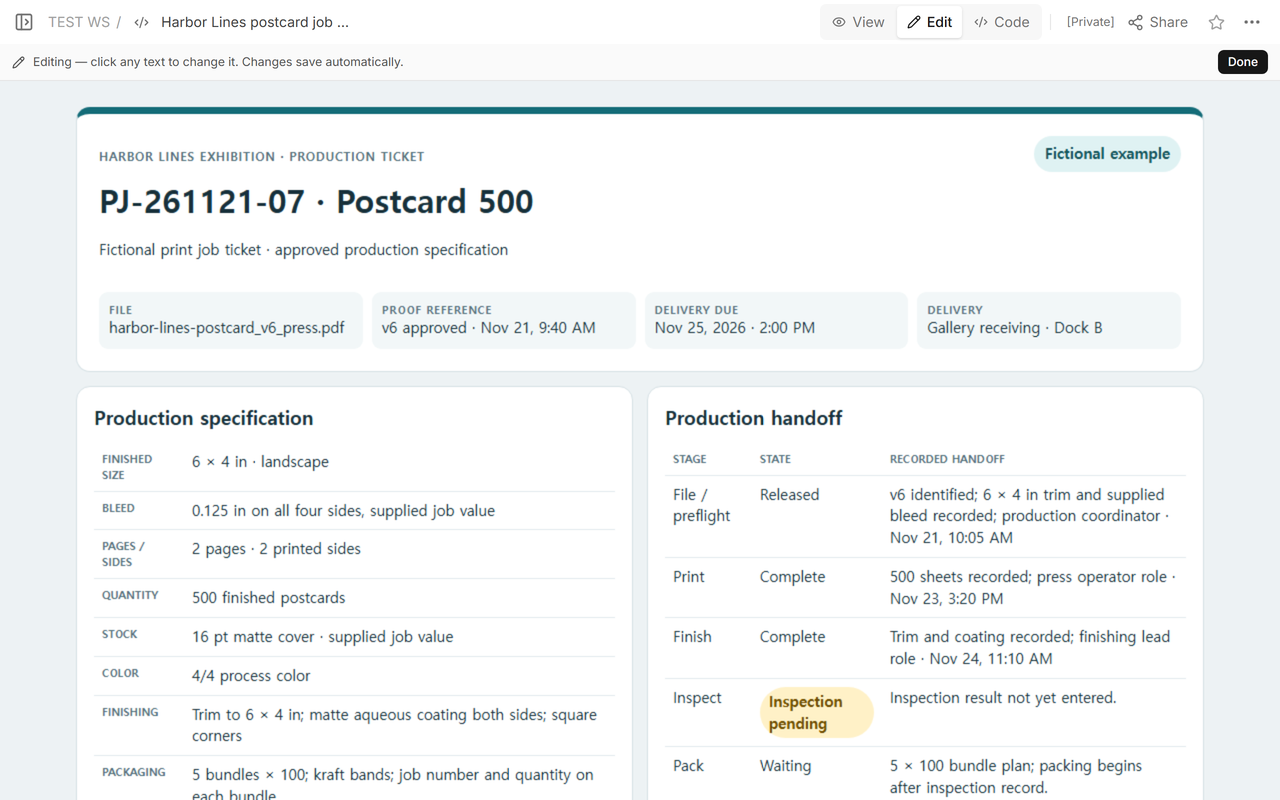
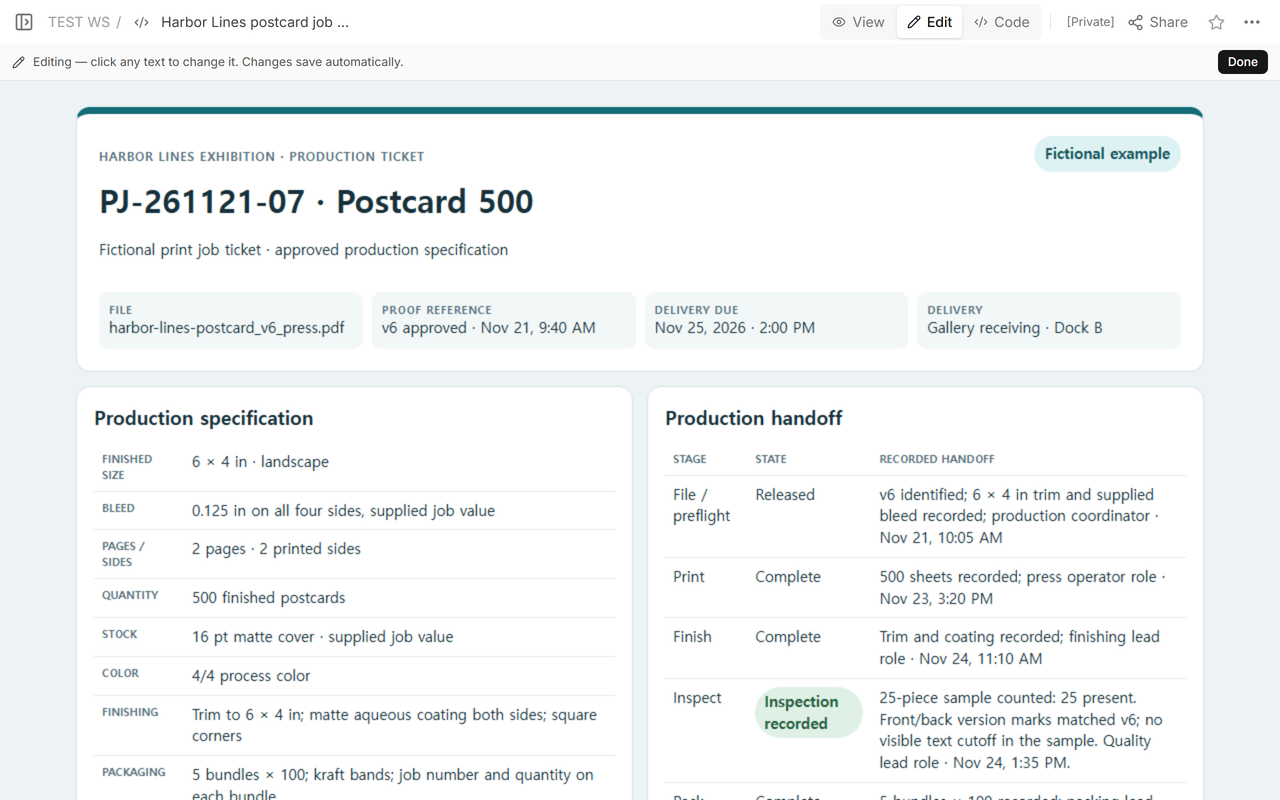
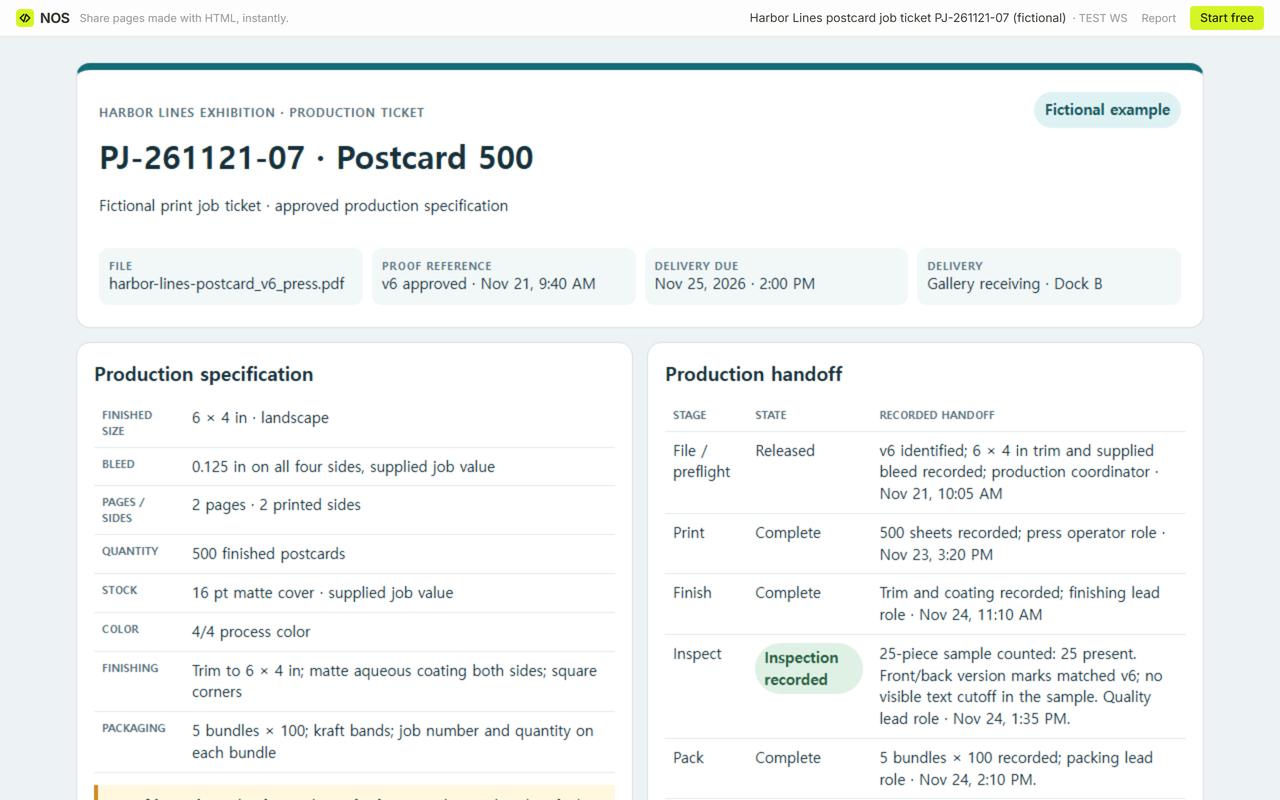
NOS can display a self-contained print job ticket in Code, View, or Edit and provide a reader link. In the tested example, the inspection and packing states were updated on the existing page and the same reader address showed the new record. NOS does not approve the proof, calculate a quote, create customer consent, choose equipment settings, or verify the physical print run.