In short
Qwen gives you a web page as code. Save it as an HTML file on your computer and double-click it for a private preview in your browser. Nobody else can see that copy.
Before you share, look for anything the code names but can't contain, like your photo. A file name such as maya-photo.jpg turns into a broken image once the page is online.
To get a link, paste the code into a host that renders HTML, fix what broke, and copy the share link. Later changes, like a new availability note, go in on the same page, so the link you sent keeps working.
We built a one-page portfolio for a fictional product designer, Maya Ortiz, in the shape a chat answer usually takes: one HTML file with the styles inside. We wrote the code ourselves and did not run Qwen for this test. The page named a photo file we never had, just like a draft that says "add your photo here." We previewed it on our computer, pasted it into NOS, fixed the photo, shared the link, and later changed the status line from "Open to freelance work" to "Booked until March 2027."
What Qwen Chat Web Dev gives you
Qwen Chat has a Web Dev mode. You describe a page, and it writes the HTML, CSS, and JavaScript for it (The Decoder, May 2025). Whatever you see inside the chat, the thing you take away is the code. That code is the page. A link to your chat is not a link to the page.
Copy the whole answer, from <!DOCTYPE html> down to </html>. If the answer stops halfway or says "rest unchanged," ask for the full file before you go further.
How to preview HTML in Chrome
Paste the code into a plain text editor and save it as portfolio.html on your desktop. Then double-click the file. Chrome, or your default browser, opens it as a page.
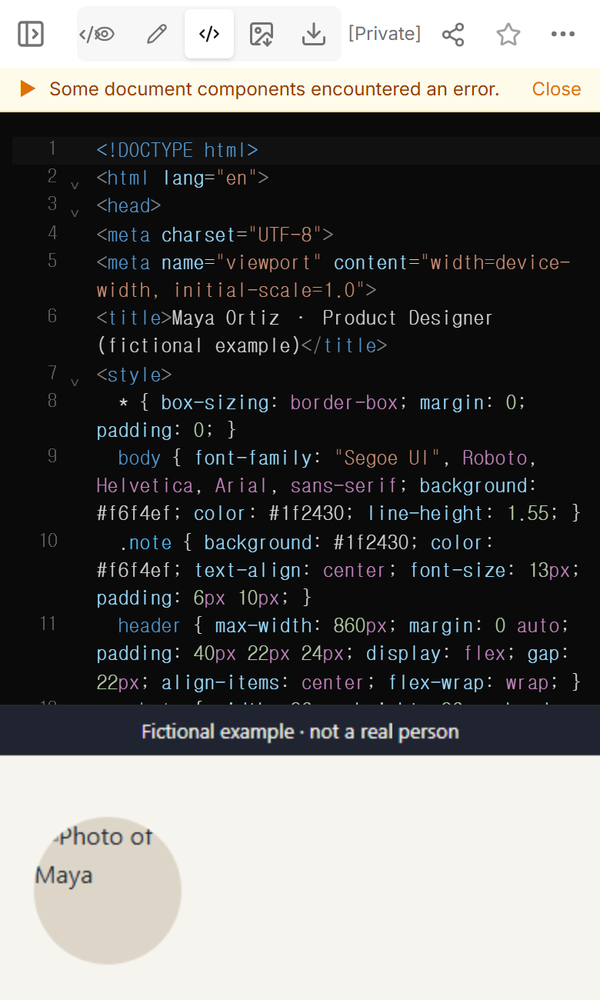
Use this step to catch problems early. Ours showed one right away. Where the photo belonged, there was a beige circle with the words "Photo of Maya."
Read the broken spot as a clue. The words in the circle are the image's alt text. Browsers show it when they can't load the picture.
Why the photo breaks once the page is online
An HTML file can point to a picture by file name, but it does not carry the picture. On your computer, the page looks in its own folder. Online, there is no folder with your photo in it. The same goes for logo.png, resume.pdf, or any other file the code names.
We pasted the page into a new NOS document as it was. NOS rendered it below the code and put a yellow notice at the top: "Some document components encountered an error." The empty photo circle came along too.
Three ways to fix a missing image
- Point to a picture that is already online. If your photo has a public web address, put that full address in the image tag. Only use one you control, so it does not vanish later.
- Drop the photo. Replace the image with your initials in a colored circle. That needs no file at all.
- Ask Qwen for a no-file version. Something like "Replace the photo with my initials in a circle, keep everything else, and send the full file."
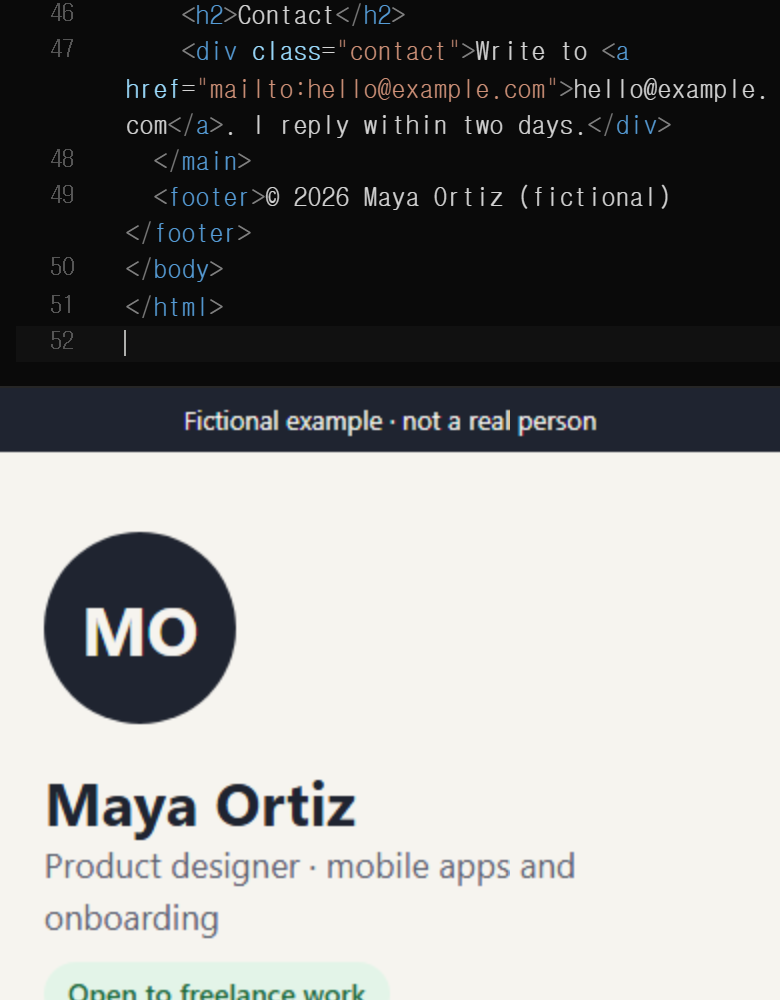
We used initials. On the Code screen we selected all the old code, pasted the corrected file, and the preview updated. The circle now says MO, and the error notice is gone. NOS saved it as a new version.
Show the change we made
Before:
<img class="photo" src="maya-photo.jpg" alt="Photo of Maya">

After:
<div class="avatar">MO</div>
Added to the style tag:
.avatar { width: 96px; height: 96px; border-radius: 50%;
  background: #1f2430; color: #f6f4ef; display: grid;
  place-items: center; font-size: 34px; font-weight: 700; }
You can download the fixed portfolio file and use it as a starting point.
How to turn HTML code into a link
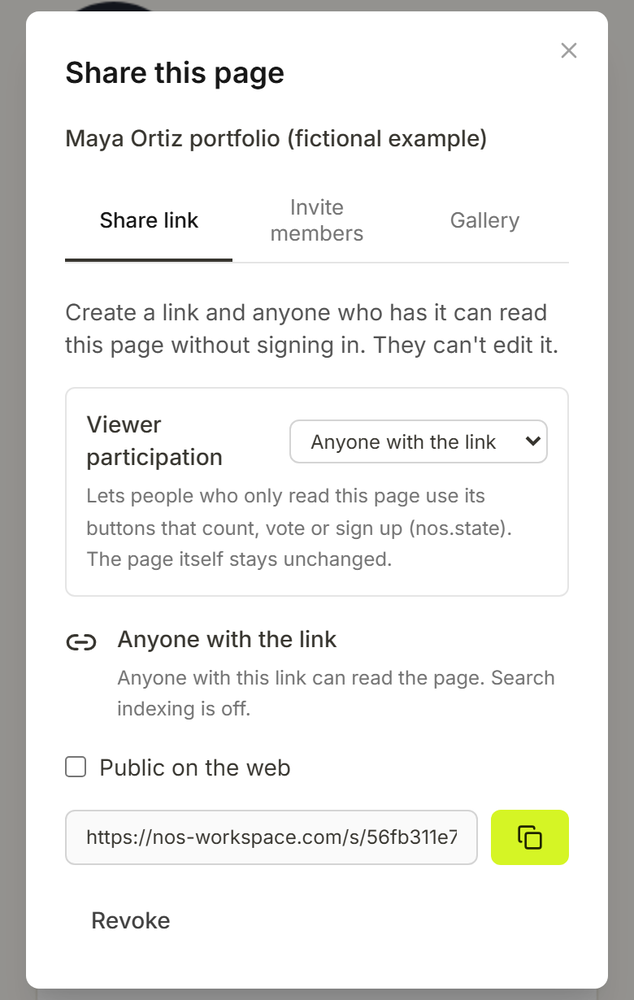
In NOS, the Share button opens a panel with a link that anyone can open without signing in. They can read the page but can't edit it. The panel also says search indexing is off, so a portfolio you send to a few clients won't show up in search by itself.
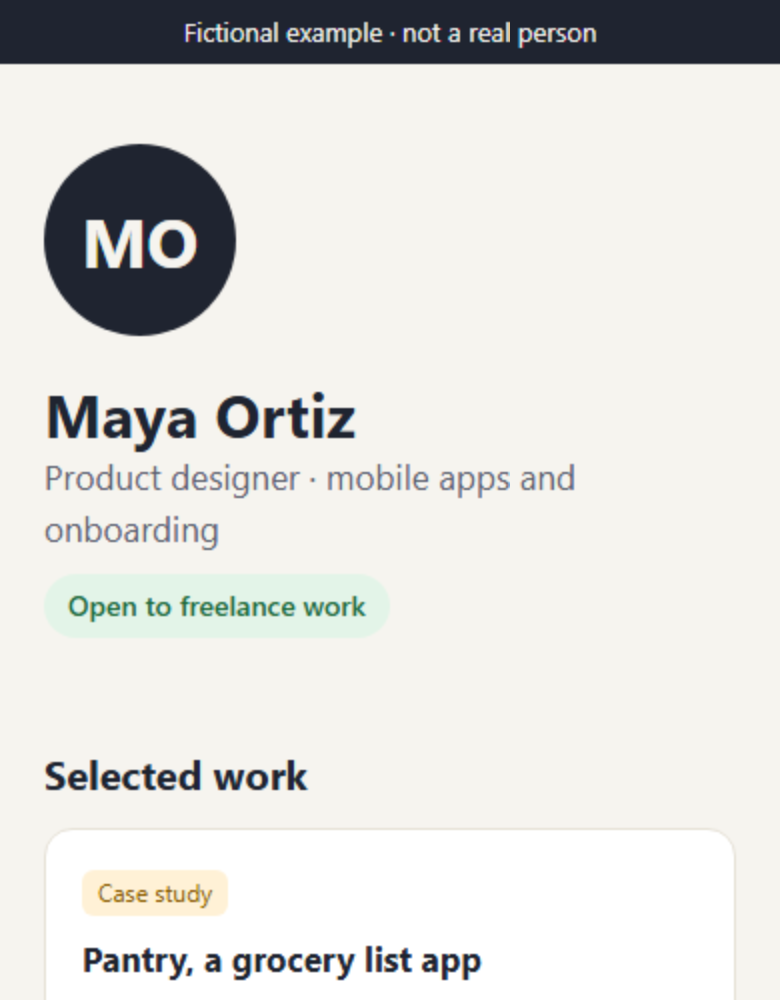
We opened that link in a phone-sized browser window. The page fit the screen, and the initials circle showed where the broken photo used to be.
Updating the page without a new link
A portfolio goes stale fast. Your status changes, a project ends, you rename a case study. If every change means new code and a new link, the link in your old emails points to old news.
We changed the status badge in NOS Edit mode. The bar at the top says to click any text to change it. We clicked the green badge, typed "Booked until March 2027," and pressed Done. No code, no new chat.
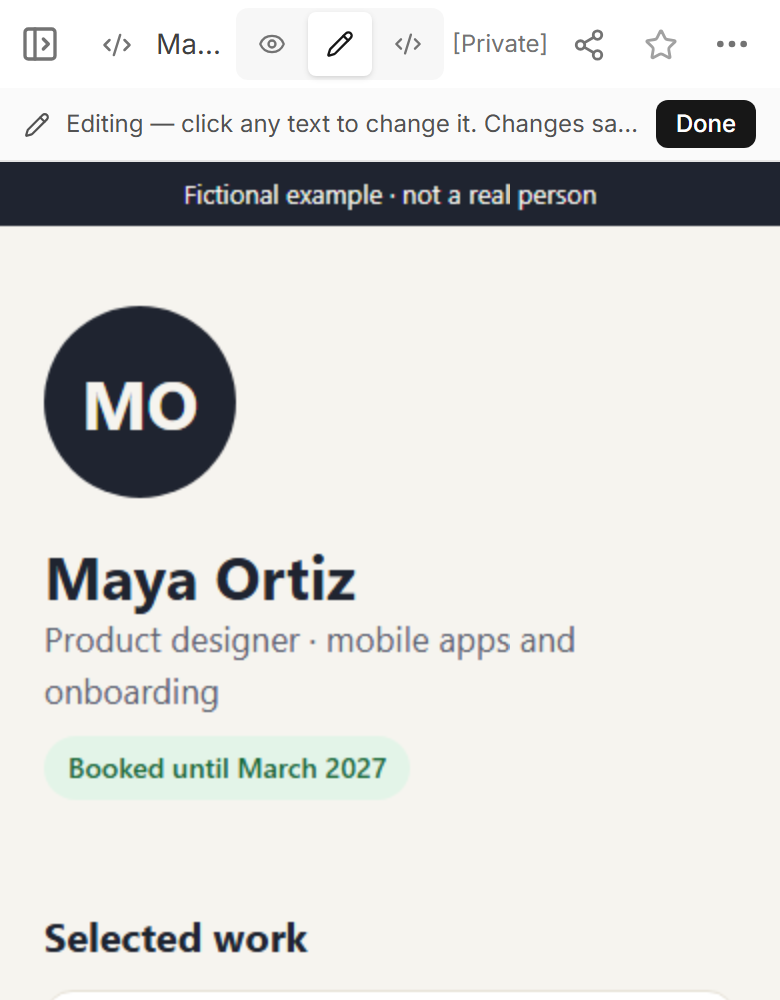
Then we reopened the link we had copied before the edit. It showed the new status.
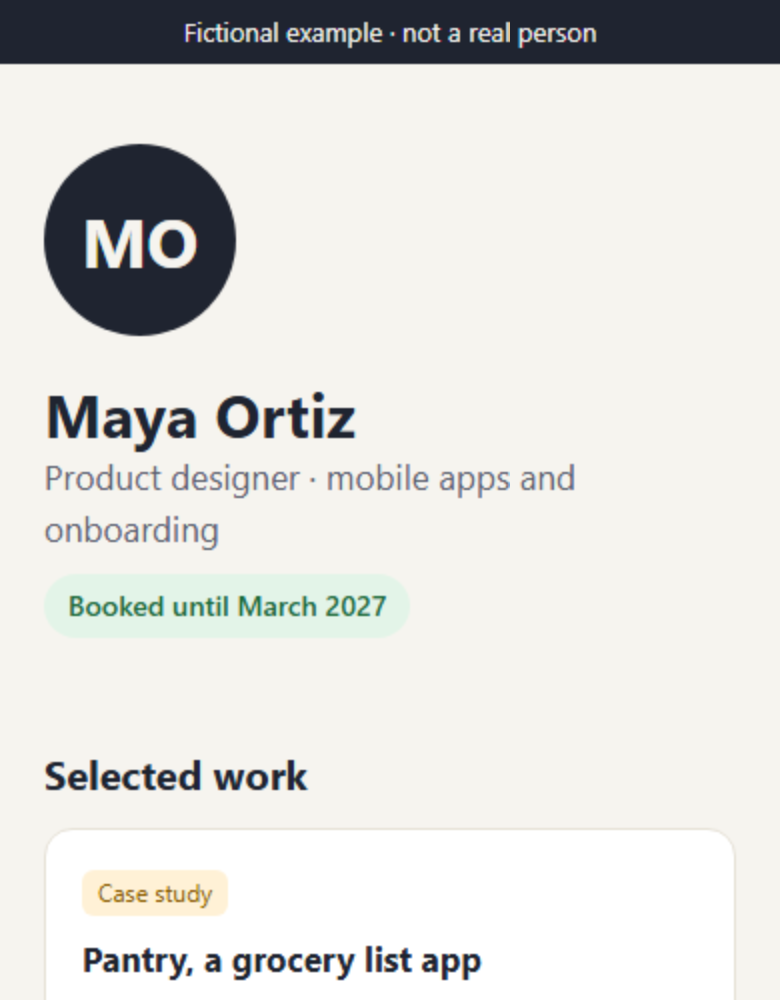
Edit mode is for words. For layout or new sections, go back to the Code screen, or ask Qwen for a new full file and paste it over the old one.
How to share a local HTML file as a link
A file on your computer has no public address. Emailing it does not fix that. A phone may open an attached HTML file as plain text or a download, not as a page. To get a real link, the file has to live on a host. The host can be a paste-in tool like NOS, a static host such as GitHub Pages or Netlify, or a drag-and-drop page service.
How to host a portfolio website for free
Pick by what you'll do after the first share.
- You'll mostly change words. A paste-in host with text editing on the page saves you from going back to the chat each time.
- You want your own domain. GitHub Pages or Netlify fit better. You upload files, and each update means uploading again.
- You have several pages and photos. A static host where you upload a folder handles the image files that a single pasted page can't.
When not to do this
Skip a single pasted page if your portfolio leans on lots of large photos or video. Those files need a home, and the page alone can't hold them well. Also skip it if you need a contact form that stores messages, a blog you post to every week, or a custom domain. Use a site builder or a static host for those. And if Qwen gave you a React or other multi-file project with a package.json, it needs to be built first. Pasting it as one page won't work.
Where NOS fits
NOS is where we ran this test. You paste HTML on the Code screen and watch it render under the code. Share sends a read-only link. Edit mode lets you change text right on the page, and each save is a new version. The Free plan allows 3 share links at once. See the pricing page for size limits and paid plans.
Related guides: how HTML-to-link tools differ, changing AI HTML without touching code, and building a portfolio with AI.