In short
A useful staff directory helps a coworker choose a person by role, team, location, time zone, and the work that person handles.
Keep each profile compact, add search and team filters, and name one work contact route instead of exposing personal details.
Assign an owner to the page. When a role changes, correct the existing directory and verify the reader link again.
NOS Team built a fictional Northstar Studio directory to complete that job. The page contains six invented coworkers and no real staff records. We saved it as one HTML page, changed Maya Chen’s responsibility from purchase orders to invoice routing, reopened the same reader address, and filtered the public directory for “invoice.”
What should a staff directory page include?
Start with the decision the reader needs to make: who can handle this work? A name and job title alone may not answer it. The Northstar profiles pair each fictional person with a team, location, time zone, responsibility, and work contact route.
Use only fields that help a coworker choose or reach the right person. For this example, that meant:
- Name: the display name approved for the directory.
- Role and team: enough context to distinguish similar responsibilities.
- Location and time zone: a cue for when a reply may be practical.
- Handles: plain-language tasks such as accessibility review or account access.
- Contact: one approved work channel, labeled clearly.
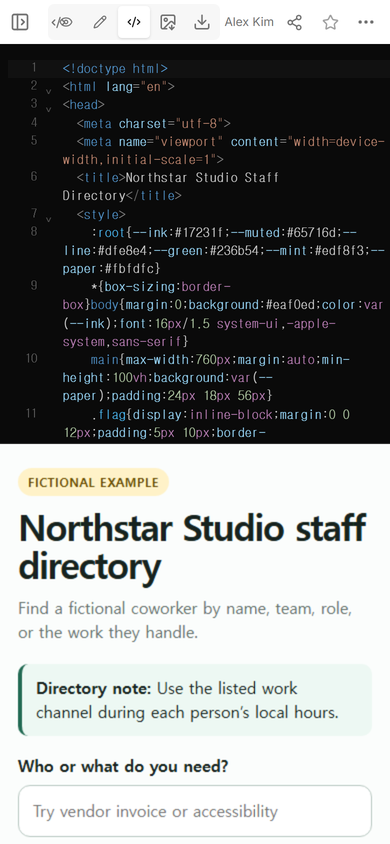
Download the complete fictional staff-directory example. Replace the sample profiles only with work information your organization has approved for this use.
How do you organize a staff directory?
Organize the page around how people look for help. Someone may know a coworker’s name, but another reader may know only “invoice,” “accessibility,” or “account access.” Put those task words in the profile rather than expecting everyone to understand internal titles.
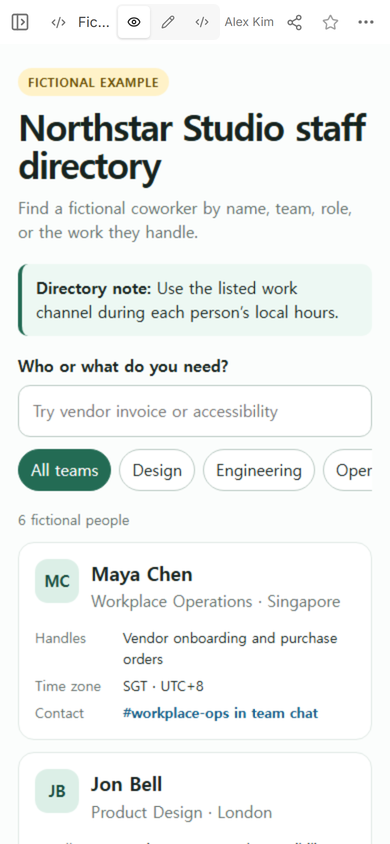
The first version of the example shows all six fictional profiles. Maya Chen’s card identifies Workplace Operations, Singapore, SGT, a team-chat channel, and the tasks “Vendor onboarding and purchase orders.” Jon Bell’s card uses the same pattern for design systems and accessibility review.
If the main problem is routing requests to a shared inbox rather than finding an individual, use the employee contact list template. If readers need reporting relationships, the HTML org chart guide covers hierarchy instead of contact discovery.
How should work contact details appear?
Choose the least sensitive route that still lets a coworker act. A team channel, role inbox, or internal profile can be enough. Personal phone numbers, home addresses, emergency contacts, private schedules, and account credentials do not belong in a broadly shared example.
State the access boundary near the directory owner’s publishing decision. In the Share panel used for this example, anyone with the link can read the page without signing in, and readers cannot edit it.
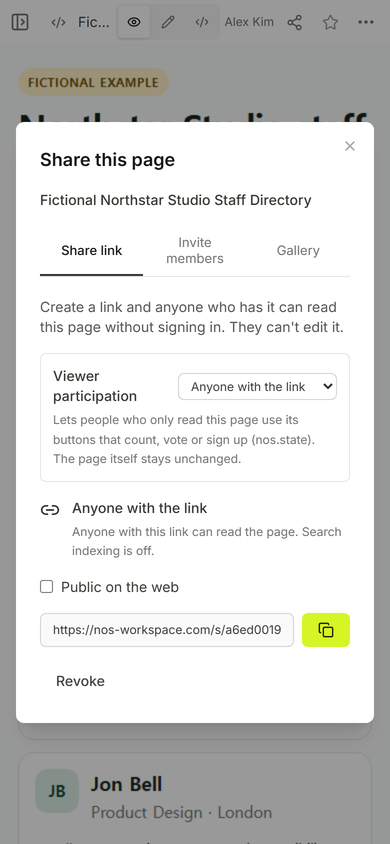
An unlisted reader link is still shareable. Decide whether the information is suitable for every person who may receive that address. Keep authoritative employee records and access controls in the systems your organization already uses.
How do you keep a staff directory current?
Give one role responsibility for reviewing the page, then update the entry that changed. Do not create another directory for a routine correction. Multiple copies make it harder for coworkers to know which profile is current.
We opened the existing Northstar page in its normal editing view. Before the change, Maya’s responsibility ended with “purchase orders.”
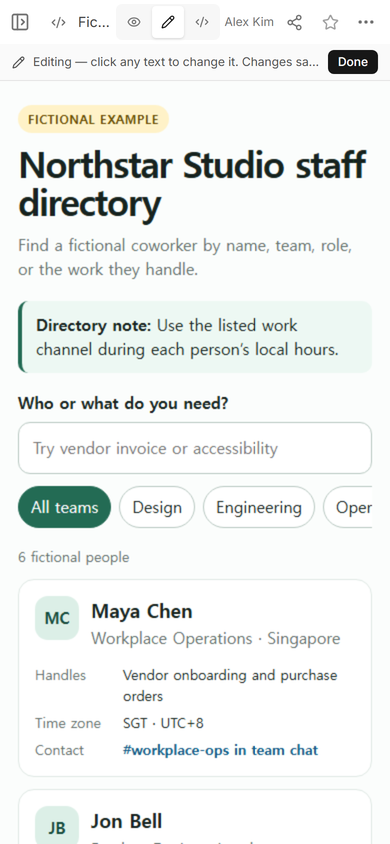
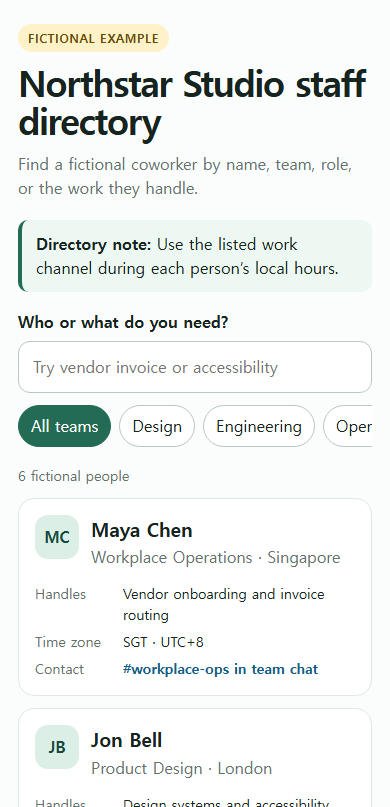
We selected that text, replaced it with “Vendor onboarding and invoice routing,” and finished the edit. The saved View then showed the revised responsibility on Maya’s card.
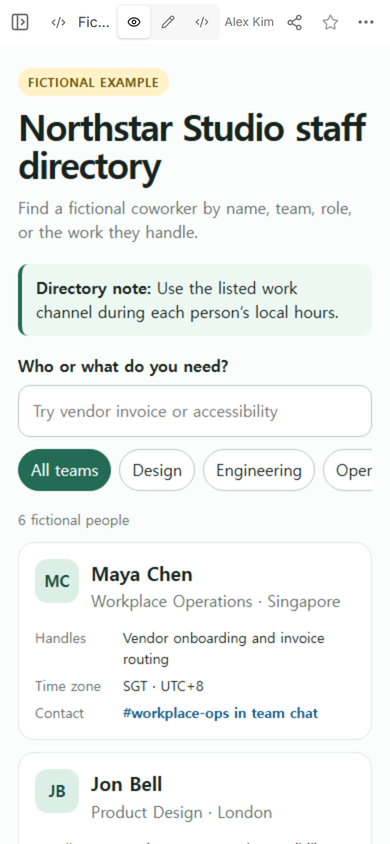
Coworkers need the corrected responsibility in the page they already open, so we checked the original public address after saving. It showed the updated wording on the same fictional profile.
How do you make a staff directory searchable?
Let the search box match the words already visible in each profile: name, team, role, location, task, and contact route. Avoid hidden categories that readers cannot understand from the result.
We entered “invoice” in the public example. The list changed from six fictional people to one result, Maya Chen, because her updated responsibility contains that word.
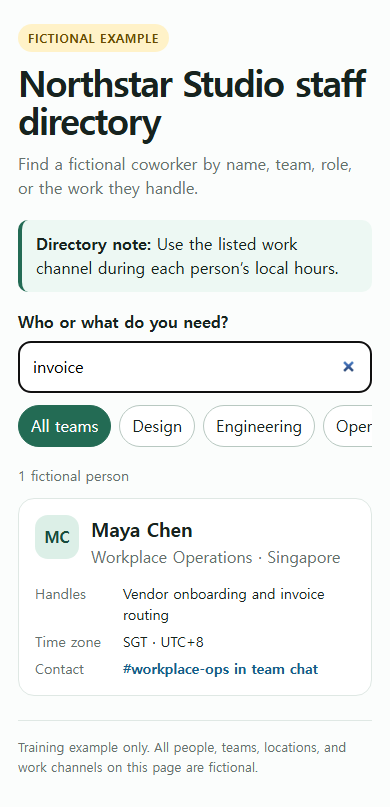
Add a clear no-match message too. A blank area can look broken; a message can tell the reader to try a team, role, or task and use the organization’s correction route when a profile is missing.
What is the difference between a staff directory and an internal wiki?
A staff directory answers “who handles this?” An internal wiki answers “where is the guidance?” Keep the directory focused on people and contact routes. Put policies, procedures, and longer instructions in their maintained source.
If the team also needs one page of links and short how-tos, build that separately with the one-page internal wiki guide. Link the two pages only where the next step is clear.
What should you check before sharing the page?
- Coverage: Can a reader find a person by name and by the work they handle?
- Consistency: Does every profile use the same small set of fields?
- Time zones: Are the labels understandable to the people who will use them?
- Work channels: Are the listed routes approved and maintained?
- Privacy: Have you removed personal, emergency, medical, credential, and private schedule data?
- Stale entries: Is there an owner and a correction route?
- Reader view: After an edit, does the existing shared address show the revised profile?
When not to do this
Do not use a static directory as the authoritative employee database, access-control list, emergency contact system, availability tracker, or private personnel record. Do not publish sensitive staff information merely because the page is unlisted. Use the approved people system when access must be restricted, changes need an audit trail, or several systems must stay synchronized.
Using NOS for a staff directory page
NOS can hold a prepared HTML directory, show it in a phone-readable view, and provide a reader address from the Share panel. In this example, we corrected one profile on the existing saved page and then confirmed the original reader address showed the change. That makes NOS useful for a sanitized reading copy; the official employee record, permissions, approvals, and staff notifications remain in the organization’s established systems.