In short
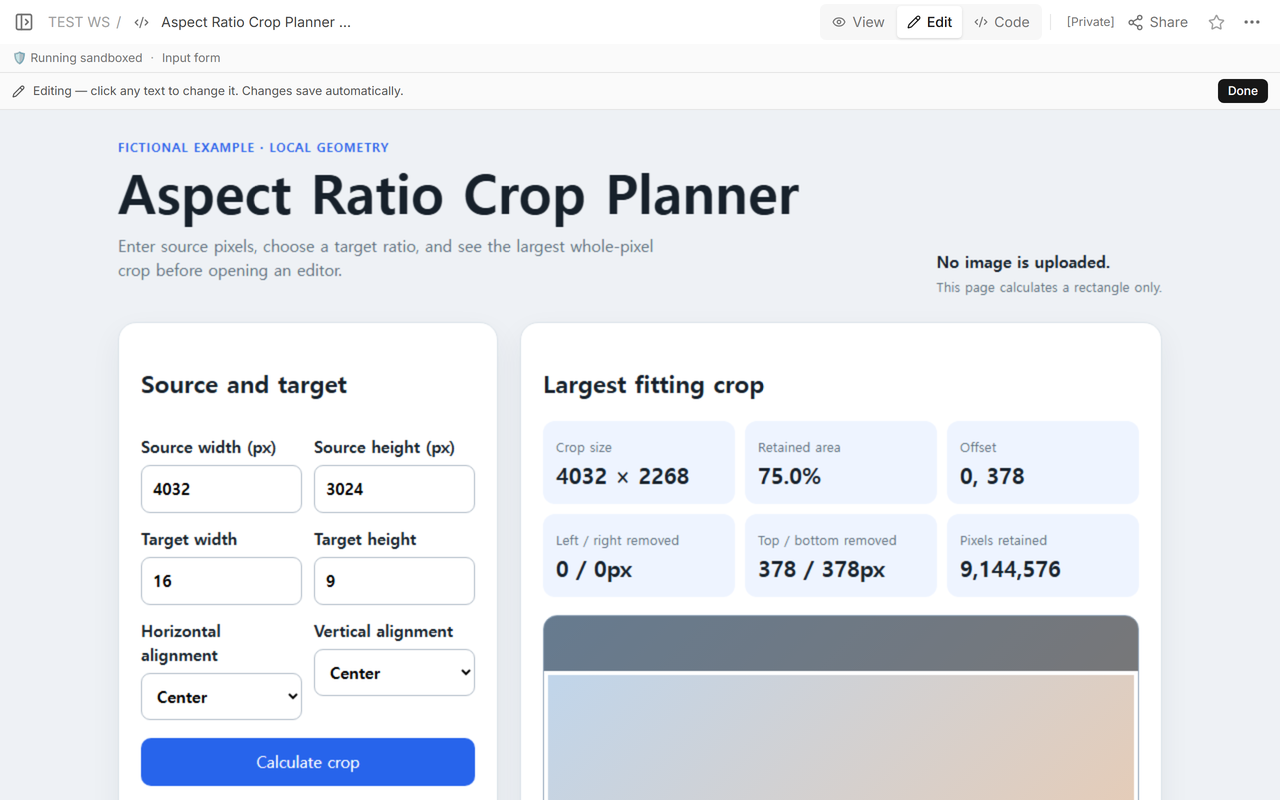
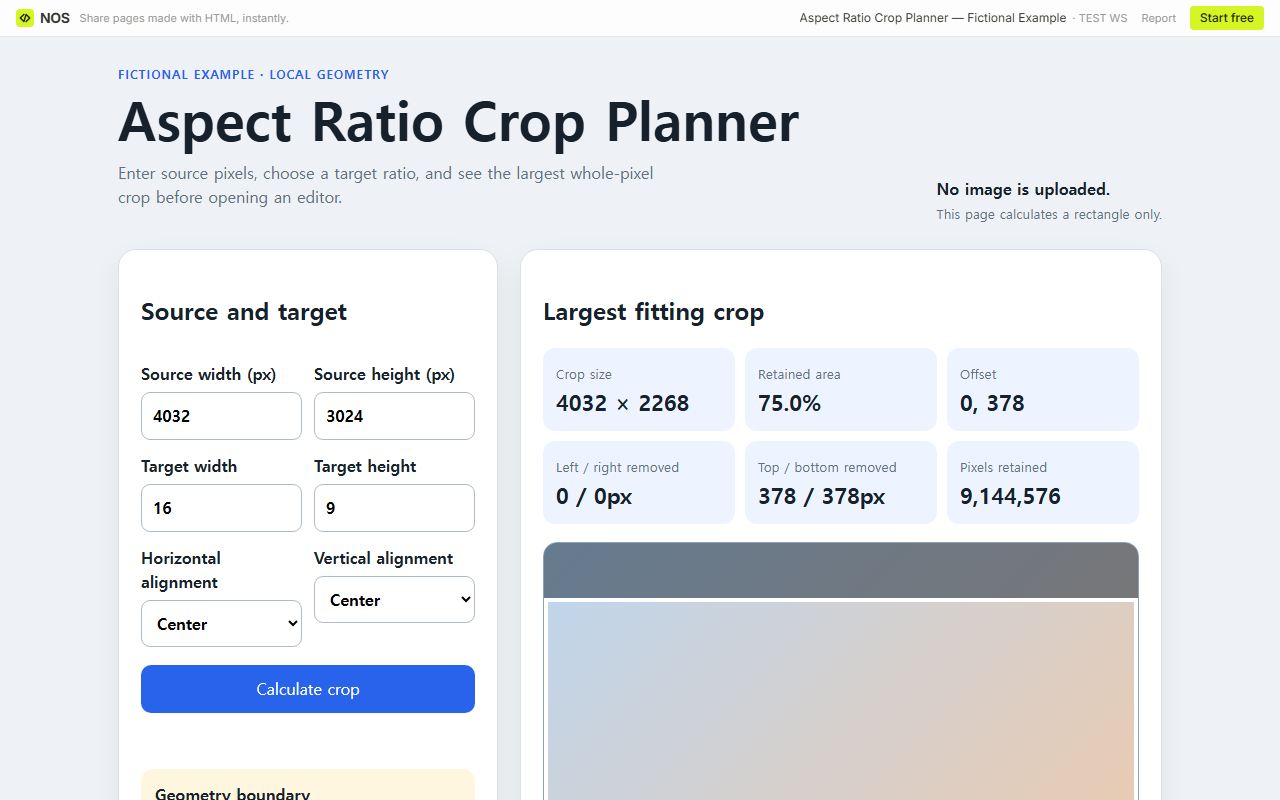
For a 4,032 × 3,024 source and a 16:9 target, the largest whole-pixel crop is 4,032 × 2,268. A centered crop removes 378 pixels from both the top and bottom and retains 75.0% of the source area.
Use the downloadable calculator to test your own dimensions and alignment. It calculates geometry; it does not choose a composition or protect a subject.
We built a fictional crop plan for a 4,032 × 3,024 image before opening an editor. The finished example starts with the source pixels and target ratio, then reports the crop size, retained area, offset, and pixels removed from every edge. Download the complete aspect-ratio crop calculator and open the file in a browser.
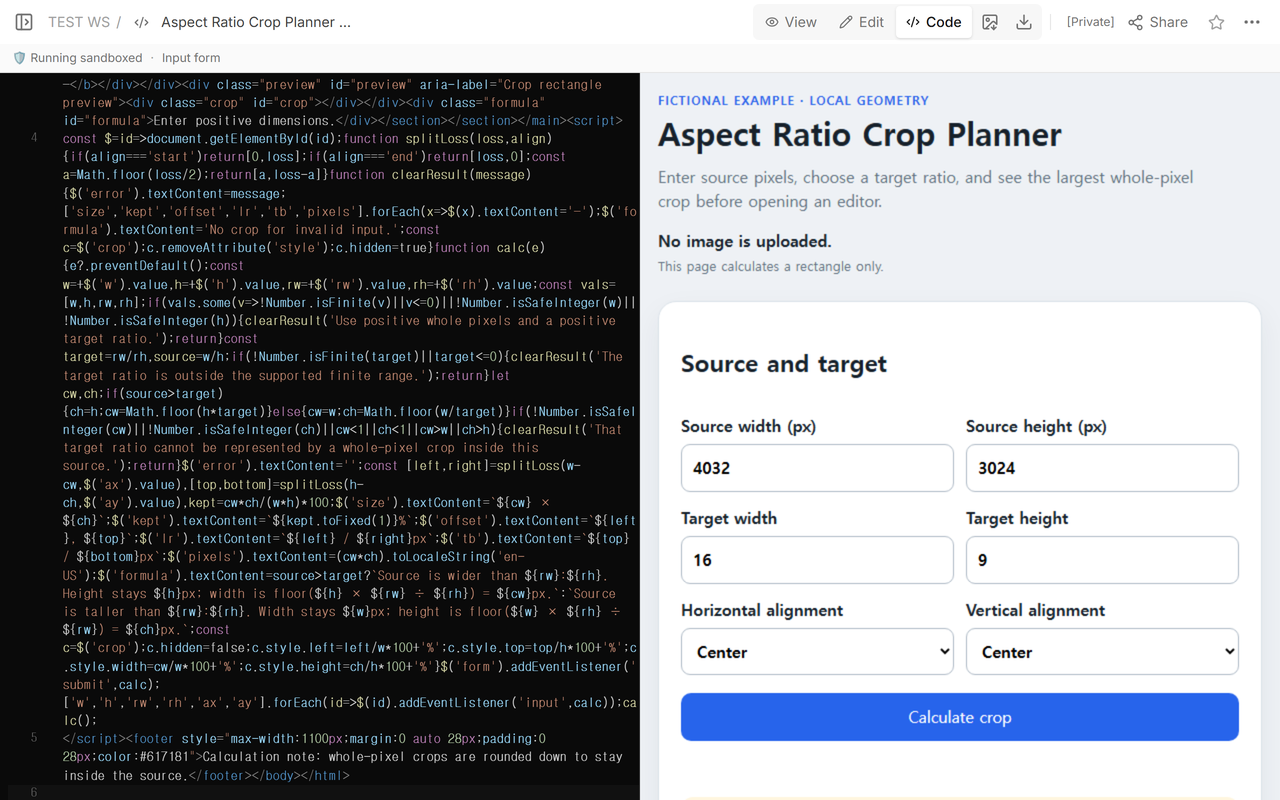
What crop fits 4,032 × 3,024 pixels at 16:9?
The source ratio is 4,032 ÷ 3,024, or 4:3. The 16:9 target is wider, so the source width remains 4,032 pixels and the crop height becomes floor(4,032 × 9 ÷ 16) = 2,268 pixels. The floor operation matters because a raster crop cannot use part of a pixel and the result must stay inside the source.
The vertical loss is 3,024 − 2,268 = 756 pixels. Center alignment splits that evenly: 378 pixels at the top and 378 at the bottom. The retained area is 4,032 × 2,268 ÷ (4,032 × 3,024) = 75.0%.
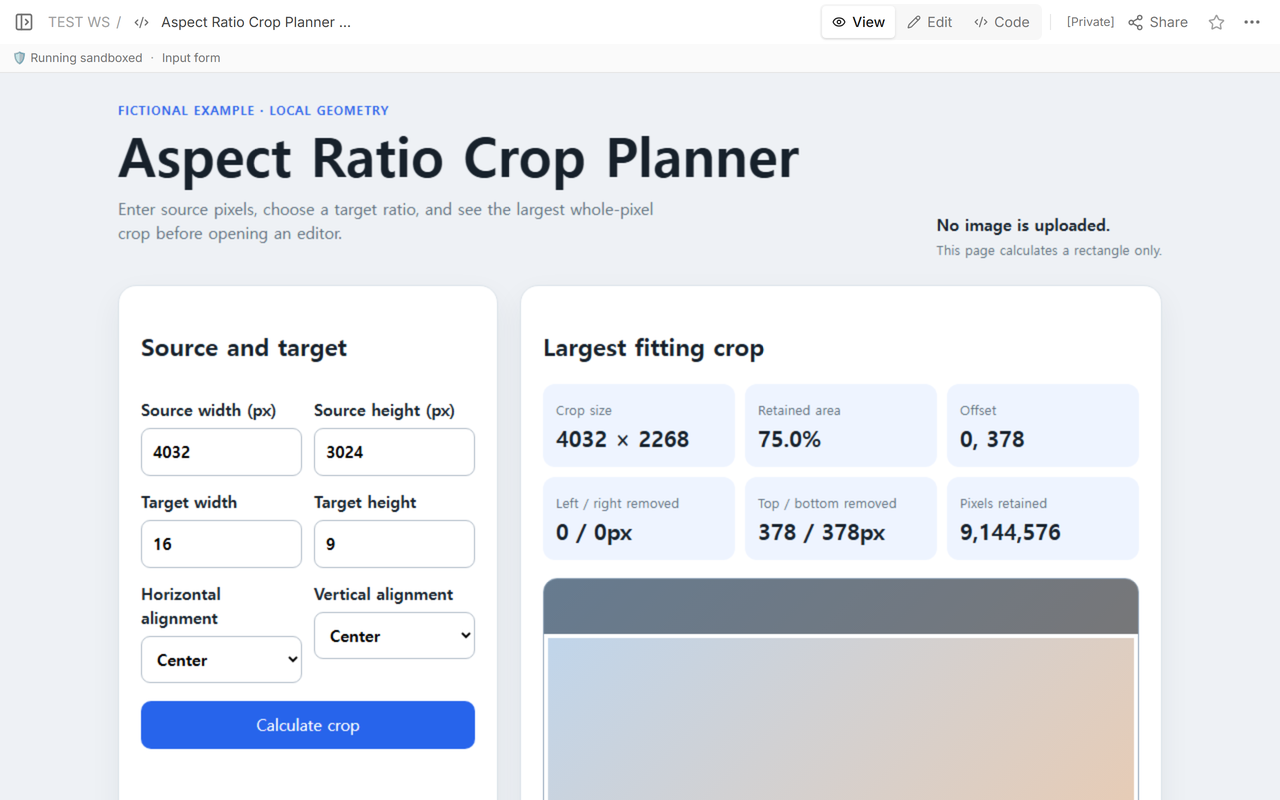
This is a source-file crop calculation. It is different from putting an image into a web box with CSS. A browser can display a picture inside a shaped box without changing the source file. The numbers here describe the rectangle you would enter in an image or video editor.
How does alignment change the crop offsets?
Alignment changes where the removed pixels go, not the crop dimensions. A centered 16:9 crop begins at offset x=0, y=378. Top alignment begins at x=0, y=0 and removes all 756 pixels from the bottom. Bottom alignment removes them from the top.
When the loss is an odd number, the two centered edges cannot be identical. The example assigns the smaller whole-pixel loss to the first edge and the remaining pixel to the opposite edge. It shows both numbers instead of hiding that one-pixel difference.
How do you calculate a 4:5 crop from the same source?
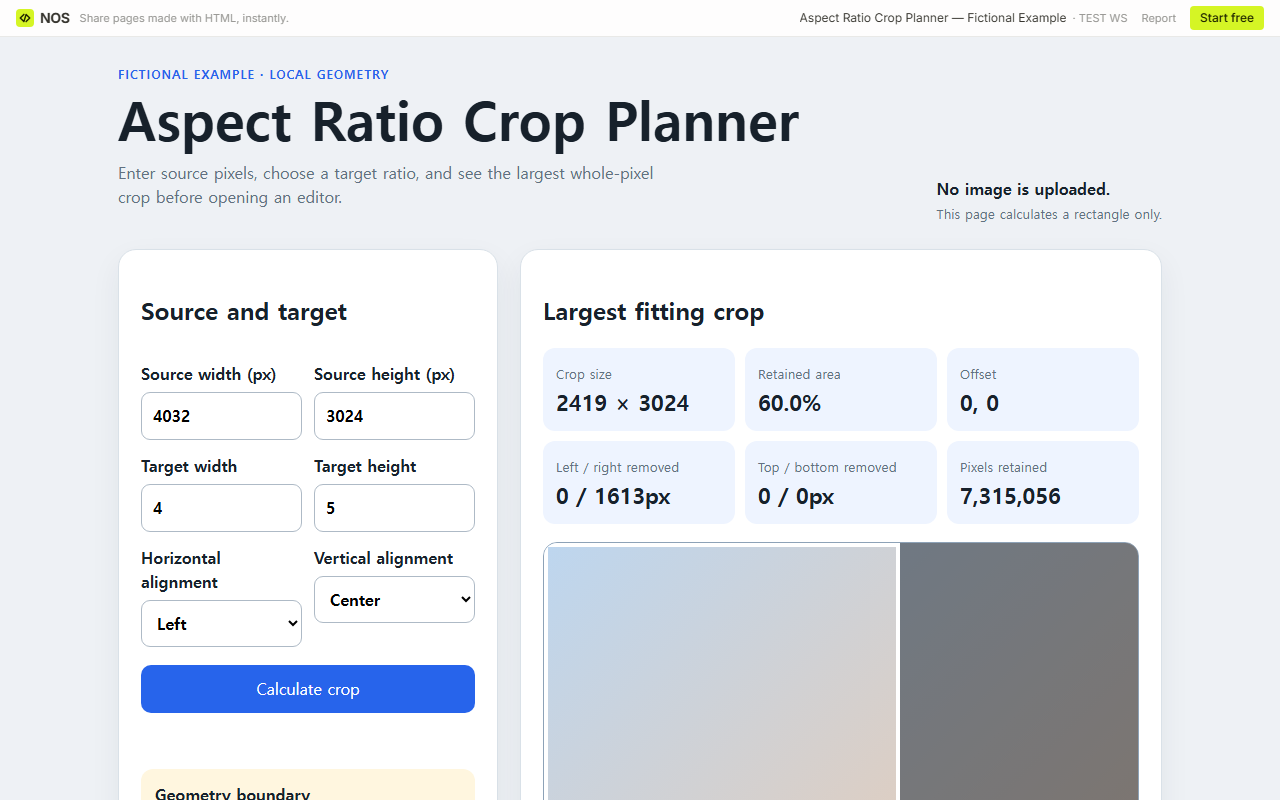
For 4:5, the source is wider than the target. The height stays at 3,024 pixels and the width becomes floor(3,024 × 4 ÷ 5) = 2,419 pixels. That leaves 1,613 horizontal pixels to remove.
We changed the live example to 4:5 and chose Left alignment. The crop began at x=0, y=0, kept 2,419 × 3,024 pixels, removed 0 pixels on the left and 1,613 on the right, and retained 60.0% of the source area.
How do you replace the fictional values with your own?
- Enter the source file’s actual pixel width and height. Do not use the size at which a web page happens to display it.
- Enter the target as two positive numbers, such as 16 and 9 or 4 and 5.
- Choose horizontal and vertical alignment. Only the axis that loses pixels changes the result, but keeping both controls visible makes portrait and landscape cases clear.
- Copy the crop width, crop height, and offset into an editor that accepts pixel coordinates.
- Inspect the result around faces, text, and the main subject. Move the rectangle in the editor if the geometric alignment is not the composition you need.
Blank, zero, negative, nonnumeric, and fractional source pixels are rejected. Positive decimal target ratios are accepted, but the crop itself is always reduced to whole pixels. A target ratio that already matches the source keeps the full source and reports zero removed pixels.
What should you verify before using the crop?
Check the source dimensions again, especially if an export or rotation changed them. Confirm the target ratio rather than copying a platform example: Aspect Ratio Crop explicitly labels platform dimensions as common examples rather than current upload requirements. Its calculator also notes that fractional raster dimensions need whole-pixel rounding.
The Toolra reference, Toolra’s aspect-ratio crop calculator, reports crop size, offsets, retained percentage, and removed pixels. It rounds down so the crop remains inside the image. Our example exposes the same geometric decisions without claiming that the selected rectangle is visually best.
When not to do this
- Do not use geometry alone when a face, caption, logo, or other important subject must remain visible.
- Do not treat a common ratio as a platform’s current upload specification. Check the destination’s current requirements.
- Do not confuse a CSS display crop with a changed source file.
- Do not upscale the crop or infer print resolution from ratio alone.
- Do not enter displayed browser dimensions when the editor needs original source pixels.
Using NOS for the calculator
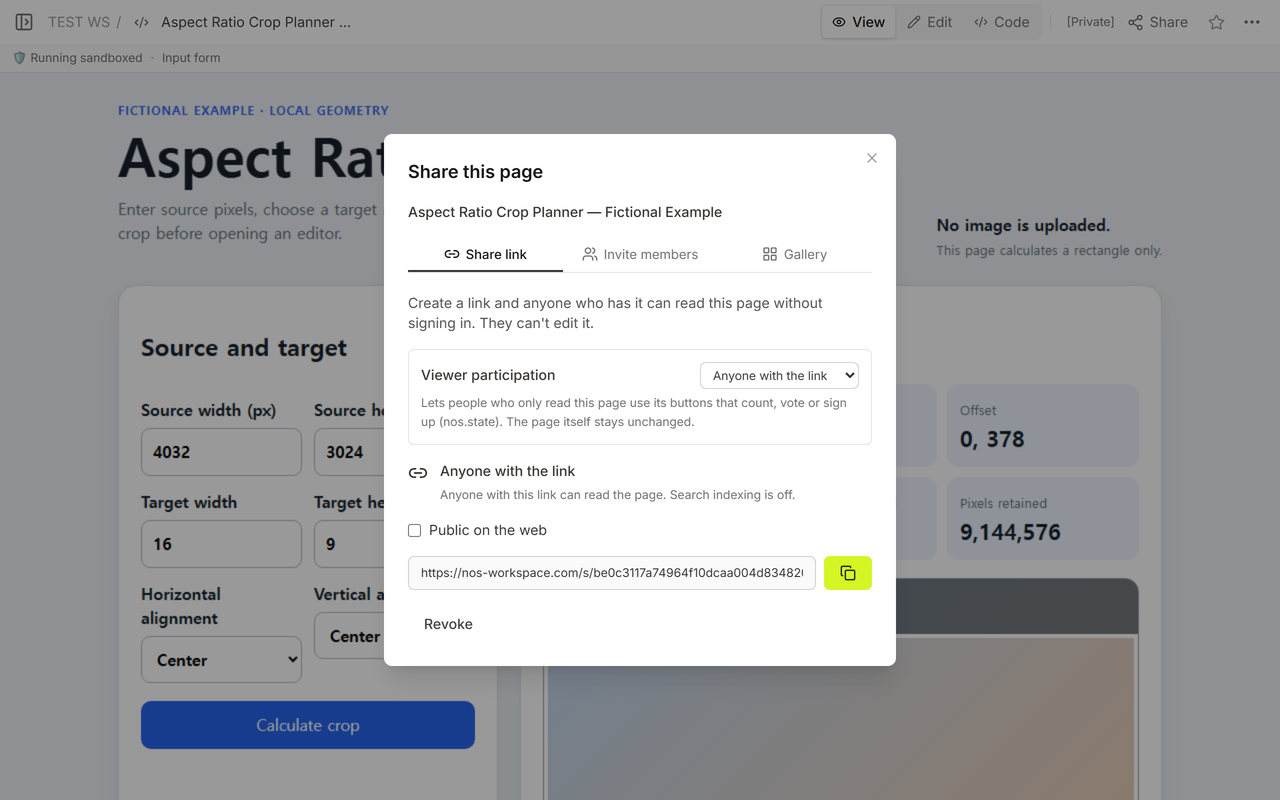
NOS displayed the complete file in Code, rendered the calculator in View and Edit, and supplied the reader address used for both verified ratio states. The reader changed inputs without changing the maintained page. Current plan details remain on the NOS pricing page.
Related image guides
Read CSS object-fit when the task is fitting an image into a web box. Use HTML Image Keep Aspect Ratio to stop browser stretching. See CSS aspect-ratio when the box itself must keep a shape.