In short
Put the change notice above the timetable, not inside one period row.
Separate the regular day from the short day so readers never have to compare two time columns at once.
Show lunch and passing time as real parts of the day.
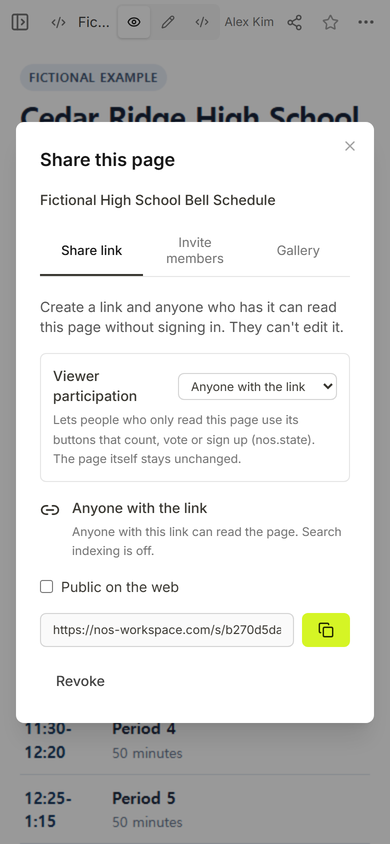
Open the shared page at phone width, then correct the existing page instead of making another address.
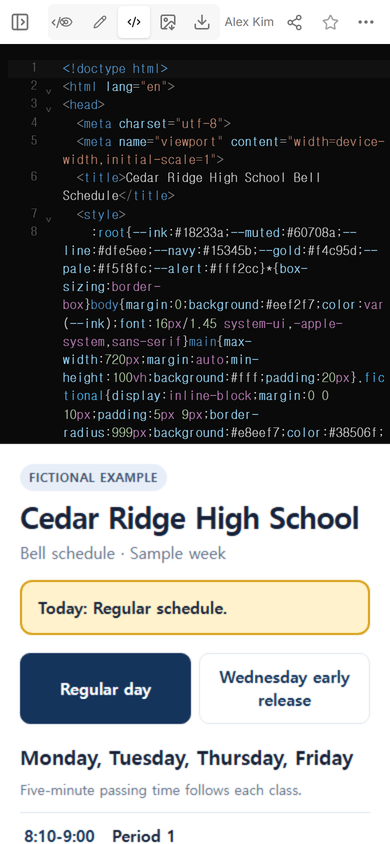
A bell schedule can look complete and still make the next bell hard to find. For this guide, the NOS Team built a fictional high school page around one specific job: let a student or family member see today’s exception first, choose the right day type, and then find a period, lunch, or passing time without reading a school handbook.
The example uses Cedar Ridge High School, a made-up school. Its times are invented for the demonstration and are not a schedule to reuse. Open the complete fictional example to inspect the two schedule views.
Start with the times that must agree
We wrote the regular day before styling the page. Each class ends five minutes before the next one begins, and the lunch block says when classes resume. We then checked the early-release view separately. That kept the shortened periods from being mixed into the regular rows.
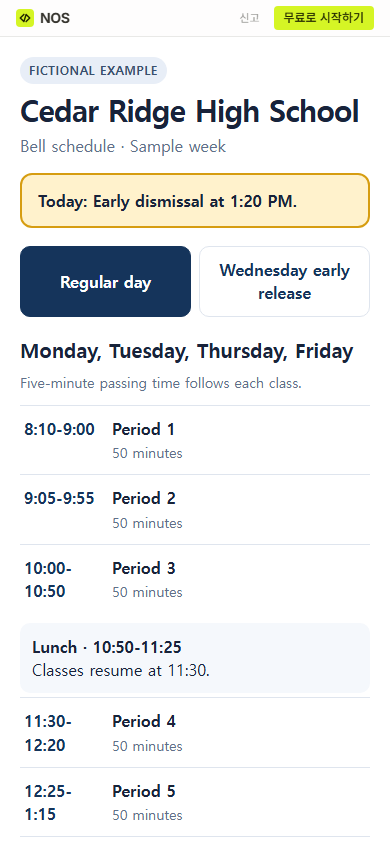
The page has two choices: “Regular day” and “Wednesday early release.” Regular day is the first view. The short-day choice states its 1:20 dismissal beside the heading, while the yellow notice remains above both choices.
What should a high school bell schedule page include?
For this example, four items carry the whole page:
- A same-day notice: one sentence for an exception that deserves attention before any table.
- Day-type choices: a regular schedule and a clearly named short schedule.
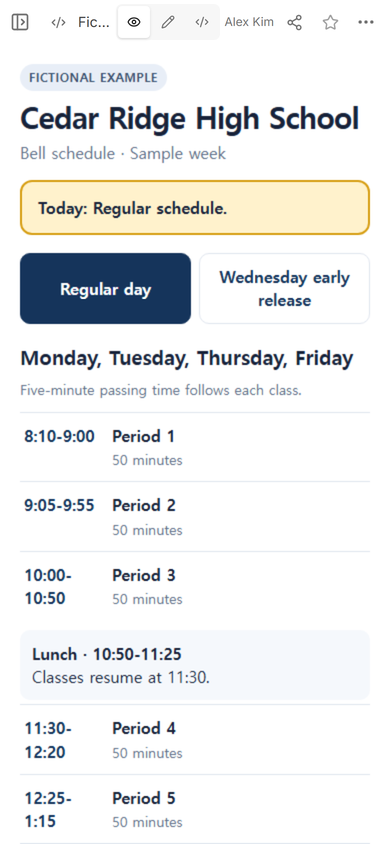
- Every transition: the end of one period, the start of the next, and the passing gap between them.
- Lunch in sequence: not a footnote, but a block between the periods around it.
We kept room numbers, staff names, and student details out of the page because they were not needed to answer the timing question. A broader class hub can hold resources and contact information; the guide to building a one-page classroom website covers that different job.
How do you show early release without confusing regular days?
Do not put regular and shortened times in adjacent columns on a narrow screen. We used a two-button switch instead. Only one schedule is visible at a time, and the selected button uses a dark fill. The heading below the switch repeats the chosen day type, so the color is not the only cue.
The yellow banner has a separate role. It answers “What changed today?” The two schedule views answer “What are the bells for this kind of day?” Keeping those jobs separate lets the banner change without rebuilding every period row.
How can families check a bell schedule on a phone?
On a phone-width screen, the fictional label, school title, notice, day choices, and first periods fit without horizontal scrolling. Long schedules still require vertical scrolling; the reader should never have to pan sideways to match a time with its period.
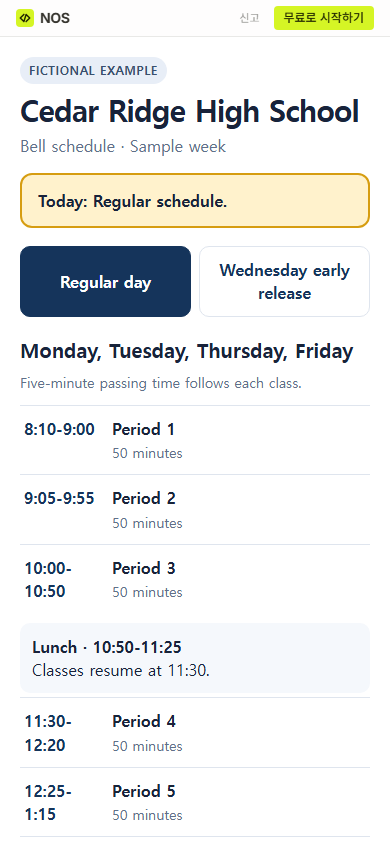
A paper handout can point to this page, but the page must already be available at a stable address. If that is your next step, use the separate QR code link guide and test the printed code before distributing it.
How do you post a same-day bell schedule change?
Edit the notice on the existing page. We selected “Today: Regular schedule” in Edit, replaced it with “Today: Early dismissal at 1:20 PM,” and chose Done. The new sentence was visible in the editor before we saved it.
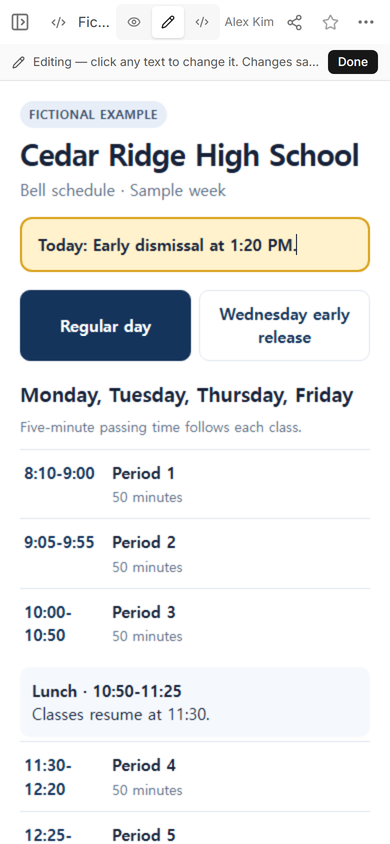
We then reopened the original viewer address. It showed the new early-dismissal notice. The address did not need to be replaced, and the period table below remained intact.
What needs checking before you share it?
Read each row as a chain. The end of one block, the passing gap, and the next start must agree. Check lunch the same way. Then compare the day name with the school calendar and confirm that the banner does not contradict the selected schedule. The example does not perform those checks for you; it only makes the values easy to inspect.
If a weekly family message also needs assignments or preparation requests, keep those in a separate note. The parent newsletter template shows how to lead with a dated action without turning the bell schedule into a bulletin board.
When not to do this
- Do not treat a shared page as an emergency alert system. Use the school’s approved notification channel for urgent closures or safety instructions.
- Do not publish student names, private contact details, attendance, or individual schedules on a page meant for anyone with the link.
- Do not make this page authoritative if the office maintains a different official timetable. Link to the official source or replace the draft after approval.
- Do not use a static page when you need accounts, automatic calendar changes, or records of who received an update.
Make the page in NOS
For this page, we added one HTML file to NOS, checked it in View, made the reader link from Share, and changed the banner in Edit. The current pricing page lists the available plans; no price is needed to follow the layout decisions in this guide.