A free classroom website can be a single page. An AI writes it as one HTML file, you paste the file into NOS, and Create share link gives you an address. No site builder, no template to pick, no sign-in for families.
A teacher's blog post on Gemini says you can ask it for code and then "copy and paste it into a simple website builder". This guide covers what to do with that code when you do not have a builder or a school site.
Here is the kind of page you will end up with. Try the buttons.
<!doctype html>
<html lang="en">
<head>
<meta charset="utf-8">
<meta name="viewport" content="width=device-width, initial-scale=1">
<title>Room 12 class site</title>
<style>
* { box-sizing: border-box; }
body { margin: 0; font-family: system-ui, sans-serif; font-size: 17px; line-height: 1.5; color: #1f2a37; background: #f4f6f8; }
header { background: #1f5f8b; color: #fff; padding: 22px 18px 18px; }
header h1 { margin: 0 0 2px; font-size: 24px; }
header p { margin: 0; font-size: 15px; opacity: .9; }
main { max-width: 640px; margin: 0 auto; padding: 14px 14px 28px; }
section { background: #fff; border-radius: 12px; padding: 16px; margin-top: 14px; box-shadow: 0 1px 3px rgba(0, 0, 0, .08); }
h2 { margin: 0 0 10px; font-size: 19px; }
.tabs { display: flex; gap: 8px; margin-bottom: 10px; }
.tabs button { flex: 1; padding: 9px 6px; font: inherit; font-size: 15px; border: 2px solid #1f5f8b; border-radius: 8px; background: #fff; color: #1f5f8b; cursor: pointer; }
.tabs button[aria-pressed="true"] { background: #1f5f8b; color: #fff; }
.day { display: grid; grid-template-columns: 56px 1fr; gap: 10px; padding: 9px 10px; border-radius: 8px; border: 2px solid transparent; }
.day + .day { margin-top: 4px; }
.day b { color: #1f5f8b; }
.day span { font-size: 15px; color: #4b5563; display: block; }
.day.today { background: #fff6d6; border-color: #f0b400; }
.day.today b::after { content: " today"; display: block; font-size: 12px; font-weight: 600; color: #8a6100; }
.links a { display: block; padding: 13px 14px; margin-top: 8px; border-radius: 10px; background: #e8f2f9; color: #12527a; font-weight: 600; text-decoration: none; }
.links a small { display: block; font-weight: 400; color: #4b5563; font-size: 14px; }
.links a:first-of-type { margin-top: 0; }
dl { margin: 0; display: grid; grid-template-columns: 110px 1fr; gap: 6px 10px; }
dt { font-weight: 600; } dd { margin: 0; }
@media (min-width: 500px) { .links { display: grid; grid-template-columns: 1fr 1fr; gap: 8px; } .links h2 { grid-column: 1 / -1; margin-bottom: 2px; } .links a { margin-top: 0 !important; } }
.note { font-size: 14px; color: #6b7280; margin-top: 10px; }
@media (max-width: 420px) { dl { grid-template-columns: 1fr; gap: 0; } dd { margin-bottom: 8px; } }
</style>
</head>
<body>
<header>
<h1>Room 12 · Grade 5</h1>
<p>Maple Brook Elementary · Updated Sunday evening</p>
</header>
<main>
<section>
<h2>Schedule</h2>
<div class="tabs">
<button type="button" id="wk-this" aria-pressed="true">This week</button>
<button type="button" id="wk-next" aria-pressed="false">Next week</button>
</div>
<div id="days"></div>
</section>
<section class="links">
<h2>Links</h2>
<a href="#">Reading log <small>Fill in 20 minutes a night</small></a>
<a href="#">Math practice <small>Fractions, set 3</small></a>
<a href="#">School calendar <small>Holidays and early dismissals</small></a>
<a href="#">Library catalog <small>Search and reserve books</small></a>
</section>
<section>
<h2>Contact</h2>
<dl>
<dt>Teacher</dt><dd>Ms. Alder</dd>
<dt>Email</dt><dd>m.alder@maplebrook.example</dd>
<dt>Office</dt><dd>Front office, 555-0142</dd>
<dt>Reply time</dt><dd>Within one school day</dd>
</dl>
<p class="note">Demo links go nowhere. Replace each # with a real address.</p>
</section>
</main>
<script>
// Two weeks of schedule data; edit the text, keep the shape.
const weeks = {
this: [
['Mon', 'Reading groups', 'Bring your library book'],
['Tue', 'Math: fractions', 'Quiz on Thursday'],
['Wed', 'Science lab', 'Wear closed shoes'],
['Thu', 'Math quiz', 'Art in the afternoon'],
['Fri', 'Class meeting', 'Early dismissal at 1:30']
],
next: [
['Mon', 'Writing workshop', 'Draft due Friday'],
['Tue', 'Math: decimals', 'New homework sheet'],
['Wed', 'Library visit', 'Return books first'],
['Thu', 'Science: plants', 'Bring one seed'],
['Fri', 'Field trip', 'Permission slip needed']
]
};
const names = ['Sun', 'Mon', 'Tue', 'Wed', 'Thu', 'Fri', 'Sat'];
const box = document.getElementById('days');
const thisBtn = document.getElementById('wk-this');
const nextBtn = document.getElementById('wk-next');
function show(key) {
const today = names[new Date().getDay()];
box.innerHTML = '';
weeks[key].forEach(([d, title, note]) => {
const row = document.createElement('div');
// Highlight today only on the current week
row.className = 'day' + (key === 'this' && d === today ? ' today' : '');
row.innerHTML = '<b>' + d + '</b><div>' + title + '<span>' + note + '</span></div>';
box.appendChild(row);
});
thisBtn.setAttribute('aria-pressed', key === 'this');
nextBtn.setAttribute('aria-pressed', key === 'next');
}
thisBtn.addEventListener('click', () => show('this'));
nextBtn.addEventListener('click', () => show('next'));
show('this');
</script>
</body>
</html>
The links in the demo go nowhere on purpose. On your page each one points to a real address. Today's row is highlighted by a few lines of script, which runs on the shared page too.
What belongs on a one-page class site
Families open a class page for three things: what is happening, where to click, and who to ask. That is the whole page.
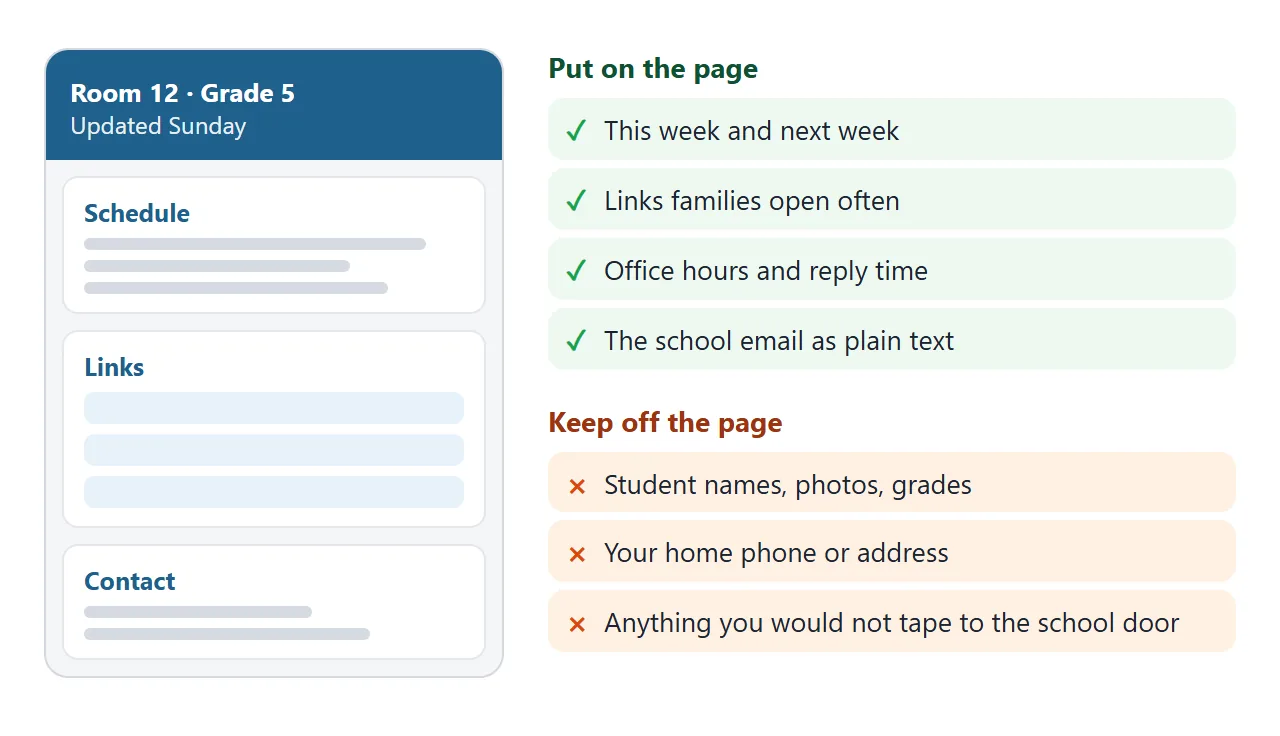
- Schedule: this week and next week, one line per day, with the one thing a child must bring.
- Links: large buttons for the reading log, practice sites and the school calendar.
- Contact: office hours, how fast you reply, and your school email written out as text.
Anyone with the link can open a shared page, and it has no password. So leave out student names, photos and grades, and use your school address, not a personal one.
Make it with AI
Open the AI chat you already use, such as ChatGPT, Claude or Gemini. Paste this, then change the details to match your class.
Make a single-file HTML page that is the class website for a
5th-grade class (Room 12, Maple Brook Elementary). Use placeholder
names and addresses I can replace.
Sections in this order: a header with the class name and "Updated"
day; "Schedule" for Monday to Friday with a subject and one note per
day; "Links" as large buttons (reading log, math practice, school
calendar, library catalog); "Contact" with office hours, reply time,
and a school email address and phone number written out as text.
18px text, high contrast, one column, works on a phone.
No external images, fonts or scripts. No forms. No student names.
Return only the HTML.
Check the result before you copy it:
- Every placeholder is replaced, including the dates and the email address.
- Each link opens the right page. AI can invent web addresses, so click all of them.
- The page has no student names, photos or home contact details.
- Text is easy to read on a phone-sized window.
If something is off, say so in the same chat, for example "make the buttons bigger and move Contact to the top", and paste the new version. Writing a good one-page prompt goes deeper on layout.
Send it as a link
Open a NOS document and paste the HTML in. The page renders right there and its scripts run, so test the buttons yourself. Then choose Create share link and copy the address.
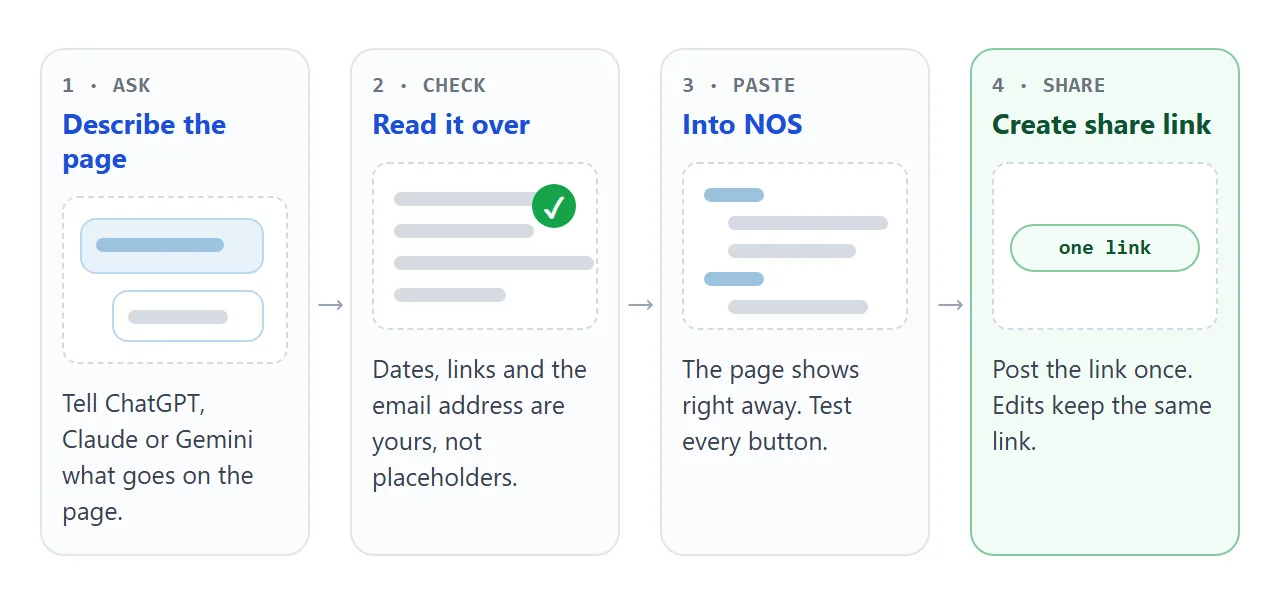
Anyone with the address can open the page in a browser, on a phone too, with no account. They can read it but not edit it. Change the code next Sunday and the same link shows the new week. HTML to link walks through it.
As of October 2026, NOS's pricing page lists a Free plan with 3 live share links, and published pages on Free carry a NOS badge. A class site needs one link. Check the pricing page for what applies when you read this.
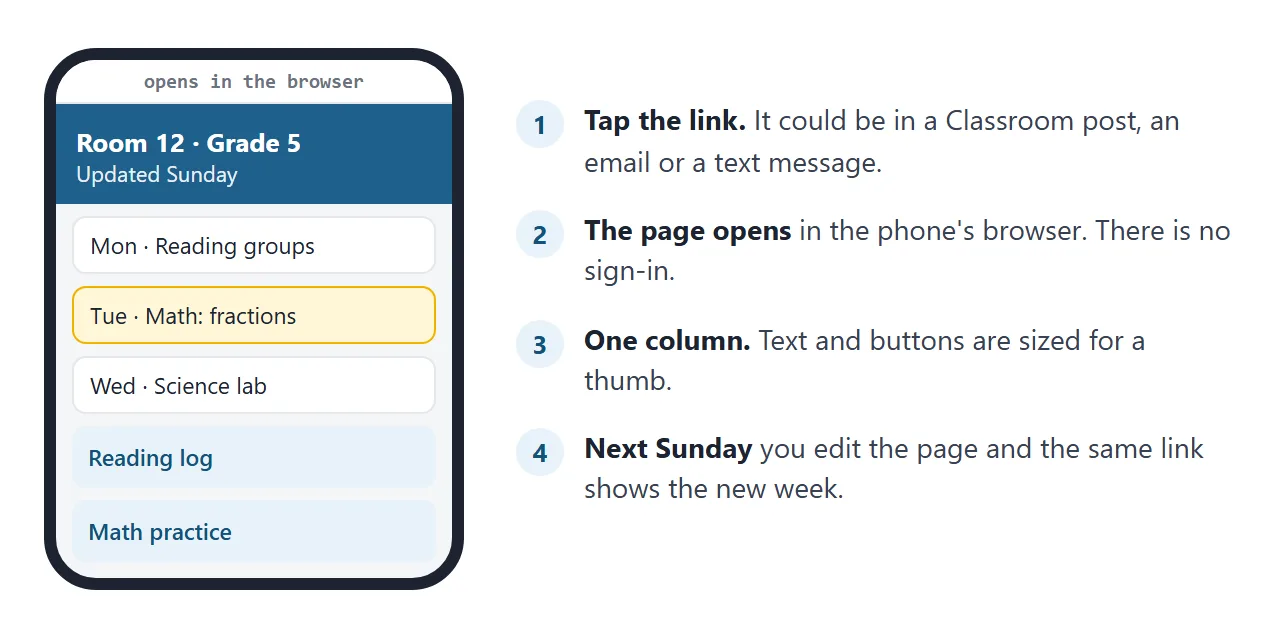
Put the link where families already look
A new address only helps if people find it. Use the places your families already open.
| Where | How | Source of the steps |
|---|---|---|
| Classroom Stream | On the Stream page choose Announce something to your class, add a link, post | Google's Post announcements page |
| Classroom Classwork | Classwork, Create, Material, add a link, pick a topic | Google's Add materials page |
| An assignment | Under the attach options choose Link | Google's Create an assignment page |
| Paper handout | Turn the address into a printed code | QR code link |
| Email or message | Paste the address | Any mail app |
A Classwork material can sit under a topic, such as "Class info", so it stays easy to find after the Stream scrolls on. Classroom menus can change, and which attach options you see depends on your account type, as of October 2026.
A second page: homework due dates
A schedule is not the only thing worth publishing. Older students ask the same question each day: what is due? Here is a board with subject filters and a due label that counts down.
<!doctype html>
<html lang="en">
<head>
<meta charset="utf-8">
<meta name="viewport" content="width=device-width, initial-scale=1">
<title>Period 3 homework board</title>
<style>
* { box-sizing: border-box; }
body { margin: 0; padding: 14px; font-family: system-ui, sans-serif; font-size: 16px; line-height: 1.45; color: #1f2937; background: #eef1f4; }
.wrap { max-width: 640px; margin: 0 auto; }
h1 { margin: 0; font-size: 22px; }
.sub { margin: 2px 0 12px; color: #4b5563; font-size: 14px; }
.chips { display: flex; flex-wrap: wrap; gap: 6px; margin-bottom: 12px; }
.chips button { padding: 7px 13px; font: inherit; font-size: 14px; border: 1.5px solid #3b6e57; border-radius: 999px; background: #fff; color: #2d5a45; cursor: pointer; }
.chips button[aria-pressed="true"] { background: #2d5a45; color: #fff; }
ul { list-style: none; margin: 0; padding: 0; }
li { display: grid; grid-template-columns: 1fr auto; gap: 4px 10px; align-items: center; background: #fff; border-radius: 10px; padding: 12px 14px; margin-bottom: 8px; border-left: 6px solid #9ca3af; box-shadow: 0 1px 3px rgba(0, 0, 0, .07); }
li.math { border-left-color: #2563eb; } li.sci { border-left-color: #16a34a; } li.eng { border-left-color: #d97706; }
li b { font-size: 16px; }
li small { color: #6b7280; font-size: 13px; display: block; }
.due { font-size: 13px; font-weight: 700; padding: 4px 10px; border-radius: 999px; background: #e5e7eb; white-space: nowrap; }
.due.soon { background: #ffe3b8; color: #7a4300; }
.due.late { background: #fbd0d0; color: #8a1c1c; }
.empty { padding: 14px; color: #6b7280; }
.foot { margin-top: 12px; font-size: 14px; color: #4b5563; }
</style>
</head>
<body>
<div class="wrap">
<h1>Period 3 · Homework board</h1>
<p class="sub">Mr. Okafor · Room 204 · Help hour Wednesdays 3:15</p>
<div class="chips" id="chips"></div>
<ul id="list"></ul>
<p class="foot">Missing a handout? It is on the table by the door. Questions: t.okafor@riverton.example</p>
</div>
<script>
// Due dates are written as "days from today" so this demo never goes stale.
// On your own page, use real dates instead.
const items = [
{ subject: 'Math', cls: 'math', title: 'Problems 1-12, page 84', note: 'Show your steps', days: 1 },
{ subject: 'Science', cls: 'sci', title: 'Lab report: conclusion', note: 'Three sentences', days: 2 },
{ subject: 'English', cls: 'eng', title: 'Read chapters 5 and 6', note: 'Bring one question', days: 3 },
{ subject: 'Math', cls: 'math', title: 'Unit quiz review sheet', note: 'Use the answer key', days: 6 },
{ subject: 'English', cls: 'eng', title: 'Essay outline', note: 'One page, bullets ok', days: 8 },
{ subject: 'Science', cls: 'sci', title: 'Bring a leaf sample', note: 'Any tree on the street', days: 9 }
];
const subjects = ['All', 'Math', 'Science', 'English'];
const chips = document.getElementById('chips');
const list = document.getElementById('list');
let current = 'All';
function label(days) {
if (days < 0) return ['Late', 'late'];
if (days === 0) return ['Due today', 'soon'];
if (days === 1) return ['Due tomorrow', 'soon'];
return ['Due in ' + days + ' days', ''];
}
function render() {
chips.innerHTML = '';
subjects.forEach((s) => {
const b = document.createElement('button');
b.type = 'button';
b.textContent = s;
b.setAttribute('aria-pressed', s === current);
b.addEventListener('click', () => { current = s; render(); });
chips.appendChild(b);
});
list.innerHTML = '';
const shown = items.filter((it) => current === 'All' || it.subject === current);
if (!shown.length) { list.innerHTML = '<li class="empty">Nothing due.</li>'; return; }
shown.forEach((it) => {
const [text, kind] = label(it.days);
const li = document.createElement('li');
li.className = it.cls;
li.innerHTML = '<div><b>' + it.title + '</b><small>' + it.subject + ' · ' + it.note + '</small></div>' +
'<span class="due ' + kind + '">' + text + '</span>';
list.appendChild(li);
});
}
render();
</script>
</body>
</html>
In this demo the due dates are written as days from today so it never goes stale. On your own page, ask the AI to use real dates. Then change them in the document each week, and the link stays the same.
One pasted page or a site builder
A builder gives you many pages, menus and themes. A pasted page gives you one page that you control completely. Google Sites is one builder that many schools already use.
| AI page + NOS link | Google Sites | |
|---|---|---|
| What you make | One page of HTML | A site with pages and menus |
| Who can open it | Anyone with the link, no account | You choose Restricted or Public when you publish |
| Where you edit | Your NOS document | The Sites editor |
| After you edit the page | The same link shows the new version | See Google's help |
Google's Publish your site page says you can publish and decide who can see it, and that work or school accounts may have other options. If your school wants the page inside a Sites page, see adding HTML to Google Sites.
When it does not work
| Symptom | Cause | Fix |
|---|---|---|
| A link on the page opens an error page | The AI invented the address | Click every link before you share, and paste in the real one |
| The page looks tiny on a phone | The AI left out the phone settings | Ask for a one-column page that works on a phone |
| Pictures are missing | The AI used an outside image | Ask for shapes or colours only, no images |
| Tapping the email does nothing | The email is only a button | Show the address as text too, so it can be typed or copied |
| Families still ask where the page is | The link is only in one place | Post it in Stream and Classwork, and print it on the handout |
| The page shows last week | The old text is still in the document | Edit the document. The same link shows the change |
| A student cannot open it at school | Managed devices can block addresses | Ask your school IT to allow it |
School administrators can block or allow websites on managed Chromebooks, according to Google's Allow or block access to websites page. For phone problems, opening an HTML file on a phone covers the usual causes.