What attendees need from the page
An event itinerary is there to tell attendees the event date, the venue location and when each activity happens. Past that core, think about what someone looks for when they are already on the way: which entrance to use, where to park, which room the afternoon session is in, and who to text if they are running late.
Leave the budget, vendor contacts and internal cues in your planning document. The attendee page works better when every line is something a guest might act on.
A filled example: one Saturday, nine rows
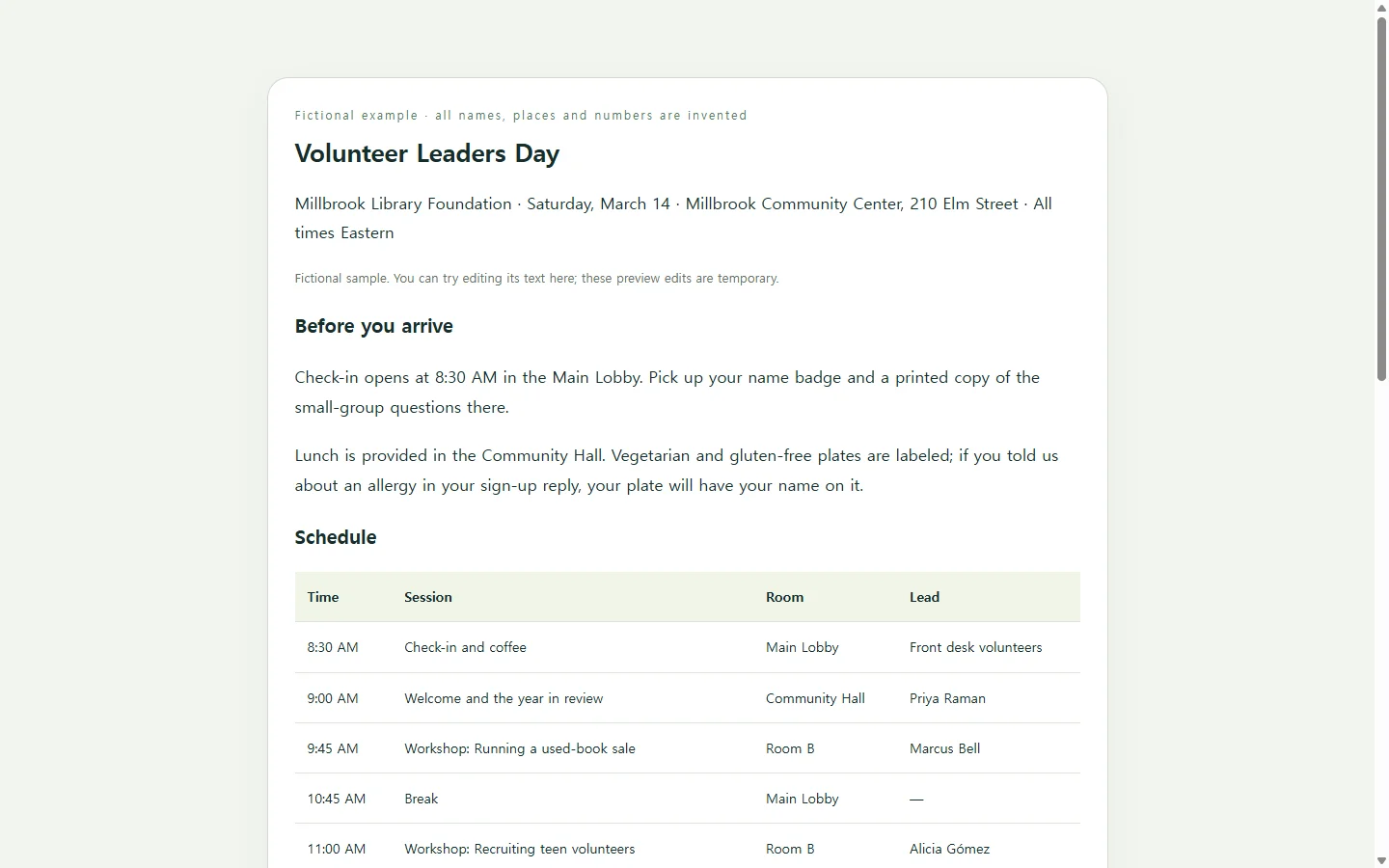
The example below is a fictional one-day event, a library foundation's Volunteer Leaders Day, and every name, time, room and phone number in it is invented. Look at it for proportions rather than content.
The schedule table carries most of the weight, so each row holds only a start time, the session, the room and who leads it. Parking, entrances and accessibility notes sit in short cards below it, because they matter mostly before someone leaves home.
Two small choices are worth borrowing. The room appears in every row, even when it doesn't change, so someone who jumps straight to 1:00 PM doesn't have to scroll up to find it. And the time zone is stated once near the top instead of after every time.
Document, design tool or web page
A Word or Google Docs template is the right call when you need printed handouts, or when a venue, sponsor or employer asks for a PDF or DOCX; send them exactly the file they asked for. A template from a design tool looks finished quickly, though its fixed boxes can fight a schedule that has nine rows instead of five.
A web page suits the copy attendees carry. Built to fit narrow screens, it can be opened from a link in an email or a text message. You can keep both: a file for whoever requires one and a page for everyone attending.
Building your own version with AI
Ask an AI chat assistant for a single HTML file, the kind of file a browser opens as a web page, and you won't need to read the code yourself. Before you open a chat, gather the facts only you have: the date, the address, session times, room names and a day-of contact.
Let the AI handle layout, not facts. The prompt below tells it to write [TBD] wherever a detail is missing rather than guess. When the page comes back, open it on your own phone and check every time and room against your source emails, because a page can look finished and still carry a wrong hour.
When a room changes after the link went out
Say the itinerary went out on Wednesday, and on Friday the venue moves the 1:00 PM workshop from Room B to the Community Hall. If you sent a file, one way to fix it is a corrected attachment and a note asking everyone to use the new one.
If the page lives in NOS, a workspace that keeps notes and HTML pages together, you can edit the room name directly on the rendered page instead of asking an AI to rebuild it. The sharing link you already sent stays the same after the edit, so an attendee opening it on Saturday morning sees Community Hall. They don't need an account to open it.
Anyone who printed the page or took a screenshot still has the old version, so for a room change a one-line heads-up is still worth sending. What the shared page gives you is one place where the schedule lives: when a time or room shifts, you change it there once instead of tracking down copies.
A prompt to adapt
Build a single, self-contained HTML file for a one-day event itinerary that attendees will mostly open on their phones.

Event details. Use only what I give you. If anything is missing, show [TBD] instead of inventing it.
- Event name: [EVENT NAME] (sample: Volunteer Leaders Day)
- Host: [ORGANIZATION] (sample: Millbrook Library Foundation)
- Date and time zone: [DAY, DATE, TIME ZONE] (sample: Saturday, March 14, Eastern Time)
- Venue and full address: [VENUE, STREET, CITY, STATE]
- Arrival notes: [WHICH ENTRANCE, PARKING, WHERE CHECK-IN IS]
- Schedule rows: [START TIME | SESSION | ROOM | WHO LEADS] (sample: 9:00 AM | Welcome and year in review | Community Hall | Priya Raman)
- Day-of contact: [NAME, PHONE, CALL OR TEXT]
- What to bring: [ITEMS]
- Accessibility notes: [STEP-FREE ENTRANCE, ELEVATOR, QUIET ROOM, SEATING]

Layout, in this order:
1. Header with event name, host, date, time zone and venue.
2. Schedule as a real HTML table with a header row: Time, Session, Room, Lead. Repeat the room in every row.
3. Getting there: short cards for parking, entrance, accessibility and day-of contact.
4. What to bring: a plain bulleted list, not interactive checkboxes.

Requirements:
- One HTML file with CSS inside it. No external scripts, fonts, images, maps or tracking.
- No forms, RSVP buttons, submit actions, calendar integrations or anything that sends data.
- Must read well at 360px wide without the page scrolling sideways. On narrow screens, turn each table row into a stacked block with visible labels.
- Body text at least 16px. Strong contrast between text and background. Do not rely on color alone to mark changes or breaks.
- One h1, then h2 for each section, in order. Use a caption or heading for the table.
- Write times like 9:00 AM. State the time zone once near the top.
- Plain, friendly wording. No marketing copy.
Return only the HTML.