To share an HTML file so the other person actually sees the page, give the page an address and send the link.
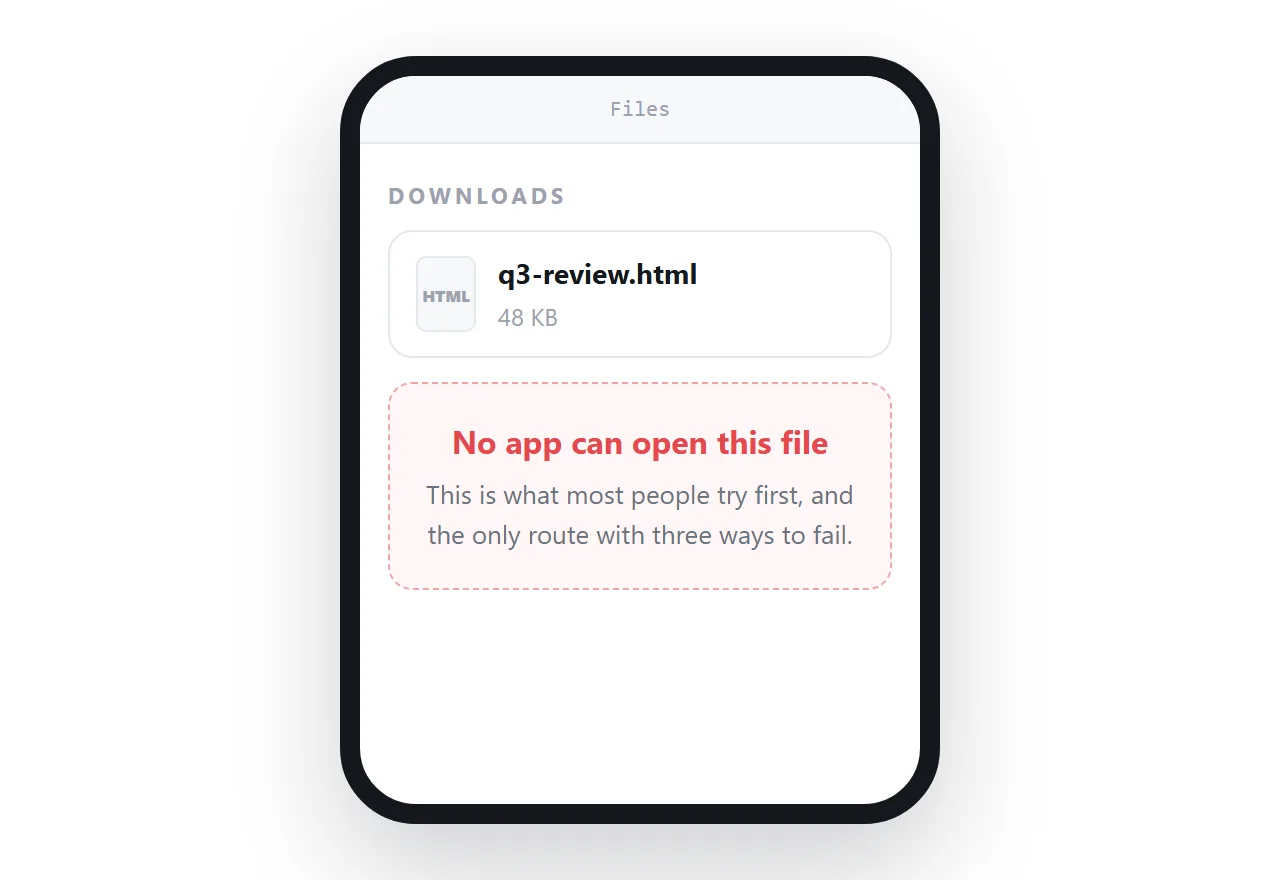
Every other route, the attachment, the drive link, the screenshot, the PDF, loses something on the way: the file gets filtered or lands in a phone's file manager, the drive shows the code, the screenshot cuts off, the PDF freezes.
This guide ranks all six routes by whether the reader sees the page, gives the four steps for the one that works, and ends with the thirty-second checklist to run before you send anything.
Ranked by whether the reader sees the page
| Route | Reader sees the page | What it costs |
|---|---|---|
| A link to a served page | Always | You need an address |
| A link with a preview card | Always, and they notice it | Two meta tags |
| PDF export | Yes | Every interactive part |
| Screenshot | The top of it | Text, numbers, everything below the fold |
| Cloud drive share link | Rarely | Opens a viewer that shows the code |
The .html file itself |
Sometimes | Filters, phones, version drift |
The bottom row is the one most people try first, and it is the only one with three separate ways to fail.
Why the file is the worst option
Three independent problems, any one of which is enough to stop the page being read.
Delivery. HTML attachments are routinely stripped by company mail gateways, because an HTML file with a form and a script is the standard construction for a fake sign-in page. Your file is indistinguishable from that one. Gmail and Outlook themselves let it through, but show the source code in the preview rather than the page.
Opening. On a desktop, the file opens in whatever claims .html, a browser if you are lucky, a code editor otherwise. On a phone it effectively cannot be opened. In Slack or Teams it becomes a file card that nobody clicks.
Staying correct. Every copy is frozen. Find a mistake and you send a second email, and now two versions are circulating with no way for the reader to tell which is current.
How to share an HTML file as a link: 4 steps
- Check the page survives outside your folder. Open it in the HTML file opener, which has never seen your project. If the styling and images survive there, they will survive for the reader. If not, the page reaches for files next to it; self-contained HTML shows how to fold them in.
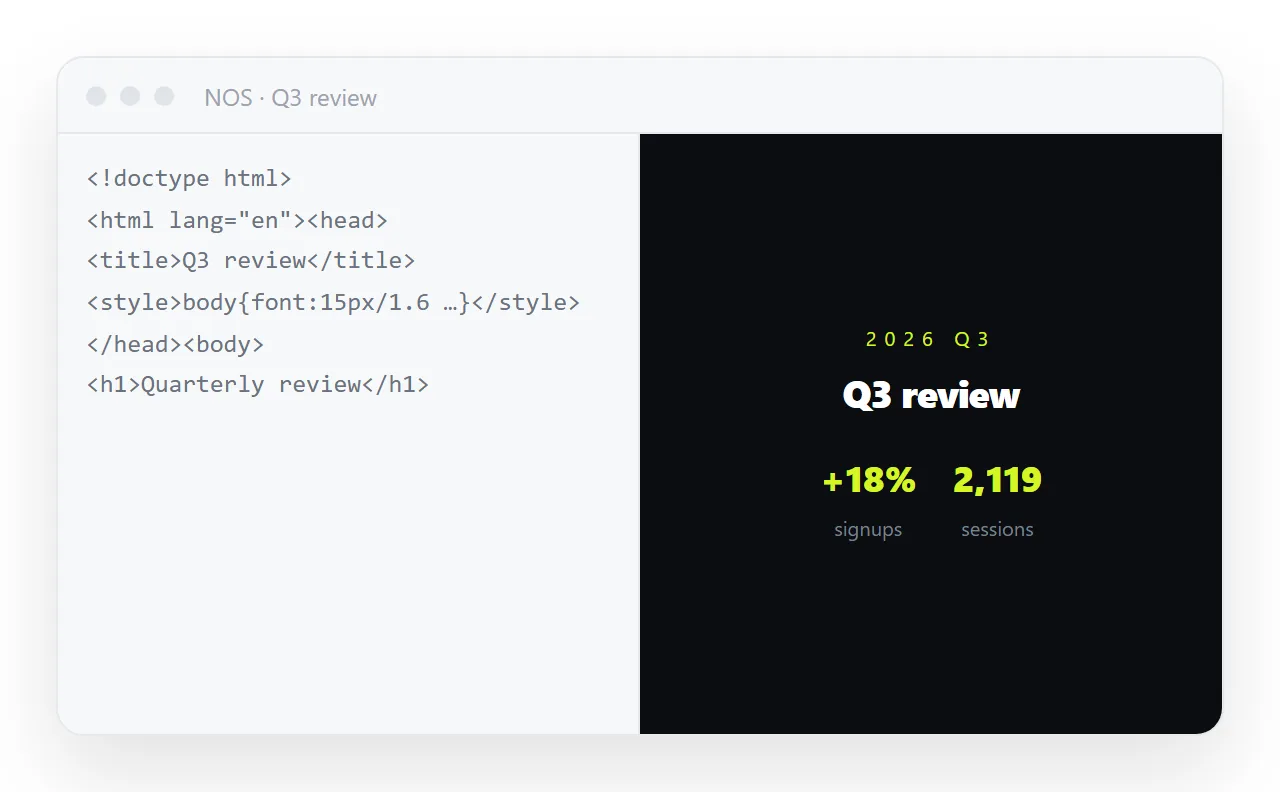
- Paste the HTML into a NOS document. It renders exactly as written, dark theme, charts and scripts included, as a page of its own. Turning HTML into a link is this step.
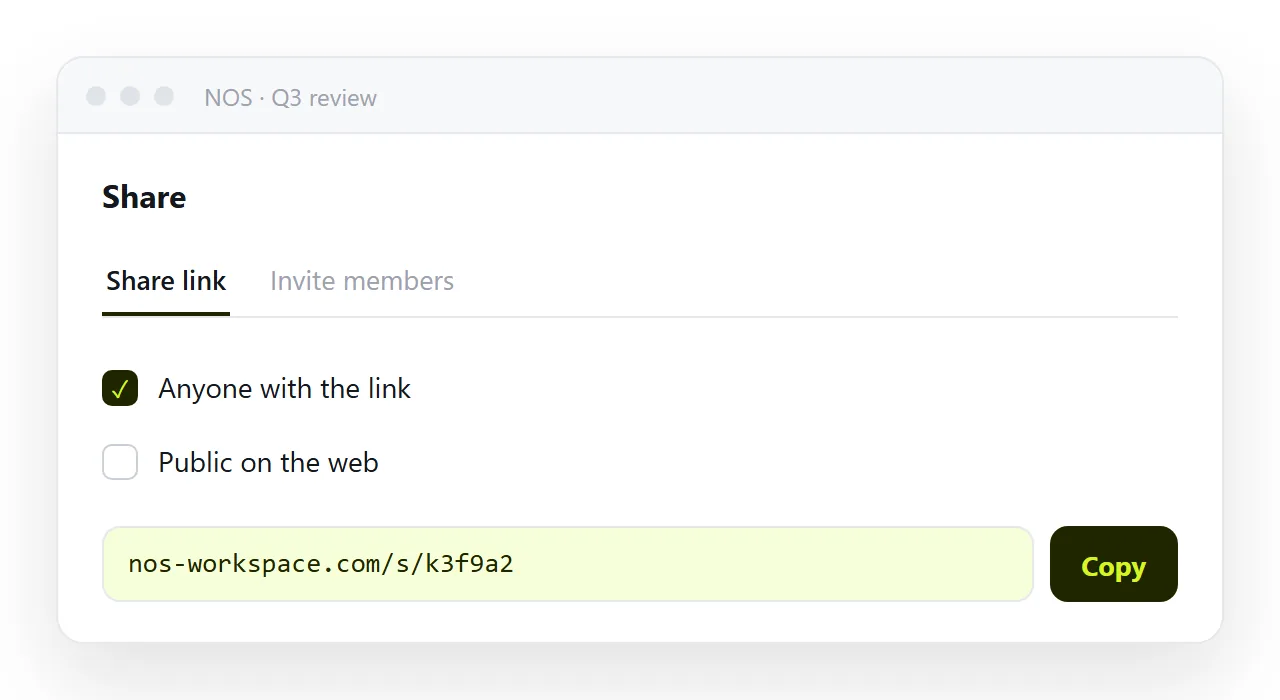
- Copy the share link. Share, then Share link, then Create link. By default the link is unlisted: it works for whoever has it but is not listed anywhere. Leave Public on the web unticked unless you want the page turning up in search results.
- Send the link, and from then on revise the page rather than resending. One line of text passes every filter, opens on a phone, and unfurls into a preview card in chat. When a number changes, fix it by clicking the text in the document. The link already points at the fix.
What "put it at an address" actually requires
Less than it sounds. Three things:
- Somewhere that serves the file as
text/htmlrather than handing it over as a download. - An address that does not change when the content does.
- The page being self-contained, or its neighbour files being served alongside it.
A static file host covers the first and third, and partially the second: the address holds, but every correction is a re-upload, so the unit of work is still the file. A document that renders HTML covers all three and adds the thing files cannot do: the text stays editable without becoming a new file.
The checklist before you send anything
Thirty seconds, and it catches the great majority of "it looks broken for me" replies.
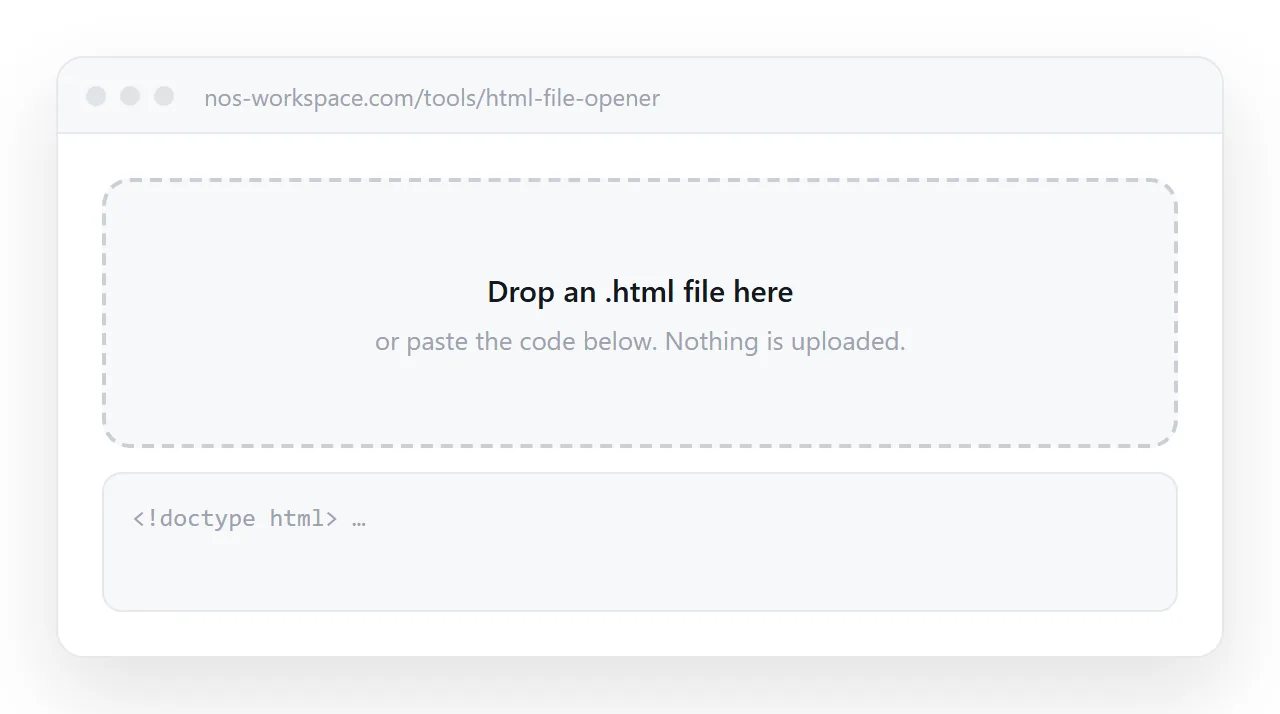
- Does it survive outside your folder? Open it in a window that has never seen your project. Styling and images that survive there will survive for the reader.
- Is there a
<title>? It is what the browser tab and every preview card display. An untitled page reads as spam. - Is the viewport line present?
<meta name="viewport" content="width=device-width,initial-scale=1">. Without it the page is unreadable on a phone, and most readers are on one. - Are the images embedded or on full addresses? Folder paths will not travel.
- Does it need a preview card? If it is going into a channel, add Open Graph tags so the card shows a title and image.
- Is anything in it private? An unlisted link is not a password. Assume it will be forwarded, and invite named people instead if that matters.
Choosing between the good options
| If the content | Send |
|---|---|
| Will never change again, and paper is the destination | A PDF |
| Has numbers that can change | A link |
| Is read weekly by the same people | A link, same address every week |
| Has charts, tabs or sorting worth using | A link |
| Needs to be discussed in a channel | A link with a preview card |
| Must be readable with no network at all | A self-contained file, and expect the problems above |
Notice what is not on this list: there is no case where sending the raw file is the best available option. If you are reaching for it, the reason is usually that you do not have an address yet, which is a one-paste problem, not a reason to spend the afternoon fighting attachment filters.
Sharing HTML that came out of an AI chat
A growing share of the HTML people need to send was written by an assistant. The chat's own share button shows the conversation, or a fixed published version that cannot be edited without regenerating.
The route is the same as for any other HTML: copy the complete file out, check it renders on its own, paste it into a document and send the link. Sharing an artifact and sharing assistant output cover the details.
In NOS the pasted HTML renders exactly as written, the words inside stay clickable and correctable, and the address does not move as the content changes, so the link you sent in March is still the current version in June.