A ChatGPT HTML preview is the fastest way to see whether the code block you were handed is actually a page.
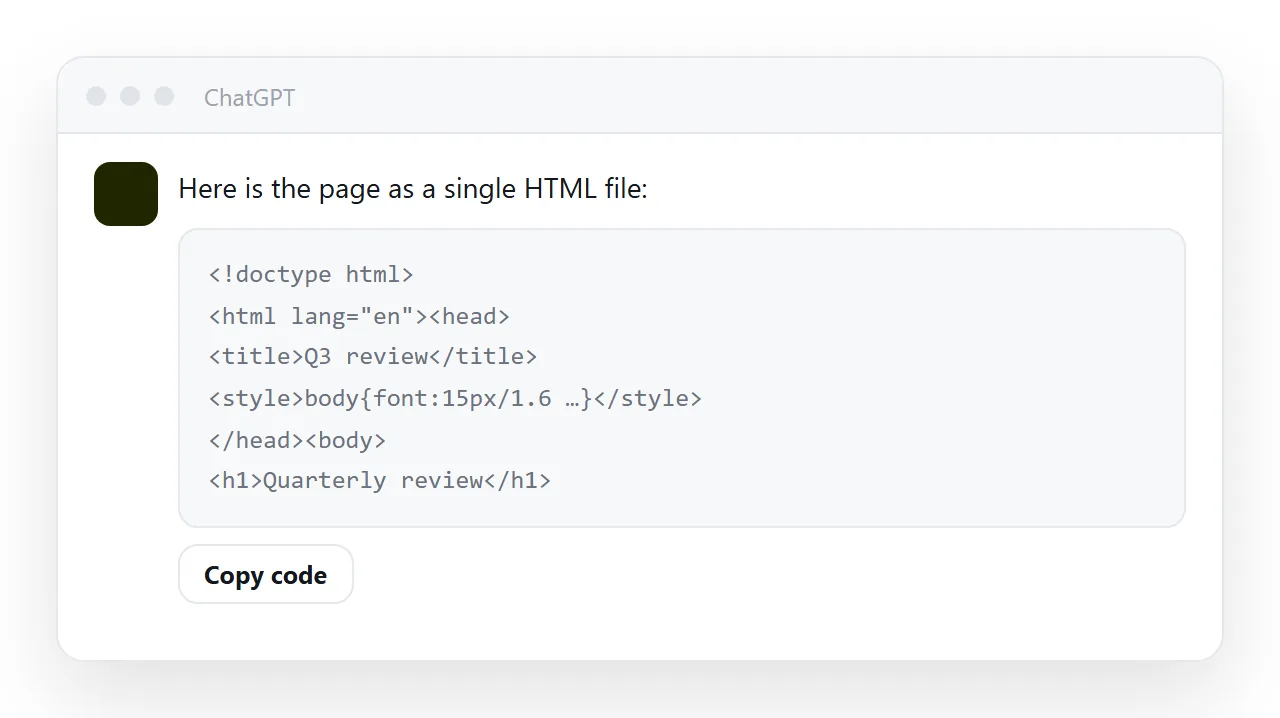
The block itself is not one: pasted into a message it shows as markup, and saved as a file it runs into every attachment problem there is. Since OpenAI retired Canvas in 2026, previewing and then publishing is the route for any HTML the assistant writes.
The gap between the code block and a person reading the page is three checks wide.
Before the ChatGPT HTML preview, check one: is it a whole document?
It has to start with a doctype and end with a closing html tag:
<!DOCTYPE html>
<html lang="en">
<head>...</head>
<body>...</body>
</html>
If what you have starts with <div> or with a <style> block, it is a fragment. Browsers will try to render it and you will get unstyled text. Ask again: "give me the complete HTML file in one block, including doctype and head". Long answers sometimes split the file across two code blocks; if so, ask for it in one.
Check two: does it reach outside itself?
Search the code for src="http, href="http and import. Every hit is a dependency on someone else's address staying alive.
A page that pulls a chart library or a font from elsewhere works today and can be blank in a year, and it will not work at all where outside requests are blocked, which includes many preview panes and embeds.
Ask for it self-contained: "no external libraries, fonts or stylesheets, everything inside the file". See self-contained HTML. An assistant will also invent image addresses it cannot supply; images not showing covers what to do with those.
Check three: does it render?
Paste it into the HTML viewer. Three things to look at:
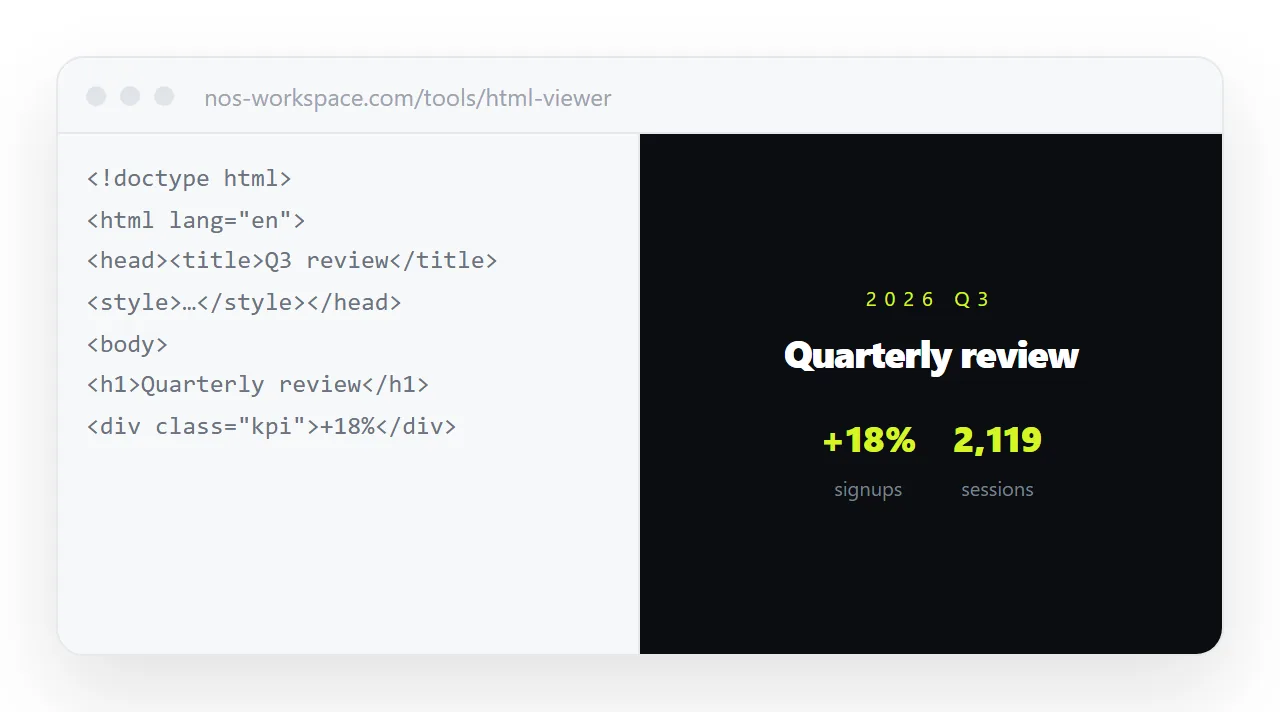
- Does it appear at all? A blank page usually means a script failed on its first line. See when AI HTML does not render.
- Is it styled? Unstyled means the CSS did not come along.
- Does it work at phone width? Narrow the window. If it does not reflow, the viewport line is missing or the layout uses fixed widths.
From code block to link: 4 steps
- Copy the code block with its Copy code button.
- Run the three checks above. The viewer shows all three at once.
- Paste it into a NOS document. It renders exactly as written, scripts included, and the text inside is clickable.
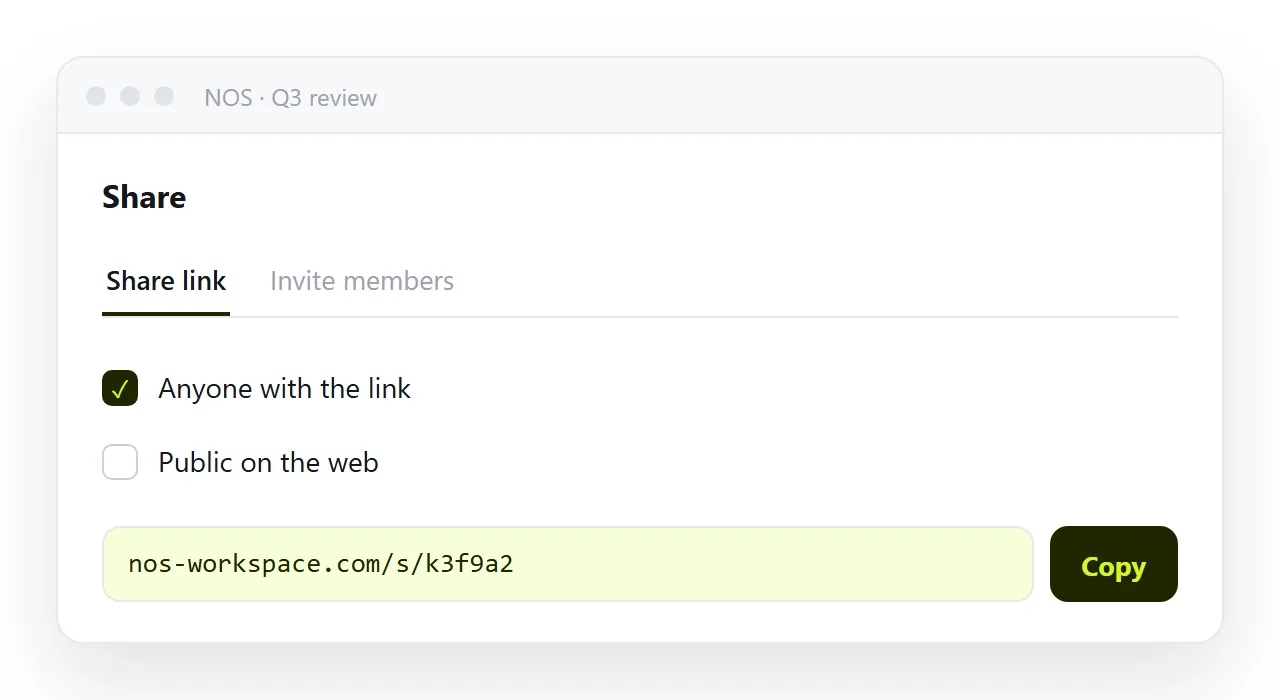
- Copy the share link and send it. Share, then Share link, then Create link. Turning HTML into a link is the whole of this step.
That covers the things sending the code or the file cannot:
| What you send | What the reader gets |
|---|---|
| The code block, pasted into a message | Markup, not a page |
The .html file as an attachment |
Often stripped, and unopenable on a phone |
| A screenshot | The top of it, frozen |
| A link to the conversation | Your prompts and the assistant's drafts around the page, and only for people who can open the chat |
| A link to the page | The page |
What the reader gets from each route
A colleague who receives the code block in a message sees markup and has to know what to do with it.
One who receives the .html file has to get past a mail filter, a download and, on a phone, a file manager with no way to open it.
One who receives a screenshot sees the top of the page and cannot copy a number out of it.
One who receives a link taps it and reads the page, on whatever device they are holding, and sees the corrected version if you fixed something after sending. That is the whole argument for the four steps.
Saving a copy for yourself
The chat is not a filing system. Conversations get long, get archived, and the version you approved is somewhere in the middle.
Once the page is in a document it has a name, a place next to your other documents, and a history of its own.
If you also want the raw file, paste the code into a text editor and save it as .html; the file opener will draw it whenever you need to check it.
What happened to Canvas
Canvas was the side panel where ChatGPT could render HTML and offered a share button. OpenAI removed it from its current models at the end of May 2026 and retired the legacy models that still had it over the following months.
Writing and code now appear as blocks inside the chat itself. If you have old Canvas share links, expect them to stop working; copy the HTML into a page you control instead. The Canvas guide has the details.
Ask for plain HTML, not components
Worth being explicit about in the prompt, because assistants default to component frameworks when the request sounds like an interface. Component code is not something a browser can render; it needs compiling first. For a page that has to be openable by a colleague this afternoon, that is the difference between a two-minute task and a toolchain.
Plain HTML, CSS and vanilla JavaScript. No React, no build step,
no npm. One self-contained file I can open in a browser.
The prompt that removes most of the fixing
Give me one complete, self-contained HTML file.

- doctype, html lang="en", head with charset, viewport and a descriptive title
- all CSS in a single style tag; all JS in a single script tag at the end of body
- no external libraries, fonts, stylesheets or images
- mobile first: one column below 700px, readable at 360px wide
- system font stack
- numbers right-aligned with tabular-nums
Everything in that list is something you would otherwise be fixing by hand. Keep it somewhere and paste it every time. See prompting for an HTML dashboard for the task-specific variants.
Editing afterwards without regenerating
The trap is going back to the conversation for a wording change. Assistants rewrite rather than edit, so asking to fix one date often returns a page with a different layout, and you lose the version you had approved.
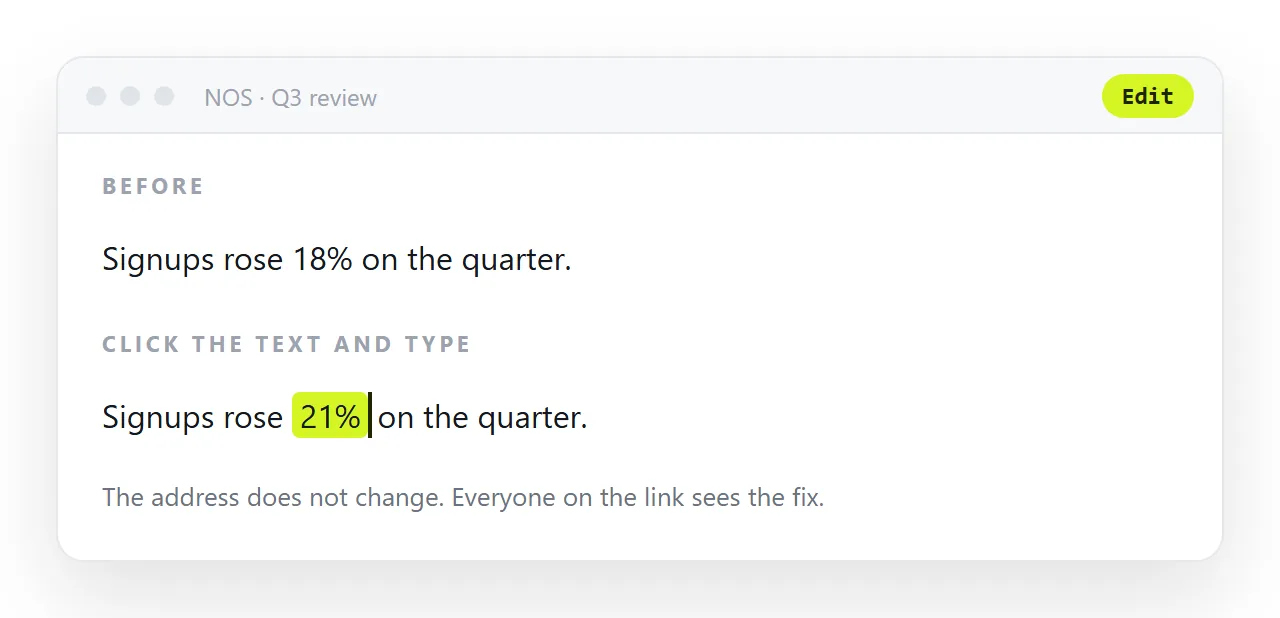
In NOS the pasted HTML renders exactly as written and the text in it is clickable text. The date is fixed by typing over it, the layout is untouched, and the address you already sent keeps pointing at the corrected page. Fixing AI-generated HTML covers the structural problems that do need the code.