There are two ways to share Claude artifacts. Inside Claude, click Publish and copy the public link; anyone can open it without an account, and only the version you published is visible.
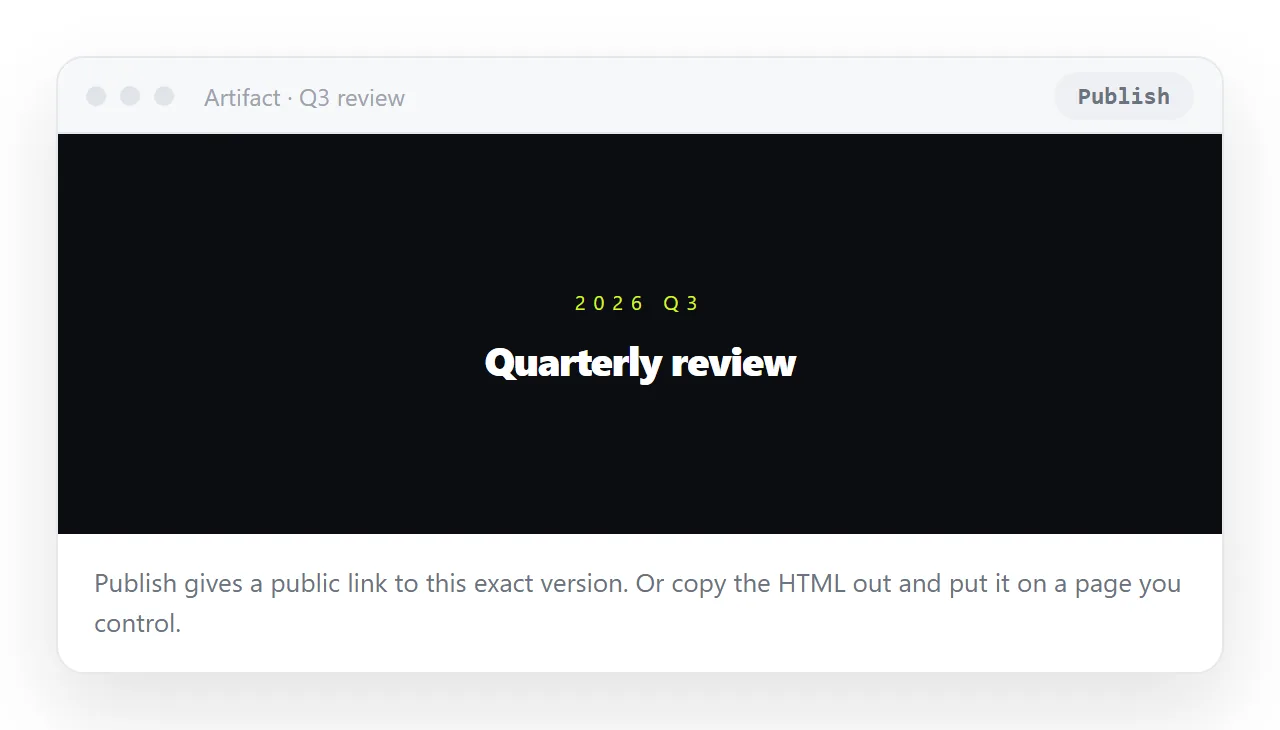
Or copy the HTML out of the artifact and put it on a page you control, which is the better route for anything people will rely on, because the text stays editable and the link stays yours.
This guide covers both, what each one gives up, and the four steps for the second.
Route one to share Claude artifacts: Publish inside Claude
Open the artifact, make sure the version showing is the one you want, click Publish, then Copy the public link. That link opens for anyone, with no Claude account, and the page is interactive. Your conversation stays private; only the selected artifact version is exposed.
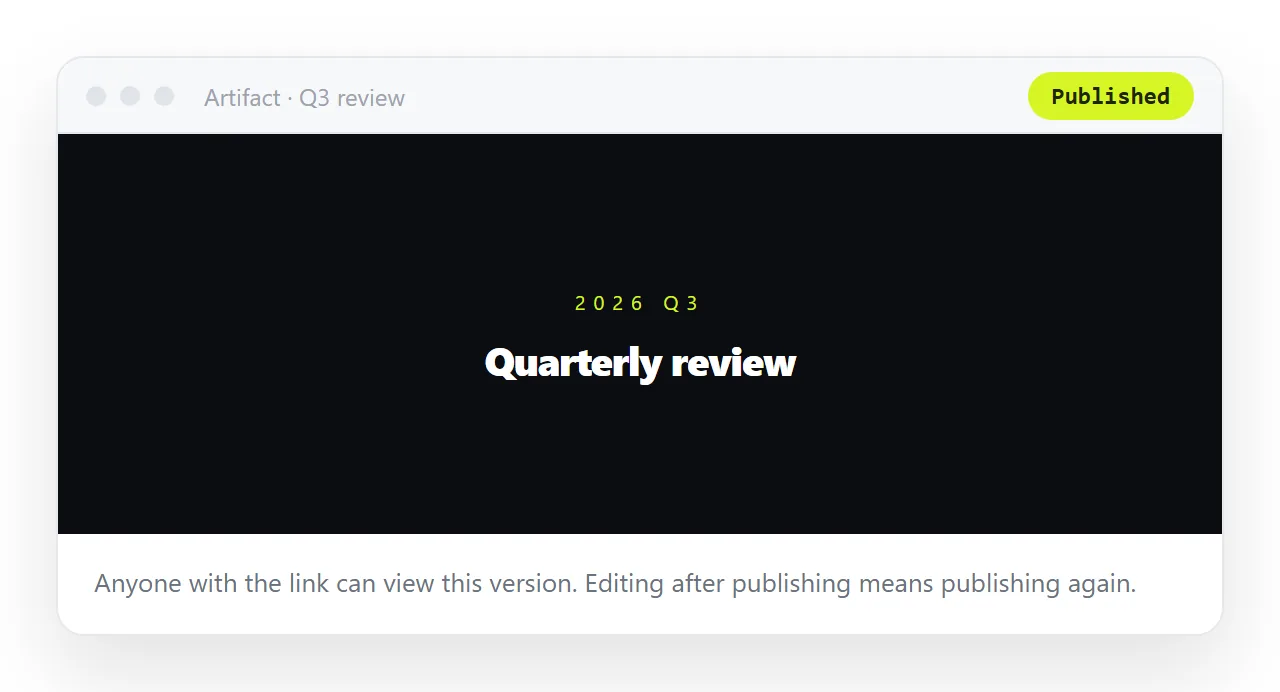
Published artifacts also appear in an Artifacts section in your sidebar, so you can find them later. On Team and Enterprise plans there is a Share & copy link option instead, which limits viewing to people logged into your organisation.
Two limits matter. The published page is a fixed version: keep working in the chat and the link does not change until you publish again, at which point you have a new link to send around.
And it lives in Claude's space, at Claude's address, with Claude's frame around it, which is fine for showing a colleague a prototype and less fine for a report you are handing to a client.
There is an Unpublish button, with a caveat from the help centre that an unpublished artifact cannot be published again.
Use this route for: a quick look, a prototype, something you will not need to correct.
Route two: copy the HTML out and give it your own address
For a page that will be read more than once, corrected, or found again next quarter, take the HTML out of the chat.
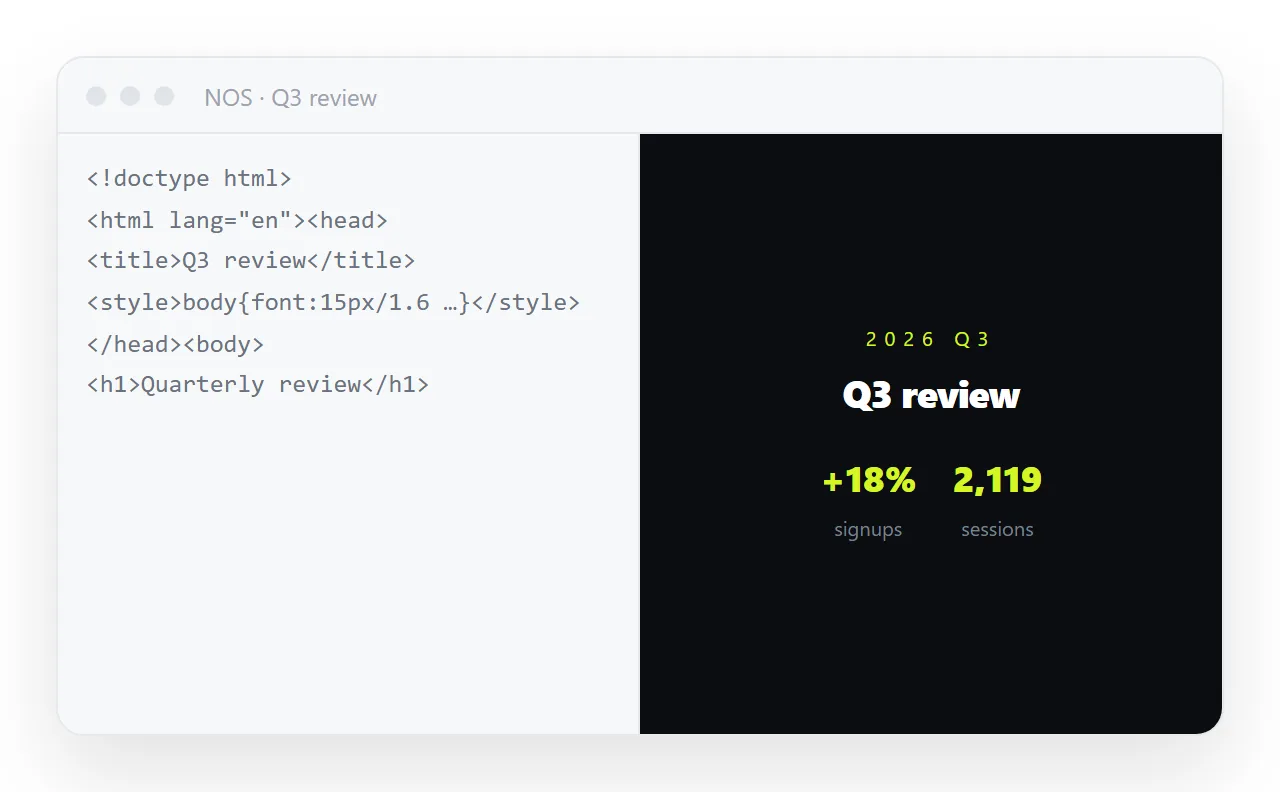
- Get the complete file. Switch the panel to Code and copy the whole thing, or use the Copy button, or Download as .html from the dropdown next to it. What you want is one complete document:
<!DOCTYPE html>
<html lang="en">
<head>
  <meta charset="utf-8">
  <meta name="viewport" content="width=device-width,initial-scale=1">
  <title>Weekly overview</title>
  <style>/* everything here */</style>
</head>
<body>
  <!-- content -->
  <script>/* everything here */</script>
</body>
</html>
If what you copied starts mid-page, a bare <div> or a style block on its own, ask for it again as a single complete file. Assistants will happily give you a fragment when the conversation has been about one section, and a fragment renders as unstyled text everywhere outside the chat. Artifacts written as React components need the same request: ask for plain HTML, CSS and JavaScript in one file.
- Check it on its own. Paste it into the HTML viewer. The chat renders artifacts in a frame with a fixed width; freed from that, your page gets the whole screen. A page sized to the frame may look sparse at full width, and a
max-widthon the content block fixes it. Narrow the window to see it at phone width. - Paste it into a NOS document. It renders exactly as the artifact did, scripts included, and the text inside is clickable text.
- Copy the share link and send it. Share, then Share link, then Create link. The address opens for anyone, without an account, and does not change when you edit.
Why not just share the conversation
Sharing the chat shows the reader your prompts, the assistant's false starts and the reasoning in between. For a colleague debugging with you that is useful.
For a client, an executive, or anyone who just needs the numbers, it is noise wrapped around the thing they wanted, and it makes the page look like a by-product rather than a deliverable.
Conversation links also depend on the chat continuing to exist in your account.
Keeping everything inside one file
While you are asking, ask the assistant to keep everything inside the one file: styles in a <style> tag, scripts in a <script> tag, no references to outside libraries.
A page that loads a chart library from someone else's address works today and is blank the day that address changes, and it will not work at all where outside requests are blocked. Self-contained HTML covers the rest.
The part people get wrong
They publish or paste the HTML onto a static host, get an address, send it, and then find a typo.
Now the only way to fix a word is to go back to the conversation, ask for a change, get a regenerated artifact, and publish or re-upload again. And regeneration is not surgical: asking for one wording change frequently returns a page with a different layout, because the assistant is rewriting rather than editing.
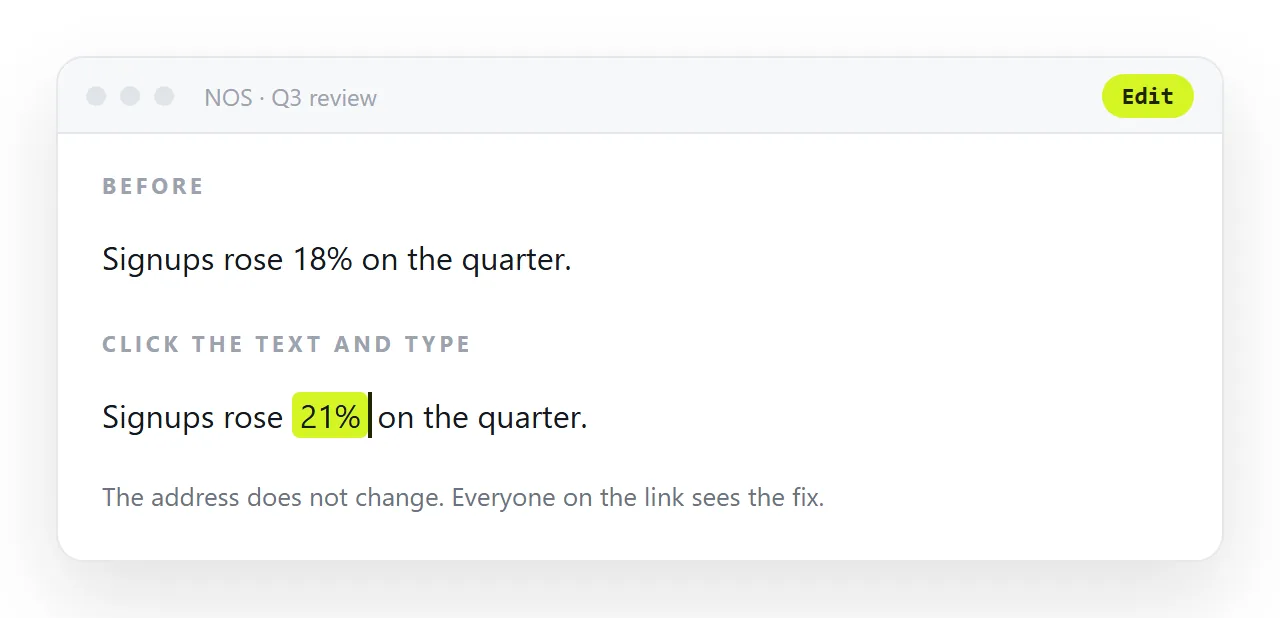
So the second decision matters as much as the first: put the page somewhere the text stays editable. In NOS the pasted HTML renders exactly as written, nothing reformatted, nothing rearranged, and the text inside it is clickable text.
A wrong date is fixed by typing over it. No round trip, no regeneration, no risk of the layout changing under you.
The address stays the same, so anyone already holding the link has the corrected page. Editing AI-generated HTML without code goes through what that looks like.
What the reader sees at each address
A published artifact opens inside a Claude-branded frame: your page in the middle, Claude's header around it, and a prompt to sign up if the reader tries anything that needs the assistant. For a colleague that is fine.
For a client it reads as "made with a chatbot" before they have read a line.
A page at your own address has no frame and no branding but your own, and it unfurls in chat with a title and image of your choosing once the head carries Open Graph tags.
Publish or your own page: the comparison
| Publish in Claude | A NOS document | |
|---|---|---|
| Viewer needs an account | No | No |
| Address is yours | No | Yes |
| Updates after you edit | New link each time | Same link |
| Fix a word without regenerating | No | Yes, click the text |
| Findable with your other documents | In Claude's sidebar | In your workspace |
| Preview card in chat | Depends | Yes, with a title and Open Graph tags |
A prompt worth reusing
Give me the complete HTML file as one block: doctype, head with charset,
viewport and title, all CSS in a style tag, all JS in a script tag.
No external libraries or fonts. Plain HTML, not React. Mobile-first,
one column under 700px.
That one paragraph removes most of what otherwise needs fixing by hand afterwards. See prompting for an HTML dashboard for the variants worth keeping, and saving a Claude artifact for keeping a copy outside the chat.